How to Work with Dynamic CAPTCHA Parameters: A Complete Guide
Learn what dynamic CAPTCHA parameters are, how to identify and extract them, and how to solve CAPTCHAs with changing data.

CAPTCHA and Other Website Protection Methods
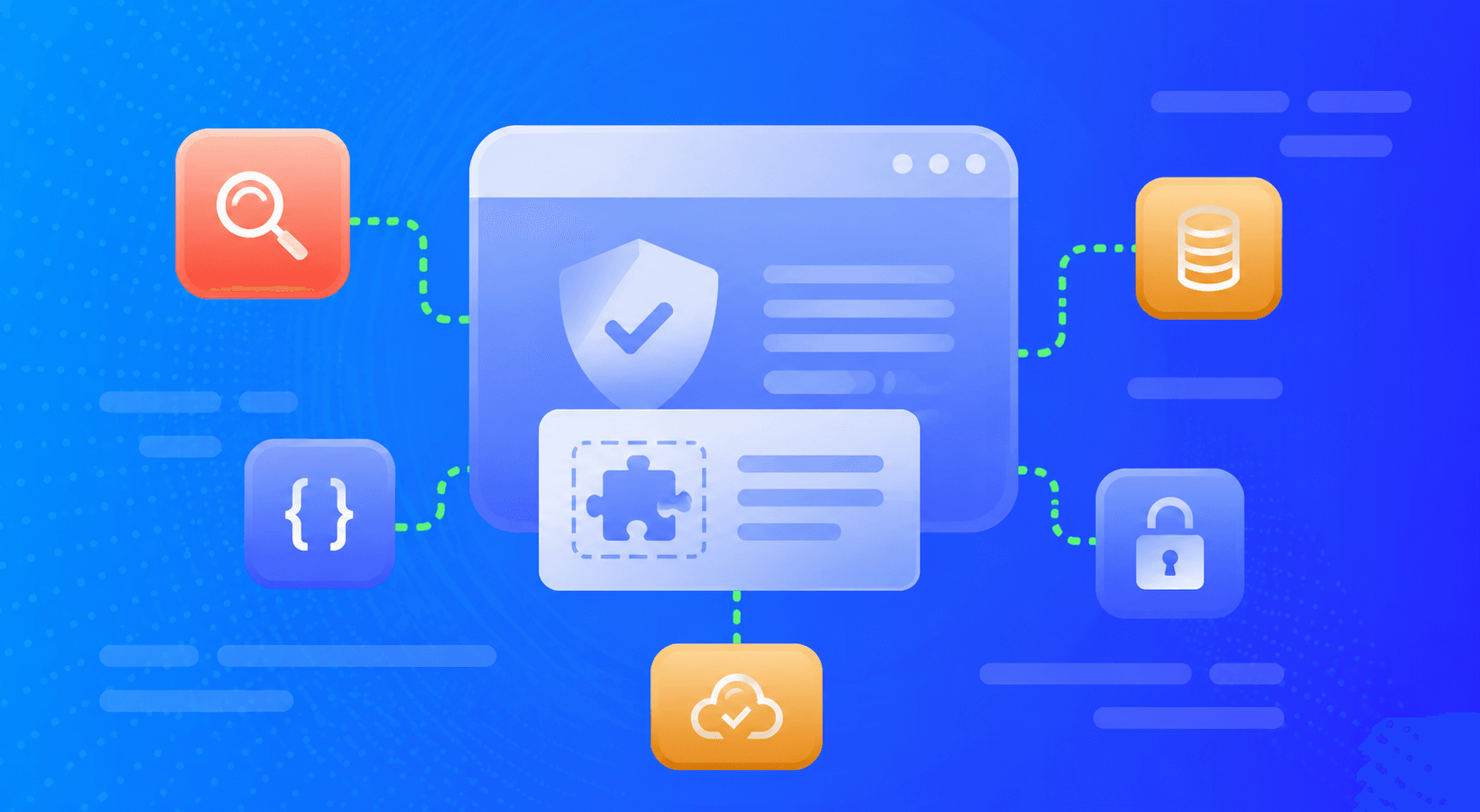
Today, it is difficult to imagine modern web resources without certain security mechanisms, such as CAPTCHA — a verification method that confirms a visitor is a real person rather than a bot that may pose a potential threat. In the past, these were mainly text-based CAPTCHAs, where users had to enter characters displayed in an image or answer simple questions. Over time, user verification systems and website protection mechanisms have become increasingly sophisticated and more difficult for automated programs to bypass. At the same time, developers strive to minimize inconvenience for legitimate visitors — users may not even realize such protection is in place, as verification often takes place in the background without any direct interaction.
Today, verification is based not so much on passing a specific test as on analyzing a combination of factors, including user behavior, browser characteristics, network requests, and much more. A website may check cookies, device fingerprints, JavaScript execution, and display an additional CAPTCHA when suspicious activity is detected.
What Are Dynamic CAPTCHA Parameters
An additional layer of protection is provided by so-called dynamic parameters. These parameters are generated and updated with every CAPTCHA request. They serve as unique identifiers for each verification session. Unlike static parameters (for example, sitekey), which remain unchanged, dynamic parameters are refreshed every time a CAPTCHA is requested. This means that an automated system cannot simply reuse previously obtained values to successfully pass the verification process.
How These Measures Protect Against Bots
Each time a user requests a CAPTCHA, the server generates a new set of data (for example, challenge, context, token, and others) that is unique to that specific session.
These parameters prevent the reuse of responses and may contain information about the user, the session, and timestamps. Even if a bot is able to solve one CAPTCHA, repeating the same process with different dynamic parameters is significantly more difficult and may require substantial computational resources.
By analyzing session-related and behavioral data, a website can detect bot activity and temporarily block suspicious devices, even without presenting a CAPTCHA challenge.
These methods are designed to ensure that only legitimate users can pass through the “turnstile,” while bots are either blocked or face significant obstacles when attempting to bypass the protection mechanisms.
Types of Dynamic Parameters
Dynamic CAPTCHA parameters vary depending on the solution, the vendor, and the specific protection system being used. They are generated during a session or after it has been completed. Let's take a look at the main types of dynamic parameters:
- Challenge — this is the actual CAPTCHA task that the user must solve to verify their identity. It can take various forms, including text-based challenges, image selection tasks, or specific actions that need to be performed. The challenge is generated by the server when the page loads and represents a unique task for each request. The user solves the challenge, after which the server verifies the response and, if it is correct, allows the user to continue interacting with the website.
- Token is used to verify the user's session and confirm that the request originates from a legitimate user rather than a bot. Tokens may be generated on the server side and passed to the client for use during the CAPTCHA-solving process. A token is typically generated when a session starts or whenever a CAPTCHA request is made, and after the CAPTCHA is successfully completed, it is sent back to the server for validation.
In addition to challenge and token, there are extra parameters that may be specific to particular CAPTCHA types. Here are some examples:
context (used, for example, in AWS WAF) — contains unique values associated with the user's current session. It is generated within the window.gokuProps script:
window.gokuProps = {
            "key":"",
            "iv":"",
            "context":""
        };
geetest_challenge or challenge (used in GeeTest v.3) — a CAPTCHA identifier that links a user's request to a specific verification session. It is generated in a URL similar to the following (note that this URL contains a timestamp to prevent request caching):
https://example.com/api/v1/gee-test/init-params?t=1730640766594
GeeTest v.3 also uses the following parameters:
- geetest_validate — a code that confirms the CAPTCHA has been solved correctly. It is generated after successful completion of the CAPTCHA and verifies that the challenge was passed.
- geetest_seccode — an additional security code that confirms successful completion of the challenge.
- dataDome cookie (used in DataDome) — a cookie generated by the DataDome system to track and verify users for automated activity, updated according to user behavior.
- g-recaptcha-response (used in reCAPTCHA) — a token obtained after successfully completing the CAPTCHA, which must then be submitted to the server.
- cf_clearance (used in Cloudflare verification systems) — a cookie generated after successfully completing a CAPTCHA challenge, allowing access to the protected resource.
It is also worth mentioning parameters such as:
- s (or sentinel/motionData) — may contain information about mouse movements and interactions with the CAPTCHA.
- v (version) — specifies the CAPTCHA version, which may be updated on the server and require a fresh value for each session.
The examples above represent only a portion of the parameters that change with each session. In reality, there are many more of them, and they differ depending on the type of verification system (CAPTCHA) being used. Understanding their existence is important for further analysis and successful CAPTCHA solving.
Finding Dynamic Parameters and Working with Developer Tools
| Important: the information below is provided solely for educational purposes, testing, and automation of your own websites, applications, or resources to which you have authorized access. |
If you use CAPTCHA-solving services such as CapMonster Cloud, their documentation sections dedicated to specific CAPTCHA types usually indicate which parameters are dynamic and where exactly they are generated in the code. This information is necessary to extract the values and subsequently use them when solving a CAPTCHA through the service. It is also helpful to have basic experience with Developer Tools so that you can quickly locate the values of the required parameters.
To begin, let's define the main methods used to generate such parameters:
1. Using JavaScript (client-side)
When you open a page containing a CAPTCHA, a script is loaded that tracks your actions—mouse movements, clicks, and keystrokes. JavaScript generates parameters, including certain elements and forms, intermediate verification windows (as in the case of Cloudflare Challenge), random numbers, interaction data, and device information. This data is then encrypted or processed and sent to the server.
2. Using an API (server-side)
During CAPTCHA request processing, the server may add useful parameters, such as session identifiers or hashed values. The API may also return parameters required to create a new CAPTCHA session—these are automatically refreshed on the server for each attempt.
For clarity, let's examine both approaches. As examples, we'll use Amazon CAPTCHA with context generation via JavaScript and GeeTest v.3 with challenge key generation through an API:
Amazon (AWS WAF)
In this CAPTCHA type, important parameters (including the dynamic context) are loaded through a dedicated client-side protection script:
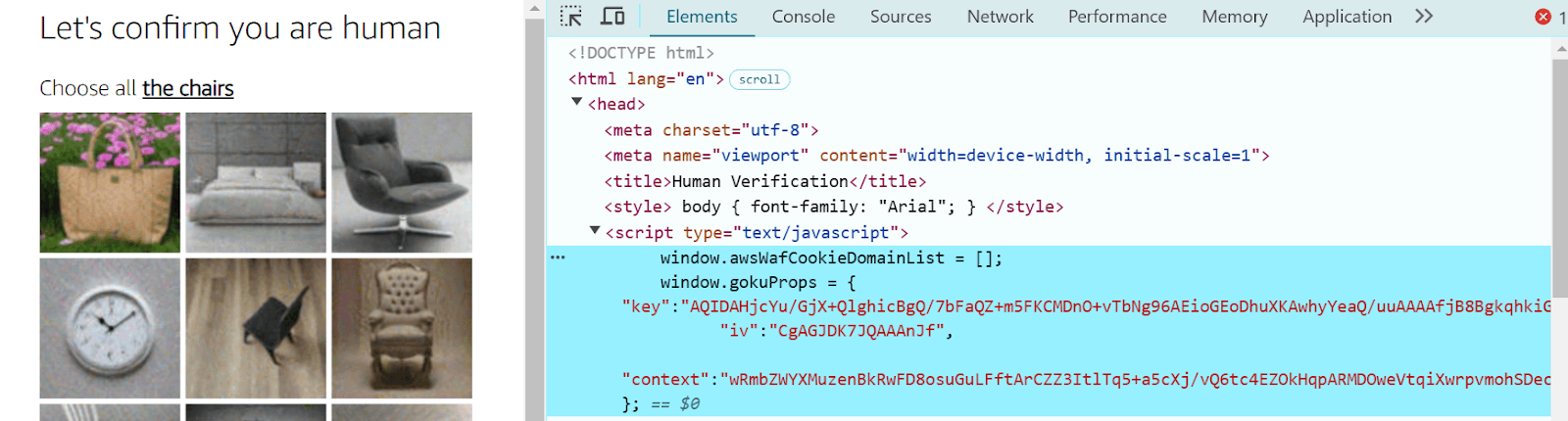
You can locate it using Developer Tools among the elements on the target page.
GeeTest v.3
In this case, CAPTCHA parameter generation happens via an API, and the required URL can be tracked in the requests under the Network tab:
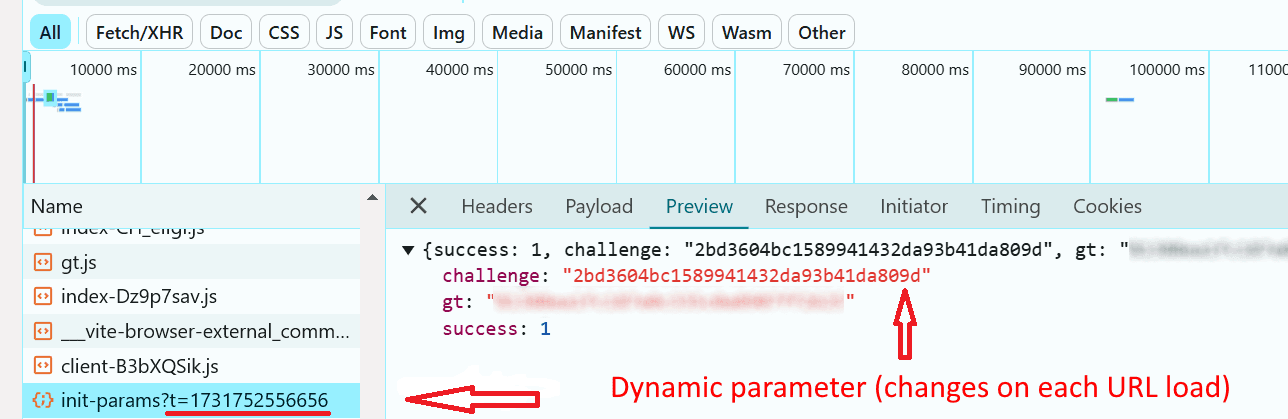
A timestamp is also generated there to ensure that the request is tied to a specific moment in time.
How to Determine Which Parameters Are Dynamic
You can identify required parameters by analyzing requests and responses between the browser and the server. Here are the main methods and a step-by-step approach:
- Developer Tools:
- Open a webpage containing a CAPTCHA;
- Press F12 and go to the Network tab;
- Find requests related to the CAPTCHA (usually requests to CAPTCHA providers’ servers, such as api.geetest.com, etc.);
- Check the parameters sent in these requests, for example: ?t=123456789123;
- Compare multiple requests;
- Refresh the page several times;
- Compare the parameters. If values change between requests, they are dynamic;
- Find JavaScript calls
- Look in DevTools under the Sources or Elements tabs. Check which scripts are loaded;
- Identify the generation of parameters such as timestamp, context, challenge, etc.;
- Search for keywords: JavaScript code often contains functions that generate dynamic parameters;
- Analyze server requests. Some parameters are generated by the server. These values must be stored and used in subsequent requests. If the request sequence is broken (for example, due to outdated cookies), the server may reject the verification.
- Sniffers and proxy tools for analysis
These tools (such as Charles Proxy) allow you to inspect requests, identify dynamic parameters, and test changes. They help understand the logic behind them and verify how the server processes modified requests.
Their functionality includes:
- Capturing CAPTCHA-related requests to the server (e.g., with parameters like t, challenge, context).
- Inspecting headers, URL parameters, request bodies, and cookies to identify key values.
- Modifying parameters (e.g., tokens) to test their impact on server responses.
- Testing how the server reacts to modified data.
- Download and install Charles Proxy.
- Enable SSL Proxying via Proxy → SSL Proxying Settings. Add the CAPTCHA domain.
- Launch Charles and open the browser with the page where the CAPTCHA is loaded.
- Navigate to the page to start recording requests.
- In the Structure tab, find requests to CAPTCHA services (for example, www.google.com/recaptcha/api.js).
- Open the requests/responses and analyze the parameters passed within them (token, sitekey, challenge, cookies, etc.).
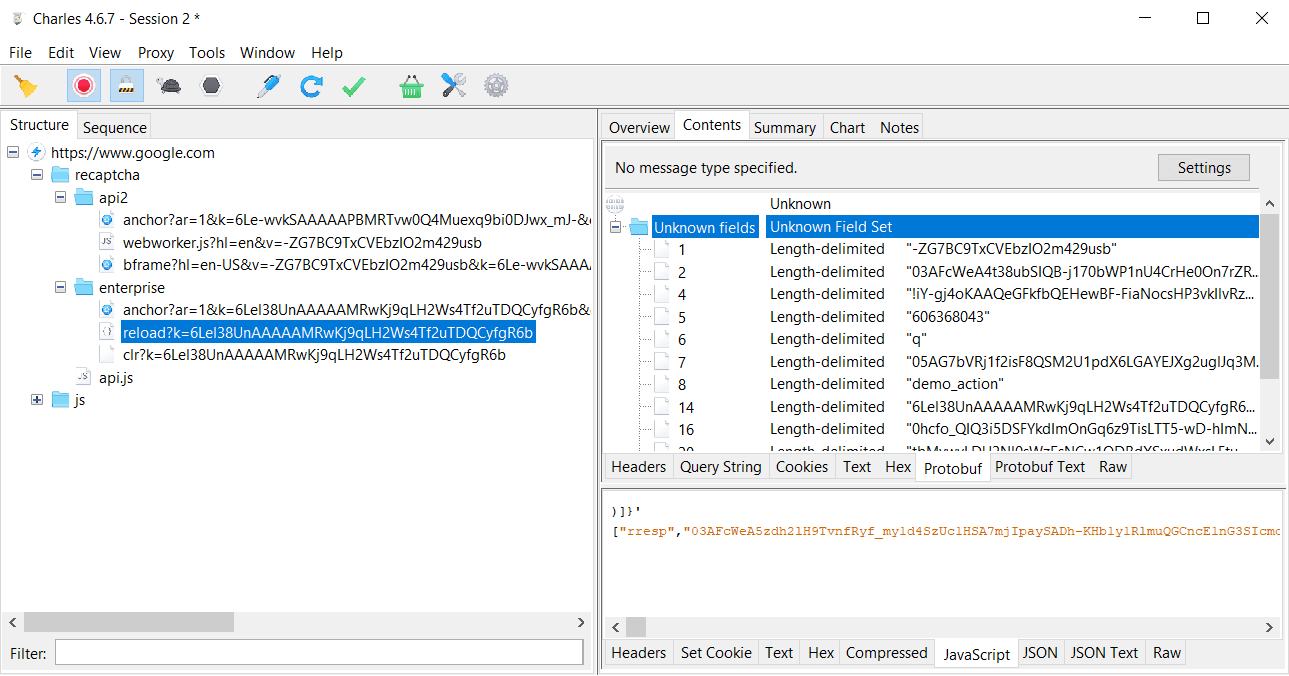
Analyzing CAPTCHA parameters in Charles Proxy
Automation with Tools: Using Selenium, Puppeteer, and Playwright
Another way to analyze CAPTCHA data and, in combination with other tools, automate their handling is through browser emulators such as Selenium, Puppeteer, and Playwright.
General Capabilities of Selenium, Puppeteer, and Playwright
Automation. All three tools allow you to control browsers and perform typical user actions such as clicking, typing text, navigating pages, etc. All of this can be fully automated.
Support for dynamic content. Selenium, Puppeteer, and Playwright can work with JavaScript, which allows them to handle dynamically loaded page elements.
Testing. They are widely used for automating testing of various web applications.
How Browser Emulators Help Identify Dynamic Content
Element waiting. You can configure waiting for elements to load, which allows you to capture data after the page has fully loaded.
Response analysis. They allow intercepting network requests to see changes in data coming from APIs.
Script execution access. Using built-in features (for example, in Puppeteer), you can execute JavaScript to extract information from dynamically loaded elements.
Methods and Parameters for Working with Dynamic Content:
Selenium
DOM element interception
Use methods such as find_element_by_xpath or find_element_by_css_selector to access values related to CAPTCHA.
JavaScript execution
Execute JavaScript directly using driver.execute_script().
Request logging via proxy
Integration with BrowserMob Proxy for analyzing network traffic.
You can extract request headers, bodies, tokens, and CAPTCHA parameters.
Puppeteer
Request and response interception
Use page.on('request') and page.on('response') to capture network traffic.
Dynamic DOM values
Using methods such as page.evaluate(), analyze parameters at the page level.
Cookies and localStorage
Use page.cookies() or page.evaluate() to analyze storage data.
Playwright
Network requests
page.on('request') and page.on('response') for monitoring network data.
DOM analysis
page.locator() for extracting data from elements.
JavaScript execution
Use page.evaluate() to analyze and extract parameters from scripts.
Using CapMonster Cloud
After you have analyzed and identified all the necessary CAPTCHA parameters, the next step is to use CapMonster Cloud to create and send a task to the server in order to automatically solve the CAPTCHA. Integrating this tool into your code is very simple. The service supports programming languages such as Python, JavaScript, and C#. All you need to do is choose the appropriate language and install the official library to use it.
Example of integrating CapMonster Cloud in Python code:
- First, register in CapMonster Cloud and obtain an API key to access the service.
- Install the library
For Python, install the official library via pip:
pip install capmonstercloudclient- In your code, create a task to solve the CAPTCHA and get the result. Example of solving reCAPTCHA v2 in Python:
# https://github.com/CapMonsterCloud/capmonster-python-captcha-solver

import asyncio
from capmonstercloudclient import CapMonsterClient, ClientOptions
from capmonstercloudclient.requests import RecaptchaV2Request
# from capmonstercloudclient.requests.baseRequestWithProxy import ProxyInfo  # Uncomment if you plan to use proxies

API_KEY = "YOUR_API_KEY"  # Specify your CapMonster Cloud API key

async def solve_recaptcha_v2():
    client_options = ClientOptions(api_key=API_KEY)
    cap_monster_client = CapMonsterClient(options=client_options)

    # Basic example without proxy
    # CapMonster Cloud automatically uses its own proxies
    recaptcha2_request = RecaptchaV2Request(
        websiteUrl="https://lessons.zennolab.com/captchas/recaptcha/v2_simple.php?level=high",
        websiteKey="6Lcg7CMUAAAAANphynKgn9YAgA4tQ2KI_iqRyTwd"
    )

    # Example of using your own proxy
    # Uncomment this block if you want to use a custom proxy
    # proxy = ProxyInfo(
    #     proxyType="http",
    #     proxyAddress="123.45.67.89",
    #     proxyPort=8080,
    #     proxyLogin="username",
    #     proxyPassword="password"
    # )

    # recaptcha2_request = RecaptchaV2Request(
    #     websiteUrl="https://lessons.zennolab.com/captchas/recaptcha/v2_simple.php?level=high",
    #     websiteKey="6Lcg7CMUAAAAANphynKgn9YAgA4tQ2KI_iqRyTwd",
    #     proxy=proxy,
    #     userAgent="Mozilla/5.0 (Windows NT 10.0; Win64; x64) AppleWebKit/537.36 (KHTML, like Gecko) Chrome/148.0.0.0 Safari/537.36"
    # )

    # You can check balance if needed
    balance = await cap_monster_client.get_balance()
    print("Balance:", balance)

    result = await cap_monster_client.solve_captcha(recaptcha2_request)
    print("Solution:", result)

asyncio.run(solve_recaptcha_v2())| For detailed information about CAPTCHA types and the parameters required to create a solving task, refer to the documentation. |
- After receiving the solution, send it to the web page in the form where verification is required.
Examples of Extracting Dynamic Parameters and Solving CAPTCHAs
This section presents examples of extracting dynamic parameters and solving various types of CAPTCHAs using JavaScript (Node.js), Python, and C#.
Automation is implemented using Selenium or built-in HTTP requests depending on the type of verification.
Important: before starting, review the full list of required parameters in the CapMonster Cloud documentation: |
GeeTest v3 (with dynamic parameters retrieved via API):
This type of CAPTCHA contains dynamic parameters required for sending a request to the CapMonster Cloud server. The parameters are generated via an API using a URL of the following form: https://example.com/api/v1/gee-test/init-params?t=${t}. In this case, no additional browser automation tools are required — you can use built-in Fetch (for Node.js), Requests (for Python), and Newtonsoft.Json (for C#).
Node.js
Show code
// https://github.com/CapMonsterCloud/capmonster-nodejs-captcha-solver


// Import required dependencies
import { CapMonsterCloudClientFactory, ClientOptions, GeeTestRequest } from '@zennolab_com/capmonstercloud-client';

async function run() {
// Create CapMonster Cloud client
  const cmcClient = CapMonsterCloudClientFactory.Create(new ClientOptions({
    clientKey: 'your_api_key', // Replace with your CapMonsterCloud API key
  }));

  // Get captcha parameters via API
  const t = new Date().getTime();
  const response = await fetch(`https://example.com/api/v1/gee-test/init-params?t=${t}`);  // Retrieve dynamic GeeTest captcha parameters via API. Make sure you are using the correct URL for your case
  const data = await response.json();

  const { challenge, gt } = data;

  const geeTestProxylessRequest = new GeeTestRequest({
    websiteURL: "https://example.com", // Captcha page URL
    gt: gt, // gt parameter obtained via API
    challenge: challenge, // challenge parameter obtained via API
  });

  const solutionResponse = await cmcClient.Solve(geeTestProxylessRequest);

  if (!solutionResponse || !solutionResponse.solution) {
    throw new Error('Captcha not solved.');
  }

  console.log('Captcha solved:', solutionResponse.solution);
}

run()
  .then(() => {
    console.log('DONE');
    process.exit(0);
  })
  .catch((err) => {
    console.error(err);
    process.exit(1);
  });
Python
Show code
// https://github.com/CapMonsterCloud/capmonster-python-captcha-solver

# Import required dependencies
import requests
import asyncio
import time
from capmonstercloudclient import CapMonsterClient, ClientOptions
from capmonstercloudclient.requests import GeetestRequest

async def run():
    # Create CapMonster Cloud client
    client_options = ClientOptions(api_key='your_api_key')  # Replace with your CapMonsterCloud API key
    cmc_client = CapMonsterClient(options=client_options)

    # Get captcha parameters via API
    t = int(time.time() * 1000)  # Get current timestamp in milliseconds
    response = requests.get(f'https://example.com/api/v1/gee-test/init-params?t={t}')
    data = response.json()

    challenge = data.get('challenge')
    gt = data.get('gt')

    if not challenge or not gt:
        raise ValueError('Failed to obtain captcha parameters.')

    # Create captcha solving request
    gee_test_proxyless_request = GeetestRequest(
        websiteUrl='https://example.com',  # Captcha page URL
        gt=gt,
        challenge=challenge
    )

    # Send captcha solving request
    solution_response = await cmc_client.solve_captcha(gee_test_proxyless_request)

    if not solution_response or not solution_response:
        raise ValueError('Captcha not solved.')

    print('Captcha solved:', solution_response)

asyncio.run(run())
C#
Show code
// https://github.com/CapMonsterCloud/capmonster-dotnet-captcha-solver

// Import CapMonster Cloud library and required dependencies
using Zennolab.CapMonsterCloud.Requests;
using Zennolab.CapMonsterCloud;
using Newtonsoft.Json;

class Program
{
    static async Task Main(string[] args)
    {
        // Client setup with your CapMonster Cloud API key
        var clientOptions = new ClientOptions
        {
            ClientKey = "your_api_key" // Replace with your CapMonster Cloud API key
        };

        // Creating CapMonster Cloud client with the specified settings
        var cmCloudClient = CapMonsterCloudClientFactory.Create(clientOptions);

        // Creating HTTP client for sending requests
        using var httpClient = new HttpClient();

        // Getting current timestamp for the request
        var timestamp = DateTimeOffset.UtcNow.ToUnixTimeMilliseconds();

        // Forming URL to get dynamic GeeTest captcha parameters
        var requestUrl = $"https://example.com/api/v1/captcha/gee-test/init-params?t={timestamp}";

        // Sending request and receiving response as string
        var response = await httpClient.GetStringAsync(requestUrl);
        dynamic data = JsonConvert.DeserializeObject(response);

        // Creating GeeTest captcha solving request with obtained parameters
        var geetestRequest = new GeeTestRequest
        {
            WebsiteUrl = "https://example.com/demo/geetest", // Captcha page URL
            Gt = data.gt, // gt parameter obtained from response
            Challenge = data.challenge // challenge parameter obtained from response
        };

        // Sending captcha solving request and receiving result
        var geetestResult = await cmCloudClient.SolveAsync(geetestRequest);

        Console.WriteLine($"Captcha solution:\nChallenge: {geetestResult.Solution.Challenge}\nValidate:  {geetestResult.Solution.Validate}\nSecCode:   {geetestResult.Solution.SecCode}");
    }
}
Cloudflare Challenge
When working with CapMonster Cloud, you can choose one of two ways to obtain the result: a token or a cf_clearance cookie, which can be used for subsequent requests to the target page or injected into a browser session.
In the example below, we will show how to use Selenium to extract parameters and generate a solution to obtain a token, and for obtaining the cf_clearance cookie we will use HTTP requests.
Method 1. Token
Node.js
Show code
// https://github.com/CapMonsterCloud/capmonster-nodejs-captcha-solver

// Import required libraries
import { Builder } from "selenium-webdriver";
import { Options } from "selenium-webdriver/chrome.js";
import { CapMonsterCloudClientFactory, ClientOptions, TurnstileRequest } from "@zennolab_com/capmonstercloud-client";

(async function example() {
  // Create Chrome options object
  const options = new Options();

  // Create and start Chrome WebDriver
  const driver = await new Builder()
    .forBrowser("chrome")
    .setChromeOptions(options) // Set Chrome options
    .build();

  let params = null; // Variable to store captcha parameters

  try {
    while (!params) {
      // Open captcha page
      await driver.get(
        "https://example.com/challenge-page",
      ); // URL of the captcha page

      // Execute JavaScript on the page to capture captcha parameters
      await driver.executeScript(`
        window.turnstile = new Proxy(window.turnstile, {
          get(target, prop) {
            if (prop === 'render') {
              return function(a, b) {
                let p = {
                  websiteKey: b.sitekey,
                  websiteURL: window.location.href,
                  data: b.cData,
                  pagedata: b.chlPageData,
                  action: b.action,
                  userAgent: navigator.userAgent
                };

                console.log(JSON.stringify(p));
                window.params = p;
                window.turnstileCallback = b.callback;
                return target.render.apply(this, arguments);
              }
            }
            return target[prop];
          }
        });
      `);

      // Get parameters from global variable window.params
      params = await driver.executeAsyncScript(`
        const callback = arguments[arguments.length - 1]; // Get callback to finish execution
        setTimeout(() => {
          callback(window.params); // Pass parameters through callback
        }, 5000);
      `);

      if (!params) {
        console.log("Parameters not received, reloading page...");
        await driver.sleep(3000);
      }
    }

    console.log("Parameters:", params); // Output received parameters

    // Create CapMonster Cloud client using API key
    const cmcClient = CapMonsterCloudClientFactory.Create(
      new ClientOptions({
        clientKey: "YOUR_API_KEY", // Replace with your CapMonster Cloud API key
      }),
    );

    // Create request to solve Turnstile captcha using received parameters
    const turnstileRequest = new TurnstileRequest({
      websiteURL: params.websiteURL,
      websiteKey: params.websiteKey,
      data: params.data,
      action: params.action,
      cloudflareTaskType: "token",
      pageAction: "managed",
      pageData: params.pagedata,
    });

    // Send captcha solving request
    const response = await cmcClient.Solve(turnstileRequest);

    // Check if captcha is solved
    if (!response || !response.solution) {
      throw new Error("Captcha not solved.");
    }

    console.log("Captcha solved:", response.solution); // Output captcha solution

    // Execute JavaScript on the page to pass token to callback function
    await driver.executeScript(`
      window.turnstileCallback('${response.solution.token}'); // Pass solved token to callback function
    `);
  } catch (err) {
    console.error("Error:", err);
  } finally {
    await driver.quit();
  }
})();
Python
Show code
# https://github.com/CapMonsterCloud/capmonster-python-captcha-solver

# Import required dependencies
import asyncio
from selenium import webdriver
from selenium.webdriver.chrome.service import Service as ChromeService
from selenium.webdriver.chrome.options import Options
from capmonstercloudclient import CapMonsterClient, ClientOptions
from capmonstercloudclient.requests import TurnstileRequest

# CapMonsterCloud configuration using API key
client_options = ClientOptions(api_key="your_api_key")  # Replace with your CapMonsterCloud API key
cap_monster_client = CapMonsterClient(options=client_options)

# Function to get captcha parameters
async def get_turnstile_params(driver):
    params = None  # Variable to store captcha parameters
    while not params:
        driver.get("https://example.com")  # Open captcha webpage

        # Execute JavaScript code to intercept render function and extract parameters
        driver.execute_script("""
            window.turnstile = new Proxy(window.turnstile, {
                get(target, prop) {
                    if (prop === 'render') {
                        return function(a, b) {
                            let p = {
                                websiteKey: b.sitekey,
                                websiteURL: window.location.href,
                                data: b.cData,
                                pagedata: b.chlPageData,
                                action: b.action,
                                userAgent: navigator.userAgent
                            };
                            console.log(JSON.stringify(p));
                            window.params = p;
                            window.turnstileCallback = b.callback;
                            return target.render.apply(this, arguments);
                        };
                    }
                    return target[prop];
                }
            });
        """)

        # Extract parameters from global variable `window.params` using execute_async_script
        params = driver.execute_async_script("""
            const callback = arguments[arguments.length - 1];
            setTimeout(() => {
                callback(window.params);
            }, 5000);
        """)

        if not params:
            print("Parameters not received, reloading page...")
            await asyncio.sleep(3)

    return params  # Return extracted parameters

async def solve_turnstile(params):
    # Create request to solve captcha using CapMonsterCloud
    request = TurnstileRequest(
        websiteURL=params["websiteURL"],
        websiteKey=params["websiteKey"],
        data=params["data"],
        action=params["action"],
        pageAction="managed",
        cloudflareTaskType="token",
        pageData=params["pagedata"],
        userAgent=params["userAgent"]
    )
    # Send captcha solving request and get token
    response = await cap_monster_client.solve_captcha(request)
    return response["token"]

async def main():
    chrome_options = Options()
    driver = webdriver.Chrome(service=ChromeService(), options=chrome_options)

    try:
        # Get captcha parameters
        params = await get_turnstile_params(driver)
        print("Parameters received:", params)

        # Solve captcha and get token
        token = await solve_turnstile(params)
        print("Captcha solved. Token:", token)

        # Execute JavaScript to pass token to callback function
        driver.execute_script(f"window.turnstileCallback('{token}');")

    except Exception as e:
        # Handle errors if they occur
        print(f"Error: {e}")

    finally:
        await asyncio.sleep(5)
        driver.quit()

asyncio.run(main())
C#
Show code
// https://github.com/CapMonsterCloud/capmonster-dotnet-captcha-solver

// Import required dependencies
using OpenQA.Selenium;
using OpenQA.Selenium.Chrome;
using Zennolab.CapMonsterCloud;
using Zennolab.CapMonsterCloud.Requests;

class Program
{
    static async Task Main(string[] args)
    {
        // CapMonster Cloud settings using API key
        var clientOptions = new ClientOptions
        {
            ClientKey = "your_api_key" // Replace with your CapMonster Cloud API key
        };

        // Create client for working with CapMonster Cloud
        var cmCloudClient = CapMonsterCloudClientFactory.Create(clientOptions);

        // ChromeDriver settings
        var chromeOptions = new ChromeOptions();

        // Initialize Chrome driver
        using var driver = new ChromeDriver(chromeOptions);

        // Get captcha parameters
        var paramsObtained = await GetTurnstileParams(driver);
        Console.WriteLine("Parameters received: " + string.Join(", ", paramsObtained));

        // Create captcha solving request
        var turnstileRequest = new TurnstileRequest
        {
            WebsiteUrl = paramsObtained["websiteURL"].ToString(),
            WebsiteKey = paramsObtained["websiteKey"].ToString(),
            Data = paramsObtained["data"].ToString(),
            PageAction = paramsObtained["pageAction"].ToString(),
            CloudflareTaskType = "token",
            PageData = paramsObtained["pagedata"].ToString(),
            UserAgent = paramsObtained["userAgent"].ToString()
        };

        // Solve captcha using CapMonster Cloud
        var turnstileResult = await cmCloudClient.SolveAsync(turnstileRequest);
        Console.WriteLine("Captcha solved. Token: " + turnstileResult.Solution.Value);

        // Pass token to callback function on the page
        ((IJavaScriptExecutor)driver).ExecuteScript($"window.turnstileCallback('{turnstileResult.Solution.Value}');");

        await Task.Delay(5000);
    }

    // Function to get captcha parameters
    static async Task<Dictionary<string, object>> GetTurnstileParams(IWebDriver driver)
    {
        Dictionary<string, object> paramsObtained = null; // Variable to store parameters

        while (paramsObtained == null) // Repeat until parameters are obtained
        {
            driver.Navigate().GoToUrl("https://example.com"); // Open captcha page

            // Execute JavaScript to intercept captcha parameters
            ((IJavaScriptExecutor)driver).ExecuteScript(@"
                window.turnstile = new Proxy(window.turnstile, {
                    get(target, prop) {
                        if (prop === 'render') {
                            return function(a, b) {
                                let p = {
                                    websiteURL: window.location.href,
                                    websiteKey: b.sitekey,
                                    data: b.cData,
                                    pageAction: b.action,
                                    pagedata: b.chlPageData,
                                    userAgent: navigator.userAgent
                                };
                                console.log(JSON.stringify(p));
                                window.params = p;
                                window.turnstileCallback = b.callback;
                                return target.render.apply(this, arguments);
                            };
                        }
                        return target[prop];
                    }
                });
            ");

            // Extract parameters from global variable `window.params` via ExecuteAsyncScript
            paramsObtained = await Task.Run(() =>
            {
                return (Dictionary<string, object>)((IJavaScriptExecutor)driver).ExecuteAsyncScript(@"
                    const callback = arguments[arguments.length - 1]; // Callback to finish execution
                    setTimeout(() => {
                        callback(window.params); // Pass parameters via callback
                    }, 5000);
                ");
            });

            // If parameters are not received, wait before retrying
            if (paramsObtained == null)
            {
                Console.WriteLine("Parameters not received, reloading page...");
                await Task.Delay(3000);
            }
        }

        return paramsObtained; // Return obtained parameters
    }
}
Method 2. Cookie cf_clearance
Node.js
Show code
// https://github.com/CapMonsterCloud/capmonster-nodejs-captcha-solver

import { Buffer } from "buffer";
import {
  CapMonsterCloudClientFactory,
  ClientOptions,
  TurnstileRequest,
} from "@zennolab_com/capmonstercloud-client";

import { ProxyAgent } from "undici";

async function main() {
  const API_KEY = "YOUR_API_KEY_HERE";

  const URL = "https://www.example.com/"; // Replace with the required URL

  const cmcClient = CapMonsterCloudClientFactory.Create(
    new ClientOptions({ clientKey: API_KEY }),
  );

  // ===== PROXY =====
  const proxy = {
    proxyType: "http",
    proxyAddress: "PROXY_ADDRESS_HERE",
    proxyPort: 1234,
    proxyLogin: "PROXY_LOGIN_HERE",
    proxyPassword: "PROXY_PASSWORD_HERE",
  };

  const proxyUrl = `http://${proxy.proxyLogin}:${proxy.proxyPassword}@${proxy.proxyAddress}:${proxy.proxyPort}`;
  const dispatcher = new ProxyAgent(proxyUrl);

  const userAgent =
    "Mozilla/5.0 (Windows NT 10.0; Win64; x64) AppleWebKit/537.36 (KHTML, like Gecko) Chrome/148.0.0.0 Safari/537.36";

  // ===== 1. FETCH HTML =====
  const res = await fetch(URL, {
    dispatcher,
    headers: {
      // Set required headers
      "User-Agent": userAgent,
      Accept: "text/html,application/xhtml+xml,application/xml;q=0.9,*/*;q=0.8",
    },
  });

  const html = await res.text();

  console.log("Status:", res.status);

  const htmlBase64 = Buffer.from(html, "utf-8").toString("base64");

  // ===== 2. CAPMONSTER CLOUD REQUEST =====
  const turnstileRequest = new TurnstileRequest({
    websiteURL: URL,
    websiteKey: "xxxxx",
    cloudflareTaskType: "cf_clearance",
    proxy,
    htmlPageBase64: htmlBase64,
    userAgent,
  });

  const result = await cmcClient.Solve(turnstileRequest);

  const cookie = result.solution?.cf_clearance || result.solution;

  console.log("cf_clearance:", cookie);

  // ==========================
  // COOKIE SETUP
  // ==========================
  const cookieHeader = `cf_clearance=${cookie}`;

  // ===== 3. SECOND REQUEST WITH COOKIE =====
  const res2 = await fetch(URL, {
    dispatcher,
    headers: {
      // Set required headers
      "User-Agent": userAgent,
      Accept: "text/html,application/xhtml+xml,application/xml;q=0.9,*/*;q=0.8",
      Cookie: cookieHeader,
    },
  });

  const html2 = await res2.text();

  console.log("Final status:", res2.status);
  console.log("Final HTML snippet:\n", html2.slice(0, 800));
}

main().catch(console.error);
Python
Show code
# https://github.com/CapMonsterCloud/capmonster-python-captcha-solver

import asyncio
import base64
import requests
from capmonstercloudclient import CapMonsterClient, ClientOptions
from capmonstercloudclient.requests import TurnstileRequest
from capmonstercloudclient.requests.baseRequestWithProxy import ProxyInfo  # Using ProxyInfo

API_KEY = "YOUR_API_KEY_HERE"  # Specify your CapMonster Cloud API key

async def solve_cf_clearance():
    client_options = ClientOptions(api_key=API_KEY)
    cap_monster_client = CapMonsterClient(options=client_options)

    # Proxy configuration example
    proxy = ProxyInfo(
        proxyType="http",
        proxyAddress="PROXY_ADDRESS_HERE",
        proxyPort=1234,
        proxyLogin="PROXY_LOGIN_HERE",
        proxyPassword="PROXY_PASSWORD_HERE"
    )

    # ===== FETCH HTML PAGE AND CONVERT TO BASE64 =====
    URL = "https://www.example.com"
    UA = "Mozilla/5.0 (Windows NT 10.0; Win64; x64) AppleWebKit/537.36 (KHTML, like Gecko) Chrome/148.0.0.0 Safari/537.36"

    PROXY_URL = f"http://{proxy.proxyLogin}:{proxy.proxyPassword}@{proxy.proxyAddress}:{proxy.proxyPort}"
    PROXY_DICT = {
        "http": PROXY_URL,
        "https": PROXY_URL
    }

    session = requests.Session()
    session.proxies.update(PROXY_DICT)
    # Set required headers
    session.headers.update({
        "User-Agent": UA,
        "Accept": "text/html,application/xhtml+xml,application/xml;q=0.9,image/avif,image/webp,*/*;q=0.8",
        "Accept-Language": "en-US,en;q=0.9",
        "Accept-Encoding": "gzip, deflate, br",
        "Connection": "keep-alive",
        "Upgrade-Insecure-Requests": "1",
        "Sec-Fetch-Dest": "document",
        "Sec-Fetch-Mode": "navigate",
        "Sec-Fetch-Site": "none",
        "Sec-Fetch-User": "?1",
        "sec-ch-ua": '"Chromium";v="148", "Google Chrome";v="148", "Not:A-Brand";v="99"',
        "sec-ch-ua-mobile": "?0",
        "sec-ch-ua-platform": '"Windows"'
    })

    # First request to fetch captcha page
    resp = session.get(URL, verify=True, timeout=30)
    print("Initial status:", resp.status_code)
    print("\n--- Source page snippet ---")
    print(resp.text[:800])
    print("\n----------------------------------\n")

    html_base64 = base64.b64encode(resp.content).decode()
    # ===== END BASE64 EXTRACTION =====

    # Cloudflare cf_clearance is solved only with your proxy
    turnstile_request = TurnstileRequest(
        websiteURL=URL,
        websiteKey="xxxxx",
        cloudflareTaskType="cf_clearance",
        htmlPageBase64=html_base64,
        userAgent=UA,
        proxy=proxy
    )

    # Optionally check balance
    balance = await cap_monster_client.get_balance()
    print("Balance:", balance)

    result = await cap_monster_client.solve_captcha(turnstile_request)
    print("Result:", result)

    # Extract cf_clearance from result
    cf_clearance_cookie = result.get("gRecaptchaResponse") or result.get("cf_clearance")
    print("cf_clearance:", cf_clearance_cookie)

    # Set cf_clearance cookie in session
    session.cookies.set("cf_clearance", cf_clearance_cookie)

    # Second request with cookies set
    resp2 = session.get(URL, verify=True, timeout=30)
    print("Final status:", resp2.status_code)
    print("\n--- Final page snippet ---")
    print(resp2.text[:800])

asyncio.run(solve_cf_clearance())
C#
Show code
// https://github.com/CapMonsterCloud/capmonster-dotnet-captcha-solver

using System;
using System.Net;
using System.Net.Http;
using System.Text;
using System.Threading.Tasks;
using Zennolab.CapMonsterCloud;
using Zennolab.CapMonsterCloud.Requests;

class Program
{
    static async Task Main(string[] args)
    {
        var API_KEY = "YOUR_API_KEY_HERE"; // Replace with your CapMonster Cloud API key

        var URL =
            "https://www.example.com";

        // ===================== CAPMONSTER CLOUD CLIENT =====================
        var cmCloudClient = CapMonsterCloudClientFactory.Create(
            new ClientOptions
            {
                ClientKey = API_KEY
            }
        );

        // ===================== PROXY SETUP =====================
        var proxyHost = "YOUR_PROXY_ADDRESS_HERE";
        var proxyPort = 1234;
        var proxyUser = "YOUR_PROXY_LOGIN_HERE";
        var proxyPass = "YOUR_PROXY_PASSWORD_HERE";

        var proxy = new WebProxy(proxyHost, proxyPort)
        {
            Credentials = new NetworkCredential(proxyUser, proxyPass)
        };

        // ===================== HTTP CLIENT =====================
        var handler = new HttpClientHandler
        {
            Proxy = proxy,
            UseProxy = true,
            UseCookies = true,
            CookieContainer = new CookieContainer()
        };

        var http = new HttpClient(handler);

        var userAgent =
            "Mozilla/5.0 (Windows NT 10.0; Win64; x64) AppleWebKit/537.36 (KHTML, like Gecko) Chrome/148.0.0.0 Safari/537.36";
        // Set required headers
        http.DefaultRequestHeaders.UserAgent.ParseAdd(userAgent);
        http.DefaultRequestHeaders.Accept.ParseAdd(
            "text/html,application/xhtml+xml,application/xml;q=0.9,*/*;q=0.8"
        );

        // ===================== 1. INITIAL REQUEST =====================
        var response = await http.GetAsync(URL);

        Console.WriteLine($"Initial status: {(int)response.StatusCode} {response.StatusCode}");

        var html = await response.Content.ReadAsStringAsync();

        Console.WriteLine(html.Substring(0, Math.Min(800, html.Length)));

        var htmlBase64 = Convert.ToBase64String(Encoding.UTF8.GetBytes(html));

        // ===================== 2. CF CHALLENGE SOLUTION =====================
        var turnstileRequest = new TurnstileRequest
        {
            WebsiteUrl = URL,
            WebsiteKey = "xxxxx",
            CloudflareTaskType = "cf_clearance",
            HtmlPageBase64 = htmlBase64,
            UserAgent = userAgent,
            Proxy = new ProxyContainer(
                proxyHost,
                proxyPort,
                ProxyType.Http,
                proxyUser,
                proxyPass
            )
        };

        var result = await cmCloudClient.SolveAsync(turnstileRequest);

        var cookie = result.Solution?.Clearance?.ToString();

        Console.WriteLine("\ncf_clearance cookie:");
        Console.WriteLine(cookie);

        if (string.IsNullOrEmpty(cookie))
        {
            Console.WriteLine("Token not received");
            return;
        }

        // ===================== COOKIE SETUP =====================
        handler.CookieContainer.Add(
            new Uri(URL),
            new Cookie("cf_clearance", cookie)
        );

        // ===================== 3. REQUEST WITH COOKIE =====================
        var finalResponse = await http.GetAsync(URL);

        Console.WriteLine($"Final status: {(int)finalResponse.StatusCode} {finalResponse.StatusCode}");

        var finalHtml = await finalResponse.Content.ReadAsStringAsync();

        Console.WriteLine(finalHtml.Substring(0, Math.Min(800, finalHtml.Length)));
    }
}
AWS WAF:
Selenium is used for Amazon AWS WAF to extract parameters and then obtain a solution via CapMonster Cloud.
Node.js
Show code
// https://github.com/CapMonsterCloud/capmonster-nodejs-captcha-solver

// Import required dependencies
import { Builder } from "selenium-webdriver";
import { Options } from "selenium-webdriver/chrome.js";
import {
  CapMonsterCloudClientFactory,
  ClientOptions,
  AmazonRequest,
} from "@zennolab_com/capmonstercloud-client";

(async function run() {
  // Chrome settings
  const options = new Options();
  // options.addArguments("--headless=new");

  // Create and launch ChromeDriver
  const driver = await new Builder()
    .forBrowser("chrome")
    .setChromeOptions(options) // Set Chrome options
    .build();

  const pageUrl =
    "https://www.example.com/amazon-captcha-page"; // Replace with Amazon captcha page URL

  try {
    // ===== 1. OPEN PAGE =====
    await driver.get(pageUrl);

    // ===== 2. GET AWS WAF CAPTCHA PARAMETERS =====
    const captchaParams = await driver.executeScript(() => {
      const gokuProps = window.gokuProps || {};
      const scripts = [...document.querySelectorAll("script")];

      return {
        websiteKey: gokuProps.key || null,
        context: gokuProps.context || null,
        iv: gokuProps.iv || null,
        challengeScriptUrl:
          scripts.find((s) => s.src.includes("challenge.js"))?.src || null,
        captchaScriptUrl:
          scripts.find((s) => s.src.includes("captcha.js"))?.src || null,
      };
    });

    console.log("CAPTCHA parameters:");
    console.dir(captchaParams, { depth: null });

    // ===== 3. CREATE CAPMONSTER CLOUD CLIENT =====
    const cmcClient = CapMonsterCloudClientFactory.Create(
      new ClientOptions({
        clientKey: "YOUR_CAPMONSTER_API_KEY", // Replace with your CapMonster API key
      }),
    );

    // ===== 4. CREATE AWS WAF CAPTCHA SOLUTION REQUEST =====
    const request = new AmazonRequest({
      websiteURL: pageUrl,
      challengeScript: captchaParams.challengeScriptUrl,
      captchaScript: captchaParams.captchaScriptUrl,
      websiteKey: captchaParams.websiteKey,
      context: captchaParams.context,
      iv: captchaParams.iv,
      cookieSolution: true,
    });

    // ===== 5. SEND REQUEST TO CAPMONSTER CLOUD =====
    const response = await cmcClient.Solve(request);

    console.log("Full response:");
    console.dir(response, { depth: null });

    if (!response?.solution) {
      throw new Error("CapMonster Cloud returned empty solution");
    }

    const solution = response.solution;

    const wafToken = solution.cookies?.["aws-waf-token"];

    if (!wafToken) {
      throw new Error(
        `AWS WAF token not found:\n${JSON.stringify(solution, null, 2)}`,
      );
    }

    console.log("AWS WAF token:");
    console.log(wafToken);

    // ==========================
    // COOKIE SETTING
    // ==========================
    await driver.manage().deleteCookie("aws-waf-token");

    await driver.manage().addCookie({
      name: "aws-waf-token",
      value: wafToken,
      path: "/",
      secure: true,
    });

    const cookies = await driver.manage().getCookies();

    console.log("Cookies after setting:");
    console.dir(cookies, { depth: null });

    // ===== 6. REFRESH PAGE =====
    console.log("Refreshing page...");
    await driver.navigate().refresh();

    // Allow time for page to load after refresh
    await driver.sleep(3000);

    console.log("Current URL:");
    console.log(await driver.getCurrentUrl());
  } catch (err) {
    console.error("ERROR:");
    console.error(err);
  } finally {
    // await driver.quit();
  }
})()
  .then(() => {
    console.log("DONE");
    process.exit(0);
  })
  .catch((err) => {
    console.error(err);
    process.exit(1);
  });
Python
Show code
# https://github.com/CapMonsterCloud/capmonster-python-captcha-solver

# Import required dependencies
import asyncio
from capmonstercloudclient import CapMonsterClient, ClientOptions
from capmonstercloudclient.requests import AmazonWafRequest
from selenium import webdriver
from selenium.webdriver.chrome.options import Options

CAPTCHA_URL = "https://www.example.com"  # Specify the target URL

# ===== CHROMEDRIVER SETUP =====
chrome_options = Options()
# chrome_options.add_argument('--headless')  # Uncomment to run in headless mode
driver = webdriver.Chrome(options=chrome_options)

# ===== FUNCTION TO GET CAPTCHA PARAMETERS =====
def get_captcha_params():
    driver.get(CAPTCHA_URL)
    captcha_params = driver.execute_script("""
        const gokuProps = window.gokuProps || {};
        const scripts = Array.from(document.querySelectorAll('script'));

        return {
            websiteKey: gokuProps.key || "Not found",
            context: gokuProps.context || "Not found",
            iv: gokuProps.iv || "Not found",
            challengeScriptUrl: scripts.find(script => script.src.includes('challenge.js'))?.src || "Not found",
            captchaScriptUrl: scripts.find(script => script.src.includes('captcha.js'))?.src || "Not found"
        };
    """)
    return captcha_params

# ===== CAPMONSTER CLOUD SETTINGS =====
client_options = ClientOptions(api_key="YOUR_API_KEY")  # Replace with your API key
cap_monster_client = CapMonsterClient(options=client_options)

async def solve_captcha(captcha_params):

    # ===== Create request for CapMonsterCloud and send CAPTCHA solving task =====
    amazon_waf_request = AmazonWafRequest(
        websiteUrl=CAPTCHA_URL,
        challengeScript=captcha_params["challengeScriptUrl"],
        captchaScript=captcha_params["captchaScriptUrl"],
        websiteKey=captcha_params["websiteKey"],
        context=captcha_params["context"],
        iv=captcha_params["iv"],
        cookieSolution=True
    )
    return await cap_monster_client.solve_captcha(amazon_waf_request)

async def main():
    try:
        # ===== 1. GET AWS WAF CAPTCHA PARAMETERS =====
        captcha_params = get_captcha_params()
        print("CAPTCHA parameters:", captcha_params)

        # ===== 2. SEND REQUEST TO CAPMONSTER CLOUD =====
        response = await solve_captcha(captcha_params)
        print("CAPTCHA solving result:", response)

        if not response or "cookies" not in response:
            raise Exception("CapMonster returned empty solution")

        solution = response

        waf_token = solution["cookies"].get("aws-waf-token")

        if not waf_token:
            raise Exception(f"AWS WAF token not found:\n{solution}")

        print("AWS WAF token:")
        print(waf_token)

        # ==========================
        # COOKIE SETTING
        # ==========================

        # Remove old cookies
        driver.delete_cookie("aws-waf-token")

        # Add new cookies
        driver.add_cookie({
            "name": "aws-waf-token",
            "value": waf_token,
            "path": "/",
            "secure": True
        })

        # Check cookies
        cookies = driver.get_cookies()
        print("Cookies after insertion:")
        print(cookies)

        # ===== 3. REFRESH PAGE =====
        print("Refreshing page...")
        driver.refresh()

        # Wait for page load
        await asyncio.sleep(3)

        print("Current URL:")
        print(driver.current_url)

    except Exception as e:
        print("An error occurred:", e)

    finally:
        driver.quit()

asyncio.run(main())
C#
Show code
// https://github.com/CapMonsterCloud/capmonster-dotnet-captcha-solver

using System;
using System.Collections.Generic;
using System.Linq;
using System.Threading;
using OpenQA.Selenium;
using OpenQA.Selenium.Chrome;
using Zennolab.CapMonsterCloud;
using Zennolab.CapMonsterCloud.Requests;

class Program
{
    static async System.Threading.Tasks.Task Main(string[] args)
    {
        const string CAPTCHA_URL = "https://www.example.com"; // CAPTCHA URL

        // ===== CHROMEDRIVER SETUP =====
        var chromeOptions = new ChromeOptions();
        // chromeOptions.AddArgument("--headless"); // optional
        using var driver = new ChromeDriver(chromeOptions);

        try
        {
            // ===== 1. GET AWS WAF CAPTCHA PARAMETERS =====
            var captchaParams = GetCaptchaParams(driver, CAPTCHA_URL);

            // ===== 2. CREATE CAPMONSTER CLOUD CLIENT =====
            var clientOptions = new ClientOptions
            {
                ClientKey = "YOUR_API_KEY" // Replace with your API key
            };

            var cmCloudClient = CapMonsterCloudClientFactory.Create(clientOptions);

            // ===== 3. CREATE AWS WAF CAPTCHA SOLUTION REQUEST =====
            var amazonWafRequest = new AmazonWafRequest
            {
                WebsiteUrl = CAPTCHA_URL,
                ChallengeScript = captchaParams["challengeScriptUrl"],
                CaptchaScript = captchaParams["captchaScriptUrl"],
                WebsiteKey = captchaParams["websiteKey"],
                Context = captchaParams["context"],
                Iv = captchaParams["iv"],
                CookieSolution = true
            };

            // ===== 4. SEND REQUEST TO CAPMONSTER CLOUD =====
            var solveResult = await cmCloudClient.SolveAsync(amazonWafRequest);

            Console.WriteLine("Full response:");
            Console.WriteLine(solveResult);

            if (solveResult?.Solution?.Cookies == null)
                throw new Exception("CapMonster returned empty solution");

            var wafToken = solveResult.Solution.Cookies.ContainsKey("aws-waf-token")
                ? solveResult.Solution.Cookies["aws-waf-token"]
                : null;

            if (string.IsNullOrEmpty(wafToken))
                throw new Exception("AWS WAF token not found");

            Console.WriteLine("AWS WAF token:");
            Console.WriteLine(wafToken);

            // ==========================
            // COOKIE SETUP
            // ==========================

            // delete old cookie
            try
            {
                driver.Manage().Cookies.DeleteCookieNamed("aws-waf-token");
            }
            catch { }

            // get domain
            var uri = new Uri(CAPTCHA_URL);
            var domain = uri.Host;

            // add new cookie
            driver.Manage().Cookies.AddCookie(new Cookie(
                "aws-waf-token",
                wafToken,
                domain,
                "/",
                DateTime.Now.AddDays(1)
            ));

            // cookie check
            var cookies = driver.Manage().Cookies.AllCookies;

            Console.WriteLine("Cookies after insertion:");
            foreach (var cookie in cookies)
            {
                Console.WriteLine($"{cookie.Name} = {cookie.Value}");
            }

            // ===== 5. REFRESH PAGE =====
            Console.WriteLine("Refreshing page...");
            driver.Navigate().Refresh();

            Thread.Sleep(3000);

            Console.WriteLine("Current URL:");
            Console.WriteLine(driver.Url);
        }
        catch (Exception ex)
        {
            Console.WriteLine("ERROR:");
            Console.WriteLine(ex);
        }
        finally
        {
            driver.Quit();
        }
    }

    private static Dictionary<string, string> GetCaptchaParams(IWebDriver driver, string url)
    {
        driver.Navigate().GoToUrl(url);

        var jsExecutor = (IJavaScriptExecutor)driver;

        var result = jsExecutor.ExecuteScript(@"
            const gokuProps = window.gokuProps || {};
            const scripts = Array.from(document.querySelectorAll('script'));

            return {
                websiteKey: gokuProps.key || 'Not found',
                context: gokuProps.context || 'Not found',
                iv: gokuProps.iv || 'Not found',
                challengeScriptUrl: scripts.find(s => s.src.includes('challenge.js'))?.src || 'Not found',
                captchaScriptUrl: scripts.find(s => s.src.includes('captcha.js'))?.src || 'Not found'
            };
        ") as IDictionary<string, object>;

        return result.ToDictionary(
            k => k.Key,
            v => v.Value?.ToString() ?? "Not found"
        );
    }
}
Tips for stable testing and reducing the risk of restrictions
Working with dynamic parameters and automated testing is often accompanied by challenges such as request limits, additional checks, or dynamically updated page elements. Below are practical recommendations that will help make testing more stable and predictable.
1. Use Undetected ChromeDriver
Some websites can detect standard Selenium WebDriver fingerprints and enable additional verification checks.
For more accurate testing of website behavior, you can use undetected_chromedriver, which helps make the browser look more like a real user environment.
pip install undetected-chromedriver
Example usage:
import undetected_chromedriver.v2 as uc

options = uc.ChromeOptions()
options.add_argument("--headless")  # Run in background mode
options.add_argument("--disable-blink-features=AutomationControlled")

driver = uc.Chrome(options=options)
driver.get("https://example.com")
print(driver.page_source)
driver.quit()
2. Emulation of user actions
During testing, it is useful to simulate normal user interaction with the website. Do not perform actions too quickly one after another. Add random intervals between actions:
import time
import random

time.sleep(random.uniform(1, 3))  # Delay from 1 to 3 seconds
Page scrolling. Some elements are loaded only after scrolling:
driver.execute_script("window.scrollTo(0, document.body.scrollHeight);")Mouse movement: simulate mouse actions using libraries such as pyautogui or selenium-wire
3. Using proxy servers
Proxies help avoid IP-based blocking:
Use proxy rotation. Pay attention to proxy geography to match the website region:
from selenium.webdriver.common.proxy import Proxy, ProxyType

proxy = Proxy()
proxy.proxy_type = ProxyType.MANUAL
proxy.http_proxy = "http://username:password@proxy_ip:port"

capabilities = webdriver.DesiredCapabilities.CHROME
proxy.add_to_capabilities(capabilities)

driver = webdriver.Chrome(desired_capabilities=capabilities)
4. Update user-agent and headers
options.add_argument("user-agent=Your User-Agent")
So, tips for long-term work without blocks:
- Avoid overly aggressive request frequency.
- Monitor the load on the target resource.
- Use realistic delays and interaction scenarios.
- Test in both normal and headless modes.
- Regularly update the browser and automation libraries.
Conclusion
Working with dynamic captcha parameters is an exciting process that helps better understand how web protection mechanisms work. In this article, we covered the key aspects in detail: from identifying and analyzing dynamic parameters to extracting them and efficiently solving captchas.
We also provided code examples in JavaScript (Node.js), Python, and C#, so you can easily learn how to extract required values and automate captcha solving using CapMonster Cloud.
We also covered tools that help you emulate user behavior and work with proxy servers. Using solutions such as Selenium, Puppeteer, Playwright, Undetected ChromeDriver, high-quality proxies, User-Agent rotation, and user behavior emulation will allow you to bypass many limitations.
At the same time, it is important to remember request frequency and follow website usage rules so that your automation is not only effective but also ethical. Good luck with your implementations and new projects!
Frequently Asked Questions

NB: Please note that this product is intended for automation testing exclusively on your own websites and resources to which you have legal access rights.