In this article, we have tried to answer all the key questions. The first step in solving the task is to determine which protection system is being used. To do this, you can refer to the list of popular captchas and anti-bot protection systems, where you will find visual examples and key indicators that help you quickly understand what you are dealing with.
If you discover that your site uses GeeTest CAPTCHA v3, the next step is to study its properties and operation in more detail. In this article, you can also review the instructions on how to integrate GeeTest CAPTCHA v3 so that you fully understand how it functions on your site. This will help you not only understand the current protection, but also properly plan its maintenance.
GeeTest CAPTCHA v3 is a protection system for websites against automated actions that can harm the resource. It helps distinguish real users from bots, ensuring security and stable operation of the web resource.

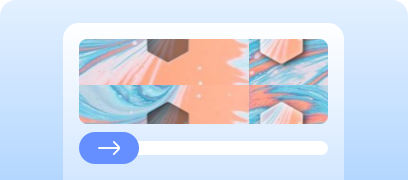
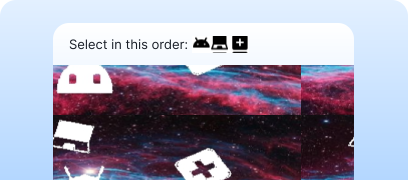

When testing forms that include GeeTest CAPTCHA v3, you often need to verify that the captcha works and is integrated correctly.
You can verify the captcha embedded on your site manually.
For automatic solving you can use tools like CapMonster Cloud, which accepts captcha parameters, processes them on its servers, and returns a ready-to-use token. Insert this token into the form to pass the check without user interaction.
Working with CapMonster Cloud via API typically involves the following steps:
 Creating a task
 Sending an API request
Your request to solve GeeTest CAPTCHA v3 must include the following parameters:
type - GeeTestTask;
websiteURL - the address of the page where the user passes the captcha. The correct URL is sent in the Referer header when making a request to https://api-na.geetest.com/gettype.php;
gt - GeeTest gt key identifier for the domain;
challenge - before each task you need to send a request that returns a new challenge value; otherwise, an expired token will trigger the ERROR_TOKEN_EXPIRED error;
geetestApiServerSubdomain - subdomain of the Geetest API server (must be different from api.geetest.com).

https://api.capmonster.cloud/createTask{
"clientKey":"YOUR_CAPMONSTER_CLOUD_API_KEY",
"task":
{
"type":"GeeTestTask",
"websiteURL":"https://www.example.com",
"gt":"022397c99c9f646f6477822485f30404",
"challenge":"7f044f48bc951ecfbfc03842b5e1fe59",
"geetestApiServerSubdomain":"api-na.geetest.com"
}
}{
"errorId":0,
"taskId":407533072
} Receiving the result
https://api.capmonster.cloud/getTaskResult{
"clientKey":"API_KEY",
"taskId": 407533072
}{
"errorId":0,
"status":"ready",
"solution": {
"challenge":"0f759dd1ea6c4wc76cedc2991039ca4f23",
"validate":"6275e26419211d1f526e674d97110e15",
"seccode":"510cd9735583edcb158601067195a5eb|jordan"
}
} Placing the token on the page
import asyncio
from capmonstercloudclient import CapMonsterClient, ClientOptions
from capmonstercloudclient.requests import GeetestRequest
# from capmonstercloudclient.requests.baseRequestWithProxy import ProxyInfo # Uncomment if you plan to use a proxy
API_KEY = "YOUR_API_KEY" # Specify your CapMonster Cloud API key
async def solve_geetest():
client_options = ClientOptions(api_key=API_KEY)
cap_monster_client = CapMonsterClient(options=client_options)
# Basic example without a proxy
# CapMonster Cloud automatically uses its own proxies
geetest_request = GeetestRequest(
websiteUrl="https://example.com",
gt="81dc9bdb52d04dc20036dbd8313ed055",
challenge="d93591bdf7860e1e4ee2fca799911215"
)
# Example of using your own proxy
# Uncomment this block if you want to use your own proxy
# proxy = ProxyInfo(
# proxyType="http",
# proxyAddress="123.45.67.89",
# proxyPort=8080,
# proxyLogin="username",
# proxyPassword="password"
# )
# geetest_request = GeetestRequest(
# websiteUrl="https://example.com",
# gt="81dc9bdb52d04dc20036dbd8313ed055",
# challenge="d93591bdf7860e1e4ee2fca799911215",
# proxy=proxy,
# userAgent="Mozilla/5.0 (Windows NT 10.0; Win64; x64) AppleWebKit/537.36 (KHTML, like Gecko) Chrome/156.0.0.0 Safari/537.36"
# )
# If necessary, you can check the balance
balance = await cap_monster_client.get_balance()
print("Balance:", balance)
result = await cap_monster_client.solve_captcha(geetest_request)
print("Solution:", result)
asyncio.run(solve_geetest())// npm install playwright @zennolab_com/capmonstercloud-client
// npx playwright install chromium
import { chromium } from 'playwright';
import { CapMonsterCloudClientFactory, ClientOptions, GeeTestRequest } from '@zennolab_com/capmonstercloud-client';
const API_KEY = 'your_capmonster_cloud_api_key';
const DEMO_PAGE = 'https://example.com';
(async () => {
const browser = await chromium.launch({ headless: false });
const page = await browser.newPage();
console.log('Opening the page...');
await page.goto(DEMO_PAGE, { waitUntil: 'networkidle' });
console.log('Getting captcha parameters...');
const init = await page.evaluate(async () => {
// Sending a request to the server to get init-params for GeeTest; replace with your value
const r = await fetch(`/api/v1/example/gee-test/init-params?t=${Date.now()}`);
return r.json();
});
console.log('Init params:', init);
console.log('Creating a task for CapMonster Cloud...');
const cmc = CapMonsterCloudClientFactory.Create(new ClientOptions({ clientKey: API_KEY }));
const solRaw = await cmc.Solve(new GeeTestRequest({ websiteURL: DEMO_PAGE, gt: init.gt, challenge: init.challenge }));
const sol = solRaw.solution || solRaw;
console.log('Captcha solution:', sol);
console.log('Inserting the solution into the hidden fields...');
await page.evaluate(s => {
['challenge','validate','seccode'].forEach(n => {
const el = document.querySelector(`input[name="geetest_${n}"]`);
if(el) el.value = s[n];
});
}, sol);
await page.click('button[data-action="test_action"]'); // replace with your value
console.log('Sending the verify request to the server...');
const result = await page.evaluate(async () => {
const payload = {
geetest_challenge: document.querySelector('input[name="geetest_challenge"]')?.value,
geetest_validate: document.querySelector('input[name="geetest_validate"]')?.value,
geetest_seccode: document.querySelector('input[name="geetest_seccode"]')?.value
};
// replace with your value
const r = await fetch('/api/v1/example/gee-test/verify', {
method:'POST',
headers:{'Content-Type':'application/json'},
body: JSON.stringify(payload)
});
return r.json();
});
console.log('Captcha verification result:', result);
await page.waitForTimeout(3000);
await browser.close();
})();1. Register or log in to your GeeTest account.
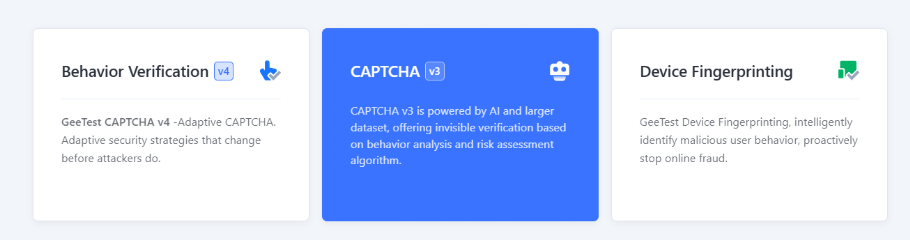
2. Go to the Captcha Dashboard and select CAPTCHA v3:
3. Click +New Captcha to create a new captcha. Specify the captcha name (for example, product or project), the URL of the site where the captcha will be integrated, and choose the captcha usage context (for example, Login / Registration / Password reset, etc.).
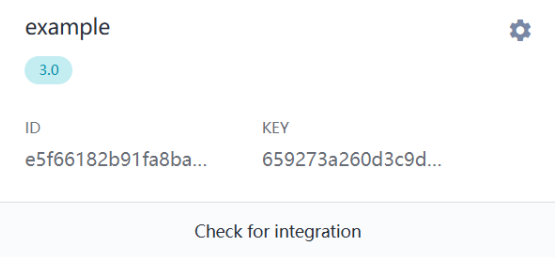
4. You will receive unique CAPTCHA ID and KEY. They can be configured in the security panel.
5. Configure the server side (Server SDK):
The server works with two APIs:
<?php
header('Content-Type: application/json');

const CAPTCHA_ID = '07df3141a35**********19a473d7c50';
const CAPTCHA_KEY = '543b19036ef********8e07d121b81e9';

$path = parse_url($_SERVER['REQUEST_URI'], PHP_URL_PATH);

function getJson($url) {
    $res = @file_get_contents($url);
    return $res ? json_decode($res, true) : null;
}

// API1: Initialization
if ($path === '/register') {
    $data = getJson("https://api.geetest.com/register.php?gt=" . CAPTCHA_ID . "&json_format=1");
    echo json_encode($data ? [
        'gt' => CAPTCHA_ID,
        'challenge' => $data['challenge'],
        'success' => $data['success'] === 1,
        'new_captcha' => true
    ] : ['success' => 0]);
    exit;
}

// API2: Verification
if ($path === '/validate' && $_SERVER['REQUEST_METHOD'] === 'POST') {
    $req = json_decode(file_get_contents('php://input'), true);
    $data = getJson("https://api.geetest.com/validate.php?" . http_build_query([
        'seccode' => $req['geetest_seccode'] ?? '',
        'challenge' => $req['geetest_challenge'] ?? '',
        'gt' => CAPTCHA_ID,
        'json_format' => 1
    ]));
    echo json_encode(['success' => !empty($data['seccode'])]);
    exit;
}

http_response_code(404);
echo json_encode(['error' => 'Not found']);
6. Connect the client side (Client SDK):
On the client you load gt.js and call initGeetest, passing the parameters from the server (API1). Example using ajax:
ajax({
    url: "https://example.com/register",
    type: "get",
    dataType: "json",
    success: function (data) {
        initGeetest({
            gt: data.gt,
            challenge: data.challenge,
            offline: !data.success,
            new_captcha: true
        }, function (captchaObj) {
            captchaObj.appendTo("#captcha");

            captchaObj.onSuccess(function () {
                const result = captchaObj.getValidate();
                ajax({
                    url: "https://example.com/validate",
                    type: "post",
                    contentType: "application/json",
                    data: JSON.stringify(result),
                    success: function(res) {
                        if (res.success) alert('CAPTCHA passed');
                        else alert('CAPTCHA failed');
                    }
                });
            });
        });
    }
});
Checking the operation
Make sure that:
Failback (fallback mode)
If the GeeTest server is unavailable:





 reCAPTCHA v2reCAPTCHA v3reCAPTCHA v2 EnterprisereCAPTCHA v3 Enterprise
 GeeTest
 Cloudflare TurnstileCloudflare Bot Challenge
 DataDome
 Tencent CAPTCHA
 Amazon Waf
 Faucet Pay
 Imperva (Incapsula)
 Prosopo
 Text CAPTCHA
 BinanceComplexImageTask Recaptcha
 ComplexImageTask RecognitionreCAPTCHA Enterprise (Spotify, Yahoo)
 Yidun
Yidun MTCaptcha
 Altcha
 Funcaptcha
 TSPD
TSPD Hunt
Hunt Alibaba
 Friendly
If you’ve taken over a website that already has a captcha or another protection system installed, but you don’t have access to the code, don’t worry! It’s quite easy to identify which technology is being used. To verify that everything works correctly, you can use the CapMonster Cloud recognition service in an isolated test environment to make sure that the token processing mechanism and the validation logic are functioning properly.
In the case of GeeTest CAPTCHA v3, it’s enough to detect the system, observe its behavior, and confirm that the protection is working correctly. In this article, we showed how to identify GeeTest CAPTCHA v3 and where to find instructions on how to integrate or reconfigure it, so you can confidently maintain the protection and keep its operation under control.