LinkedIn Captcha Not Working: 2026 Fixes and Error Guide
You type your password, the page blinks, and instead of your feed there's a security check you can't get past. Or you finish the puzzle and LinkedIn still answers Your noCAPTCHA user response code is missing or invalid.
Here's the thing: when LinkedIn captcha is not working, the puzzle itself is usually not the problem. It's the session, the network, or old error text bolted onto a newer challenge. (CAPTCHA, in LinkedIn's own wording, stands for Completely Automated Public Turing test to tell Computers and Humans Apart — the test that sorts people from bots.)
What's below: what each message means, what LinkedIn actually serves in 2026, why it breaks, the fixes in order, sign-up vs login, the mobile app, and when to stop troubleshooting and contact support.

Common LinkedIn CAPTCHA and Security Errors Explained
Almost every LinkedIn captcha error surfaces through a small set of recurring messages. Identify yours and the fix list narrows fast.
"Your noCAPTCHA user response code is missing or invalid"
You solved it. You hit submit. LinkedIn came back with Your noCAPTCHA user response code is missing or invalid.
Decode it: the response code is a token — a short-lived, single-use proof string the challenge hands your browser to pass back. The name predates the challenge you just solved: "noCAPTCHA" was Google's branding for the checkbox reCAPTCHA, and LinkedIn's wording mirrors how that system reports a bad response token — none sent, one malformed or expired, or one already used. LinkedIn doesn't name the vendor behind the string today, so read it as a label in its error handling, not as evidence of what rendered on your screen. Either way, it isn't a verdict on your answer: the token never arrived in usable shape. A privacy extension or blocked JavaScript explains one case; a stale tab the other. It's the same rejection our guide to invalid captcha errors describes.
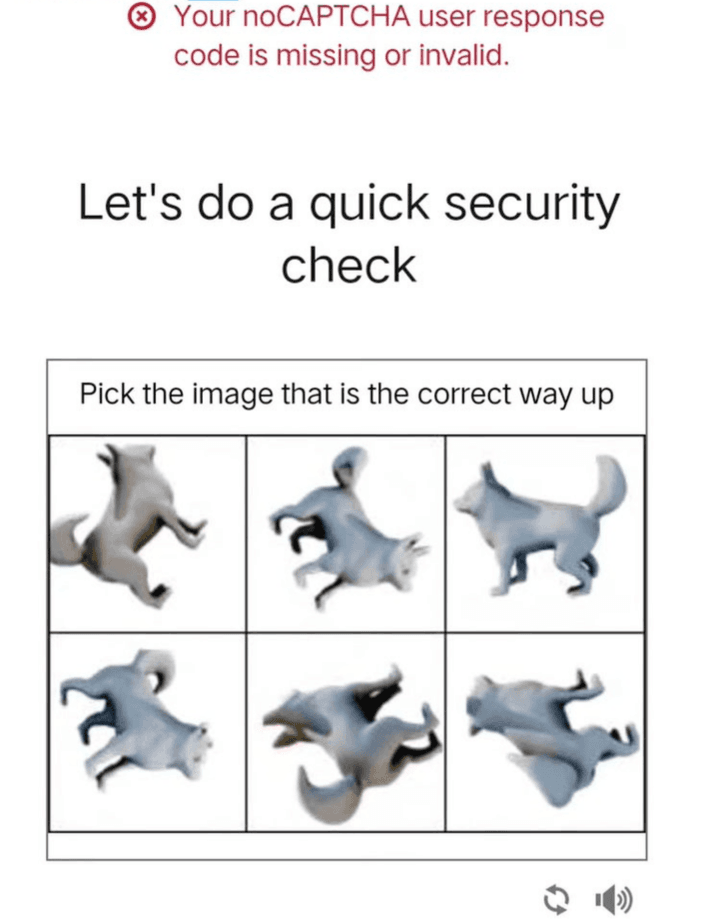
Login page showing the noCAPTCHA error string
LinkedIn CAPTCHA image not visible or won't load
Blank box. A spinner that never stops. A broken frame where the puzzle should sit.
The challenge runs inside a third-party frame — for Arkose challenges, typically an iframe served from client-api.arkoselabs.com — so whatever blocks the frame blocks the puzzle: a content blocker, your company's DNS filter, tracking protection turned up high. An old browser gets you to the same empty rectangle by a different route: it can't run the widget's scripts at all. LinkedIn's own security-verification guidance adds the other half of this: cookies have to be enabled for the check to complete.
LinkedIn CAPTCHA loop (correct answer, still blocked)
Solve, reload, new puzzle, repeat. A LinkedIn captcha loop usually means the challenge itself isn't what's failing — the session or the risk score is. Cookies are being refused or wiped between tries, or LinkedIn's scoring looks at the IP address you connect from and decides to ask again. Note that a rejected token tells you nothing about whether your answer was right; the server never gets that far.
"LinkedIn reCAPTCHA error" and similar messages
Sometimes you get no detail at all — a plain LinkedIn reCAPTCHA error, or a "something went wrong" banner on the security page. These wordings tell you the verification step failed, not which provider failed. Treat a vague LinkedIn captcha error exactly like the LinkedIn noCAPTCHA error above: same causes, same fix order.
Security check / verification not loading (not always CAPTCHA)
A LinkedIn security check that never finishes is not always a puzzle problem. LinkedIn also uses email verification codes, SMS codes, a push prompt in the LinkedIn app, and identity verification at the same checkpoint — a checkpoint being the interstitial page LinkedIn inserts between you and your account when a sign-in looks unusual, for example from an unfamiliar device or location. If LinkedIn is stuck on the security check and you never saw an image, slider or puzzle at all, see the security-check section below before working through CAPTCHA fixes.
FunCaptcha (Arkose) vs reCAPTCHA on LinkedIn in 2026
What LinkedIn serves at a checkpoint isn't publicly documented — LinkedIn doesn't name its challenge vendor. What can be said with evidence: Arkose Labs challenges are consistently observed in LinkedIn registration and security-sensitive flows by third-party analyses and solver vendors, while LinkedIn's own help pages still describe a classic image CAPTCHA with a "Try a different image" link and an audio option. In practice you may meet either, so identify what's on your screen before applying fixes.
A note on names. Arkose Labs began life as FunCaptcha (later SwipeAds) before rebranding, and in December 2022 it launched Arkose MatchKey as its current challenge suite. "FunCaptcha" survives as the everyday name and as an identifier in APIs and page markup (FunCaptchaTask, the hidden FunCaptcha-Token input). Rotating-animal puzzles belong to the older generation; MatchKey leans on matching and selection tasks across a very large pool of variants.
What you see during login or sign-up
An Arkose challenge appears as a branded widget with a short instruction, a progress indicator, and usually two or more rounds. A classic reCAPTCHA challenge instead shows a checkbox or a grid of photos to click; LinkedIn's legacy CAPTCHA shows characters to type. If your challenge has rounds and an interactive object, you are on Arkose.
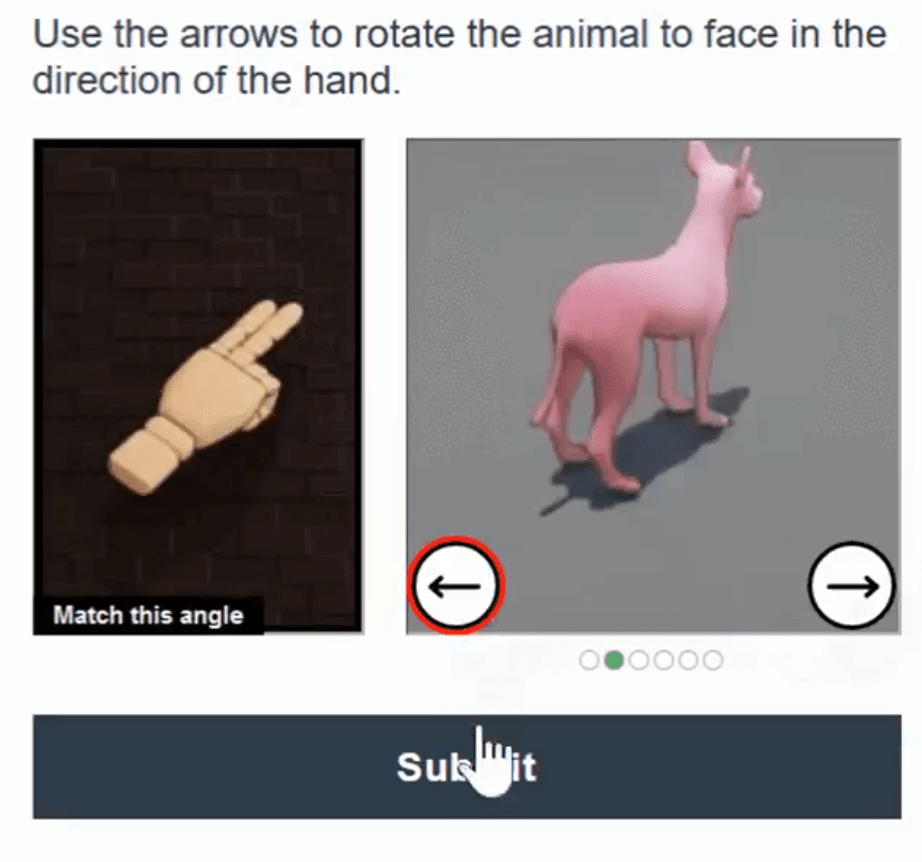
Arkose FunCaptcha widget on the LinkedIn checkpoint]
Why LinkedIn still shows "noCAPTCHA" in error text
The challenge you solve and the error you get can come from different eras of the same login form. The noCAPTCHA LinkedIn quotes back at you dates from Google's checkbox reCAPTCHA, yet people report it after modern interactive challenges — which suggests legacy error handling rather than a mismatched challenge. Confusing, but not a sign that you were shown the wrong widget.
How to tell which challenge you're facing (DevTools hint for developers)
Open DevTools, switch to Network or Elements, reload the checkpoint, and look at where the challenge iframe pulls from.
- Arkose: requests to an *.arkoselabs.com host, typically a path like /fc/gt2/public_key/<public key>; in the DOM, a hidden input with id verification-token or FunCaptcha-Token.

- Google reCAPTCHA: requests to google.com/recaptcha; in the DOM, the g-recaptcha-response field.

A read-only one-liner to check which is present on the page (paste it in the DevTools > Console):
The same panel also tells you whether the widget was blocked before it ever rendered.
One caveat worth knowing: modern challenge vendors read device and behavioural signals to score the request. Strip those signals with privacy tooling and you don't look safer to them. You look automated, and the challenge gets harder.
Why LinkedIn CAPTCHA Fails
Five recurring causes. There's no public breakdown of how often each one is to blame, so treat the order below as field experience, not statistics.
Browser, JavaScript, cookies, and extensions
The challenge needs JavaScript, third-party frames, and cookies to run and to return its token. Blocking any of the three breaks it — and LinkedIn's own guidance for a failing security verification starts with enabling cookies. Outdated browser versions, disabled cookies for linkedin.com, and strict tracking protection are common causes of a blank or rejected challenge.
VPN, proxy, datacenter IP, and rate limits
LinkedIn scores the IP address you connect from. Shared VPN exits, datacenter ranges, and public proxies carry traffic from many users, so they are frequently rate-limited or given harder challenges. A harder challenge plus a low-trust IP is what usually produces an endless loop rather than a clean pass.
New accounts and suspicious activity signals
An account created ten minutes ago is treated differently from one you've had for a decade. That's deliberate: LinkedIn presents a security challenge when a sign-in comes from an unfamiliar location or device, or when activity looks unusual. Heavy invitation and messaging volume, and an unverified email address on file, are both associated with more frequent re-verification. Retrying fast doesn't help either — each attempt is another data point.
LinkedIn-side outages or overloaded CAPTCHA servers
Sometimes nothing on your side is wrong. If the challenge provider or LinkedIn's checkpoint service is degraded, the widget will not load or will reject valid tokens for everyone. LinkedIn doesn't publish a member-facing status page, so the practical check is third-party outage trackers and a quick look at social channels before you rebuild your browser profile.
Session/token issues (stale page, back button, long idle)
Tokens are short-lived and single-use. Leave the page open through a meeting, hit back, keep a second tab of the same login form, restore yesterday's session — any of those sends LinkedIn a token it no longer accepts. The result is the missing-or-invalid error with a perfectly correct answer sitting behind it.
How to Fix LinkedIn CAPTCHA (Step-by-Step)
Work through these in order and stop when you get in. They are sequenced so that the cheapest fixes for a LinkedIn captcha problem come first. The generic, works-on-any-site advice lives in our guide to why CAPTCHA is not working. What follows is ordered for LinkedIn's checkpoint.
1. Clear LinkedIn cookies and site data
Wipe cookies and site data for linkedin.com — that site only, not the whole browser. What you're clearing is the stale session and checkpoint state that keeps re-triggering the challenge. Click the padlock or tune icon in the address bar, open site settings, clear data. Then close the tab, reopen LinkedIn, and sign in fresh. Make sure cookies are allowed for the site afterwards: the check cannot complete without them.
2. Try Incognito/private mode or a clean browser profile
A private window gives you no cookies, no cached scripts, and in most setups no extensions — Chrome and Edge disable extensions in Incognito by default, and Firefox blocks them in private windows unless you explicitly allow each one. If the LinkedIn captcha clears there, the fault is in your everyday profile: an extension, a stale cookie, cached challenge scripts. A separate browser profile runs the same test and survives after you close the window, which matters if you're in LinkedIn daily.
3. Disable ad blockers and privacy extensions
Ad blockers, script blockers, anti-fingerprinting add-ons, hardened privacy modes — any of them can swallow the challenge frame or the token request. Whitelist linkedin.com, then reload the page fully, not just the tab. Switch them back on afterwards if you like. Bear in mind that passing the checkpoint once doesn't retire it permanently: LinkedIn re-verifies periodically, more often on accounts with heavy activity or an unverified email address.
4. Turn off VPN/proxy — or switch network (mobile hotspot)
Drop the VPN or proxy and try again on your ordinary connection. Stuck on a corporate or campus network that filters traffic? Tether to your phone instead. That one change clears a lot of LinkedIn captcha loops, because a carrier IP address carries none of the shared abuse history a VPN exit does.
5. Update browser; try Firefox, Safari, or Chrome
Install whatever browser updates are pending, then retry. If the widget still refuses to draw itself, open LinkedIn somewhere else entirely — Firefox, Safari, Chrome, whichever one you don't normally use. Heavily modified or unsupported builds choke on the challenge, and the second browser answers a useful question fast: browser, or network?
6. Hard refresh and complete CAPTCHA without delay
Force a full reload so the page pulls a fresh token:
- Windows (Chrome, Edge, Firefox): Ctrl+Shift+R
- macOS (Chrome, Edge, Firefox): Cmd+Shift+R
- macOS (Safari): Option+Cmd+R — "Reload Page From Origin". Cmd+Shift+R does not do a hard reload in Safari.
Then solve it in one sitting. No tab-switching, no back button, no coffee break halfway through. If you need an accessible route, use the audio or alternative mode built into the widget instead of leaving the page.
7. Use "Forgot password" if you're stuck in a captcha loop
When the same challenge keeps coming back, stop feeding it and start a password reset from the LinkedIn sign-in page. Enter the email address or phone number on the account; LinkedIn sends a verification code — not a sign-in link — to that address or number. Enter the code, then set a new password and sign in.
Be realistic about what this does: it moves you onto a code-based verification path, which sometimes gets you past a challenge that keeps failing. It is not a guaranteed bypass. LinkedIn states that you may still be prompted for two-factor codes or additional challenges during a reset, and users do hit the noCAPTCHA error inside the reset flow itself.
Also worth knowing: if the challenge simply won't pass, LinkedIn's sign-in screen may offer an option to verify your identity instead. That route is slower but exists precisely for this situation.
8. Try another device
Pick up your phone, a tablet, or a second computer on another network, and sign in there. That one test splits device-level causes — extensions, an odd browser build, a clock that's drifted — from anything sitting on the account itself. If it passes elsewhere, rebuild the profile on the first machine and move on.
9. Wait and retry if LinkedIn is having an outage
If nothing renders anywhere, the problem probably isn't yours. Give it half an hour or so — there's no published retry window, so this is a rule of thumb, not a rule — then try once. Avoid piling up failed attempts in the meantime. Still broken across devices and networks a day later? That's a support case, not a browser problem.
Sign-Up vs Login: Different CAPTCHA Problems
Same error string, two different situations — and the fix order flips between them.
Sign-up. Registration is where the friction stacks up. LinkedIn documents two checks at this stage: a CAPTCHA, and phone verification, where a security code arrives by SMS or voice call. You have no account history, no trusted-device cookie, nothing vouching for you — so a VPN, a datacenter IP, or a throwaway email address makes the challenge harder, or simply serves it again. If LinkedIn sign-up captcha is not working, fix the network first: disconnect the VPN, use a residential connection or mobile data, and use a real phone number you can receive a code on. Browser cleanup comes second, because a fresh browser has little state to clear.
Login. Returning users usually hit a checkpoint rather than a plain registration CAPTCHA, and the typical symptom is the LinkedIn noCAPTCHA error — the missing-or-invalid string — after a correct solve. Here the order flips: clear LinkedIn cookies and site data first, then disable extensions, then change network. If you are still looping after that, the password-reset route (step 7) is worth trying — it only exists for accounts that already exist, and it is a different verification path rather than a guaranteed escape.
Mobile App vs Browser: LinkedIn CAPTCHA Fixes
Mobile gives the challenge three places to live: the LinkedIn app itself, your mobile browser, and the in-app browser that opens when you tap a link somewhere else. Each fails differently.
If the app shows a blank or frozen security check, clear the app's cache first — on Android via system settings, on iOS by offloading or reinstalling the app, since iOS gives you no per-app cache control. Reinstalling gives you a clean session; before you do it, make sure you know your password and can reach your second factor if two-step verification is on.
If the challenge appears in an in-app browser — for example after tapping a LinkedIn link inside a messaging app — open the link in your full browser instead. In-app browsers vary in how they handle cookies and third-party frames, and the stricter ones break both the widget and any redirect-based sign-in flow.
Avoid running overlapping sessions. Signing in on the mobile web while the app is mid-checkpoint can invalidate the single-use token you just earned. Finish one flow, then use the other.
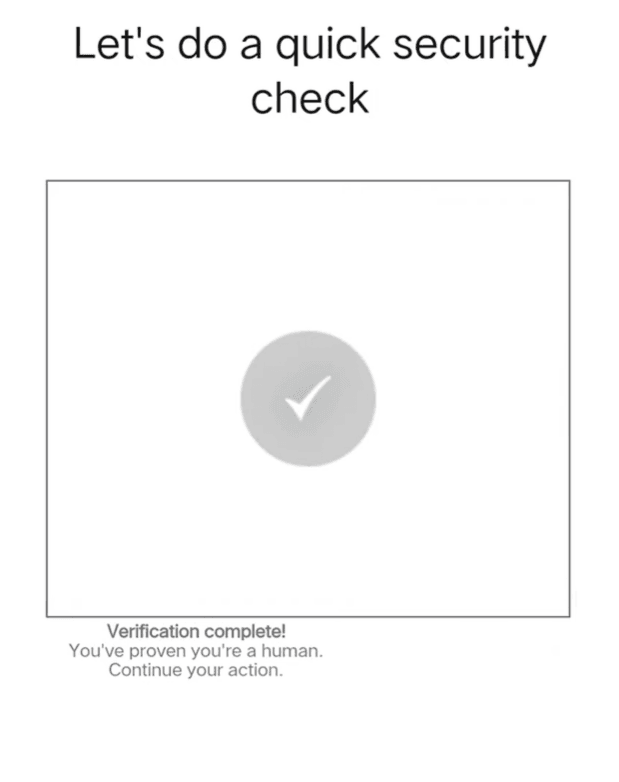
Security check inside the LinkedIn mobile app
LinkedIn Security Check Not Working (Beyond CAPTCHA)
Reports of LinkedIn verification not working often have nothing to do with a puzzle. If you never saw one, you are probably not facing a CAPTCHA at all. The same checkpoint also covers email verification codes, SMS codes, a push prompt sent to the LinkedIn app when a new device is detected, and identity verification. These are separate systems with separate failure modes.
Identity verification is run by LinkedIn's partners, and which one you get depends on where you are. In the U.S., Canada and Mexico, identity verification for your profile is handled by CLEAR, and needs a government-issued ID plus a phone number registered in one of those countries. Elsewhere, in supported countries, it runs through Persona, which asks you to scan an NFC-enabled passport or government ID with your phone — so NFC, not just the camera, is the hardware that has to work. Persona is also the route LinkedIn uses when you can't recover account access any other way, and in that flow it may ask for a photo of your ID and a selfie to match against it. Members under 18 can't verify with Persona.
The CAPTCHA fixes above will not help if your code never arrives, if your device can't scan the document, or if your phone number is out of date. For those: check carrier delivery and spam folders, grant the camera permission, confirm NFC is on, and make sure the number on file is one you still control. Identity verification collects personal data — Persona collects it under its own policies, LinkedIn receives only a limited set (not your biometrics or document numbers), and for account recovery LinkedIn says that data is generally deleted within 14 days. Read what's being requested before you submit it.
Official references worth having open:
- Security verification during registration — CAPTCHA and phone verification at sign-up.
- Reset your password — the verification-code flow described in step 7.
- Sign-in security prompt for two-step verification — the in-app push approval.
- Identity verification via CLEAR and via Persona.
- Verify your identity to recover account access.
If the security check itself fails to load across devices and networks, that is the point to contact LinkedIn support.
For QA and Automation Teams: FunCaptcha on LinkedIn
This section is for engineers testing their own integrations under authorization. It is not a route around LinkedIn's protections for regular users.
When automated testing legitimately encounters FunCaptcha
Test suites that exercise authentication against your own sandbox or your own authorized integration will hit Arkose challenges as soon as traffic looks automated. Headless drivers, fresh containers, and datacenter egress all raise the score. The first response should be scoping: reduce how often tests touch a live checkpoint, and mock the steps that do not need a real challenge.
FunCaptchaTask in CapMonster Cloud
Where a real challenge must be handled in an authorized test environment, CapMonster Cloud documents the task type in its FunCaptchaTask reference. Points that most often trip up a test plan, all of them in the docs:
- The task requires your own proxy — the proxy fields are mandatory, and there is no proxyless variant for this type. If your proxy authorises by IP, whitelist 65.21.190.34.
- Use the same proxy when you collect the parameters on the page and when you create the task.
- Parameters are dynamic. data[blob], where the site uses it, becomes invalid once the challenge iframe loads, so capture it before the frame initialises.
- websitePublicKey (pk) and funcaptchaApiJSSubdomain (surl, default client-api.arkoselabs.com) can be read from the hidden verification-token / FunCaptcha-Token input.
- Submit the solution with the same user agent the service returns alongside the token.
Treat the documentation as the source of truth rather than assumptions in a test plan.
Rate limits, IP reputation, and proxy pitfalls (high level)
Automated runs fail most often for infrastructure reasons. Shared or datacenter IP ranges attract harder challenges, parallel workers from one egress address trip rate limits, and misconfigured proxies leak inconsistent geolocation or timezone signals. Keep concurrency low and stagger the retries. And when challenges keep escalating, read that as feedback on the test design — not as a reason to push more volume through it.
LinkedIn CAPTCHA Troubleshooting Checklist
For users
- Cookies and site data for linkedin.com: clear them, allow cookies, then retry in a private window.
- Whitelist LinkedIn in your ad blocker and any privacy extension.
- VPN off — or tether to your phone — before the next attempt.
- Complete the challenge immediately after a hard refresh (Option+Cmd+R in Safari); no back button, no second tab.
- Still looping? Try the "Forgot password" flow, or the "verify your identity" option, then contact support.
For QA teams
- Confirm the test target and authorization before touching a live checkpoint.
- Check IP reputation and egress type before blaming the challenge.
- Use your own proxy, and the same one for parameter capture and task creation.
- Capture dynamic parameters (blob) before the challenge iframe loads.
- Keep concurrency low and stagger retries to avoid rate limits.
- Verify proxy geolocation, timezone, and language are internally consistent.
FAQ

CapMonster Cloud for automated testing
Running authorized tests against your own integration? CapMonster Cloud documents task types for the challenge families covered above — FunCaptchaTask for Arkose, with separate entries for reCAPTCHA v2, reCAPTCHA v3, reCAPTCHA v2 Enterprise and reCAPTCHA v3 Enterprise. Check the docs for supported parameters before you wire anything up.
Legal NB: automation must comply with the platform's terms of service and applicable law — LinkedIn's User Agreement prohibits automated access and scraping without its express written permission. Nothing here is a workaround for account restrictions or for signing in to accounts you do not own.
Closing
Every LinkedIn captcha problem follows the same short decision path. Identify the error string first, then identify the challenge type — an Arkose interactive puzzle, LinkedIn's classic image CAPTCHA, or legacy reCAPTCHA / non-CAPTCHA security check. Apply the matching fix: cookies and extensions for token errors, network changes for loops, the password-reset code flow when you are stuck. If nothing clears across devices, escalate to LinkedIn support. For wider context, see why CAPTCHA is not working, invalid captcha errors, and the FunCaptchaTask documentation.
Trademark notice: LinkedIn, noCAPTCHA, reCAPTCHA, FunCaptcha and other third-party names mentioned in this article are registered trademarks of their respective owners. CapMonster Cloud is an independent software provider and is not affiliated with, authorized, sponsored, or endorsed by any of these companies. References are made solely for informational and educational purposes to describe how these technologies function.