
In this article, we have tried to answer all the key questions. The first step in solving the task is to determine which protection system is being used. To do this, you can refer to the list of popular captchas and anti-bot protection systems, where you will find visual examples and key indicators that help you quickly understand what you are dealing with.
If you discover that your site uses reCaptcha v2, the next step is to study its properties and operation in more detail. In this article, you can also review the instructions on how to integrate reCaptcha v2 so that you fully understand how it functions on your site. This will help you not only understand the current protection, but also properly plan its maintenance.


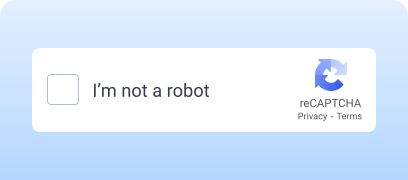
How to solve reCAPTCHA v2 via CapMonster Cloud
When testing forms that include reCaptcha v2, you often need to verify that the captcha works and is integrated correctly.
You can verify the captcha embedded on your site manually.
- Open the form page and make sure the captcha renders.
- Try submitting the form without solving it — the server should return an error.
- After a successful solution, the form must be submitted without issues.
For automatic solving you can use tools like CapMonster Cloud, which accepts captcha parameters, processes them on its servers, and returns a ready-to-use token. Insert this token into the form to pass the check without user interaction.
Working with CapMonster Cloud via API typically involves the following steps:
 Creating a task
 Sending an API request
Your request to solve reCAPTCHA v2 must include the following parameters:
type - RecaptchaV2Task;
websiteURL - the page address where the captcha appears;
websiteKey - the site key (sitekey) specified on your captcha page.

https://api.capmonster.cloud/createTask{
"clientKey": "API_KEY",
"task": {
"type": "RecaptchaV2Task",
"websiteURL": "https://lessons.zennolab.com/captchas/recaptcha/v2_simple.php?level=high",
"websiteKey": "6Lcg7CMUAAAAANphynKgn9YAgA4tQ2KI_iqRyTwd"
}
}
{
"errorId":0,
"taskId":407533072
} Receiving the result
https://api.capmonster.cloud/getTaskResult{
"clientKey":"API_KEY",
"taskId": 407533072
}
{
  "errorId": 0,
  "status": "ready",
  "solution": {
    "gRecaptchaResponse": "03AFcWeA66ZARdA5te7acD9vSwWE2hEQ2-B2aqFxm455iMA-g-Jis…"
  }
}
 Placing the token on the page
// npm install playwright @zennolab_com/capmonstercloud-client
// npx playwright install chromium
const { chromium } = require('playwright');
const { CapMonsterCloudClientFactory, ClientOptions, RecaptchaV2Request } = require('@zennolab_com/capmonstercloud-client');
(async () => {
const browser = await chromium.launch({ headless: false });
const page = await browser.newPage();
const TARGET_URL = 'https://lessons.zennolab.com/captchas/recaptcha/v2_simple.php?level=high';
const WEBSITE_KEY = '6Lcg7CMUAAAAANphynKgn9YAgA4tQ2KI_iqRyTwd';
const CMC_API_KEY = 'your_capmonster_cloud_api_key';
const cmc = CapMonsterCloudClientFactory.Create(new ClientOptions({ clientKey: CMC_API_KEY }));
await page.goto(TARGET_URL, { waitUntil: 'domcontentloaded' });
// Captcha solving
const solution = await cmc.Solve(new RecaptchaV2Request({ websiteURL: TARGET_URL, websiteKey: WEBSITE_KEY }));
const token = solution.solution.gRecaptchaResponse;
// Insert the token and submit the form (replace with the selector you need)
await page.evaluate((t) => {
const ta = document.querySelector('textarea#g-recaptcha-response');
if (ta) ta.value = t;
document.querySelector('form.formular')?.submit();
}, token);
console.log('Captcha solved and form submitted!');
})();1. Go to the reCAPTCHA admin console.
2. Register a new site.
Select the captcha type — reCAPTCHA v2 (checkbox with challenges or the invisible variant).
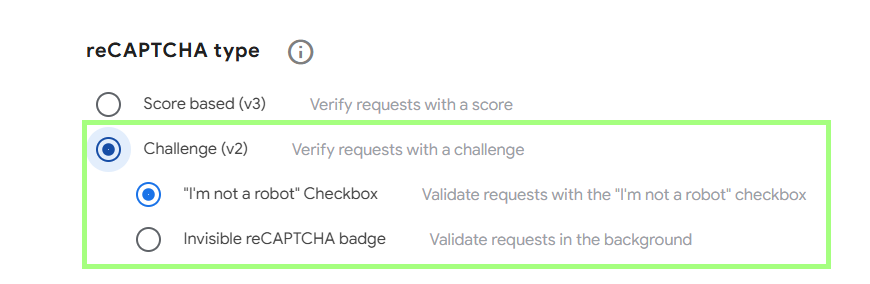
3. Obtain two keys:
- Site key — the public key (used on the frontend);
- Secret key — the private key (used on the server for verification).
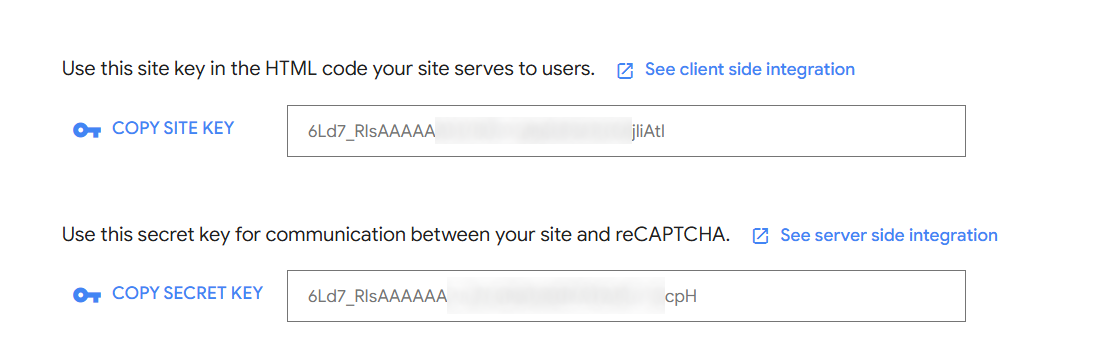
Open the settings to specify domains that can use reCAPTCHA, or choose the security level — from the simplest to the most reliable option.
4. Client-side code example. An HTML form with reCAPTCHA v2 (you can paste this snippet into the page body):
 HTML form with reCAPTCHA v2
For the checkbox widget:
<html>
  <head>
    <title>reCAPTCHA demo</title>
    <script src="https://www.google.com/recaptcha/api.js" async defer></script>
  </head>
  <body>
    <form action="submit" method="POST">
      <div class="g-recaptcha" data-sitekey="your_site_key"></div>
      <br/>
      <input type="submit" value="Submit">
    </form>
  </body>
</html>
This code loads the Google reCAPTCHA library and creates a form that posts data via the POST method. <div class="g-recaptcha" data-sitekey="your_site_key"></div> renders the reCAPTCHA v2 widget with your public key. When “Submit” is clicked, the form is sent along with the g-recaptcha-response token for backend validation.
For invisible reCAPTCHA v2:
<html>
  <head>
    <title>reCAPTCHA demo</title>
     <script src="https://www.google.com/recaptcha/api.js" async defer></script>
     <script>
       function onSubmit(token) {
         document.getElementById("demo-form").submit();
       }
     </script>
  </head>
  <body>
    <form id="demo-form" action="?" method="POST">
      <button class="g-recaptcha" data-sitekey="your_site_key" data-callback="onSubmit">Submit</button>
      <br/>
    </form>
  </body>
</html>
The button <button class="g-recaptcha" data-sitekey="your_site_key" data-callback="onSubmit">Submit</button> runs the invisible captcha automatically, generates a token, and calls onSubmit.
The onSubmit(token) function receives the g-recaptcha-response token and posts the form to your server for verification.
Unlike the regular checkbox widget, users never see the captcha — the check runs in the background.
5. Validate the response on the server side.
PHP exampleCheck the method and read the data
?php
if ($_SERVER['REQUEST_METHOD'] !== 'POST') {
    http_response_code(405);
    exit('Method not allowed');
}

// Retrieving the reCAPTCHA token
$token = $_POST['g-recaptcha-response'] ?? '';
$secret = 'YOUR_SECRET_KEY';

if (!$token) {
    exit('Captcha not passed');
}
Verify the captcha through Google
$response = file_get_contents(
    "https://www.google.com/recaptcha/api/siteverify?secret=$secret&response=$token"
);
$result = json_decode($response, true);

if (!empty($result['success'])) {
    echo "<h3>Form submitted successfully!</h3>";
} else {
    echo "Captcha verification error.";
}
?>




Supported captchas
 reCAPTCHA v2reCAPTCHA v3reCAPTCHA v2 EnterprisereCAPTCHA v3 Enterprise
 GeeTest
 Cloudflare TurnstileCloudflare Bot Challenge
 DataDome
 Tencent CAPTCHA
 Amazon Waf
 Faucet Pay
 Imperva (Incapsula)
 Prosopo
 Text CAPTCHA
 BinanceComplexImageTask Recaptcha
 ComplexImageTask RecognitionreCAPTCHA Enterprise (Spotify, Yahoo)
 Yidun
Yidun MTCaptcha
 Altcha
 Funcaptcha
 TSPD
TSPD Hunt
Hunt Alibaba
 Friendly
If you’ve taken over a website that already has a captcha or another protection system installed, but you don’t have access to the code, don’t worry! It’s quite easy to identify which technology is being used. To verify that everything works correctly, you can use the CapMonster Cloud recognition service in an isolated test environment to make sure that the token processing mechanism and the validation logic are functioning properly.
In the case of reCaptcha v2, it’s enough to detect the system, observe its behavior, and confirm that the protection is working correctly. In this article, we showed how to identify reCaptcha v2 and where to find instructions on how to integrate or reconfigure it, so you can confidently maintain the protection and keep its operation under control.
 reCAPTCHA v2 documentation →CapMonster Cloud docs (working with reCAPTCHA v2) →Solving reCAPTCHA v2 with CapMonster Cloud →How to solve reCAPTCHA v2 in JavaScript with Selenium & CapMonster Cloud →How to solve reCAPTCHA v2 in Python with Selenium & CapMonster Cloud →How to solve reCAPTCHA v2 in C# with Selenium & CapMonster Cloud →
Frequently Asked Questions about reCAPTCHA v2
