BrowserScan Review 2026: Fingerprint Test
BrowserScan (browserscan.net) is a free browser fingerprint test that shows what your browser and device share with websites. Use it to check VPN leaks, review a test profile, or see what your privacy settings expose. Running a browser scan won’t change those settings or protect you from tracking.
The report features an authenticity score. In 2026, fingerprint checkers and anti-bot systems can compare signals like User-Agent Client Hints (UA-CH), page element measurements (client rects), audio, and WebGL results to see whether they are consistent. If something doesn’t match, a website’s protection might wrongly identify a real user’s browser as a bot.
This review explains BrowserScan’s checks, its authenticity score, and how the same signals inform bot detection. You’ll also find a comparison with CreepJS and BrowserLeaks, instructions for running a check, and answers to common questions.

What Is BrowserScan?
Browser fingerprinting uses a combination of browser and device details to help websites recognize a browser. BrowserScan shows which of these details your browser exposes. The basic check at browserscan.net is free and requires no registration.
For this review, we ran BrowserScan and captured screenshots of its fingerprint checks, Client Hints, WebRTC results, and authenticity score. All screenshots were taken directly from the live interface during testing.
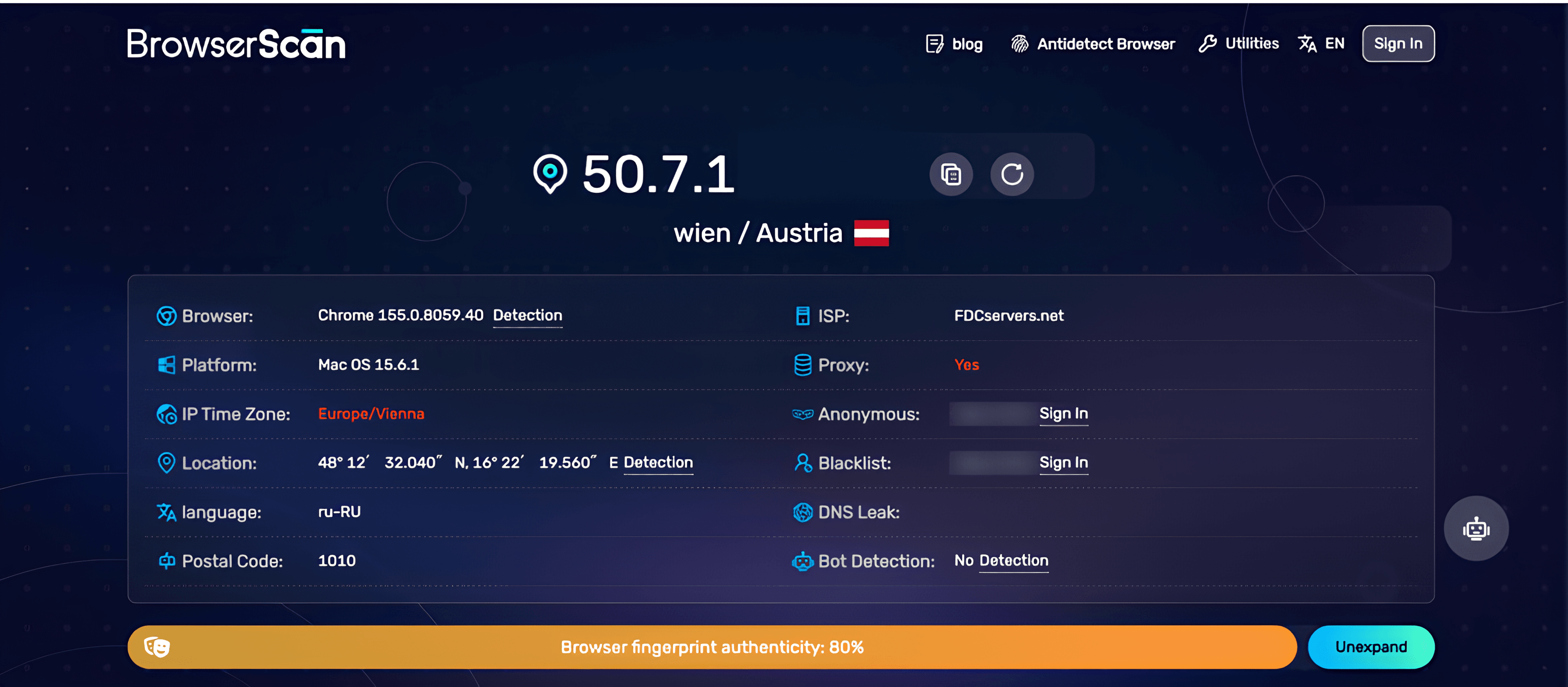
According to BrowserScan, it examines more than 50 attributes, including the browser version, operating system, language, time zone, screen resolution, and graphics card or chip.
Who it is for
Anyone checking their privacy can use the report to see which browser details websites can read, including the language, screen resolution, and graphics information. If you use a VPN, the WebRTC results show which IP addresses your browser reveals. DNS is checked on a separate page, which shows the servers that receive your DNS requests.
Developers and QA engineers can run a scan before and after a browser update or a new extension. Comparing the two reports makes it easier to see what changed in the browser profile.
BrowserScan also supports preliminary checks of antidetect browser profiles. Here, the focus is on understanding the results and their limitations.
What it is not
BrowserScan is not a VPN, an antidetect browser, or a CAPTCHA solver. The test shows what your browser exposes. It doesn’t change your settings or make your browsing anonymous.
Even with a high authenticity score, you can still run into CAPTCHAs or access restrictions. Websites also look at your IP’s reputation, how often you send requests, and how you interact with their pages, and any of these can lead a site to flag your traffic.
What BrowserScan Tests in 2026
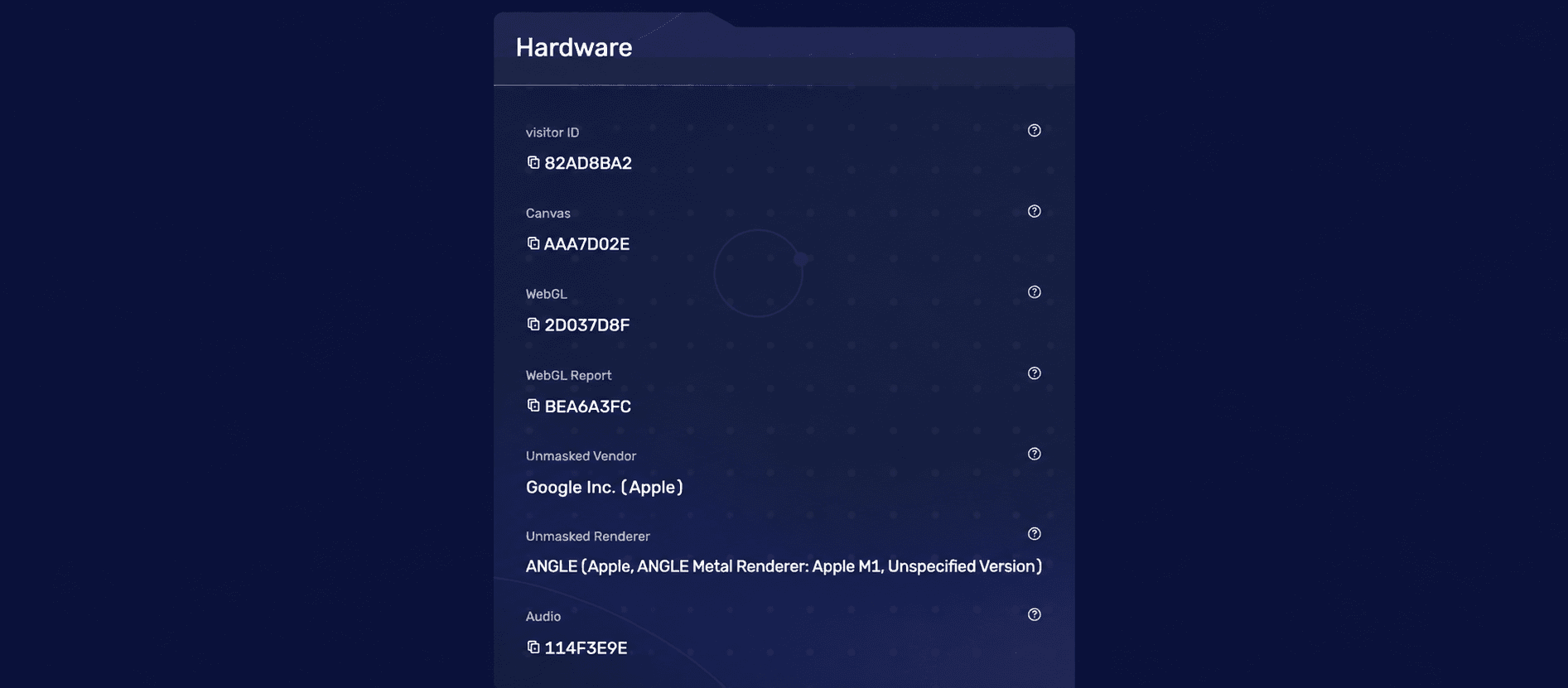
Fingerprint surfaces (canvas, WebGL, audio, fonts, and more)
The main report covers browser settings and graphics and sound tests:
- User agent (UA): identifies the reported browser and operating system.
- Canvas: draws a test image and converts it into a hash. Fonts and graphics processing may affect the canvas fingerprint.
- WebGL: shows the WebGL fingerprint, graphics vendor, and renderer (graphics hardware or software).
- Audio: generates an audio fingerprint by processing a sound signal without recording your microphone.
- Fonts: detects available fonts, whose combination can help distinguish devices.
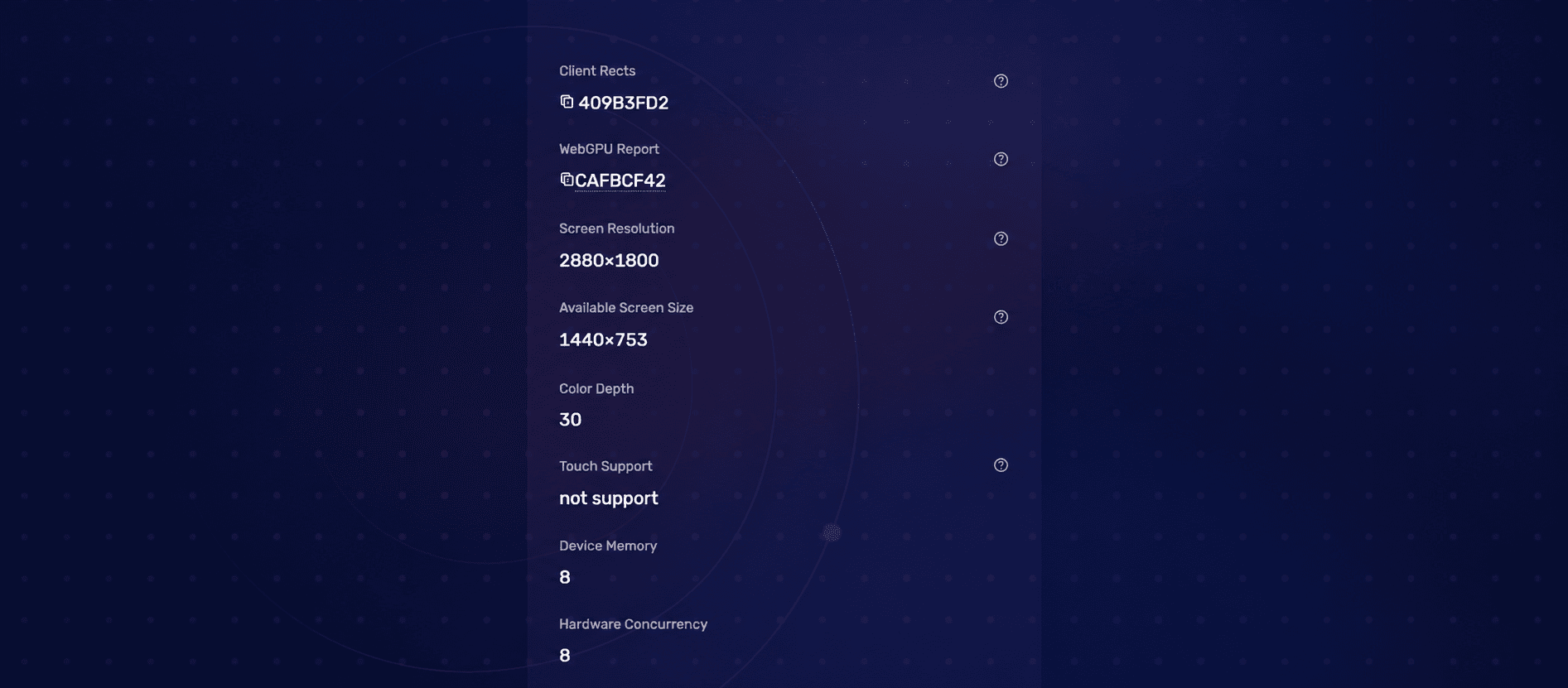
- Screen: reports resolution, available screen area, and color depth (the reported number of bits used to represent a pixel’s color).
- Time zone and language: shows regional settings available to websites.
- Hardware concurrency: reports the logical processor count exposed by navigator.hardwareConcurrency. A four-core CPU may have eight logical processors, but browsers can report fewer.
- Plugins: includes legacy checks for Flash, ActiveX, and Java. Installed extensions are checked on the separate Plugin Detection page.
Client Hints, client rects, and modern consistency checks
Browser consistency means checking if the details a browser reports fit together logically. A mismatch does not always mean a bot is being used: browser updates, privacy settings, and unsupported features can also cause differences.
User-Agent Client Hints (UA-CH) give browser and platform details along with the usual User-Agent string. Chromium normally sends three low-entropy hints by default: Sec-CH-UA, Sec-CH-UA-Mobile, and Sec-CH-UA-Platform. Websites can ask for more details if needed. Comparing these signals can show conflicts, like different operating systems being reported. But Windows 11 showing as Windows NT 10.0 in the simplified User-Agent string is normal, not a mismatch. Firefox and Safari do not support UA-CH.
Example Chrome User-Agent (macOS):
Mozilla/5.0 (Macintosh; Intel Mac OS X 10_15_7) AppleWebKit/537.36 (KHTML, like Gecko) Chrome/157.0.0.0 Safari/537.36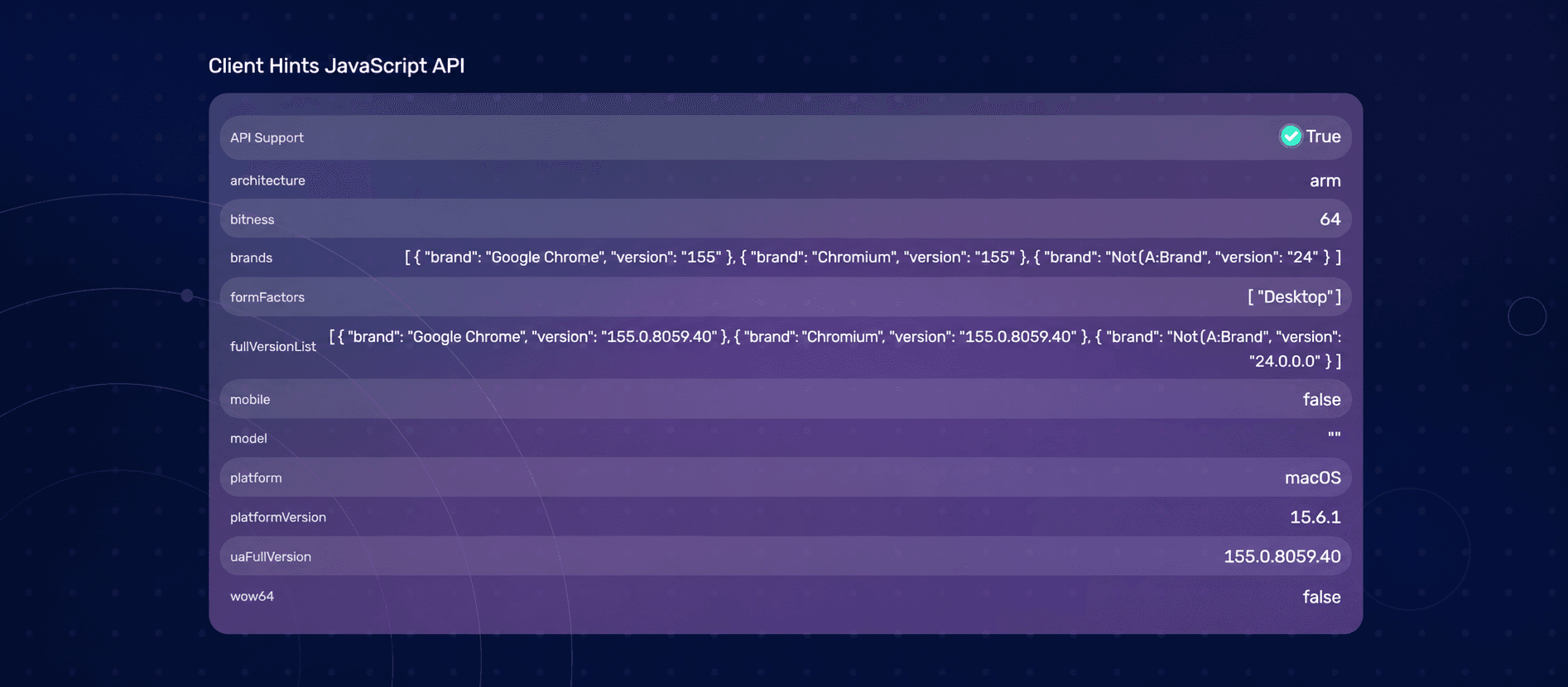
Client Rects, under Hardware, measures the sizes and positions of elements on a page. Fonts, browser rendering, and display settings can affect these measurements. They add another point of comparison: if the results look unusual for the reported browser or platform, they may be worth investigating. On their own, however, different Client Rects values do not prove spoofing or automation.
Network and leak checks (IP, WebRTC, DNS)
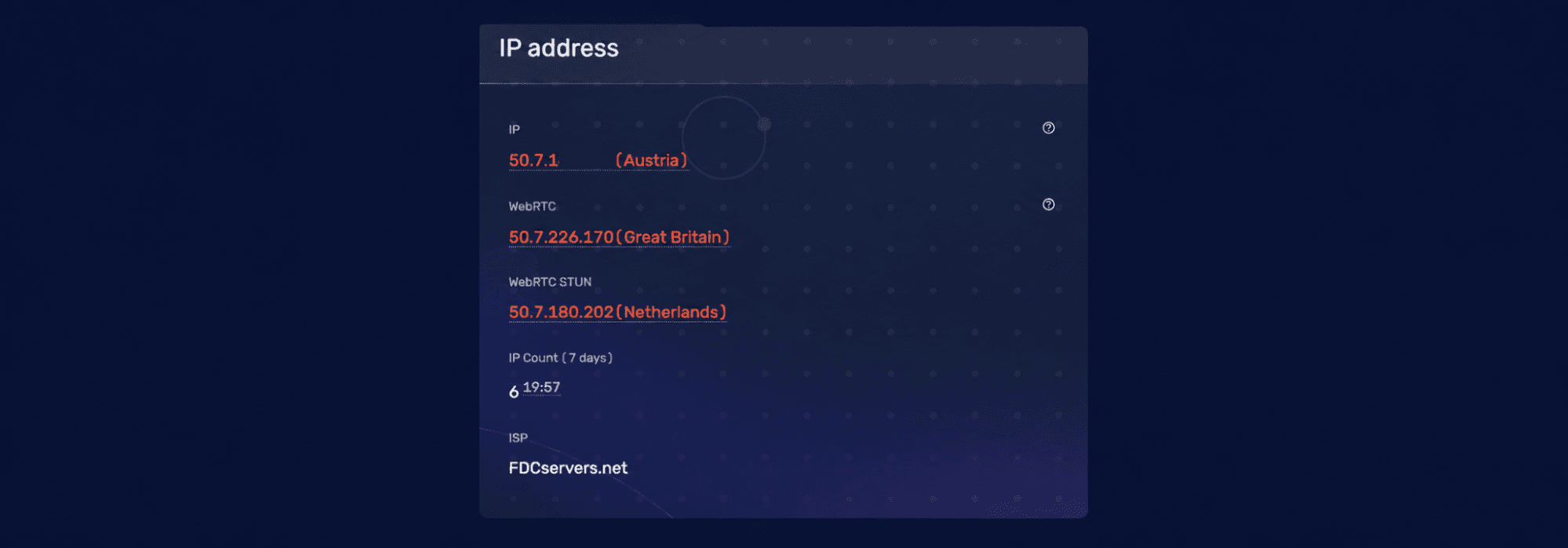
BrowserScan’s IP section shows your public IP address, provider, and estimated location. With a VPN connected, it usually shows the VPN server’s address.
The WebRTC check tests whether the browser’s voice and video call technology exposes additional IP addresses. If your regular public IP appears despite the VPN, this may indicate a leak.
The DNS test identifies servers that look up IP addresses for website names. With a VPN active, requests reaching your internet provider’s DNS servers may indicate a leak if the VPN is supposed to handle those requests.
BrowserScan also displays the browser’s time zone, which can differ from the IP location.
How to Read the BrowserScan Authenticity Score
The authenticity score summarizes BrowserScan’s findings, but the percentage alone does not explain which checks affected the result. The report lists individual deductions, but BrowserScan does not publish a complete weighting formula.
What a high score usually means
A high score means BrowserScan found few unusual settings or inconsistencies in your browser profile. It doesn’t tell you how easily websites can recognize your browser across visits.
A distinctive fingerprint can still receive a high score. This does not guarantee privacy or that a website will classify the visitor as human. A result of 95%, for example, is BrowserScan’s score, not a 95% chance of avoiding tracking or a CAPTCHA.
Common reasons a score drops
Start with the deductions listed in your report. When investigating them, also check for the following issues. The example below is illustrative: its values and percentage-point deductions are not BrowserScan’s scoring formula.
- WebRTC exposes your regular public IP despite the VPN.
- Your browser’s time zone differs from the IP location.
- The user agent says Windows, but Client Hints says macOS.
- Some APIs are blocked by privacy settings or unsupported by your browser.
Illustrative example output:
| Parameter | Result |
|---|---|
| Public IP address | 203.0.113.10 |
| Browser | Chrome 157.0.8103.38 |
| Operating system | macOS 15.6.1 |
| IP location | Vienna, Austria |
| IP-based time zone | Europe/Vienna |
| Browser time zone | Europe/Moscow |
| Time zone mismatch | Mismatch detected (illustrative) |
| WebRTC public IP address | 198.51.100.24 |
| Different IP addresses detected | Illustrative deduction; no fixed amount |
| Authenticity score | 80% (illustrative) |
The IP addresses are documentation addresses; the values and deductions illustrate how to read a report, rather than a universal scoring formula.
Limits of any single checker
The same browser might get a high score in one checker but show warnings in another, since each tool checks a different set of signals.
Commercial anti-bot systems also consider TLS connection details and browsing behavior. Vendors do not share exactly how they weigh this information.
Try checking your browser with two or three tools, like BrowserScan, BrowserLeaks, and CreepJS. This helps you see where their results match and where they differ.
How Bot Detection Systems Use the Same Signals
Anti-bot systems use browser data to help assess incoming traffic. They look for contradictions and signs of automation, then consider those findings alongside the connection and activity on the site.
Fingerprint consistency vs uniqueness
A designer’s fonts could make their browser easier to recognize, but not necessarily automated. Cloudflare, DataDome, and Akamai use proprietary models. Signal consistency may matter, but their weighting is not public:
- UA and UA-CH: do both report the same browser and operating system?
- WebGL vendor and platform: is the graphics information plausible for that system?
- Time zone and IP location: do they agree, or could a VPN explain the difference?
- IP reputation: has the address been associated with suspicious activity?
Repeatedly randomized canvas results can introduce inconsistencies, but they do not prove automation. Brave uses canvas farbling designed to remain stable for a site within a session. A checker may flag it as tampering during normal browsing.
Websites can read navigator.webdriver, which reports whether automation controls the browser, including during QA. Missing browser functions may also raise warnings, though privacy settings can explain them. Neither an unusual fingerprint nor a missing API proves that a visitor is a bot.
Where BrowserScan fits in a wider detection stack
BrowserScan collects JavaScript fingerprint data and checks for network leaks. Its separate TLS-related tests aid diagnosis, but cannot reproduce a website’s full bot-detection process. Commercial systems also assess connections and activity across requests.
That process can include:
- TLS and JA4 fingerprints: characteristics of how the browser establishes an encrypted connection.
- Behavioral machine learning: models that analyze requests, clicks, typing, and scrolling for signs of automation.
- IP and ASN reputation: activity associated with an IP address and the network it belongs to.
- Challenges and CAPTCHAs: additional checks used when the system needs more evidence.
For QA, check the browser baseline in BrowserScan before investigating an unexpected CAPTCHA or block in the site’s logs.
These signals help explain why websites may identify legitimate visitors as bots, even when a browser fingerprint looks consistent.
BrowserScan vs CreepJS, BrowserLeaks, and Other Testers
These tools answer different questions: some focus on leaks, others on browser consistency or fingerprint uniqueness.
Comparison table
| Tool | Best at | Scoring | Network leak checks | Best for |
|---|---|---|---|---|
| BrowserScan | Browser fingerprint overview and connection leaks | Authenticity percentage with explanations of deductions | IP, WebRTC, and DNS checks | A quick overall check |
| BrowserLeaks | Detailed tests of individual browser features | Separate results; no single overall score | Dedicated IP, WebRTC, and DNS tests | Investigating a specific leak or fingerprint attribute |
| CreepJS | JavaScript consistency and signs of altered browser data | Detailed indicators of inconsistencies, privacy protections, and headless behavior | Includes WebRTC; a narrower network focus | Technical research and browser profile analysis |
| Pixelscan | Quick fingerprint consistency checks | Consistency verdicts and results from individual tests | Separate IP, VPN, WebRTC, and DNS tools | Routine browser and connection checks |
| AmIUnique / Cover Your Tracks | Fingerprint uniqueness and tracking awareness | AmIUnique compares fingerprints with its dataset; Cover Your Tracks reports tracking protection and fingerprint uniqueness | Limited compared with dedicated leak testers | Learning how browser details contribute to tracking |
Tool features and availability should be checked on each provider’s current website.
When to use which tool
For an initial check, BrowserScan gives you an overview of your browser profile and connection. Its score and warnings can help identify what needs a closer look.
Use BrowserLeaks to investigate a specific result, such as an unexpected WebRTC address or unfamiliar WebGL information. Its separate test pages show the underlying details.
Turn to CreepJS if you suspect an extension or privacy tool has changed browser data inconsistently. Its technical results can take longer to interpret.
Pixelscan quickly checks a browser profile for inconsistencies.
For a closer look at fingerprint uniqueness, try AmIUnique. Cover Your Tracks also tests how well your browser blocks trackers.
Run each test in the same browser, keeping its settings and connection unchanged so you can compare the results.
How to Run a BrowserScan Fingerprint Test
Run the first check with your usual settings, and save the result for comparison.
Step-by-step
- Open browserscan.net. The main check starts automatically. Wait for the results to finish loading.
- Read the authenticity score and any listed deductions.
- Look at the IP and WebRTC results. With a VPN active, you’d normally expect to see the VPN server’s public IP. An additional public IP in the WebRTC results is worth checking: it may be the address of your regular internet connection.
- Explore the details. The Hardware, Browser, and Software sections show graphics results, browser information, language, and time zone. Check the DNS Leak field on the main page; for a list of resolvers, open the separate DNS Leak Test.
- Save the findings. Record the score and relevant values, or take screenshots, so you can compare them later.
- Change one setting and repeat. Making several changes at once makes it hard to identify what affected the result.
Some fields, such as Anonymous and Blacklist, prompt visitors to sign in. The main fingerprint scan itself is available without an account.
Tips after you change VPN or extensions
- After switching VPN servers, rerun the IP, WebRTC, and DNS checks.
- A VPN may change your IP location while your browser keeps your local time zone. This difference does not necessarily mean there is a leak.
- When checking extensions, disable them one at a time and repeat the test.
- Rerun after browser updates: supported features and reported values may change.
- For QA, use BrowserScan to check that a test profile reports consistent browser, operating system, and hardware details. If results change after an update, compare them with the previous scan before investigating a CAPTCHA failure.
Pros, Cons, and Verdict
Pros
- Free basic check: the main browser fingerprint test requires no payment or registration.
- Quick to run: the main check starts automatically when you open the site.
- Results in one place: the report combines browser fingerprint data, the authenticity score, and checks for possible connection leaks.
- Easy to read: you can check the score and see what lowered it before looking at the technical details.
Cons
- Limited scoring transparency: BrowserScan explains individual deductions, but does not publish a complete scoring formula.
- Technical limits: CreepJS provides more detail on JavaScript behavior. BrowserScan also cannot tell you whether a website’s anti-bot system will flag your browser.
- Interface changes: labels and layouts can change, so older screenshots and instructions may differ from the live site.
- Terminology: you may need to look up WebGL, Client Hints, or DNS to understand what the detailed results tell you.
- Advertising: BrowserScan displays ads and links to partner services, including antidetect browsers. Keep the distinction between the test results and promotional content in mind.
Verdict for 2026
BrowserScan works well for basic fingerprint and leak checks. You can review the browser’s configuration without having to interpret every fingerprint value.
For detailed debugging, use BrowserLeaks or CreepJS to examine individual results more closely.
Try the test at browserscan.net.

Note for QA Teams
BrowserScan also has a place in QA work on your own site. Its fingerprint and leak checks can expose problems in the test browser’s configuration. That gives you a starting point for investigating CAPTCHA or anti-bot behavior, although the results won’t explain a particular challenge on their own.
For authorized CAPTCHA automation during QA, CapMonster Cloud supports reCAPTCHA v2/v3, Cloudflare Turnstile, and GeeTest. The full list is in the documentation.
Final Thoughts
BrowserScan remains a practical browser fingerprint and leak checker in 2026. Read its score alongside the individual findings, and compare results with BrowserLeaks or CreepJS when a problem needs closer investigation. The report can reveal inconsistencies, but it cannot predict every website’s response.
NB: Please note that the product is intended for automating tests on your own websites and sites you have legal access to.