reCAPTCHA v3 – Google's Invisible Bot Protection Explained

If you've ever clicked "I'm not a robot" or painstakingly selected every fire hydrant in an image grid, you've met reCAPTCHA v2. reCAPTCHA v3 is Google's answer to the frustration that experience creates — a fully invisible, score-based bot detection system that protects your site without asking users to do anything at all.
This guide explains how google recaptcha v3 works under the hood, how it compares to its predecessor, what the implementation looks like in practice, and where tools like CapMonster Cloud fit into the picture.

How reCAPTCHA v3 Works
reCAPTCHA v3 operates entirely in the background, making it fundamentally different from any previous CAPTCHA approach. There are no puzzles, no checkboxes, and no interruptions — instead, Google's system continuously observes user behavior and assigns a risk score to every interaction on your site.
The Scoring Engine
When a page loads with the recaptcha v3 javascript library active, Google begins passively collecting a wide range of behavioral and environmental signals. These include:
- Mouse movement and click patterns — how naturally and fluidly a user navigates the page
- Scroll behavior — timing, speed, and direction of scrolling
- Keystroke dynamics — rhythm and cadence of typing
- Time-on-page metrics — how long a session lasts before an action is triggered
- IP address reputation — whether the IP is associated with known bots, data centers, VPNs, or proxies
- Browser fingerprint — device type, OS, browser version, installed plugins, screen resolution
- Google account and browsing history — if the user is logged into a Google service, this cross-site signal significantly improves scoring accuracy
All of these signals are fed into Google's machine learning model, which has been trained on vast amounts of human and bot traffic. The result is a score between 0.0 and 1.0, returned to your backend every time a protected action is triggered.
Note: On the free tier, reCAPTCHA v3 exposes only four discrete score levels (0.1, 0.3, 0.7, and 0.9). The full 11-level range (0.0–1.0) requires a billing account to be attached to your Google Cloud project.
The table below shows community-established score interpretations. Google officially recommends starting with a threshold of 0.5 and tuning based on your traffic patterns — the sub-ranges below are developer conventions, not rigidly defined by Google:
If reCAPTCHA v3 assigns a user a low score, it is usually better not to block them immediately. Instead, treat the session as higher risk and trigger a step-up check, such as a visual CAPTCHA, email verification, one-time passcode, or multi-factor authentication. For sensitive actions like login, signup, or checkout, you can also slow the request down, limit repeated attempts, or send the case to manual review if needed. This approach helps reduce false positives, protects legitimate users, and gives you a more flexible balance between security and user experience.
The Action System
A key architectural feature of recaptcha v3 google is the action parameter. Every time you call grecaptcha.execute(), you pass a named action string — for example login, register, checkout, or contact_submit. This label is:
- Embedded in the token that is sent to your backend
- Included in the verification response from Google's recaptcha v3 api
- Used to build per-action score analytics in the reCAPTCHA Admin Console
This means your backend can verify not only that a score was returned, but that the score corresponds to the exact user action you intended to protect — preventing token recycling attacks where a bot generates a token on a low-risk page and replays it on a high-risk one.
Token Lifecycle
Once grecaptcha.execute() fires, it returns a one-time-use token valid for exactly two minutes. Your frontend must pass this token to your backend immediately, and your backend must verify it against the siteverify endpoint before the window expires. Tokens cannot be reused — a second verification of the same token will fail with a timeout-or-duplicate error code. This design ensures each protected action is tied to a fresh, unique behavioral snapshot.
What reCAPTCHA v3 Does NOT Do
It is important to understand the boundaries of the system:
- It does not block bots automatically. The score is informational — your application code decides how to respond.
- It does not guarantee detection. Sophisticated bots that convincingly mimic human behavioral patterns can receive high scores. No single layer of protection is foolproof.
- It does not adapt its threshold for you. Google returns a score; you define the policy. A score of 0.4 might be acceptable on a newsletter subscription form but completely unacceptable on a bank transfer confirmation page.
This design philosophy — scoring without enforcement — gives developers precise control, but it also means the quality of your bot protection is only as good as the logic you build on top of the score.
Continuous, Page-Wide Monitoring
Unlike reCAPTCHA v2, which checks a user at a single point in time (the moment they click the checkbox), recaptcha version 3 can be called multiple times throughout a session — on page load, on form focus, and on submission. Each call produces an independent score reflecting behavior up to that moment. This allows you to build layered verification: a low-risk score on page load followed by a suspicious score on form submission can trigger a step-up challenge mid-session, without ever showing the user an unprompted CAPTCHA.
reCAPTCHA v3 vs. reCAPTCHA v2
Understanding the trade-offs between these two versions helps you choose the right tool for the right page — and avoid deploying protection that either frustrates users or leaves gaps in your defenses.
The fundamental difference: challenge vs. scoring
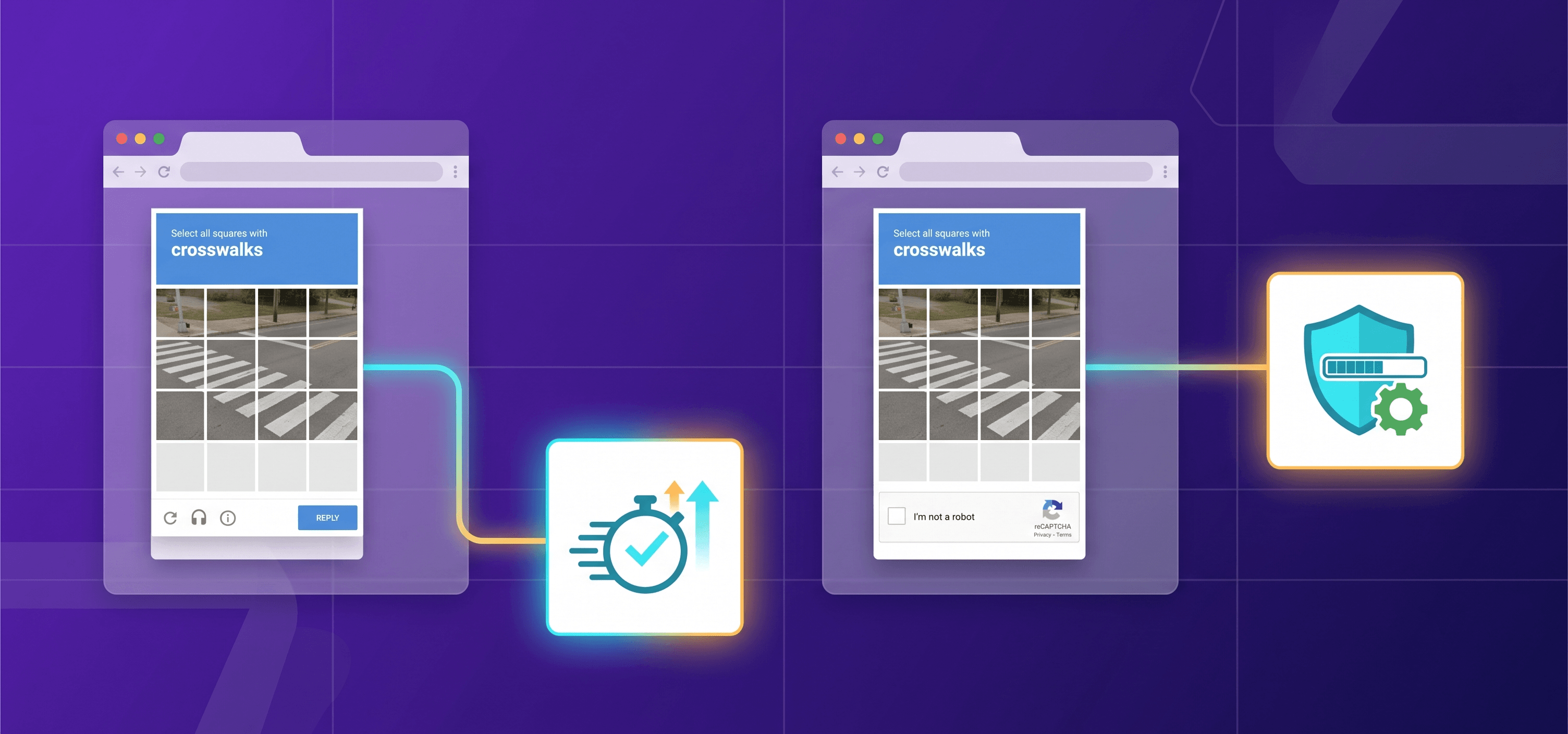
reCAPTCHA v2 operates on a challenge-based model. When the system suspects a non-human visitor, it interrupts the user flow and demands proof of humanity — either by clicking the "I'm not a robot" checkbox (which then evaluates mouse movement and timing), or by completing an image recognition puzzle. The result is binary: the user passes or fails.
reCAPTCHA v3 eliminates challenges entirely. Instead of stopping the user to ask a question, it observes behavior silently throughout the page session and returns a continuous risk score between 0.0 and 1.0. Your application then decides what to do with that score — and that decision layer is entirely under your control.
Detection mechanisms compared
How each version handles suspicious traffic
With v2, the logic is straightforward: Google decides whether a challenge is needed and presents it. You receive a binary token — valid or not — and your backend acts accordingly. This simplicity is its strength for low-complexity deployments, but it also means you have little visibility into how suspicious a request actually was.
With v3, granularity replaces simplicity. A score of 0.9 and a score of 0.3 both pass the technical verification — but they tell very different stories about that visitor. Your application can respond differently to each: granting full access at 0.9, requiring email confirmation at 0.4, or silently blocking at 0.1.
The accessibility argument
Image puzzles in reCAPTCHA v2 have long been criticized as a barrier for users with visual impairments, cognitive disabilities, or low-literacy users who struggle with distorted text or ambiguous image categories. The audio alternative is often just as difficult. reCAPTCHA v3 invisible mode sidesteps this problem entirely — users with disabilities experience no additional friction compared to anyone else.
That said, v3 introduces its own form of indirect inaccessibility: if behavioral signals for a particular user type (e.g., someone using keyboard-only navigation or an assistive technology that produces atypical interaction patterns) consistently score low, those users may be silently penalized without any way to appeal or self-identify as human. Threshold tuning and fallback strategies are therefore important for inclusive deployments.
When to choose v2 vs. v3
Choose reCAPTCHA v2 when:
- You need a simple, visible security checkpoint with minimal backend configuration
- Your team lacks the infrastructure to interpret and act on risk scores
- You want users to have a clear, transparent signal that bot protection is active
- You're protecting a low-traffic form where occasional user friction is acceptable
Choose reCAPTCHA v3 when:
- You prioritize frictionless UX — especially on checkout pages, login flows, or sign-up forms where drop-off is costly
- You want fine-grained control over how your application responds to varying risk levels
- You're running high-traffic properties where universal challenges would create significant support overhead
- You want to collect risk signal data passively and use it for analytics, not just gatekeeping
It's also worth noting that the two versions are not mutually exclusive. A common deployment pattern is to run v3 as the primary layer and trigger a v2 challenge as a fallback only when v3 returns a low score.
The UX Advantage of reCAPTCHA v3 Invisible
The most immediate benefit of recaptcha v3 invisible operation is that users never know it's there. There are no image grids to squint at, no audio puzzles, no checkbox to hunt for on a mobile screen. The protection happens entirely in the background.
This matters for conversion. Friction at any step of a user journey — especially at login, registration, or checkout — directly affects drop-off rates. By eliminating the challenge interruption, google recaptcha v3 allows legitimate users to move through protected actions seamlessly.
That said, the UX trade-off is not zero. Because v3 relies on behavioral profiling, it can silently score legitimate users as suspicious — for instance, power users who move unusually fast, privacy-conscious users behind VPNs, or visitors from unexpected geographic regions. If your threshold is set too aggressively, real customers get quietly blocked with no explanation. The recommended starting threshold is 0.5, but it should be tuned based on your own traffic patterns.
reCAPTCHA v3 API: Step-by-step Guide
Integrating reCAPTCHA v3 involves three sequential stages: registering your keys, wiring up the recaptcha v3 javascript on the frontend, and verifying the token on the backend. Here is the complete flow.
Step 1 — Register Your Keys in Google Admin Console
Before writing a single line of code, you need credentials.
- Go to the Google reCAPTCHA Admin Console.
- Fill in the Label name and select reCAPTCHA v3 (score-based, no challenge).
- Add all domains where your site runs (e.g., example.com, www.example.com).
- Select your Google Cloud Platform project, if present. If not, it will be created automatically.
- Submit the form. Google will provide two keys:
- Site key — public; used in your frontend HTML/JS.
- Secret key — private; used only on your backend server. Never expose it in client-side code.
Step 2 — Load the reCAPTCHA v3 JavaScript Library
On every page you want to protect, load the recaptcha v3 api script by adding the following tag to your HTML <head>, replacing YOUR_SITE_KEY with your actual key:
<script src="https://www.google.com/recaptcha/api.js?render=YOUR_SITE_KEY"></script>This single snippet initializes the recaptcha v3 google engine and begins passively collecting behavioral signals in the background — no widget is shown to the user.
Step 3 — Execute reCAPTCHA on a Protected Action
Unlike recaptcha v2, you do not render a widget. Instead, you call grecaptcha.execute() programmatically at the moment a user triggers a protected action.
Option A — Button with data-attributes (simple forms):
<form id="login-form">
  <!-- your form fields -->
  <button
    class="g-recaptcha"
    data-sitekey="YOUR_SITE_KEY"
    data-callback="onSubmit"
    data-action="login"
    type="button">
    Log In
  </button>
</form>
<script>
  function onSubmit(token) {
    fetch("/api/login", {
      method: "POST",
      headers: { "Content-Type": "application/json" },
      body: JSON.stringify({ recaptchaToken: token })
    });
  }
</script>
Option B — Programmatic execution (recommended for AJAX/API flows):
<script src="https://www.google.com/recaptcha/api.js?render=YOUR_SITE_KEY"></script>
<script>
  async function submitLogin() {
    const token = await new Promise((resolve) => {
      grecaptcha.ready(() => {
        grecaptcha.execute("YOUR_SITE_KEY", { action: "login" }).then(resolve);
      });
    });
    // Send token immediately -- it expires in 2 minutes
    await fetch("/api/login", {
      method: "POST",
      headers: { "Content-Type": "application/json" },
      body: JSON.stringify({ recaptchaToken: token })
    });
  }
</script>
Key rule: The action name (e.g., login, signup, checkout) must match what your backend expects. This prevents token reuse across different endpoints.
Step 4 — Verify the Token on Your Backend
Your server receives the token and forwards it to Google's siteverify endpoint before processing the user's request.
Node.js example (with error handling):
import express from "express";
const app = express();
app.use(express.json());
app.post("/api/login", async (req, res) => {
  const token = req.body.recaptchaToken;
  const params = new URLSearchParams();
  params.set("secret", process.env.RECAPTCHA_SECRET);
  params.set("response", token);
  let data;
  try {
    const verifyResp = await fetch("https://www.google.com/recaptcha/api/siteverify", {
      method: "POST",
      headers: { "content-type": "application/x-www-form-urlencoded" },
      body: params
    });
    data = await verifyResp.json();
  } catch (err) {
    console.error("reCAPTCHA verification network error:", err);
    return res.status(503).json({ error: "verification_unavailable" });
  }
  // → proceed to Step 5
});
Note: Native fetch is available in Node.js 18+. For older versions, use node-fetch or axios.
Python (Flask ≥ 2.0) example:
import os, requests
from flask import Flask, request, jsonify

app = Flask(__name__)
@app.post("/api/signup")   # Requires Flask >= 2.0

def signup():
    token = request.json.get("recaptchaToken")
    resp = requests.post(
        "https://www.google.com/recaptcha/api/siteverify",
        data={"secret": os.environ["RECAPTCHA_SECRET"], "response": token},
        timeout=5
    )
    data = resp.json()
    # → proceed to Step 5
    if not data.get("success"):
        return jsonify({"error": "recaptcha_failed"}), 403
    return jsonify({"ok": True})
Step 5 — Interpret the Score and Act
Google's siteverify endpoint returns a JSON response. Here is what a successful response looks like:
{
  "success": true,
  "score": 0.7,
  "action": "login",
  "challenge_ts": "2026-02-27T10:00:00Z",
  "hostname": "example.com"
}
Your backend must check three things in order:
- success is true— the token is valid and was accepted by Google.
- action matches your expected value — confirms the token was generated for the right context.
- score meets your threshold — 0.5 is Google's recommended starting point.
Step 6 — Handle Errors Gracefully
The siteverify response may include an error-codes array. The most important ones to handle are:
- timeout-or-duplicate — the token is older than 2 minutes or was already used; re-run grecaptcha.execute() client-side to get a fresh token.
- missing-input-secret / invalid-input-secret — your secret key is missing or incorrect; a configuration bug, not a user error.
- missing-input-response / invalid-input-response — the token was not sent or is malformed; check your frontend integration.
- bad-request — the overall request to siteverify is malformed.
Never surface raw error codes to end users — log them server-side and show a generic "please try again" message.
Step 7 — Test Your Integration End-to-End
Before going to production, verify the full flow:
- Open your protected page, trigger the action, and confirm a token is generated in the browser.
- Log the raw siteverify response on the backend to confirm success: true, a valid score, and the correct action.
- For automated testing, CapMonster Cloud provides a solver API that generates valid reCAPTCHA v3 tokens programmatically. It supports reCAPTCHA v3, v2, and Enterprise and integrates via a REST API.
- Confirm your error-handling paths work by sending an expired or malformed token and checking that your backend returns the correct response.
Privacy and Compliance Considerations
reCAPTCHA version 3's behavioral profiling model comes with meaningful privacy implications. The system collects mouse movements, keystroke timing, browser fingerprints, IP addresses, and more — data that goes well beyond what is strictly necessary to verify humanness.
For European operators in particular, this creates GDPR exposure. In a notable 2023 enforcement action, the French data protection authority (CNIL) fined e-scooter company Cityscoot €125,000 for multiple GDPR violations — including both collecting excessive geolocation data (tracking scooters every 30 seconds) and deploying Google reCAPTCHA without proper user consent. CNIL ruled that reCAPTCHA's access to user terminal data requires prior consent under Article 82 of the French Data Protection Act — not just a passive security widget. If you operate under GDPR, implementing a proper Data Processing Agreement with Google and obtaining appropriate user consent is essential before deploying google recaptcha v3.
CapMonster Cloud and reCAPTCHA v3
CapMonster Cloud is an AI-powered CAPTCHA recognition and automation service that supports reCAPTCHA v2, v3, and Enterprise, among many other CAPTCHA types. For development and testing teams, it provides a way to automate interactions with reCAPTCHA-protected forms without manual intervention — useful for integration testing, automated monitoring pipelines, or legitimate scraping workflows where CAPTCHA handling is a bottleneck.
In the context of using recaptcha v3, CapMonster Cloud functions as a solver API: given a target URL and site key, it returns a valid reCAPTCHA token that can be submitted to the protected endpoint just as a real browser would.
Example of solving reCAPTCHA v3 using CapMonster Cloud:
Create task:
POST
https://api.capmonster.cloud/createTaskRequest
{
  "clientKey": "API_KEY",
  "task": {
    "type": "RecaptchaV3TaskProxyless",
    "websiteURL": "https://lessons.zennolab.com/captchas/recaptcha/v3.php?level=beta",
    "websiteKey": "6Le0xVgUAAAAAIt20XEB4rVhYOODgTl00d8juDob",
    "isEnterprise": false,
    "minScore": 0.7,
    "pageAction": "myverify"
  }
}
Response
{
  "errorId":0,
  "taskId":407533072
}
Get task result:
POST
https://api.capmonster.cloud/getTaskResultRequest
{
  "clientKey":"API_KEY",
  "taskId": 407533072
}
Response
{
  "errorId":0,
  "status":"ready",
  "solution": {
    "gRecaptchaResponse":"3AHJ_VuvYIBNBW5yyv0zRYJ75VkOKvhKj9_xGBJKnQimF72rfoq3Iy-DyGHMwLAo6a3"
  }
}
Detailed API documentation and integration examples are available at capmonster.cloud.
Conclusion
reCAPTCHA v3 represents a meaningful step forward in balancing bot protection with user experience. By moving verification entirely into the background and replacing binary pass/fail logic with a nuanced risk score, recaptcha google v3 lets security teams act proportionally — blocking clear bots, stepping up friction for suspicious sessions, and leaving legitimate users completely undisturbed.
The trade-offs are real: score interpretation requires backend investment, threshold tuning takes time, and the privacy footprint is non-trivial under GDPR. But for most production web applications — especially those where friction at login, signup, or checkout costs conversions — the upgrade from v2 is well worth it.
Ready to implement reCAPTCHA v3 on your site — or automate your testing pipeline around it? Visit CapMonster Cloud to explore AI-powered CAPTCHA solving for reCAPTCHA v3, v2, and Enterprise — with full API documentation and integration examples to get you started in minutes.