reCAPTCHA v2 vs v3: Which Version Offers Better Bot Protection?
If you're trying to decide between reCAPTCHA v2 or v3 for your website, you're weighing a real trade-off: visible friction versus invisible risk scoring. This guide breaks down the reCAPTCHA v2 vs v3 differences across bot protection, user experience, and implementation — with complete code examples — so you can make an informed choice.

What Is reCAPTCHA v2?
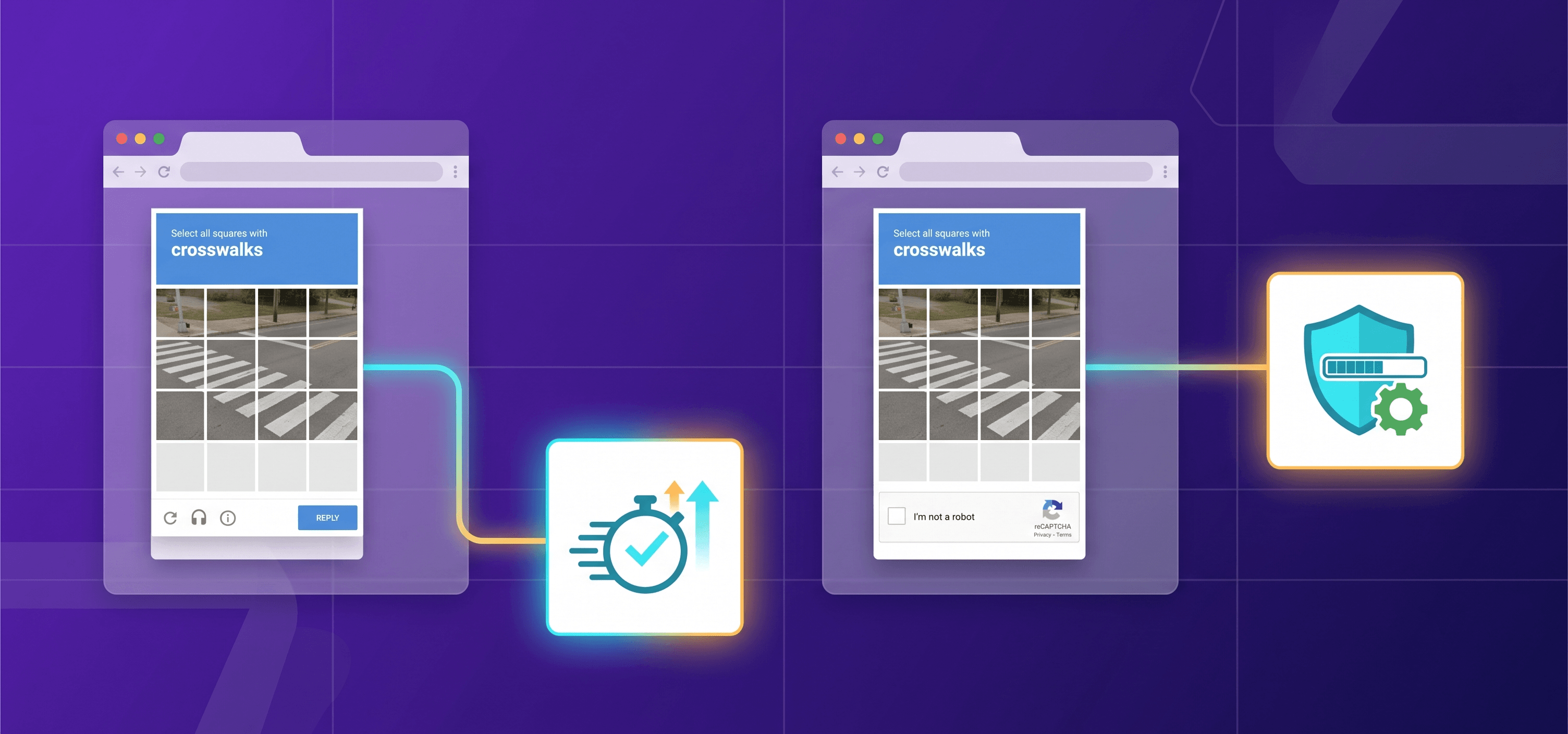
Launched by Google, reCAPTCHA v2 is the version most users instantly recognize: the classic "I'm not a robot" checkbox. When Google's risk signals are unclear, it escalates to an image grid challenge — asking users to identify fire hydrants, traffic lights, crosswalks, and so on.
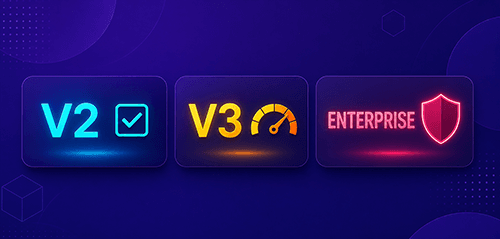
reCAPTCHA v2 comes in two sub-variants:
- Checkbox (Standard): Renders a visible widget. The user clicks a checkbox; Google evaluates mouse movement, timing, and browser signals. If confidence is low, an image challenge appears.
- Invisible v2: No visible widget. The challenge triggers silently on form submission. Only users who appear suspicious ever see a challenge. This is an important distinction when comparing reCAPTCHA v2 invisible vs v3 (more on that below).
The difference between reCAPTCHA v2 and v3 starts here: v2 relies on an explicit human action, while v3 collects behavioral signals passively throughout the user's session.
What Is reCAPTCHA v3?
reCAPTCHA v3, also developed by Google, is fully invisible. It never interrupts the user with a challenge. Instead, it runs continuously in the background, monitoring behavioral signals such as mouse movement, scroll patterns, interaction timing, and browsing history. At a defined action point — login, signup, checkout — it returns a risk score from 0.0 to 1.0:
- 1.0 = very likely a human
- 0.0 = very likely a bot
Practical note: The free reCAPTCHA v3 plan typically only offers four risk score values: 0.1, 0.3, 0.7, and 0.9. The extreme values (0.0 and 1.0) are rarely returned in practice. The full 11-level range requires a billing account attached to a Google Cloud project.
Critically, reCAPTCHA v3 does not block requests automatically. Your backend must interpret the score and decide what to do. This is the core of the reCAPTCHA v3 and v2 difference: v2 stops bots at the gate; v3 flags them and leaves the decision to you.
reCAPTCHA v2 vs v3 Differences: Bot Protection Deep-Dive
Understanding the Google reCAPTCHA v2 vs v3 differences from a security perspective requires looking at the attack surface each version creates.
reCAPTCHA v2 stops basic scripted bots immediately — they cannot click a checkbox or solve an image grid without specialized tooling. However, it is vulnerable to:
- Computer vision attacks — ML models that can solve image grids with varying accuracy, depending on the challenge type and model sophistication
- Human-solving services — third-party platforms where humans typically solve challenges for low per-task fees
- Token replay attacks — reusing a valid token across multiple requests if server-side verification is absent or weak
reCAPTCHA v3 shifts the detection model. Because it analyzes behavior across the entire session, it can detect sophisticated bots that mimic human interaction at a single challenge point. However, its weaknesses include:
- No hard block — an adversary who understands your score threshold may be able to tune requests to stay above it over time
- False positives — legitimate users on VPNs, Tor exit nodes, or privacy-focused browsers may receive low scores and get incorrectly blocked
- Threshold tuning burden — you must instrument your site, collect data, and calibrate thresholds — which requires ongoing maintenance
Neither version offers guaranteed bot prevention. For high-risk scenarios, layering both versions — using v3 as a primary signal and falling back to a v2 challenge on low scores — is considered a best-practice hybrid strategy.
UX Comparison — Friction vs. Invisibility
The Google reCAPTCHA v2 vs v3 UX gap is significant. reCAPTCHA v2 introduces visible friction at a critical conversion point. Image grid challenges are particularly painful on mobile devices and for users with visual impairments, and a standard image-only challenge can conflict with WCAG accessibility guidelines when no audio alternative is offered. This means v2 can have a meaningful impact on conversion rates, especially for consumer-facing forms.
When comparing reCAPTCHA v2 invisible vs v3: both are hidden from most users, but they differ in how they handle edge cases. Invisible v2 falls back to a challenge when its confidence is low — so privacy-conscious users may still see an image grid. v3 never shows a challenge — instead, it returns a risk score to your backend, which then decides how to respond. If your backend is configured to reject requests below a certain threshold, users may find their action silently denied with no explanation. This can be a frustrating experience, even though v3 itself does not block anyone: the block decision always belongs to your server logic.
Accessibility notes:
- v2 checkbox: Moderately accessible with keyboard navigation; image grids remain difficult for screen-reader users without the audio alternative
- v2 invisible: More accessible since most users never see a challenge
- v3: Best accessibility baseline since no challenge is ever shown; however, silent false-positive blocks must be handled with a transparent fallback path (e.g., email verification)
reCAPTCHA v2 vs v3 — Feature Comparison
Feature | reCAPTCHA v2 (Checkbox) | reCAPTCHA v2 (Invisible) | reCAPTCHA v3 |
User interaction | Checkbox click + possible image grid | None for most users; challenge on suspicion | None — fully invisible |
Bot detection method | Browser signals + challenge response | Browser signals + challenge fallback | Behavioral scoring across session |
Output | Pass / Fail token | Pass / Fail token | Score (0.0–1.0) per action |
False positive risk | Low–Medium | Low–Medium | Medium–High (for VPN/privacy users) |
Accessibility for users with disabilities | Moderate (image grids can be problematic) | Better | Best (no challenge shown) |
Friction on users | High | Low | None |
Backend complexity | Low (verify token) | Low (verify token) | Higher (interpret score + define actions) |
Privacy footprint | Moderate | Moderate | Typically higher (continuous session tracking) |
Best use case | High-risk forms, login, payments | Moderate-risk forms | Continuous monitoring, multi-action flows |
When to Use reCAPTCHA v2 or v3
Answering reCAPTCHA v2 vs v3 which is better depends entirely on your context. Neither version is universally superior.
Choose reCAPTCHA v2 when:
- The form is high-risk (login, payment, account creation) and explicit user confirmation adds value
- You want simple backend logic — verify the token, no score interpretation
- Your user base is less sensitive to friction (B2B tools, admin panels)
- You need a hard-block fallback challenge for users who fail a v3 score check
Choose reCAPTCHA v3 when:
- User experience and conversion rate are priorities (e-commerce, landing pages, SaaS onboarding)
- You want to protect multiple page actions without interrupting the user
- You have backend capability to interpret scores and apply tiered responses (allow / challenge / block)
- You want passive bot intelligence across an entire user session
The recommended hybrid approach:
- Deploy v3 across all protected actions
- If a user scores below your threshold (e.g., below 0.5), present an invisible v2 challenge
- If that also fails, block or route to manual review
This combines the UX smoothness of v3 with the hard-block capability of v2.
Implementation Guide — reCAPTCHA v2
Step 1: Register your site key
Go to the Google reCAPTCHA Admin Console, select reCAPTCHA v2 ("I'm not a robot" Checkbox), and add your domain. You'll receive a site key (public) and a secret key (private — server only, never expose client-side).
Step 2: Frontend — Checkbox Widget
<!DOCTYPE html>
<html>
<head>
  <title>reCAPTCHA v2 Demo</title>
  <script src="https://www.google.com/recaptcha/api.js" async defer></script>
</head>
<body>
  <form action="/submit" method="POST">
    <input type="text" name="email" placeholder="Your email" required />
    <div class="g-recaptcha" data-sitekey="YOUR_SITE_KEY"></div>
    <br/>
    <input type="submit" value="Submit">
  </form>
</body>
</html>
Step 3: Frontend — Invisible v2 Variant
<!DOCTYPE html>
<html>
<head>
  <title>reCAPTCHA v2 Invisible Demo</title>
  <script src="https://www.google.com/recaptcha/api.js" async defer></script>
  <script>
    function onSubmit(token) {
      document.getElementById("demo-form").submit();
    }
  </script>
</head>
<body>
  <form id="demo-form" action="/submit" method="POST">
    <input type="text" name="email" placeholder="Your email" required />
    <button class="g-recaptcha"
            data-sitekey="YOUR_SITE_KEY"
            data-callback="onSubmit"
            data-badge="bottomright">
      Submit
    </button>
  </form>
</body>
</html>
Step 4: Backend Verification (PHP)
<?php
if ($_SERVER['REQUEST_METHOD'] !== 'POST') {
    http_response_code(405);
    exit('Method not allowed');
}
$token  = $_POST['g-recaptcha-response'] ?? '';
$secret = 'YOUR_SECRET_KEY';
if (!$token) {
    exit('CAPTCHA token missing.');
}
// Use POST to avoid exposing the secret key in server/proxy logs
$postData = http_build_query([
    'secret'   => $secret,
    'response' => $token,
]);
$context = stream_context_create([
    'http' => [
        'method'  => 'POST',
        'header'  => 'Content-Type: application/x-www-form-urlencoded',
        'content' => $postData,
    ],
]);
$response = file_get_contents(
    'https://www.google.com/recaptcha/api/siteverify',
    false,
    $context
);
if ($response === false) {
    http_response_code(503);
    exit('Could not reach reCAPTCHA verification service.');
}
$result = json_decode($response, true);
if (!empty($result['success'])) {
    echo "<p>Form submitted successfully!</p>";
} else {
    http_response_code(403);
    echo "<p>CAPTCHA verification failed. Please try again.</p>";
}
?>
Implementation Guide — reCAPTCHA v3
Step 1: Register a v3 site key
In the reCAPTCHA Admin Console, select reCAPTCHA v3. You'll receive keys separate from any v2 keys — do not mix them between versions.
Step 2: Frontend — Programmatic Token Execution
<!DOCTYPE html>
<html>
<head>
  <title>reCAPTCHA v3 Demo</title>
  <script src="https://www.google.com/recaptcha/api.js?render=YOUR_SITE_KEY"></script>
</head>
<body>
  <form id="login-form">
    <input type="email" name="email" placeholder="Email" required />
    <input type="password" name="password" placeholder="Password" required />
    <button type="button" onclick="submitWithRecaptcha()">Log In</button>
  </form>
  <script>
    async function submitWithRecaptcha() {
      // Tokens expire after 2 minutes -- execute immediately before submission
      const token = await new Promise((resolve) => {
        grecaptcha.ready(() => {
          grecaptcha.execute('YOUR_SITE_KEY', { action: 'login' }).then(resolve);
        });
      });
      const response = await fetch('/api/login', {
        method: 'POST',
        headers: { 'Content-Type': 'application/json' },
        body: JSON.stringify({
          email: document.querySelector('[name="email"]').value,
          recaptchaToken: token
        })
      });
      const data = await response.json();
      if (data.ok) {
        alert('Login successful!');
      } else {
        alert('Verification failed: ' + (data.error || 'unknown error'));
      }
    }
  </script>
</body>
</html>
Step 3: Backend Verification (Node.js / Express)
// Node.js 18+ with Express
import express from 'express';
const app = express();
app.use(express.json());
app.post('/api/login', async (req, res) => {
  const { recaptchaToken } = req.body;
  const params = new URLSearchParams();
  params.set('secret', process.env.RECAPTCHA_SECRET);
  params.set('response', recaptchaToken);
  try {
    const verifyRes = await fetch('https://www.google.com/recaptcha/api/siteverify', {
      method: 'POST',
      headers: { 'content-type': 'application/x-www-form-urlencoded' },
      body: params
    });
    const data = await verifyRes.json();
    if (!data.success) {
      return res.status(403).json({ error: 'recaptcha_failed', codes: data['error-codes'] });
    }
    // Always validate that the action matches what you expected
    if (data.action !== 'login') {
      return res.status(403).json({ error: 'recaptcha_action_mismatch' });
    }
    // 0.5 is Google's recommended starting threshold -- tune based on your traffic
    if (data.score < 0.5) {
      return res.status(403).json({ error: 'recaptcha_low_score', score: data.score });
    }
    return res.json({ ok: true });
  } catch (err) {
    return res.status(503).json({ error: 'recaptcha_service_unavailable' });
  }
});
app.listen(3000, () => console.log('Server running on port 3000'));
Automating reCAPTCHA solving with CapMonster Cloud
When building test automation, QA pipelines, or authorized web scraping workflows, you need a way to handle reCAPTCHA challenges programmatically — without breaking your test suite every time a CAPTCHA appears. CapMonster Cloud is an automated CAPTCHA solving service that supports both reCAPTCHA v2 and v3, providing a token-based API that integrates cleanly into any technology stack.
Important: CapMonster Cloud is intended for use on websites and platforms to which you have authorized access — for testing, QA automation, and authorized scraping workflows.
Solving reCAPTCHA v2 via CapMonster Cloud API
Create task request:
POST https://api.capmonster.cloud/createTask
{
  "clientKey": "YOUR_API_KEY",
  "task": {
    "type": "RecaptchaV2Task",
    "websiteURL": "https://example.com/login",
    "websiteKey": "YOUR_SITE_KEY"
  }
}
Response
{
  "errorId":0,
  "taskId":407533072
}
Poll for result:
POST https://api.capmonster.cloud/getTaskResult
{
  "clientKey": "YOUR_API_KEY",
  "taskId": 407533072
}
Response (when ready):
{
  "errorId": 0,
  "status": "ready",
  "solution": {
    "gRecaptchaResponse": "03AFcWeA66ZARdA5te7ac..."
  }
}
Solving reCAPTCHA v3 via CapMonster Cloud API
POST https://api.capmonster.cloud/createTask
{
  "clientKey": "YOUR_API_KEY",
  "task": {
    "type": "RecaptchaV3TaskProxyless",
    "websiteURL": "https://example.com/login",
    "websiteKey": "YOUR_SITE_KEY",
    "isEnterprise": false,
    "minScore": 0.7,
    "pageAction": "login"
  }
}
The subsequent steps are similar to v2.
SDK Example (Python — reCAPTCHA v3)
# https://github.com/CapMonsterCloud/capmonster-python-captcha-solver
import asyncio
from capmonstercloudclient import CapMonsterClient, ClientOptions
from capmonstercloudclient.requests import RecaptchaV3ProxylessRequest
client_options = ClientOptions(api_key="YOUR_API_KEY")  # Specify your CapMonster Cloud API key
cap_monster_client = CapMonsterClient(options=client_options)
# Optionally, you can check the balance
balance = asyncio.run(cap_monster_client.get_balance())
print("Balance:", balance)
recaptcha_v3_request = RecaptchaV3ProxylessRequest(
    websiteUrl="https://lessons.zennolab.com/captchas/recaptcha/v3.php?level=beta",  # URL of your page with captcha
    websiteKey="6Le0xVgUAAAAAIt20XEB4rVhYOODgTl00d8juDob",
    minScore=0.6,
    pageAction="myverify"
)
async def solve_captcha():
    return await cap_monster_client.solve_captcha(recaptcha_v3_request)
responses = asyncio.run(solve_captcha())
print(responses)
SDK Example (Node.js — reCAPTCHA v2)
// https://github.com/CapMonsterCloud/capmonster-nodejs-captcha-solver
import { CapMonsterCloudClientFactory, ClientOptions, RecaptchaV2Request } from '@zennolab_com/capmonstercloud-client';
const API_KEY = "YOUR_API_KEY";  // Specify your CapMonster Cloud API key
async function solveRecaptchaV2() {
    const client = CapMonsterCloudClientFactory.Create(
        new ClientOptions({ clientKey: API_KEY })
    );
    // Basic example without proxy
    // CapMonster Cloud automatically uses its own proxies
    let recaptcha2Request = new RecaptchaV2Request({
        websiteURL: "https://lessons.zennolab.com/captchas/recaptcha/v2_simple.php?level=high",
        websiteKey: "6Lcg7CMUAAAAANphynKgn9YAgA4tQ2KI_iqRyTwd"
    });
    // Example of using your own proxy
    // Uncomment this block if you want to use your own proxy
    /*
    const proxy = {
        proxyType: "http",
        proxyAddress: "123.45.67.89",
        proxyPort: 8080,
        proxyLogin: "username",
        proxyPassword: "password"
    };
    recaptcha2Request = new RecaptchaV2Request({
        websiteURL: "https://lessons.zennolab.com/captchas/recaptcha/v2_simple.php?level=high",
        websiteKey: "6Lcg7CMUAAAAANphynKgn9YAgA4tQ2KI_iqRyTwd",
        proxy,
        userAgent: "userAgentPlaceholder"
    });
    */
    // Optionally, you can check the balance
    const balance = await client.getBalance();
    console.log("Balance:", balance);
    const result = await client.Solve(recaptcha2Request);
    console.log("Solution:", result);
}
solveRecaptchaV2().catch(console.error);
CapMonster Cloud also supports reCAPTCHA Enterprise, Cloudflare Turnstile, and a range of other CAPTCHA types — making it a versatile tool for any testing infrastructure that interacts with CAPTCHA-protected forms.
Implementation Checklist
reCAPTCHA v2
- Register a v2 site key in the Google reCAPTCHA Admin Console
- Add the api.js script to your page with async defer
- Render the widget with <div data-sitekey="..."> (checkbox) or configure the invisible variant with data-callback
- Extract g-recaptcha-response from the POST body on your server
- Verify the token at https://www.google.com/recaptcha/api/siteverify using your secret key via POST (not GET) to protect the secret key from being logged
- Check that success: true is returned before processing the form submission
- Never expose your secret key in client-side code
- Provide an audio challenge alternative for accessibility
reCAPTCHA v3
- Register a separate v3 site key (do not reuse v2 keys)
- Load api.js?render=YOUR_SITE_KEY
- Call grecaptcha.execute(siteKey, { action: 'your_action' }) for each protected action
- Send the token to your backend immediately — tokens expire after 2 minutes and are single-use
- Verify via siteverify, check success: true, and validate action matches the expected value
- Set an initial score threshold (0.5 is Google's recommended starting point) and adjust based on real traffic analysis
- Define a tiered response at each score range: allow / step-up challenge / block
- Log scores over time to detect drift and tune thresholds
- Provide a transparent fallback path (e.g., email verification) for users who score low through no fault of their own
FAQ
Q: Is reCAPTCHA v3 better than v2? Not universally. reCAPTCHA v3 offers a better user experience but requires significantly more backend work and introduces false-positive risk for legitimate users on VPNs or privacy-focused browsers. v2 is simpler to deploy and provides a hard block at the form level. For high-security forms, many teams use both in a hybrid setup — v3 as the first layer, v2 as a fallback.
Q: What is the difference between reCAPTCHA v2 and v3 in terms of user experience? v2 (checkbox) requires a visible user action and may escalate to image challenges. v3 is fully invisible — users never interact with it directly. However, v3 can return a low score to silently block legitimate users, which is a different — but still real — form of friction, especially when users receive no explanation for why their action was rejected.
Q: Can I use reCAPTCHA v2 and v3 together? Yes, and it's recommended for high-risk scenarios. Use v3 as the primary layer to score all users passively, then present a v2 challenge (visible or invisible) to users whose v3 score falls below your threshold. This is the hybrid approach described in the implementation section above.
Q: What threshold should I set for reCAPTCHA v3? Google recommends 0.5 as a starting point. The right threshold depends on your traffic patterns — analyze score distributions across your real users before finalizing a number. A threshold set too high may block legitimate users; too low, and bots may pass through. High-risk actions such as payments or password resets may warrant a higher threshold.
Q: What is the difference between reCAPTCHA v2 invisible and v3? Both are hidden from most users, but they work differently. Invisible v2 still has a challenge fallback — suspicious users may see an image grid. v3 never shows a challenge of any kind; it returns only a score. The key practical difference is that v2 invisible retains a hard-block mechanism via the challenge, while v3 delegates every block decision entirely to your backend logic.
Conclusion
The reCAPTCHA v2 vs v3 decision comes down to two variables: how much friction you can accept, and how much backend sophistication you can invest. v2 provides a simple, proven gate with minimal configuration; v3 provides nuanced, invisible intelligence that requires active interpretation and ongoing threshold tuning. For most production sites, the most resilient approach is a hybrid of both.
Ready to test your CAPTCHA integration? Try CapMonster Cloud today → — automate reCAPTCHA v2 and v3 solving in your QA and testing workflows with a straightforward API and official SDKs for Python, JavaScript, and C#.