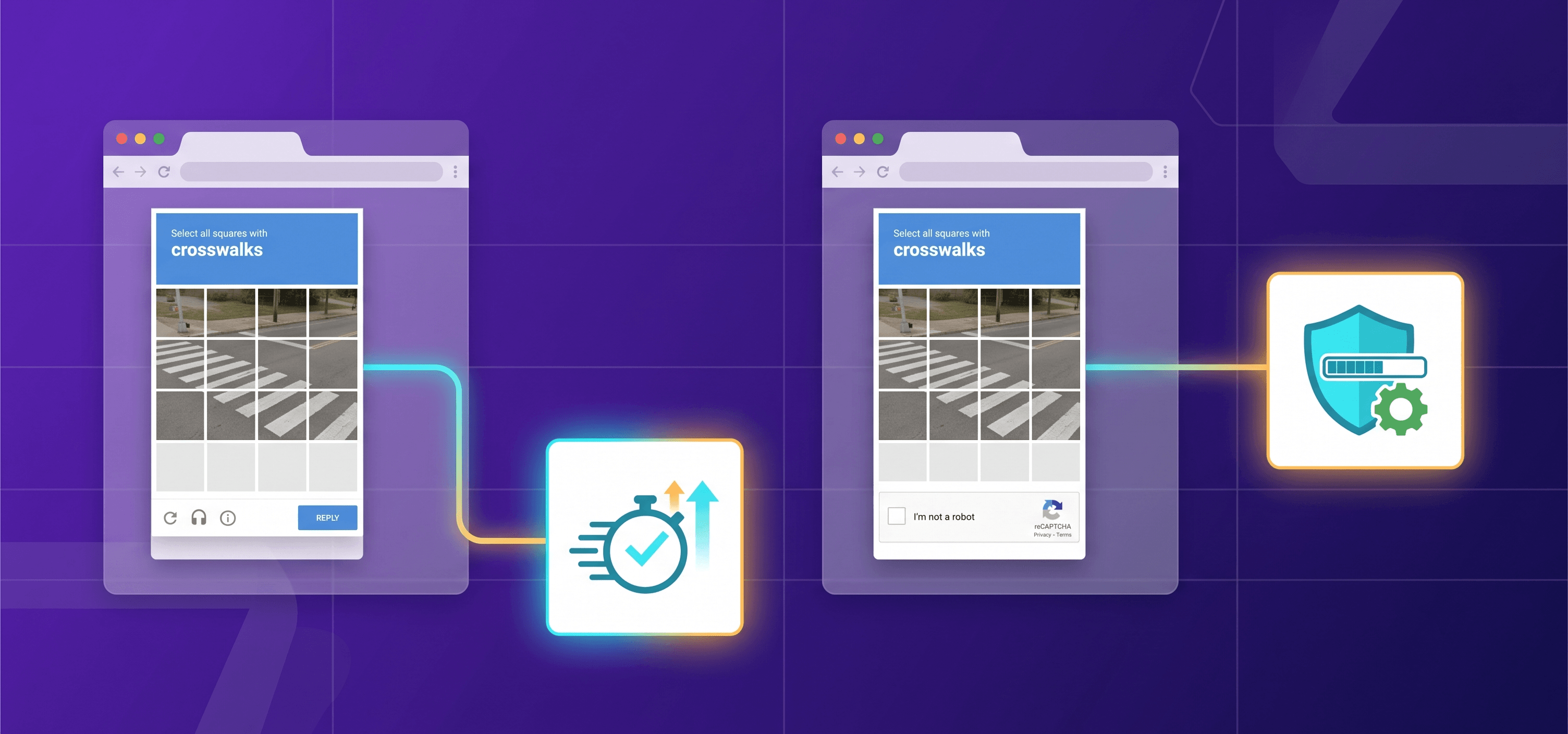
Solving reCAPTCHA Enterprise using CapMonster Cloud: a complete guide
Modern website protection systems are becoming increasingly complex for scripts to bypass. Intelligent algorithms, machine learning technologies, and behavioral analysis create a strong barrier for blocking potential threats. Standard CAPTCHAs already represent a serious obstacle, and for large companies and websites with enhanced security requirements, even more advanced solutions have been developed — including reCAPTCHA Enterprise.
In this article, we will take a detailed look at what reCAPTCHA Enterprise is, how it differs from standard versions, and how it helps protect web resources from various types of attacks. You will learn how to recognize this type of CAPTCHA on a website, explore its main characteristics and parameters, and also review examples of solving this CAPTCHA for successful verification and further interaction with web resources.

What is reCAPTCHA Enterprise?
In short, reCAPTCHA Enterprise is a version of Google’s well-known security system designed to protect websites and applications with high security requirements. It provides additional capabilities and improved protection mechanisms compared to the standard reCAPTCHA v2 and v3 versions, making it more suitable for large companies, financial institutions, and other organizations that work with sensitive data.
Features and advantages
reCAPTCHA Enterprise uses more advanced protection mechanisms than standard versions. Although the verification methods remain similar — in v2 users must complete a specific task, while in v3 behavioral analysis is used — the Enterprise version offers several significant advantages:
Flexible configuration and detailed analytics. reCAPTCHA Enterprise provides deeper configuration options and advanced analytics for website administrators. This is a key advantage that allows fine-tuning risk thresholds and taking into account additional factors such as user behavior, action speed, and location.
Reduction of false positives. Thanks to complex algorithms and risk analysis, reCAPTCHA Enterprise helps reduce the number of false positives. This is especially important for large companies and services with a high number of users, where errors may lead to blocking real customers. Unlike reCAPTCHA v2, where mistakes can be obvious (e.g., incorrectly selected images), Enterprise performs a more comprehensive analysis that includes additional factors such as user behavior and reputation.
Detailed reports. Provides detailed information about interactions, including reasons for blocking or flagging based on the risk profile.
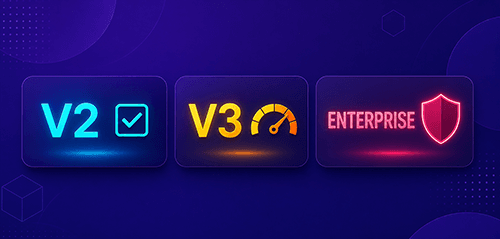
What is the difference between Enterprise v2 and v3?
Similar to the standard versions (non-Enterprise), these versions differ in how users are verified:
reCAPTCHA v2:
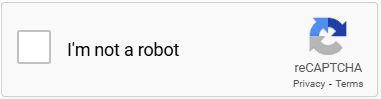
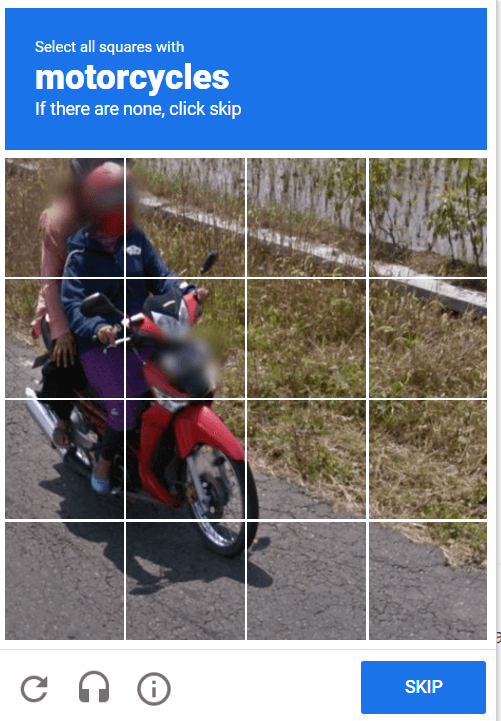
The user must solve a visual or text-based challenge (for example, selecting images with traffic lights) or tick the “I’m not a robot” checkbox. The verification is explicit (challenge-based) and requires user interaction. It is suitable for forms, login pages, and other standalone verification points.
reCAPTCHA v3:
An invisible verification that runs in the background. It evaluates user behavior on the page and assigns a risk score from 0.0 to 1.0 (where 1.0 represents a real user and 0.0 represents a likely bot). The developer decides what actions to take based on the score (for example, blocking access or requiring additional verification). It is ideal for monitoring website activity, protecting payment pages, and analyzing traffic.
How to identify the Enterprise version?
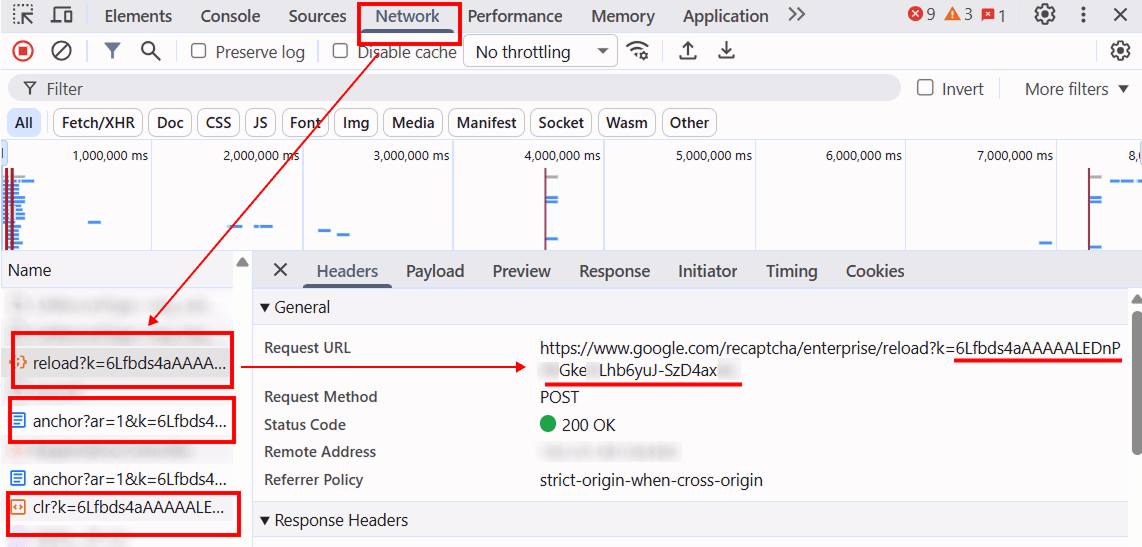
To determine whether reCAPTCHA Enterprise is used on a web page, open the browser’s Developer Tools and inspect the page’s source code:
Look for specific requests, check URLs and request parameters. If the requests contain a domain of the following type:

This indicates the use of reCAPTCHA Enterprise.
In a standard configuration, the following URL is used:

An additional indicator of reCAPTCHA v3 Enterprise usage may be requests to URLs such as:
https://www.google.com/recaptcha/enterprise/anchor?ar=1&k=
https://www.google.com/recaptcha/enterprise.js?render=
https://www.google.com/recaptcha/enterprise/reload?k= https://www.google.com/recaptcha/enterprise/clr?k=
Automation of interaction
This type of CAPTCHA effectively protects websites from hacks, attacks, and other malicious activities. However, automation of interaction with reCAPTCHA Enterprise may also be required for legitimate purposes. Solving such CAPTCHAs automatically on your own is a complex task that requires deep technical knowledge. The easiest solution is to use specialized services — for example, CapMonster Cloud . This service, powered by artificial intelligence, solves CAPTCHAs quickly and efficiently, significantly reducing time and financial costs. It becomes an indispensable assistant if your activity is related to the following areas:
Testing and development
Test automation
Developers can create automated tests for web applications that use reCAPTCHA. To ensure tests run correctly, the CAPTCHA needs to be emulated or solved automatically.
Quality assurance (QA)
QA engineers can test system behavior, including how a website responds when a CAPTCHA is passed or failed.
Ethical web scraping
Price and competitor monitoring
Companies involved in price monitoring can use automation to collect data about products and services from websites protected by CAPTCHAs.
Data analysis for research
Scientists and analysts can collect data for economic, social, or scientific research.
Cybersecurity tools
Penetration testing
Information security experts test web application vulnerabilities, including resistance to bots and attacks. For this, it is necessary to test bypassing protection mechanisms.
Vulnerability analysis
Evaluation of CAPTCHA effectiveness in protecting against automated attacks.
CAPTCHA automation can also help users who face difficulties completing reCAPTCHA due to limited mobility or visual impairments. In such cases, specialized methods provide a more accessible and convenient way to interact with websites.
Solution using CapMonster Cloud
The service solves reCAPTCHA Enterprise using a browser extension (for Chrome and Firefox ) and via API. If you need to integrate CAPTCHA solving into your code using the API, follow these steps:
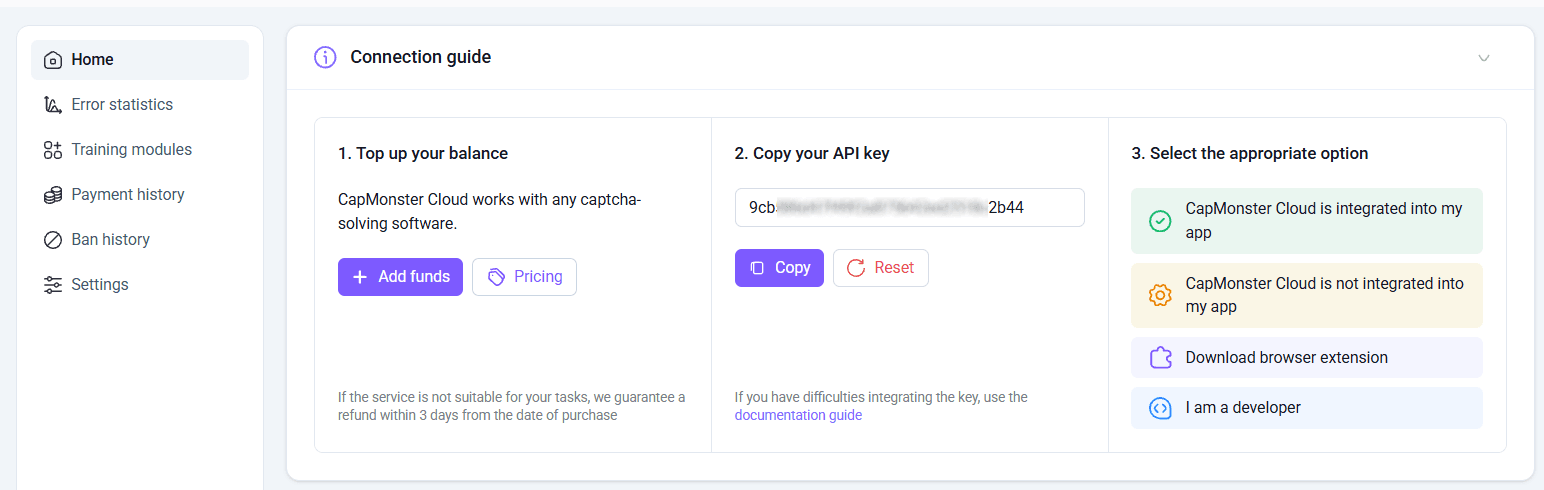
Create an account on CapMonster Cloud , top up your balance, and obtain an API key from your personal account — it will be required for integration.
Next, review the required parameters that must be sent to the CapMonster Cloud server for CAPTCHA solving :
Request parameters
reCAPTCHA v2 Enterprise
By default, CapMonster Cloud uses its own proxy servers to solve CAPTCHAs, which are already included in the price. However, in some cases you may use your own proxies — for example, if there are issues with accepting returned tokens on your target website’s server. In this case, you do not need to specify a separate task type; instead, include additional proxy fields in the solving request.
Review the documentation for version 2 and version 3 for more detailed information on how to find (manually or programmatically) all required parameters for creating a solving task.
type <string> required
websiteURL <string> required
URL of the page where the CAPTCHA is being solved.
websiteKey <string> required
reCAPTCHA site key identifier on the target page.
<div class="g-recaptcha" data-sitekey="THIS_ONE"></div>or
<iframe title="reCAPTCHA" src="...;k=6LdIFr0ZAAAAAO3vz0O0OQrtAefzdJcWQM2TMYQH&...where 6LdIFr0ZAAAAAO3vz0O0OQrtAefzdJcWQM2TMYQH is the value of the websiteKey parameter
enterprisePayload <string> optional
Some implementations of the reCAPTCHA Enterprise widget may include an additional s field in the structure passed to the grecaptcha.enterprise.render method along with the sitekey
For example:
2JvUXHNTnZl1Jb6WEvbDyB...ugQA
grecaptcha.enterprise.render("some-div-id", {
    sitekey: "6Lc_aCMTAAAAABx7u2N0D1XnVbI_v6ZdbM6rYf16",
    theme: "dark",
    s: "2JvUXHNTnZl1Jb6WEvbDyB...ugQA"
});
apiDomain <string> optional
Domain from which reCAPTCHA Enterprise is loaded. For example:
www.google.com
www.recaptcha.net
userAgent <string> optional
Browser User-Agent used in emulation. You must use a modern browser signature, otherwise Google will return an error requesting a browser update.
cookies <string> optional
Additional cookies used during interaction with the target page.
Format:
cookiename1=cookievalue1; cookiename2=cookievalue2
If necessary, add proxy fields:
proxyType <string> optional
http— standard http/https proxy;https— use this option only if "http" does not work (required for some custom proxies);socks4— socks4 proxy;socks5— socks5 proxy.
proxyAddress <string> optional
Proxy IP address (IPv4/IPv6).
Not allowed:
using hostnames;
using transparent proxies (where client IP is visible);
using proxies on local machines.
proxyPort <integer> optional
Proxy port.
proxyLogin <string> optional
Proxy server login.
proxyPassword <string> optional
Proxy server password.
reCAPTCHA v3 Enterprise
Tasks are executed only through CapMonster Cloud proxy servers.
type <string> required
websiteURL <string> required
URL of the page where the CAPTCHA is being solved.
websiteKey <string> required
ReCAPTCHA v3 site key on the target page.
https://www.google.com/recaptcha/enterprise.js?render=THIS_ONEminScore <double> optional
Can range from 0.1 to 0.9
pageAction <string> optional
The value of the action parameter passed by the reCAPTCHA widget to Google and later visible to the site owner during server-side verification. Default value: verify
HTML example:
grecaptcha.execute('site_key', {action:'login_test'});
Task creation method
Use POST method:
https://api.capmonster.cloud/createTask
reCAPTCHA v2 Enterprise:
{
  "clientKey": "API_KEY",
  "task": {
    "type": "RecaptchaV2EnterpriseTask",
    "websiteURL": "https://mydomain.com/page-with-recaptcha-enterprise",
    "websiteKey": "6Lcg7CMUAAAAANphynKgn9YAgA4tQ2KI_iqRyTwd",
    "enterprisePayload": {
      "s": "SOME_ADDITIONAL_TOKEN"
    }
  }
}
reCAPTCHA v3 Enterprise:
{
  "clientKey": "API_KEY",
  "task": {
    "type": "RecaptchaV3EnterpriseTask",
    "websiteURL": "https://example.com",
    "websiteKey": "6Le0xVgUAAAAAIt20XEB4rVhYOODgTl00d4TuRTE",
    "minScore": 0.7
  }
}
Successful response:
{
  "errorId": 0,
  "taskId": 407533072
}
Task result retrieval method
Use the getTaskResult method to retrieve the solution. Depending on system load, you will receive a response within a time range of 10 to 80 seconds. Use POST method:
https://api.capmonster.cloud/getTaskResultRequest:
{
  "clientKey":"API_KEY",
  "taskId": 407533072
}
Successful response:
{
  "errorId": 0,
  "status": "ready",
  "solution": {
    "gRecaptchaResponse": "3AHJ_VuvYIBNBW5yyv0zRYJ75VkOKvhKj9_xGBJKnQimF72rfoq3Iy-DyGHMwLAo6a3"
  }
}
For some websites, the response may also include a UserAgent:
{
  "errorId": 0,
  "status": "ready",
  "solution": {
    "gRecaptchaResponse": "3AHJ_VuvYIBNBW5yyv0zRYJ75VkOKvhKj9_xGBJKnQimF72rfoq3Iy-DyGHMwLAo6a3",
    "userAgent": "Mozilla/5.0 (Macintosh; Intel Mac OS X 10_15_7) AppleWebKit/537.36 (KHTML, like Gecko) Chrome/138.0.0.0 Safari/537.36"
  }
}
When confirming the solution, use the UserAgent returned in the response, even if it differs from the current browser UserAgent.
| gRecaptchaResponse – Hash that must be inserted into the form with reCAPTCHA Enterprise in <textarea id="g-recaptcha-response" ..></textarea>. Its length ranges from 500 to 2190 bytes. |
Code examples using official CapMonster Cloud libraries
For your convenience, the service provides its own libraries for automatically solving many types of CAPTCHAs. As an example, we will use Python:
reCAPTCHA v2 Enterprise:
# https://github.com/CapMonsterCloud/capmonster-python-captcha-solver

import asyncio
from capmonstercloudclient import CapMonsterClient, ClientOptions
from capmonstercloudclient.requests import RecaptchaV2EnterpriseRequest
# from capmonstercloudclient.requests.baseRequestWithProxy import ProxyInfo  # Uncomment if you plan to use proxies

API_KEY = "YOUR_API_KEY"  # Specify your CapMonster Cloud API key

async def solve_recaptcha_v2_enterprise():
    client_options = ClientOptions(api_key=API_KEY)
    cap_monster_client = CapMonsterClient(options=client_options)

    # Basic example without proxy
    # CapMonster Cloud automatically uses its own proxies
    recaptcha2request = RecaptchaV2EnterpriseRequest(
        websiteUrl="https://example.com",
        websiteKey="6Kf56sUnAAAAAIKLuONYgRsFUfmI-3Lex3xT5W-s",
        enterprisePayload={
            "s": "SOME_ADDITIONAL_TOKEN"
        }
    )

    # Example of using your own proxy
    # Uncomment this block if you want to use a custom proxy
    # proxy = ProxyInfo(
    #     proxyType="http",
    #     proxyAddress="123.45.67.89",
    #     proxyPort=8080,
    #     proxyLogin="username",
    #     proxyPassword="password"
    # )

    # recaptcha2request = RecaptchaV2EnterpriseRequest(
    #     websiteUrl="https://example.com",
    #     websiteKey="6Lf56sUnAAAAAIKLuONYgRsFUfmI-3Lex3xT5U-s",
    #     enterprisePayload={
    #         # "s": "SOME_ADDITIONAL_TOKEN"
    #     },
    #     proxy=proxy,
    #     userAgent="Mozilla/5.0 (Windows NT 10.0; Win64; x64) AppleWebKit/537.36 (KHTML, like Gecko) Chrome/148.0.0.0 Safari/537.36"
    # )

    # Optionally check balance
    balance = await cap_monster_client.get_balance()
    print("Balance:", balance)

    result = await cap_monster_client.solve_captcha(recaptcha2request)
    print("Solution:", result)

asyncio.run(solve_recaptcha_v2_enterprise())
reCAPTCHA v3 Enterprise:
# https://github.com/CapMonsterCloud/capmonster-python-captcha-solver

import asyncio
from capmonstercloudclient import CapMonsterClient, ClientOptions
from capmonstercloudclient.requests import RecaptchaV3EnterpriseRequest

API_KEY = "YOUR_API_KEY"  # Specify your CapMonster Cloud API key

async def solve_recaptcha_v3_enterprise():
    client_options = ClientOptions(api_key=API_KEY)
    cap_monster_client = CapMonsterClient(options=client_options)

    # Basic example without proxy
    # CapMonster Cloud automatically uses its own proxies
    recaptcha3request = RecaptchaV3EnterpriseRequest(
        websiteUrl="https://www.example.com",
        websiteKey="6Kf56sUnAAAAAIKLuONYgRsFUfmI-3Lex3xT5W-s",
    )

    # Optionally check balance
    balance = await cap_monster_client.get_balance()
    print("Balance:", balance)

    result = await cap_monster_client.solve_captcha(recaptcha3request)
    print("Solution:", result)

asyncio.run(solve_recaptcha_v3_enterprise())
Using the received token
After receiving the token from our service, it can be added to the corresponding request parameter (g-recaptcha-response) and sent together with the rest of the form data in a POST request to the site API. For example:
const response = await fetch("https://example.com/api/login", {
    method: "POST",
    headers: {
        "Content-Type": "application/json"
    },
    body: JSON.stringify({
        username: "test_user",
        password: "test_password",
        "g-recaptcha-response": "CAPTCHA_TOKEN"
    })
});
const result = await response.json();
console.log(result);
Before using this approach, it is recommended to inspect the target page with the captcha and the site’s network requests via DevTools (Network tab) in order to understand how the token is transmitted and which additional parameters are required for successful verification.
You can also use browser automation tools (for example, Puppeteer, Playwright or Selenium). To insert the solution, you will also need to inspect the page code, find the corresponding form, and then use that element in your code to submit the verification.
We will find all the parameters required for solving via CapMonster Cloud, as well as the element where the received token should be inserted. For reCAPTCHA, this is usually a hidden textarea field named g-recaptcha-response.
As tools for this example, we will use Python and Selenium. First, you need to inspect the target captcha page and find all parameters required by CapMonster Cloud and the element where the token must be inserted.
Make sure that all required tools and dependencies are installed and correctly imported into the project:

import time
from capmonstercloudclient import CapMonsterClient, ClientOptions
from capmonstercloudclient.requests import RecaptchaV2EnterpriseRequest
from selenium import webdriver
from selenium.webdriver.common.by import By
After that, create a Selenium WebDriver instance and open the target page:
driver = webdriver.Chrome()
driver.get("https://example.com")
Next, prepare the CapMonster Cloud client and specify captcha parameters. In this example, the Enterprise version of reCAPTCHA v3 is used:
client_options = ClientOptions(
   api_key="YOUR_API_KEY"
)
cap_monster_client = CapMonsterClient(
   options=client_options
)
website_url = driver.current_url
website_key = "SITE_KEY" # Replace with the actual site key
In addition to websiteKey, reCAPTCHA v3 Enterprise often requires specifying pageAction (if different from the default value: verify) and the minimum expected score (minScore):
recaptcha_request = RecaptchaV3EnterpriseRequest(
   websiteUrl=website_url,
   websiteKey=website_key,
   minScore=0.7,
   pageAction="mylogin"
)
After that, send the request, receive the solution, and print the token to the terminal:
async def solve_captcha():
   return await cap_monster_client.solve_captcha(
       recaptcha_request
   )
responses = asyncio.run(solve_captcha())
The received token is stored in the gRecaptchaResponse field:
captcha_token = responses["gRecaptchaResponse"]
print("TOKEN:")
print(captcha_token)
Now use Selenium to locate the textarea used to store the reCAPTCHA response:
textarea = driver.find_element(
   By.NAME,
   "g-recaptcha-response"
)
Many sites hide the reCAPTCHA textarea (display: none). In some browsers or Selenium versions, fully hidden elements may not correctly accept input. Therefore, in this example, the element is temporarily made visible, and the token is set via JavaScript:
driver.execute_script("""
arguments[0].style.display = 'block';
arguments[0].value = arguments[1];
arguments[0].innerHTML = arguments[1];
""", textarea, captcha_token)
In this case, the token is written to both value and innerHTML, which helps ensure proper updating of the field content on some websites.
After inserting the token, the only remaining step is to confirm the captcha solution. For example, you can click the submit button:
button = driver.find_element(
   By.CSS_SELECTOR,
   "button[data-action='myverify']"
)
driver.execute_script("arguments[0].click();", button)
Note: sometimes there is no separate submit button on the page, in which case alternative methods can be used. For example, submitting the form directly: If submission is implemented via JavaScript, sometimes a manual dispatch of a submit event may help: Also in some cases a callback function is used (for example, after successful verification), which can be triggered directly if it is available in the global scope: or via an options object: |
If everything is done correctly, the form will be successfully submitted:
print("Captcha successfully solved!")Full code for solution:
import asyncio
import time
from capmonstercloudclient import CapMonsterClient, ClientOptions
from capmonstercloudclient.requests import RecaptchaV3EnterpriseRequest
from selenium import webdriver
from selenium.webdriver.common.by import By

driver = webdriver.Chrome()
driver.get("https://example.com")

client_options = ClientOptions(
    api_key="YOUR_API_KEY"
)

cap_monster_client = CapMonsterClient(
    options=client_options
)

website_url = driver.current_url
website_key = "SITE_KEY" # Replace with the real site key

recaptcha_request = RecaptchaV3EnterpriseRequest(
    websiteUrl=website_url,
    websiteKey=website_key,
    minScore=0.7,
    pageAction="mylogin"
)

async def solve_captcha():
    return await cap_monster_client.solve_captcha(
        recaptcha_request
    )

responses = asyncio.run(solve_captcha())
captcha_token = responses["gRecaptchaResponse"]

print("TOKEN:")
print(captcha_token)

textarea = driver.find_element(
    By.NAME,
    "g-recaptcha-response"
)

driver.execute_script("""
arguments[0].style.display = 'block';
arguments[0].value = arguments[1];
arguments[0].innerHTML = arguments[1];
""", textarea, captcha_token)

# Submit the form
button = driver.find_element(
    By.CSS_SELECTOR,
    "button[data-action='myverify']"
)

driver.execute_script("arguments[0].click();", button)

print("CAPTCHA successfully solved!")
time.sleep(5)
driver.quit()
For reCAPTCHA Enterprise v2, the logic is almost the same. You need to use the RecaptchaV2EnterpriseRequest instead of RecaptchaV3EnterpriseRequest. Unlike v3, it does not use the minScore and pageAction parameters:
import asyncio
import time
from capmonstercloudclient import CapMonsterClient, ClientOptions
from capmonstercloudclient.requests import RecaptchaV2EnterpriseRequest
from selenium import webdriver
from selenium.webdriver.common.by import By

driver = webdriver.Chrome()
driver.get("https://example.com")

client_options = ClientOptions(
    api_key="YOUR_API_KEY"
)

cap_monster_client = CapMonsterClient(
    options=client_options
)

website_url = driver.current_url
website_key = "SITE_KEY"  # Replace with the real site key

recaptcha_request = RecaptchaV2EnterpriseRequest(
    websiteUrl=website_url,
    websiteKey=website_key
)

async def solve_captcha():
    return await cap_monster_client.solve_captcha(
        recaptcha_request
    )

responses = asyncio.run(solve_captcha())
captcha_token = responses["gRecaptchaResponse"]

print("TOKEN:")
print(captcha_token)

textarea = driver.find_element(
    By.NAME,
    "g-recaptcha-response"
)

driver.execute_script("""
arguments[0].style.display = 'block';
arguments[0].value = arguments[1];
arguments[0].innerHTML = arguments[1];
""", textarea, captcha_token)

# Submit the form
button = driver.find_element(
    By.CSS_SELECTOR,
    "button[data-action='myverify']"
)

driver.execute_script(
    "arguments[0].click();",
    button
)

print("CAPTCHA successfully solved!")
time.sleep(5)
driver.quit()
| This method of solving and injecting the token into the form is provided for educational purposes – in each specific case, element names and methods may differ. |
Error handling and performance optimization
When working with reCAPTCHA Enterprise, it is important to understand what errors may occur and how to handle them effectively. In this section, we will discuss common API errors and share recommendations for improving the performance and stability of your script. All of this will help you save time and avoid unnecessary issues.
Common API Errors and Tips for Improving the Process
- Incorrect request parameters
It often happens that an error occurs due to incorrect parameters passed in your requests. For example, this may be an incorrect sitekey, an invalid URL, or an incorrect captcha solution token. To avoid such situations, always make sure that you are passing correct data.
Tip:
Make sure that the sitekey and url are correct for each page where you solve a captcha. Use the appropriate request parameters matching the captcha type (for example, Enterprise captchas may include additional parameters such as enterprisePayload). Read the documentation and use the correct parameters for each request.
- Timeout error
Sometimes captcha solving may take a bit longer than expected. If the request does not finish in time, a timeout error occurs. To avoid this, it is useful to properly configure waiting time and implement retry attempts.
Tip:
Set reasonable timeouts for your requests.
In case of timeouts, use a retry mechanism so you do not lose the solution.
- API limits and request frequency
CapMonster Cloud has limits on the number of requests you can send within a certain time period. If you exceed these limits, you may experience performance issues or even blocks. To avoid this, it is important to respect the limits and properly distribute the load.
Tip:
Monitor request limits carefully. Split requests into smaller batches to avoid blocking.
- Interactive testing and monitoring
Sometimes it is useful to use real-time monitoring tools to track interactions with the website. This helps you accurately identify where an error occurs.
Tip:
Use monitoring tools (for example, Chrome DevTools or built-in debuggers) to observe the captcha-solving process in real time.
- Asynchronous requests
If your script works with multiple captchas at the same time, asynchronous requests can significantly improve performance. Asynchrony allows other tasks to continue without blocking while a captcha is being solved.
Tip:
Try libraries such as asyncio or aiohttp to make requests asynchronous.
Conclusion
In this article, we explained in detail what reCAPTCHA Enterprise is and how it helps protect websites from automated attacks. We showed how to recognize this type of captcha on a page and provided code examples for solving it using official CapMonster Cloud libraries in different programming languages. We also demonstrated how to properly inject the token into a form and confirm the captcha solution.
In addition, we shared useful tips for optimizing reCAPTCHA Enterprise workflows and discussed common errors that may occur when working with the API. These simple recommendations will help you avoid issues and make your script more stable and faster!
We are confident that by following these tips, you will be able to effectively handle tasks related to automated reCAPTCHA Enterprise solving, and tools such as CapMonster Cloud significantly simplify the process and save time. Good luck with your projects and successful work with reCAPTCHA Enterprise!
Frequently Asked Questions

NB: Please note that this product is intended for automation testing exclusively on your own websites and resources to which you have legal access rights.