Working with Amazon AWS WAF CAPTCHA in Web Scraping

Amazon (AWS WAF) CAPTCHA and Challenge – what they are and how they differ
AWS WAF (a service from Amazon) provides two main types of protection for web resources against unwanted automated actions:
CAPTCHA – asks the user to solve tasks such as: entering text into a field, moving a slider, selecting specific objects in an image, or dragging elements into a target position. Audio CAPTCHAs are also available as an alternative, where the user must listen and recognize words spoken over background noise and enter them into the corresponding field.
Examples of Amazon CAPTCHA:

Amazon CAPTCHA slider
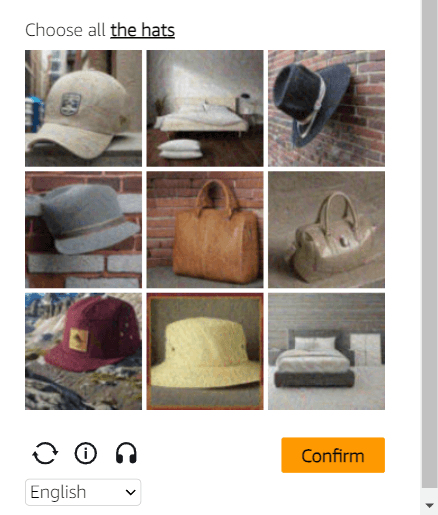
Object selection
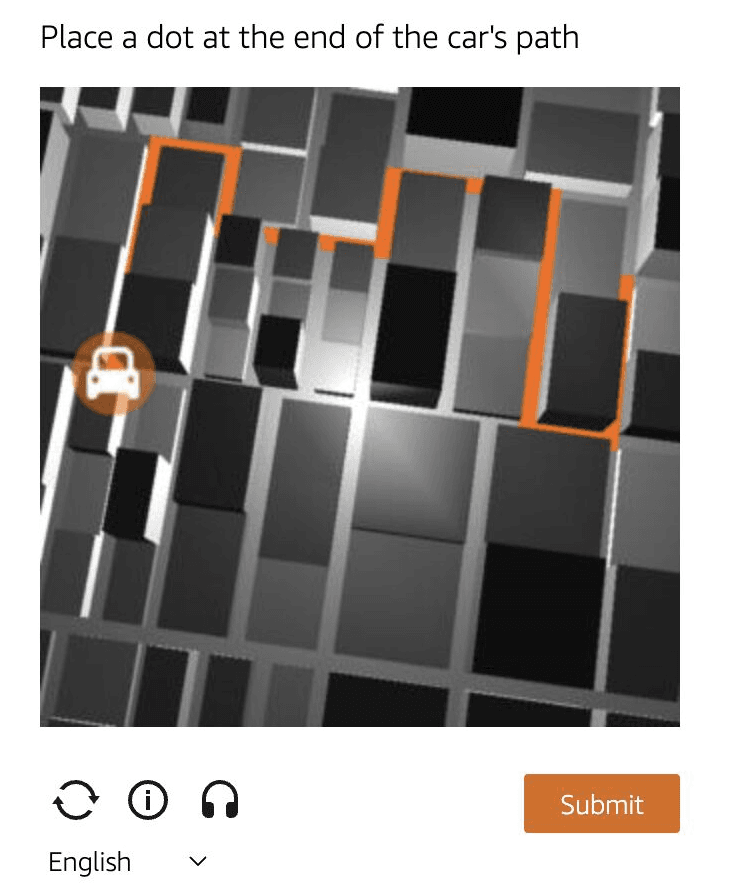
Element dragging
Challenge – in this case, the user does not need to solve any tasks directly. The verification runs in the background by analyzing session parameters and request behavior (e.g. request frequency, JavaScript usage, mouse behavior, presence or absence of cookies). If the check is successful, the user continues interacting with the website; otherwise, the request may be blocked or the user may be shown a CAPTCHA for additional verification. If the system detects signs of automation, it may increase the verification level to ensure website security and protection against unauthorized access.
How to Solve Amazon CAPTCHAs Using CapMonster Cloud
The Amazon protection system is carefully designed and provides a high level of security. It is constantly updated and makes it increasingly difficult for bots to access websites. However, for the purposes of website testing, safe scraping, and debugging, it can be bypassed using the cloud service CapMonster Cloud.
Finding CAPTCHA data
To solve this type of CAPTCHA, you need to open the target website with the CAPTCHA, launch Developer Tools, and extract the required CAPTCHA data – websiteKey, context, iv and challengeScript.
Here is a more detailed guide:
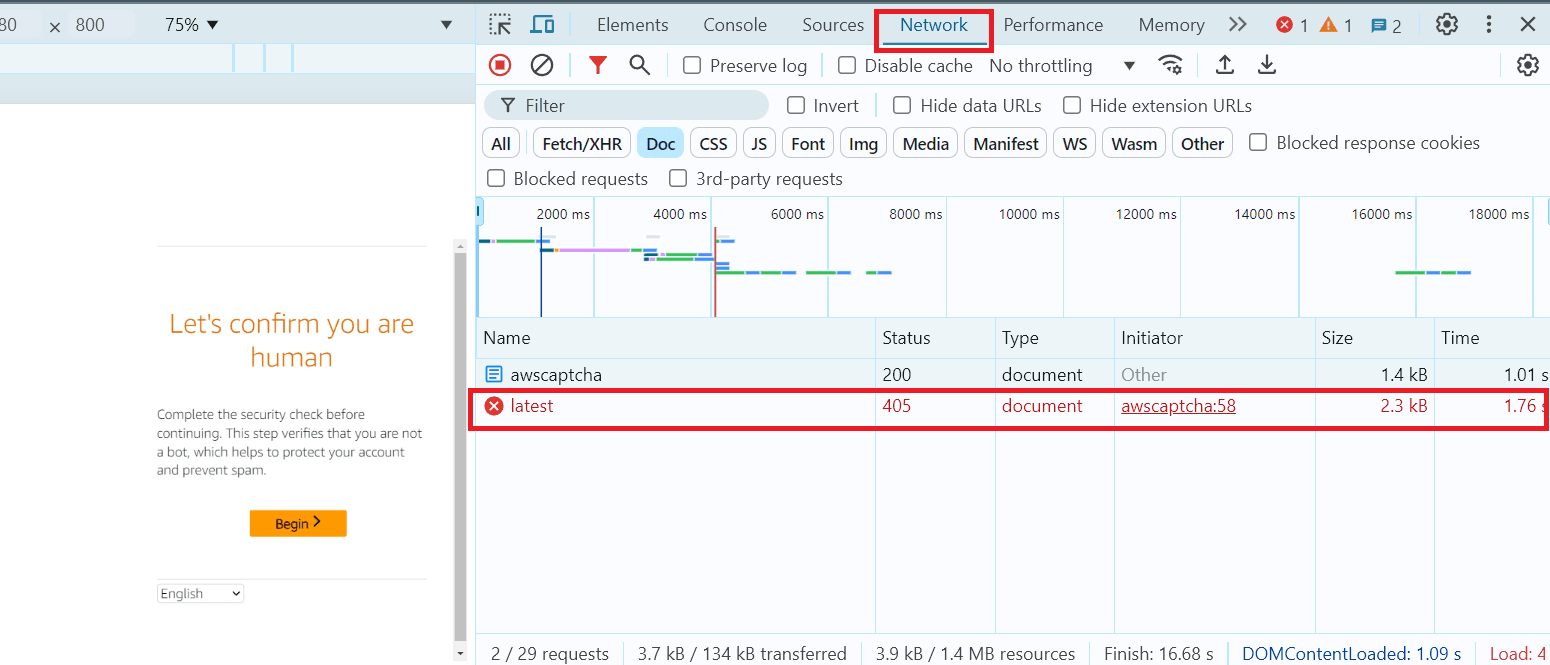
Load the required page, open Developer Tools, go to the Network tab and find the document request with a 405 response:
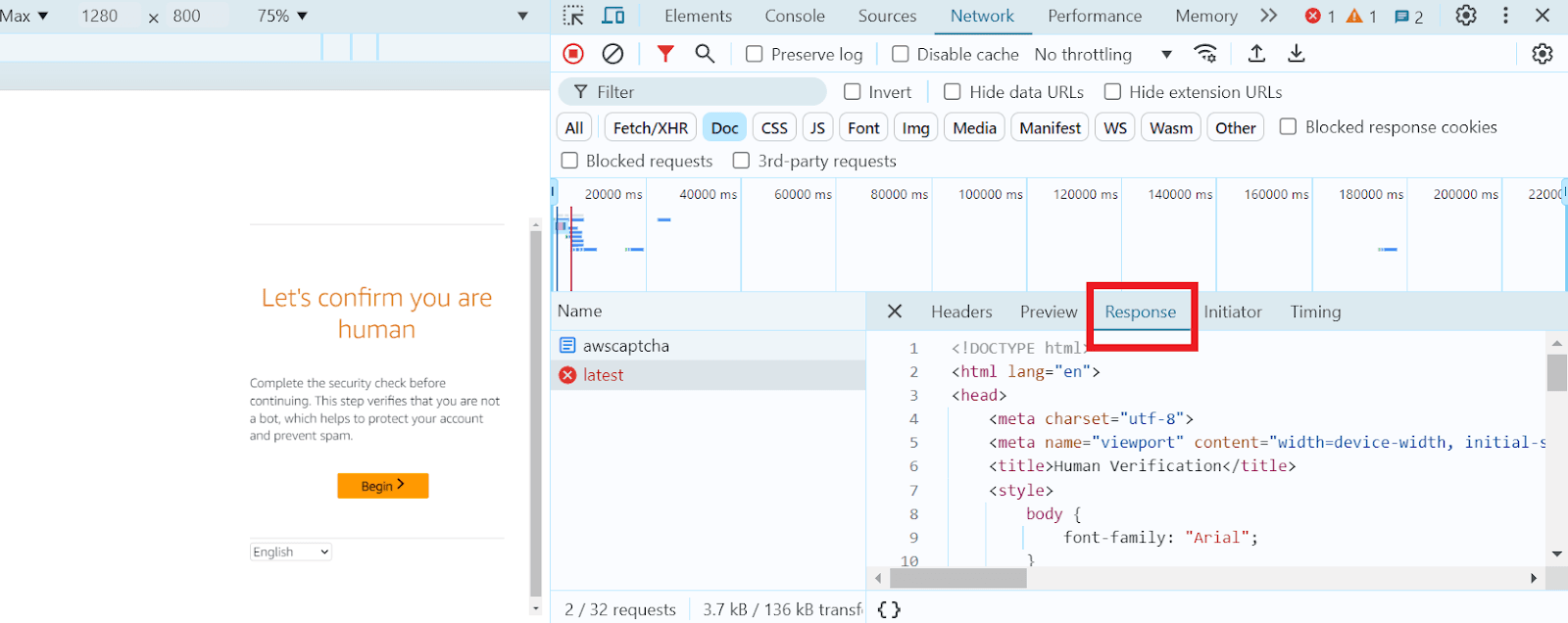
Select this request and go to the Response tab:
Find the object window.gokuProps, inside it you will find all the required parameters:
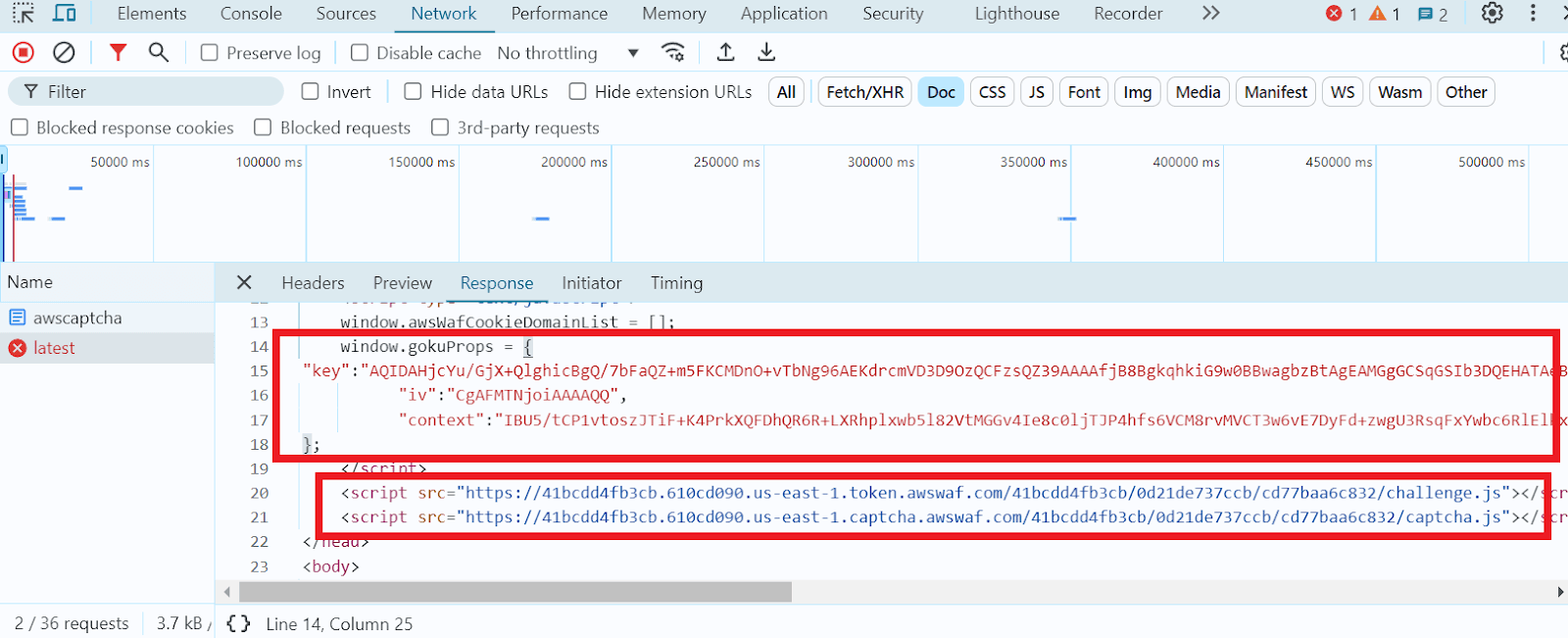
Table of required parameters and their values
| Parameter | Type | Required | Value |
| type | String | yes | AmazonTask |
| websiteURL | String | yes | URL of the main page where the captcha is solved. |
| challengeScript | String | yes | Link to challenge.js |
| captchaScript | String | yes | Link to captcha.js |
| websiteKey | String | yes | A string that can be extracted from the HTML page or via window.gokuProps.key |
| context | String | yes | A string that can be extracted from the HTML page or via window.gokuProps.context |
| iv | String | yes | A string that can be extracted from the HTML page or via window.gokuProps.iv |
| cookieSolution | Boolean | no | Default is false. If you need aws-waf-token cookies, set it to true. Otherwise you will receive captcha_voucher and existing_token. |
You can also automatically extract AWS WAF captcha parameters using the following JavaScript code:
// Extract captcha parameters
var gokuProps = window.gokuProps;
var websiteKey = gokuProps ? gokuProps.key : "Not found";
var context = gokuProps ? gokuProps.context : "Not found";
var iv = gokuProps ? gokuProps.iv : "Not found";

// Extract captcha script URLs
var scripts = Array.from(document.querySelectorAll('script'));
var challengeScriptUrl = scripts.find(script => script.src.includes('challenge.js'))?.src || "Not found";
var captchaScriptUrl = scripts.find(script => script.src.includes('captcha.js'))?.src || "Not found";

// Output parameters and script URLs
console.log("Website Key: " + websiteKey);
console.log("Context: " + context);
console.log("IV: " + iv);
console.log("Challenge Script URL: " + challengeScriptUrl);
console.log("Captcha Script URL: " + captchaScriptUrl);
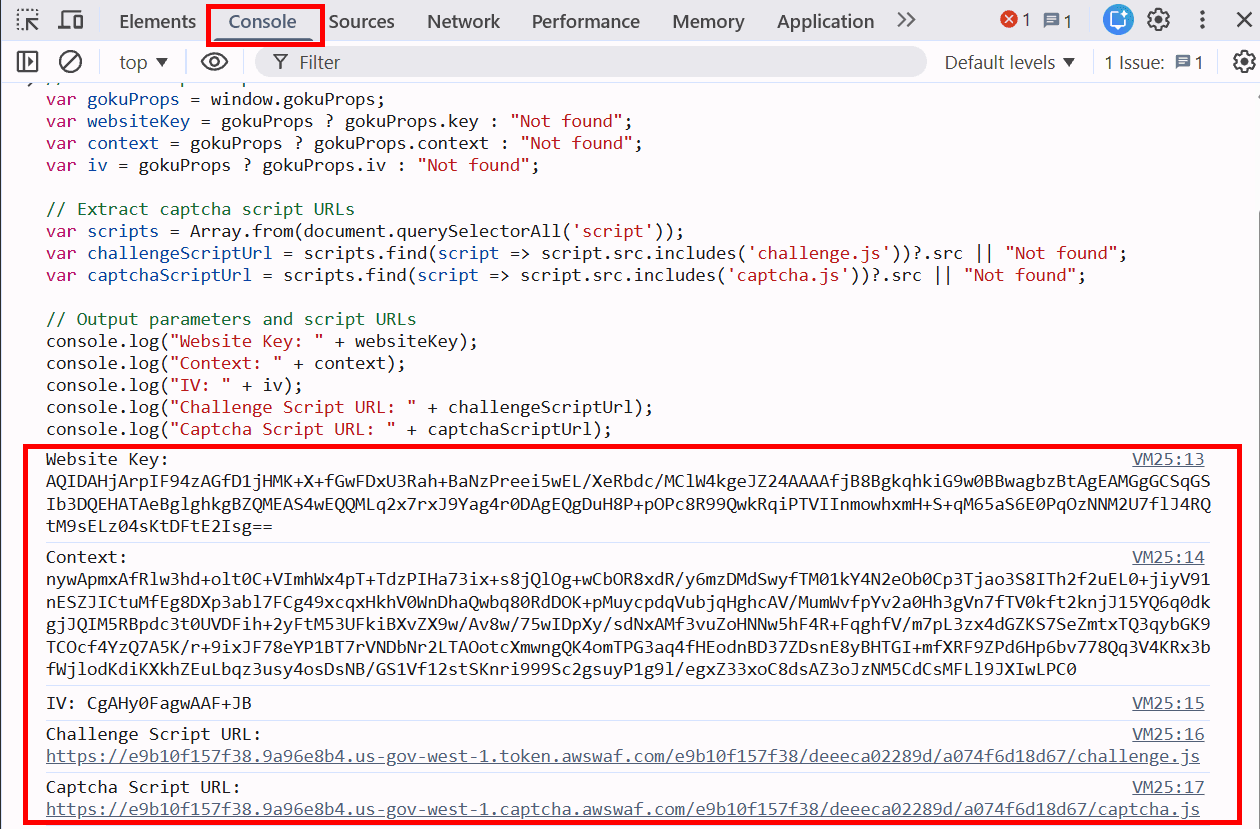
Creating a request, sending a task to the server, and receiving the result
Once you know all captcha parameters, you can create a task and send it to the CapMonster Cloud server.
Request example:
Endpoint: https://api.capmonster.cloud/createTask
Request format: JSON POST
{
 "clientKey": "API_KEY",
 "task": {
   "type": "AmazonTask",
   "websiteURL": "https://example.com",
   "challengeScript": "https://41bcdd4fb3cb.610cd090.us-east-1.token.awswaf.com/41bcdd4fb3cb/0d21de737ccb/cd77baa6c832/challenge.js",
   "captchaScript": "https://41bcdd4fb3cb.610cd090.us-east-1.captcha.awswaf.com/41bcdd4fb3cb/0d21de737ccb/cd77baa6c832/captcha.js",
   "websiteKey": "AQIDA...wZwdADFLWk7XOA==",
   "context": "qoJYgnKsc...aormh/dYYK+Y=",
   "iv": "CgAAXFFFFSAAABVk",
   "cookieSolution": true
 }
}
Response example:
{
 "errorId": 0,
 "taskId": 407533072
}
Getting the result:
Use the getTaskResult, method to retrieve the solution for AmazonTask
https://api.capmonster.cloud/getTaskResult
Response example:
{
  "errorId": 0,
  "status": "ready",
  "solution": {
    "cookies": {
      "aws-waf-token": "10115f5b-ebd8-45c7-851e-cfd4f6a82e3e:EAoAua1QezAhAAAA:dp7sp2rXIRcnJcmpWOC1vIu+yq/A3EbR6b6K7c67P49usNF1f1bt/Af5pNcZ7TKZlW+jIZ7QfNs8zjjqiu8C9XQq50Pmv2DxUlyFtfPZkGwk0d27Ocznk18/IOOa49Rydx+/XkGA7xoGLNaUelzNX34PlyXjoOtL0rzYBxMAQy0D1tn+Q5u97kJBjs5Mytqu9tXPIPCTSn4dfXv5llSkv9pxBEnnhwz6HEdmdJMdfur+YRW1MgCX7i3L2Y0/CNL8kd8CEhTMzwyoXekrzBM="
    },
    "userAgent": "Mozilla/5.0 (Windows NT 10.0; Win64; x64) AppleWebKit/537.36 (KHTML, like Gecko) Chrome/147.0.0.0 Safari/537.36"
  }
}
Example code for solving Amazon CAPTCHA during web scraping in Python:
During web scraping, various obstacles may occur, for example, the script may be interrupted due to an Amazon CAPTCHA appearing on the target website. To bypass this obstacle, you can add additional code to your scraper for automatic CAPTCHA solving, which will wait for the CAPTCHA frame, extract all required parameters, and send the solution to the CapMonster Cloud server.
How this can be implemented: suppose you have a weather scraping script in Python using Selenium:
from selenium.webdriver.common.by import By
from selenium.webdriver.common.keys import Keys
from selenium.webdriver.support.ui import WebDriverWait
from selenium.webdriver.support import expected_conditions as EC
driver = webdriver.Chrome()
try:
   # Open main weather page
   driver.get('https://example.com')

   # Find search field and enter city name
   search_box = WebDriverWait(driver, 10).until(
       EC.presence_of_element_located((By.ID, "header-location-search")) # Replace with actual value
   )
   search_box.send_keys("Moscow")  # Replace with actual value
   search_box.send_keys(Keys.RETURN)
   # Wait for search results page to load
   WebDriverWait(driver, 10).until(
       EC.presence_of_element_located((By.CSS_SELECTOR, 'div.locations-list') )# Replace with actual value
   )
   # Find and click first search result
   first_result = driver.find_element(By.CSS_SELECTOR, 'div.locations-list a') # Replace with actual value
   first_result.click()
And on the same page you need to solve the Amazon CAPTCHA. Add code to solve the CAPTCHA:
from selenium import webdriver
from selenium.webdriver.common.by import By
from selenium.webdriver.common.keys import Keys
from selenium.webdriver.support.ui import WebDriverWait
from selenium.webdriver.support import expected_conditions as EC
import os
import requests
import time

# API_KEY for CapMonster Cloud
API_KEY = os.getenv('CAPMONSTER_API_KEY')
CREATE_TASK_URL = 'https://api.capmonster.cloud/createTask'
GET_TASK_RESULT_URL = 'https://api.capmonster.cloud/getTaskResult'

def create_task(website_key, context, iv, challenge_script_url, captcha_script_url):
    print("Creating task...")
    task_data = {
        "clientKey": API_KEY,
        "task": {
            "type": "AmazonTask",
            "websiteURL": 'https://example.com',  # Replace with actual value
            "challengeScript": challenge_script_url,
            "captchaScript": captcha_script_url,
            "websiteKey": website_key,
            "context": context,
            "iv": iv,
            "cookieSolution": False  # Set to True if aws-waf-token cookies are needed
        }
    }
    response = requests.post(CREATE_TASK_URL, json=task_data)
    response_json = response.json()
    if response_json['errorId'] == 0:
        print(f"Task created successfully. Task ID: {response_json['taskId']}")
        return response_json['taskId']
    else:
        print(f"Error creating task: {response_json['errorCode']}")
        return None

def get_task_result(task_id):
    print("Getting task result...")
    result_data = {"clientKey": API_KEY, "taskId": task_id}
    while True:
        response = requests.post(GET_TASK_RESULT_URL, json=result_data)
        response_json = response.json()
        if response_json['status'] == 'ready':
            print(f"Task result ready: {response_json}")
            return response_json
        elif response_json['status'] == 'processing':
            print("Task still processing...")
            time.sleep(5)
        else:
            print(f"Error getting task result: {response_json['errorCode']}")
            return response_json

# Start browser
driver = webdriver.Chrome()

try:
    # Open main page
    print("Opening page...")
    driver.get('https://example.com')

    # Enter city
    search_box = WebDriverWait(driver, 10).until(
        EC.presence_of_element_located((By.ID, "header-location-search"))
    )
    search_box.send_keys("Moscow")
    search_box.send_keys(Keys.RETURN)

    # Wait for CAPTCHA iframe
    print("Waiting for iframe...")
    iframe = WebDriverWait(driver, 20).until(
        EC.presence_of_element_located((By.CSS_SELECTOR, 'iframe[src*="execute-api"]'))
    )
    driver.switch_to.frame(iframe)

    print("Waiting for CAPTCHA, extracting parameters...")
    WebDriverWait(driver, 20).until(
        EC.presence_of_element_located((By.CSS_SELECTOR, '#captcha-container'))
    )
    goku_props = driver.execute_script("return window.gokuProps;")

    website_key = goku_props["key"]
    context = goku_props["context"]
    iv = goku_props["iv"]

    challenge_script_url, captcha_script_url = [
        driver.execute_script(f"return document.querySelector('script[src*=\"{x}\"]').src;")
        for x in ("challenge.js", "captcha.js")
    ]

    # Create and solve CAPTCHA task
    task_id = create_task(website_key, context, iv, challenge_script_url, captcha_script_url)
    if task_id:
        result = get_task_result(task_id)
        # Use result to submit CAPTCHA solution if needed

    # Continue scraping after solving CAPTCHA
    WebDriverWait(driver, 10).until(
        EC.presence_of_element_located((By.CSS_SELECTOR, 'div.locations-list'))
    )

    first_result = driver.find_element(By.CSS_SELECTOR, 'div.locations-list a')
    first_result.click()

   # Other actions

finally:
    print("Closing browser...")
    driver.quit()
More detailed explanation of the updated code:
Additional imports of libraries requests (for sending HTTP requests to interact with CapMonster Cloud API) and time (used to pause execution for a specified time):
from selenium import webdriver
from selenium.webdriver.common.by import By
from selenium.webdriver.common.keys import Keys
from selenium.webdriver.support.ui import WebDriverWait
from selenium.webdriver.support import expected_conditions as EC
import os
import requests
import time
Adding variables that contain the API key for authentication and URLs for creating tasks and getting results from CapMonster Cloud:
API_KEY = os.getenv('CAPMONSTER_API_KEY')
CREATE_TASK_URL = 'https://api.capmonster.cloud/createTask'
GET_TASK_RESULT_URL = 'https://api.capmonster.cloud/getTaskResult'
Adding a function that accepts several parameters required to create a CAPTCHA solving task. It sends a POST request to the CapMonster Cloud server with task data. If the task is successfully created, the function returns taskId:
def create_task(website_key, context, iv, challenge_script_url, captcha_script_url):
    # ... function code
Adding a function to send a POST request to check task status. If the task status is 'ready', the function returns the result; otherwise it keeps checking:
def get_task_result(task_id):
    # ... function code
After initializing the browser and opening the target page (here https://example.com as an example), wait for the search field, enter a city name, and submit the form:
search_box = WebDriverWait(driver, 10).until(
    EC.presence_of_element_located((By.ID, "header-location-search"))
)
search_box.send_keys("Moscow")
search_box.send_keys(Keys.RETURN)
Then wait for the CAPTCHA iframe, switch to it, and extract parameters required for solving CAPTCHA: website_key, context, iv, as well as script URLs:
iframe = WebDriverWait(driver, 20).until(
    EC.presence_of_element_located((By.CSS_SELECTOR, 'iframe[src*="execute-api"]'))
)
driver.switch_to.frame(iframe)

goku_props = driver.execute_script("return window.gokuProps;")
website_key = goku_props["key"]
context = goku_props["context"]
iv = goku_props["iv"]

challenge_script_url, captcha_script_url = [
    driver.execute_script(f"return document.querySelector('script[src*=\"{x}\"]').src;")
    for x in ("challenge.js", "captcha.js")
]
Create a CAPTCHA solving task and wait for the result:
task_id = create_task(website_key, context, iv, challenge_script_url, captcha_script_url)
if task_id:
    result = get_task_result(task_id)
Continue scraping:
WebDriverWait(driver, 10).until(
    EC.presence_of_element_located((By.CSS_SELECTOR, 'div.locations-list'))
)
first_result = driver.find_element(By.CSS_SELECTOR, 'div.locations-list a')
first_result.click()
# Other actions ...
Tips and Recommendations
The code described above is provided as an example and demonstrates the general logic of execution. All actions and element names depend on the specific website and its structure. You will need to study the HTML structure of the site and review the documentation of the tools you plan to use for web scraping. Each website is unique, and successful scraping may require adapting the code and approach depending on the characteristics of the target resource. Working with Amazon CAPTCHA also has its own nuances that must be taken into account.
Here are some general useful tips for successful web scraping and handling Amazon CAPTCHA (AWS WAF):
Asynchrony. In our simple scraping and CAPTCHA bypass example, asynchronous methods are not used. However, if you are working with large amounts of data or slow-responding websites, it is better to use asynchronous programming to execute tasks in parallel and speed up the process.
Headless mode. Run the browser in headless mode to improve performance and save system resources. Without rendering a graphical interface, the process can be more efficient.
Graphical browser. If a website requires complex interaction, use a graphical browser. This will help you handle UI elements more easily, better test your code, and avoid certain errors and site blocks.
IP address and User-Agent rotation. To avoid blocks and restrictions from the website, regularly change your IP address and User-Agent. Use high-quality proxy servers and rotate User-Agent headers so the website does not detect automated behavior.
Handling dynamic CAPTCHAs. Amazon uses CAPTCHAs that may change depending on time or user activity and continuously updates its anti-bot protection methods. Make sure your script adapts to these changes and processes them correctly. Keep track of updates and service changes related to CAPTCHA bypass tools.
Reducing request frequency. Do not send requests too frequently to avoid triggering Amazon anti-bot systems, or distribute requests across multiple IP addresses.
Useful links:
Selenium WebDriver Documentation
CapMonster Cloud API Documentation
Conclusion
Solving Amazon (AWS WAF) CAPTCHA can be significantly challenging when collecting data. However, by understanding the core principles of how this system works and using the right tools, these tasks can be handled effectively.
We covered the key points, including the description of this CAPTCHA type and how to bypass it using CapMonster Cloud. The most important steps are accurately extracting the required CAPTCHA parameters, creating and submitting a task to the server, and receiving and using the CAPTCHA solution. We also reviewed a Python code example showing a general approach to integrating CAPTCHA solving into a web scraping workflow. Success in this area depends not only on technical skills but also on the ability to quickly adapt to changes and updates in anti-bot protection systems.
NB: Please note that this product is intended for automated testing of your own websites and resources only, where you have legal access rights.