CapMonster Cloud API
 Extension for browsers


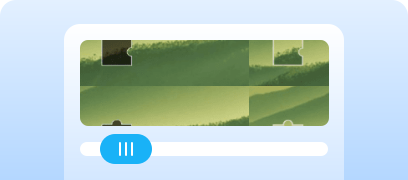
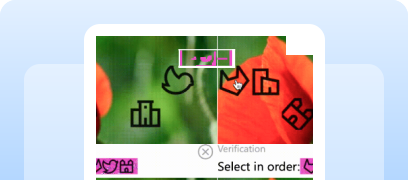
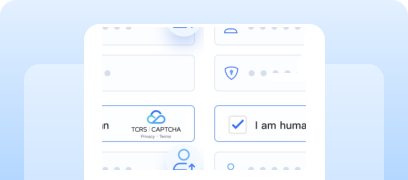
In this article, we have tried to answer all the key questions. The first step in solving the task is to determine which protection system is being used. To do this, you can refer to the list of popular captchas and anti-bot protection systems, where you will find visual examples and key indicators that help you quickly understand what you are dealing with.
If you discover that your site uses TenDI (Tencent), the next step is to study its properties and operation in more detail. In this article, you can also review the instructions on how to integrate TenDI (Tencent) so that you fully understand how it functions on your site. This will help you not only understand the current protection, but also properly plan its maintenance.





Working with CapMonster Cloud via API typically involves the following steps:
 Creating a task
 Sending an API request
type - CustomTask
class - TenDI
websiteURL - the address of the page where the captcha is being solved.
websiteKey - captchaAppId. For example, "websiteKey": "189123456" — a unique parameter for your website.
captchaUrl (inside metadata) - a link to the captcha script. Usually ends with TCaptcha.js or TCaptcha-global.js;
websiteURL - the address of the page where the captcha is being solved;
userAgent (optional) - Browser User-Agent. Pass only a real and up-to-date UA from Windows OS.

https://api.capmonster.cloud/createTask
{
  "clientKey": "API_KEY",
  "task": {
    "type": "CustomTask",
    "class": "TenDI",
    "websiteURL": "https://example.com",
    "websiteKey": "189123456",
    "userAgent": "Mozilla/5.0 (Windows NT 10.0; Win64; x64) AppleWebKit/537.36 (KHTML, like Gecko) Chrome/146.0.0.0 Safari/537.36",
    "metadata": {
      "captchaUrl": "https://global.captcha.example.com/TCaptcha-global.js"
    }
  }
}
{
"errorId":0,
"taskId":407533072
} Receiving the result
https://api.capmonster.cloud/getTaskResult{
"clientKey":"API_KEY",
"taskId": 407533072
}
{
"errorId":0,
"status":"ready",
"solution": {
"data": {
"randstr": "@EcL",
"ticket": "tr03lHUhdnuW3neJZu.....7LrIbs*"
},
"headers": {
"User-Agent": "Mozilla/5.0 (Windows NT 10.0; Win64; x64) AppleWebKit/537.36 (KHTML, like Gecko) Chrome/146.0.0.0 Safari/537.36"
}
}
} Placing the token on the page
// npx playwright install chromium

import { chromium } from 'playwright';
import { CapMonsterCloudClientFactory, ClientOptions, TenDIRequest } from '@zennolab_com/capmonstercloud-client';

// Replace with your own values
const API_KEY = "YOUR_API_KEY";
const WEBSITE_URL = "https://example.com";

async function solveTenDIOnPage() {
    const browser = await chromium.launch({ headless: false });
    const context = await browser.newContext();
    const page = await context.newPage();

    // 1. Open the page
    await page.goto(WEBSITE_URL, { waitUntil: 'networkidle' });

    // 2. Wait for the captcha to appear (e.g., input or iframe)
    await page.waitForSelector('#tendi_response, iframe[src*="tendi"], input[name="tendi_response"]', { timeout: 15000 });

    // If necessary, the websiteKey can be extracted directly from the page
    const WEBSITE_KEY = await page.evaluate(() => {
        // Example: the sitekey may be located in a data attribute or a global variable
        const el = document.querySelector('#tendi_response') || document.querySelector('div[data-sitekey]');
        return el?.getAttribute('data-sitekey') || window.TenDI_siteKey || "183268248";
    });

    console.log("Website key detected:", WEBSITE_KEY);

    const client = CapMonsterCloudClientFactory.Create(
        new ClientOptions({ clientKey: API_KEY })
    );

    // 3. Create a TenDI task
    const tenDIRequest = new TenDIRequest({
        websiteURL: page.url(),
        websiteKey: WEBSITE_KEY,
    });

    const balance = await client.getBalance();
    console.log("Balance:", balance);

    // 4. Solve the captcha
    const solution = await client.Solve(tenDIRequest);
    console.log("Solution:", solution);

    const { ticket, randstr } = solution.solution.data;

    // 5. Ways to inject the solution result
    await page.evaluate(({ ticket, randstr }) => {
        // Inject into an input field
        const inputSelectors = ['#tendi_response', 'input[name="tendi_response"]', 'input[type="hidden"]'];
        let inserted = false;
        for (const sel of inputSelectors) {
            const input = document.querySelector(sel);
            if (input) {
                input.value = ticket;
                input.dispatchEvent(new Event('input', { bubbles: true }));
                const form = input.closest('form');
                if (form) form.submit();
                inserted = true;
                break;
            }
        }

        // JavaScript callback function
        if (typeof window.onCaptchaSolved === 'function') {
            window.onCaptchaSolved(ticket, randstr);
            inserted = true;
        }

        // If there is no input and no callback
        if (!inserted) {
            window._tenDITicket = ticket;
            window._tenDIRandStr = randstr;
            console.log("Ticket and randstr saved to window._tenDITicket and window._tenDIRandStr");
        }
    }, { ticket, randstr });

    await page.waitForTimeout(5000);
    await browser.close();
}

solveTenDIOnPage().catch(console.error);
You will receive two parameters: CaptchaAppId and AppSecretKey. These are used on the frontend and server side.
 Frontend integration example
When clicked, the captcha appears, and after completion the result is logged to the console.
<!DOCTYPE html>
<html lang="en">
<head>
    <meta charset="UTF-8" />
    <title>Captcha Example</title>

    // Required loading of the captcha JavaScript
    <script src="https://ca.turing.captcha.qcloud.com/TJNCaptcha-global.js"></script>
</head>

<body>
    <div id="cap_iframe"></div>
    <button id="CaptchaId">Verification</button>

    <script>
        // Processing the result
        function callback(res) {
            console.log("callback:", res);

            if (res.ret === 0) {
                // Successful verification
                const text = `[randstr] ${res.randstr} | [ticket] ${res.ticket}`;

                const input = document.createElement("input");
                input.value = text;
                document.body.appendChild(input);
                input.select();
                document.execCommand("Copy");
                document.body.removeChild(input);

                alert("Ticket and randstr have been copied to the clipboard.");
            }
        }

        // Handling captcha script loading errors
        function loadErrorCallback() {
            const appid = "CaptchaAppId";
            const ticket = `trerror_1001_${appid}_1775029284`;

            callback({
                ret: 0,
                randstr: "@" + Math.random().toString(36).slice(2),
                ticket,
                errorCode: 1001,
                errorMessage: "jsload_error",
            });
        }

        window.onload = function () {
            document.getElementById("CaptchaId").onclick = function () {
                try {
                    const captcha = new TencentCaptcha(
                        document.getElementById("cap_iframe"),
                        "Your CaptchaAppId",
                        callback,
                        {}
                    );

                    captcha.show();
                } catch (e) {
                    loadErrorCallback();
                }
            };
        };
    </script>
</body>
</html>
How the integration works
Step 1: Load the captcha JavaScript
The script must be loaded dynamically:
<script src="https://ca.turing.captcha.qcloud.com/TJNCaptcha-global.js"></script>If the script is loaded in a non-standard way or cached, the captcha may work incorrectly.
Step 2: Create a TencentCaptcha object
After the JavaScript is loaded, a global class becomes available:
<script src="new TencentCaptcha(domElement, CaptchaAppId, callback, options);"></script>Parameters:
domElement - Container where the checkbox/iframe is embedded
CaptchaAppId - Your ID
callback - Action after verification
options - Appearance settings (optional)
Step 3: Call the method .show()
captcha.show();Displays the captcha. Can be called multiple times.
Step 4: Process the result
The callback receives an object:
{
  ret: 0,              // 0 -- success, 2 -- user closed the window
  ticket: "...",       // required by the server
  randstr: "...",      // also required by the server
  errorCode: 1001,     // if the captcha failed to load
  errorMessage: "..."  // error message
}
On the server, a secondary verification of the ticket must always be performed.
"Disaster Recovery" mode
If the captcha fails to load (for example, if the CDN is unavailable), an emergency ticket can be issued automatically to avoid disrupting business processes.
Scenario:
trerror_<errorcode>_<appid>_<timestamp>AppId encryption (optional)
If maximum protection is required, you can pass an encrypted AppId to the captcha instead of the plain one:
aidEncrypted = Base64(IV + AES256(AppId & timestamp & ttl))Required:
Server-side encryption example (Python)
from Crypto.Cipher import AES
from Crypto.Util.Padding import pad
import base64

def encrypt(plaintext, key, iv):
    cipher = AES.new(key, AES.MODE_CBC, iv)
    ciphertext = cipher.encrypt(pad(plaintext.encode(), AES.block_size))
    return base64.b64encode(iv + ciphertext).decode("utf-8")
Server-side validation
Step 1. Configure API access
In the key management panel (CAM / API Key Management), obtain SecretId and SecretKey for API access. These keys are required for signed API requests.
Step 2. Call the DescribeCaptchaResult API
After the client returns ticket and randstr, the server must send the following request:
Parameters:
CaptchaType - 9 (fixed value)
Ticket - string — ticket returned from the client
Randstr - string — randstr returned from the client
CaptchaAppId - your AppId
AppSecretKey - your secret key
UserIp - user IP address (recommended)
Step 3. Process the response
The API returns:
If CaptchaCode === OK, the user can be considered verified. Otherwise, reject the request.
Example — ticket verification in Node.js
import { v20190722 as captcha } from "@tencentcloud/tencentcloud-sdk-nodejs";
const client = new captcha.Client({
  credential: {
    secretId: "YOUR_SECRET_ID",
    secretKey: "YOUR_SECRET_KEY"
  },
  region: "ap-project", // region, if required
});

async function verifyCaptcha(ticket, randstr, userIp) {
  const params = {
    CaptchaType: 9,
    Ticket: ticket,
    Randstr: randstr,
    CaptchaAppId: YOUR_APP_ID,
    AppSecretKey: "YOUR_APP_SECRET_KEY",
    UserIp: userIp
  };

  const resp = await client.DescribeCaptchaResult(params);
  const code = resp.Response.CaptchaCode;
  return code === 0;
}
You can find more detailed information about integrating Tencent CAPTCHA into your website in the official documentation.





If you’ve taken over a website that already has a captcha or another protection system installed, but you don’t have access to the code, don’t worry! It’s quite easy to identify which technology is being used. To verify that everything works correctly, you can use the CapMonster Cloud recognition service in an isolated test environment to make sure that the token processing mechanism and the validation logic are functioning properly.
In the case of TenDI (Tencent), it’s enough to detect the system, observe its behavior, and confirm that the protection is working correctly. In this article, we showed how to identify TenDI (Tencent) and where to find instructions on how to integrate or reconfigure it, so you can confidently maintain the protection and keep its operation under control.