CapMonster Cloud API
 Extension for browsers


In this article, we have tried to answer all the key questions. The first step in solving the task is to determine which protection system is being used. To do this, you can refer to the list of popular captchas and anti-bot protection systems, where you will find visual examples and key indicators that help you quickly understand what you are dealing with.
If you discover that your site uses Cloudflare Challenge, the next step is to study its properties and operation in more detail. In this article, you can also review the instructions on how to integrate Cloudflare Challenge so that you fully understand how it functions on your site. This will help you not only understand the current protection, but also properly plan its maintenance.
Working with CapMonster Cloud via API typically involves the following steps:
 Creating a task
 Sending an API request
type - TurnstileTask
websiteURL - URL of the page where the captcha is being solved
websiteKey - Turnstile key (any string can be passed)
cloudflareTaskType - cf_clearance
htmlPageBase64 - The Base64-encoded “Just a moment” HTML page that is returned with a 403 status code when accessing a site protected by this mechanism.
userAgent - Browser User-Agent. Pass only the current UA from Windows OS.
You also need to use your own proxies for this task:
proxyType :
proxyAddress - Proxy IP address (IPv4/IPv6).
proxyPort - Proxy port.
proxyLogin - Proxy username.
proxyPassword - Proxy password.

https://api.capmonster.cloud/createTask{
"clientKey":"API_KEY",
"task": {
"type":"TurnstileTask",
"websiteURL":"https://example.com",
"websiteKey":"xxxxxxxxxx",
"cloudflareTaskType": "cf_clearance",
"htmlPageBase64": "PCFET0NUWVBFIGh0...vYm9keT48L2h0bWw+",
"userAgent": "Mozilla/5.0 (Windows NT 10.0; Win64; x64) AppleWebKit/537.36 (KHTML, like Gecko) Chrome/145.0.0.0 Safari/537.36",
"proxyType":"http",
"proxyAddress":"8.8.8.8",
"proxyPort":8080,
"proxyLogin":"proxyLoginHere",
"proxyPassword":"proxyPasswordHere"
}
}
{
"errorId":0,
"taskId":407533072
} Receiving the result
https://api.capmonster.cloud/getTaskResult{
"clientKey":"API_KEY",
"taskId": 407533072
}
{
  "errorId": 0,
  "status": "ready",
  "solution": {
    "cf_clearance": "1tarGvbY2_ZhQdYxpSBloao.FoOn9VtcJtmb_IQ_hCE-1761217338-1.2.1.1-vyVPoLYIGX0VCJomVuLjF7n0kdM0PXaPjpDsRcohxGr7hb2CE7WfcHpmQZ70goqEjdWxPsDhSVaKNTz9opxWguiNdWEEq_.SceWXIqfP7tnEb69f3bP0mixNqcWy_5P_9INpoAEqr1k7aYU0r45PT4gPr5pwHxedVySyLRdoBXIJasdTE52YOQ3NPdGWTwQ_3h2n_wYqqIvf0kCSAvimRrmsgZxomlyejwqPI6ZHi.w"
  }
}
 Inserting cf_clearance
  // npm install playwright @zennolab_com/capmonstercloud-client
// npx playwright install chromium

import { chromium } from 'playwright';
import {
  CapMonsterCloudClientFactory,
  ClientOptions,
  TurnstileRequest
} from '@zennolab_com/capmonstercloud-client';

// Settings — replace with your own
const API_KEY = 'YOUR_API_KEY';
const TARGET_URL = 'https://www.example.com';
const SITE_KEY = 'xxxxx'; // any string is allowed
const USER_AGENT = 'Mozilla/5.0 (Windows NT 10.0; Win64; x64) AppleWebKit/537.36 (KHTML, like Gecko) Chrome/145.0.0.0 Safari/537.36';

// Proxy settings
const proxy = {
  proxyType: 'http',
  proxyAddress: '8.8.8.8',
  proxyPort: 8080,
  proxyLogin: 'proxyLogin',
  proxyPassword: 'proxyPassword'
};

async function main() {

  const cmcClient = CapMonsterCloudClientFactory.Create(
    new ClientOptions({ clientKey: API_KEY })
  );

  // Launch browser
  const browser = await chromium.launch({
    headless: false,
    proxy: proxy.proxyAddress ? {
      server: `${proxy.proxyType}://${proxy.proxyAddress}:${proxy.proxyPort}`,
      username: proxy.proxyLogin,
      password: proxy.proxyPassword
    } : undefined
  });

  // Create context with required User-Agent and window size (optional)
  const context = await browser.newContext({ userAgent: USER_AGENT, viewport: { width: 1280, height: 800 } });

  // Create page and load target URL
  const page = await context.newPage();
  const resp = await page.goto(TARGET_URL, { waitUntil: 'domcontentloaded', timeout: 60000 });
  console.log('Initial request status:', resp?.status());

  // Get page HTML and convert to Base64 for CapMonster
  const htmlBase64 = Buffer.from(await page.content(), 'utf-8').toString('base64');

  // Create Turnstile task to get cf_clearance
  const solveResult = await cmcClient.Solve(new TurnstileRequest({
    websiteURL: TARGET_URL,
    websiteKey: SITE_KEY,
    cloudflareTaskType: 'cf_clearance',
    htmlPageBase64: htmlBase64,
    userAgent: USER_AGENT,
    proxy: proxy.proxyAddress ? proxy : undefined
  }));

  const cf_clearance = solveResult?.solution?.cf_clearance;
  if (!cf_clearance) {
    console.error('Failed to get cf_clearance from CapMonster:', solveResult);
    await browser.close();
    return;
  }
  console.log('cf_clearance obtained:', cf_clearance);

  // Add cf_clearance cookie to browser context
  await context.addCookies([{
    name: 'cf_clearance',
    value: cf_clearance,
    domain: '.' + new URL(TARGET_URL).hostname,
    path: '/',
    httpOnly: true,
    secure: true
  }]);
  console.log('Cookie cf_clearance successfully added to browser.');

  // Reload page with cf_clearance set
  const page2 = await context.newPage();
  const resp2 = await page2.goto(TARGET_URL, { waitUntil: 'domcontentloaded', timeout: 60000 });
  console.log('Request status after setting cf_clearance:', resp2?.status());

  await browser.close();
  console.log('Script finished.');
}

main().catch(err => {
  console.error('An error occurred:', err);
  process.exit(1);
});
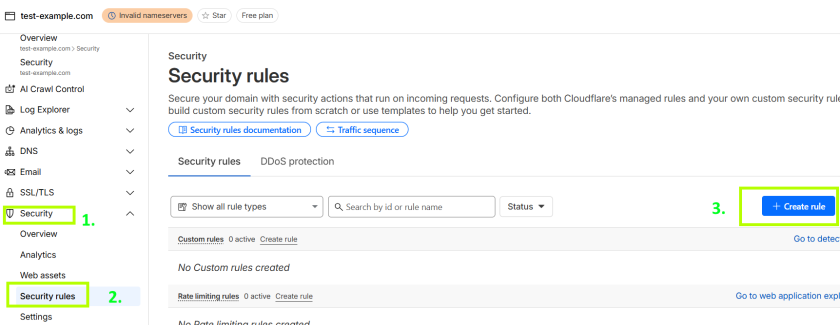
http.request.uri.path contains "/login"





If you’ve taken over a website that already has a captcha or another protection system installed, but you don’t have access to the code, don’t worry! It’s quite easy to identify which technology is being used. To verify that everything works correctly, you can use the CapMonster Cloud recognition service in an isolated test environment to make sure that the token processing mechanism and the validation logic are functioning properly.
In the case of Cloudflare Challenge, it’s enough to detect the system, observe its behavior, and confirm that the protection is working correctly. In this article, we showed how to identify Cloudflare Challenge and where to find instructions on how to integrate or reconfigure it, so you can confidently maintain the protection and keep its operation under control.