Loading...
Pricing of Cloudflare Turnstile solution
CAPTCHA
Price


$ 1.30
1k tokensInherited a site with a captcha or another protection layer but no access to the source code? In that case you naturally ask: which solution is installed, is it configured correctly, and how can the workflow be tested?
In this article, we have tried to answer all the key questions. The first step in solving the task is to determine which protection system is being used. To do this, you can refer to the list of popular captchas and anti-bot protection systems, where you will find visual examples and key indicators that help you quickly understand what you are dealing with.
If you discover that your site uses Cloudflare Turnstile, the next step is to study its properties and operation in more detail. In this article, you can also review the instructions on how to integrate Cloudflare Turnstile so that you fully understand how it functions on your site. This will help you not only understand the current protection, but also properly plan its maintenance.

What is Cloudflare Turnstile
Cloudflare Turnstile is a modern CAPTCHA from Cloudflare that protects websites from automated actions. For website visitors, the verification is almost invisible, with no need to complete tasks: usually a single click on the checkbox is enough, after which the system decides whether to let the visitor through or block them if a bot is suspected. Unlike Cloudflare Challenge, Turnstile CAPTCHA is placed directly on the website, not in a separate window—typically in login or registration forms.
How to solve Cloudflare Turnstile via CapMonster Cloud
When testing forms that include Cloudflare Turnstile, you often need to verify that the captcha works and is integrated correctly.
You can verify the captcha embedded on your site manually.
- Open the form page and make sure the captcha renders.
- Try submitting the form without solving it — the server should return an error.
- After a successful solution, the form must be submitted without issues.
For automatic solving you can use tools like CapMonster Cloud, which accepts captcha parameters, processes them on its servers, and returns a ready-to-use token. Insert this token into the form to pass the check without user interaction.
Working with CapMonster Cloud via API typically involves the following steps:
 Creating a task
At this stage, you pass your API key, CAPTCHA type, and its parameters. The service returns a unique taskId, which can later be used to retrieve the result.
 Sending an API request
The request to solve Cloudflare Turnstile must specify the following parameters:
type - TurnstileTask;
websiteURL - address of the page where the CAPTCHA is being solved;
websiteKey - Turnstile key.

Find more details about the parameters and how to gather them automatically before sending a task in the CapMonster Cloud documentation.
Endpoint for sending the task:
https://api.capmonster.cloud/createTaskRequest example:
{
  "clientKey": "API_KEY",
  "task": {
    "type": "TurnstileTask",
    "websiteURL": "http://tsmanaged.zlsupport.com",
    "websiteKey": "0x4AAAAAAABUYP0XeMJF0xoy"
  }
}
Cloudflare Turnstile recognition using ready-made libraries
The CapMonster Cloud service provides ready-made libraries for convenient work in Python, JavaScript (Node.js), and C#.
Python
JavaScript
C#
How to connect Cloudflare Turnstile to your website
To confidently navigate how CAPTCHA works on your website, understand its verification logic, reconnect or reconfigure it, we recommend studying this section. It describes the process of connecting protection—this will help you quickly understand all the nuances.
1. Go to the Cloudflare Turnstile page, click Get Started.
2. Register with the service.
3. In Turnstile Widgets, click the blue Add Widget button.
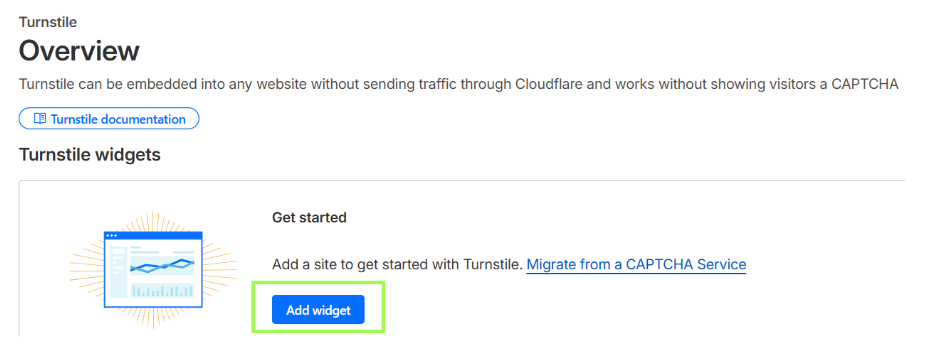
4. Configure Cloudflare Turnstile, specify:
- Widget name—name of the CAPTCHA (for convenience, e.g., Login form).
- Hostname Management—domains where the CAPTCHA will work (e.g., example.com).
- Widget Mode:
- Managed—optimal option, CAPTCHA decides itself whether to show the checkbox.
- Non-interactive—verification is performed automatically without clicks.
- Invisible—completely invisible.
- Pre-clearance—set to Yes if the site is through Cloudflare Proxy (to avoid repeating the CAPTCHA).
5. After creating the widget, you'll receive two keys—Site Key and Secret Key.
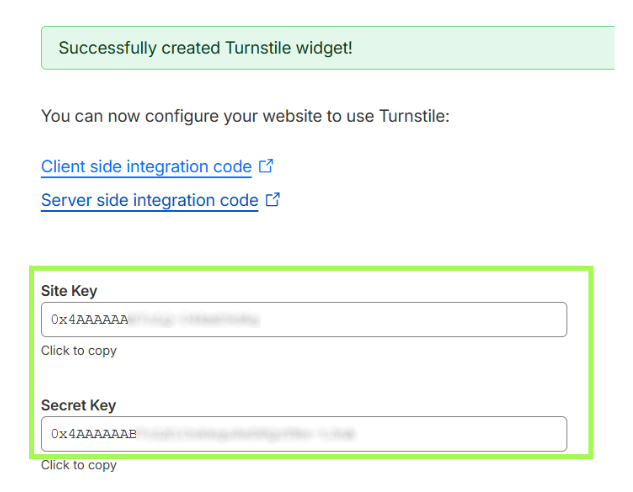
6. Connect the client-side part
1) Connect the Turnstile script
Automatic rendering (widget is created automatically when the page loads):
<script src="https://challenges.cloudflare.com/turnstile/v0/api.js" async defer></script>Programmatic control (you create the widget yourself via JavaScript):
<script src="https://challenges.cloudflare.com/turnstile/v0/api.js?render=explicit" defer></script>Important: the script must be loaded from the exact URL. Proxy or cache may cause failures.

Possible errors and debugging

Incorrect parameters
CAPTCHA doesn't display or returns errors like invalid-input-secret, missing-input-response, invalid-input-response. Check the validity of sitekey and secret key, as well as settings in Cloudflare Dashboard.
Solution timeout
Token has expired (valid for 300 seconds) or wasn't received in time. Ensure stable connection and correct API integration.
Empty or incorrect token
Parameter cf-turnstile-response is missing or incorrect. Check the token transfer to the form and server.
Response success=false
Token is invalid, expired, or already used. Each token can only be verified once. Enable logging of Siteverify requests and responses for analysis.
Protection resilience checks
After integration, make sure the system really protects the site from automated actions.

Try executing the request without solving the CAPTCHA—the server should return success: false.
Conduct load testing (for example, using k6 or JMeter) at speeds over 100+ requests per second. Turnstile should correctly process requests, and the server should stably verify tokens through the Siteverify API.
Check the response to expired or resubmitted tokens—expected API response: success: false and error-codes: ["timeout-or-duplicate"].
Security and optimization tips

Verify tokens only on the server, never call the Siteverify API from the frontend—this will expose your secret key.

Use environment variables or a secret management system rather than storing keys in code.

Check additional fields (hostname, action) to ensure the request came from your website.

Use HTTPS—all calls to Siteverify should be made over a secure connection.

Implement error handling—when the API is unavailable, show the user a clear message without revealing internal data.
Supported captchas
 reCAPTCHA v2
 GeeTest
 DataDome
Conclusion
If you’ve taken over a website that already has a captcha or another protection system installed, but you don’t have access to the code, don’t worry! It’s quite easy to identify which technology is being used. To verify that everything works correctly, you can use the CapMonster Cloud recognition service in an isolated test environment to make sure that the token processing mechanism and the validation logic are functioning properly.
In the case of Cloudflare Turnstile, it’s enough to detect the system, observe its behavior, and confirm that the protection is working correctly. In this article, we showed how to identify Cloudflare Turnstile and where to find instructions on how to integrate or reconfigure it, so you can confidently maintain the protection and keep its operation under control.

Helpful links
 Cloudflare Turnstile Documentation →Register with Cloudflare →Register with CapMonster Cloud →CapMonster Cloud Documentation (working with Cloudflare Turnstile) →What is Cloudflare CAPTCHA and how to solve it with CapMonster Cloud →How Cloudflare detects automated traffic: protecting websites from bots →




 Tencent CAPTCHA
 Amazon Waf
 Faucet Pay
 Imperva (Incapsula)
 Prosopo
 Text CAPTCHA
 Yidun
Yidun MTCaptcha
 Altcha
 Funcaptcha
 TSPD
TSPD Hunt
Hunt Alibaba
 Friendly