CapMonster Cloud API
 Extension for browsers



How to Implement CAPTCHA on Your Website: A Step-by-Step Guide
Bots are already part of your traffic — whether you see them or not. They create fake accounts, test stolen passwords, and quietly stress your backend long before anyone yells "incident." Understanding how to implement captcha on your website isn't just a nice-to-have; it's the difference between treating abuse as an afterthought and baking protection directly into your forms, flows, and infrastructure.
This guide walks you through two production-ready implementations: GeeTest CAPTCHA v3 and Cloudflare Turnstile. Along the way you'll also learn how to get captcha code (site keys and credentials), when a custom captcha makes sense, how to block captcha-bypass attempts, and how to validate your integration using CapMonster Cloud.

What Is CAPTCHA and Why Your Website Needs It
CAPTCHA (Completely Automated Public Turing test to tell Computers and Humans Apart) is a challenge-response mechanism that attempts to distinguish real users from automated scripts. Modern solutions range from traditional distorted-text puzzles to invisible behavioral analysis and interactive puzzle challenges like GeeTest's slider.
Without a CAPTCHA layer, any public form on your site is exposed to:
Credential stuffing — automated login attempts using leaked username/password pairs, commonly seen in abuse traffic.
Spam submissions — bots flooding contact forms, comment sections, or review pages.
Account enumeration — scripts probing for valid email addresses or usernames.
Scraping — automated extraction of pricing, inventory, or proprietary content.
The trade-off is always security vs. user experience: friction stops bots, but too much friction pushes real users away. Cloudflare Turnstile and GeeTest v3 are both modern options that aim to balance these aspects: Turnstile leans toward low-friction verification, while GeeTest v3 uses an interactive puzzle of different types with behavior-based checks to detect bots.
How to Get Your CAPTCHA Code (Keys & Credentials)
Before writing any integration code, you need provider-specific credentials.
GeeTest V3
Create an account in the GeeTest dashboard.
Go to the Captcha Dashboard and select CAPTCHA v3:

Navigate to the section where you can create a new CAPTCHA and register your site (you typically specify domains and product type).
After setup, you obtain a CAPTCHA ID (often referred to as gt) and a private Key for server-side communication.
Store these values securely (for example, in environment variables) so your application can access them without hardcoding secrets.
Cloudflare Turnstile
Log in to dash.cloudflare.com and open the Application security > Turnstile section.

Click Add widget, enter your domain, and choose a widget mode: Managed, Non-interactive, or Invisible.
Set Pre-clearance to Yes if the site is through Cloudflare Proxy (to avoid repeating the CAPTCHA).
Once created, Cloudflare provides a Site Key (public, used client-side) and a Secret Key (private, used server-side).
Use the Site Key in your HTML or JavaScript, and send the Secret Key only from your backend when calling the Turnstile verification API.
How to Implement GeeTest CAPTCHA v3: Step by Step
GeeTest v3 uses a multi-step flow: your server fetches a fresh challenge from GeeTest, the client renders the puzzle using that challenge (GeeTest API1), and your server verifies the solved tokens (GeeTest API2). Below is an example PHP + JavaScript implementation illustrating this pattern; adapt it to GeeTest's official SDK and your chosen language.
Step 1 — Server-Side Registration Endpoint
Create a PHP script (for example, geetest_register.php) that obtains a fresh challenge from GeeTest and passes it to the client:
<?php
header('Content-Type: application/json');
const CAPTCHA_ID = '07df3141a35**********19a473d7c50';
const CAPTCHA_KEY = '543b19036ef********8e07d121b81e9';
$path = parse_url($_SERVER['REQUEST_URI'], PHP_URL_PATH);
function getJson($url) {
    $res = @file_get_contents($url);
    return $res ? json_decode($res, true) : null;
}
// API1: Initialization
if ($path === '/register') {
    $data = getJson("https://api.geetest.com/register.php?gt=" . CAPTCHA_ID . "&json_format=1");
    echo json_encode($data ? [
        'gt' => CAPTCHA_ID,
        'challenge' => $data['challenge'],
        'success' => $data['success'] === 1,
        'new_captcha' => true
    ] : ['success' => 0]);
    exit;
}
// API2: Verification
if ($path === '/validate' && $_SERVER['REQUEST_METHOD'] === 'POST') {
    $req = json_decode(file_get_contents('php://input'), true);
    $data = getJson("https://api.geetest.com/validate.php?" . http_build_query([
        'seccode' => $req['geetest_seccode'] ?? '',
        'challenge' => $req['geetest_challenge'] ?? '',
        'gt' => CAPTCHA_ID,
        'json_format' => 1
    ]));
    echo json_encode(['success' => !empty($data['seccode'])]);
    exit;
}
http_response_code(404);
echo json_encode(['error' => 'Not found']);
?>
Step 2 — Client-Side Initialization
Load the GeeTest SDK and call initGeetest passing the parameters from the server (API1). Example using ajax:
ajax({
    url: "https://example.com/register",
    type: "get",
    dataType: "json",
    success: function (data) {
        initGeetest({
            gt: data.gt,
            challenge: data.challenge,
            offline: !data.success,
            new_captcha: true
        }, function (captchaObj) {
            captchaObj.appendTo("#captcha");
            captchaObj.onSuccess(function () {
                const result = captchaObj.getValidate();
                ajax({
                    url: "https://example.com/validate",
                    type: "post",
                    contentType: "application/json",
                    data: JSON.stringify(result),
                    success: function(res) {
                        if (res.success) alert('CAPTCHA passed');
                        else alert('CAPTCHA failed');
                    }
                });
            });
        });
    }
});
Checking the operation
Make sure that:
/register returns challenge
The captcha is displayed correctly
After passing the captcha, a request to /validate is visible in the browser console
The server returns "success": true
Failback (fallback mode)
If the GeeTest server is unavailable:
The client receives success: false
The captcha switches to local mode (works without connecting to GeeTest Cloud). To test this, simply substitute an incorrect CAPTCHA_ID (for example, 123456789).
Note: GeeTest also provides official server-side SDKs for different platforms and languages — you can choose the one that matches your technology stack. You can learn more in the official GeeTest CAPTCHA v3 documentation.
How to Implement Cloudflare Turnstile: Step by Step
Cloudflare Turnstile has no separate server-side "registration call." You embed a widget in your page, let it generate a token, and then verify that token server-side using Cloudflare's Siteverify API.
Step 1 — Connect the Turnstile script
Automatic rendering (widget is created automatically when the page loads):
<script src="https://challenges.cloudflare.com/turnstile/v0/api.js" async defer></script>Programmatic control (you create the widget yourself via JavaScript):
<script src="https://challenges.cloudflare.com/turnstile/v0/api.js?render=explicit" defer></script>Important: the script must be loaded from the exact URL. Proxy or cache may cause failures.
Step 2 — Create a container for the widget
Auto:
<div class="cf-turnstile" data-sitekey="<YOUR_SITEKEY>"></div>Programmatically:
<div id="turnstile-container"></div>Step 3 — Widget configuration
Via data attributes:
<div class="cf-turnstile" data-sitekey="<YOUR_SITEKEY>" data-theme="light" data-size="normal" data-callback="onSuccess"> </div>Via JavaScript:
const widgetId = turnstile.render("#turnstile-container", {
    sitekey: "<YOUR_SITEKEY>",
    theme: "light",
    size: "normal",
    callback: token => console.log("Token:", token)
});
Step 4 — Working with tokens
const token = turnstile.getResponse(widgetId);      // get token
const isExpired = turnstile.isExpired(widgetId);    // check expiration
turnstile.reset(widgetId);                          // reset
turnstile.remove(widgetId);                         // remove
turnstile.execute("#turnstile-container");         // manual execution
Step 5 — Integration with form
<form id="my-form" method="POST"> <input type="hidden" name="cf-turnstile-response" id="cf-turnstile-response"> <button type="submit">Submit</button> </form>
<script>
    function onSuccess(token) {
      document.getElementById("cf-turnstile-response").value = token;
    }
</script>
Full code example
<html>

<head>
    <title>Turnstile Example</title> <!-- Connect Turnstile script -->
    <script src="https: //challenges.cloudflare.com/turnstile/v0/api.js" async defer></script>
</head>

<body>
    <h1>Form example with Turnstile</h1>
    <form id="my-form"> <label for="username">Name:</label> <input type="text" name="username" id="username" required> <!-- Container for Turnstile -->
        <div class="cf-turnstile" data-sitekey="<YOUR_SITEKEY>" data-callback="onTurnstileSuccess"></div> <button type="submit">Submit</button>
    </form>
    <script>
        // Callback that is called after passing the CAPTCHA
        function onTurnstileSuccess(token) {
          console.log("Received Turnstile token:", token);
          // Save token to hidden form field (optional)
          document.getElementById("cf-turnstile-token")?.remove();
          const input = document.createElement("input");
          input.type = "hidden";
          input.name = "cf-turnstile-response";
          input.id = "cf-turnstile-token";
          input.value = token;
          document.getElementById("my-form").appendChild(input);
        }
        // Form submission
        document.getElementById("my-form").addEventListener("submit", async (e) => {
          e.preventDefault();
          const formData = new FormData(e.target);
          const response = await fetch("/submit-form", {
            method: "POST",
            body: formData
          });
          const result = await response.json();
          if(result.success){
            alert("Form successfully submitted and token verified!");
          } else {
            alert("Turnstile token verification error. Please try again.");
            // Reset widget so the user can complete the CAPTCHA again
            turnstile.reset();
          }
        });
    </script>
</body>

</html>
Step 6 — Configure the server-side part
Server-side verification process:
Client: user completes Turnstile on the page → token is created.
Form is submitted: token along with form data is sent to the server.
Server: makes a POST request to Cloudflare Siteverify API with token and secret.
Cloudflare: returns JSON with result (success: true/false) and additional information (action, hostname, completion time).
Server: decides whether to allow or reject the user action.
Siteverify API:
POST
https://challenges.cloudflare.com/turnstile/v0/siteverify
Request parameters:
secret (required): secret Turnstile key from Cloudflare panel
response (required): token received on the client
remoteip (optional): user's IP address (recommended)
idempotency_key (optional): unique UUID for protection against repeated verifications
Token properties:
Maximum length: 2048 characters
Valid for 5 minutes
Single-use
When expired or re-verified, the API will return timeout-or-duplicate error
Verification example in PHP:
<?php
function validateTurnstile($token, $secret, $remoteip = null) {
    $url = 'https://challenges.cloudflare.com/turnstile/v0/siteverify';
    $data = ['secret' => $secret,
        'response' => $token];
    if ($remoteip) $data['remoteip'] = $remoteip;
    $options = [
        'http' => [
            'header' => "Content-type: application/x-www-form-urlencoded
        ",
            'method' => 'POST',
            'content' => http_build_query($data)
        ]
    ];
    $response = file_get_contents($url, false, stream_context_create($options));
    if ($response === FALSE) {
        return ['success' => false,
            'error-codes' => ['internal-error']];
    }
    return json_decode($response, true);
}
// Usage
$secret_key = 'YOUR_SECRET_KEY';
$token = $_POST['cf-turnstile-response'] ?? '';
$remoteip = $_SERVER['REMOTE_ADDR'];
$result = validateTurnstile($token, $secret_key, $remoteip);
if ($result['success']) {
    echo "Form successfully submitted!";
} else {
    echo "Verification error: " . implode(', ', $result['error-codes']);
}
?>
Note: All detailed instructions for installing and configuring Cloudflare Turnstile, including client and server integration, code examples, error descriptions, and security recommendations, can be found in the official Cloudflare documentation.
Building a Custom CAPTCHA: When and Why
A custom captcha is any challenge-response system you build yourself instead of integrating a third-party service. Common lightweight approaches include:
Math puzzles — "What is 4 + 9?" rendered as plain text or a simple generated image.
Honeypot fields — hidden form fields that only bots tend to fill in.
Time-based checks — rejecting submissions completed unrealistically quickly for a human.
Custom image challenges — "Click the item that doesn't belong" using your own assets.
Custom captchas can be useful when you need tight branding control, when strict privacy requirements limit third-party scripts, or when your risk profile is low and you only need basic bot friction. However, they typically lack the sophisticated behavioral models of services like GeeTest or Turnstile and can be easier for advanced bots to defeat.
You also take on full responsibility for accessibility (for example, providing audio alternatives) and ongoing maintenance as bot techniques evolve. For critical flows like login, checkout, or password reset, a managed solution is usually safer than a fully custom captcha.
How to Block CAPTCHA Bots Effectively
Implementing CAPTCHA is necessary but rarely sufficient on its own; determined attackers will try to bypass or automate it. To block captcha bots more effectively, combine multiple layers.
Layer 1 — Rate Limiting at the Infrastructure Level
Rate limiting at your web server or CDN makes it harder for bots to brute-force forms even if they can solve or bypass captchas. For example, in Nginx:
# Nginx: limit login endpoint to 10 req/s per IP
limit_req_zone $binary_remote_addr zone=login:10m rate=10r/s;
location /login {
    limit_req zone=login burst=5 nodelay;
    # proxy_pass ...
}
Layer 2 — Honeypot Fields
A hidden field that real users never see but unsophisticated bots may fill is a low-friction defense.
<div aria-hidden="true">
  <input type="text" name="website" tabindex="-1" autocomplete="off">
</div>
On the server, reject any submission where website is non-empty. This adds almost no UX cost while filtering a portion of automated submissions.
Layer 3 — Additional Defense Layers
IP reputation filtering: Blocking known datacenter ranges or anonymizer services at the edge can significantly reduce abusive traffic.
Token replay prevention: Turnstile tokens must be validated server-side and treated as single-use; discarding reused tokens helps prevent replay attacks.
Device or session fingerprinting: External tools can help correlate suspicious patterns across IPs and sessions, though they introduce privacy considerations.
Monitoring and alerting: Track verification failure rates and sudden spikes in traffic from particular regions or ASNs as signals of an ongoing attack.
Testing Your CAPTCHA Integration with CapMonster Cloud
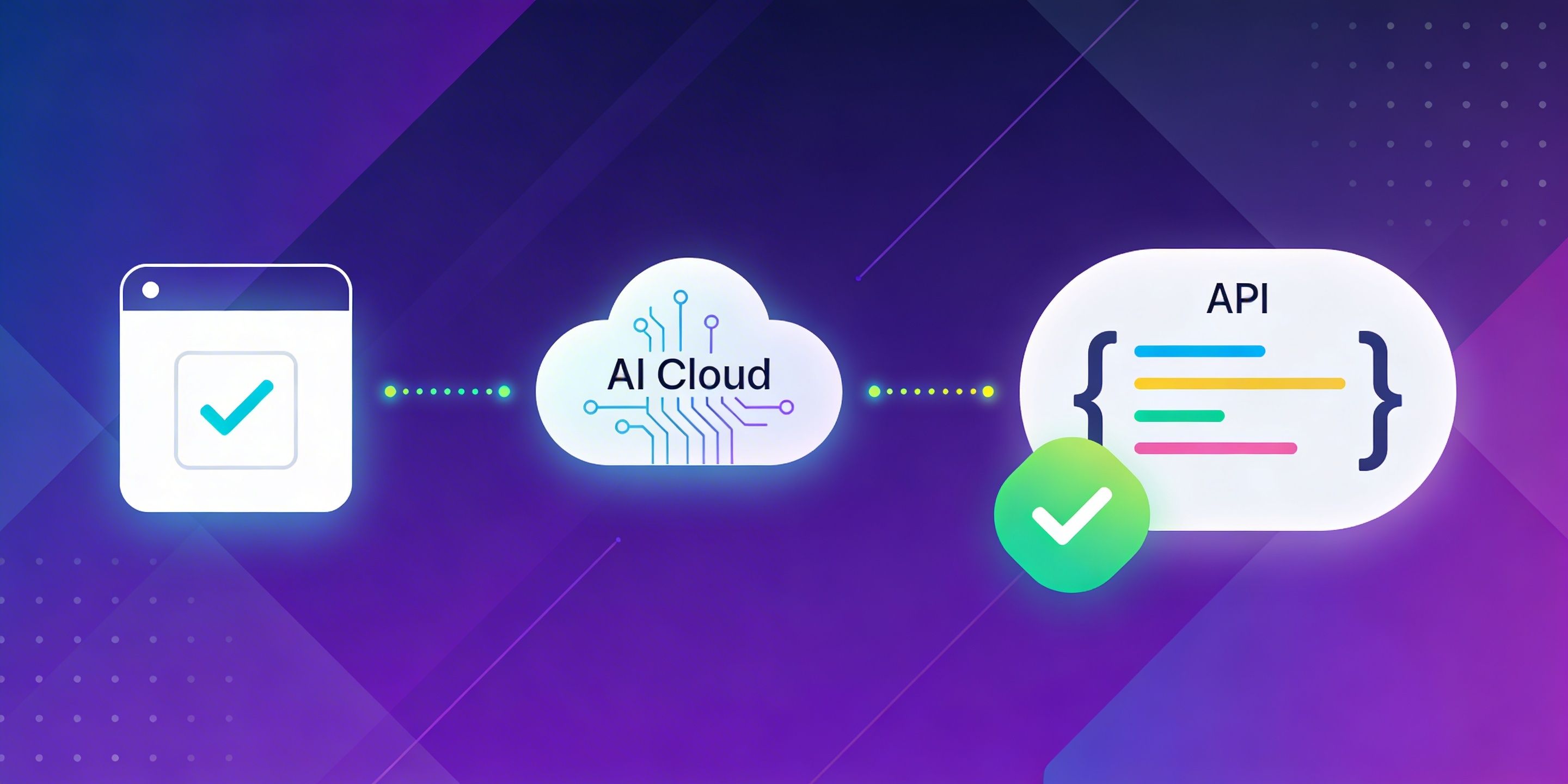
Once your CAPTCHA is live, you need a reliable way to exercise the entire request-response cycle in automated test pipelines — without manually solving puzzles on every CI run. CapMonster Cloud is an API-based CAPTCHA solver that supports both GeeTest v3 and Cloudflare Turnstile, among many other types. You submit a task describing the captcha you need solved, and the API returns the solution tokens that your test can inject directly into a form submission.
The full flow for both CAPTCHA types consists of the same three steps: create a task → poll for the result → use the solution.
GeeTest V3 — Full CapMonster Cloud Flow
Step 1 — Create the task
Call createTask immediately after fetching a fresh challenge from your GeeTest registration endpoint. The challenge value is short-lived and single-use.
Request:
POST https://api.capmonster.cloud/createTask

{
  "clientKey": "YOUR_CAPMONSTER_API_KEY",
  "task": {
    "type": "GeeTestTask",
    "websiteURL": "https://example.com/your-page",
    "gt": "022397c99c9f646f6477822485f30404",
    "challenge": "7f044f48bc951ecfbfc03842b5e1fe59",
    "geetestApiServerSubdomain": "api-na.geetest.com"
  }
}
Response:
{
  "errorId": 0,
  "taskId": 407533072
}
Step 2 — Poll for the result
Call getTaskResult in a loop, waiting a few seconds between each poll. GeeTest V3 tasks typically resolve in 10–30 seconds depending on system load.
Request:
POST https://api.capmonster.cloud/getTaskResult

{
  "clientKey": "YOUR_CAPMONSTER_API_KEY",
  "taskId": 407533072
}
Response while solving is in progress:
{
  "errorId":0,
  "status":"processing"
}
Response when ready:
{
  "errorId":0,
  "status":"ready",
  "solution":{
    "challenge":"0f759dd1ea6c4wc76cedc2991039ca4f23",
    "validate":"6275e26419211d1f526e674d97110e15",
    "seccode":"510cd9735583edcb158601067195a5eb|jordan"
  }
}
All three values in solution — challenge, validate, and seccode — must be submitted to your backend together, exactly as a real browser would send them.
Step 3 — Submit the solution
Post the three solution values to your form endpoint in the same request body fields your GeeTest integration expects:
const result = await pollForResult(taskId);
await fetch('/submit_form.php', {
  method:  'POST',
  headers: { 'Content-Type': 'application/json' },
  body: JSON.stringify({
    geetest_challenge: result.solution.challenge,
    geetest_validate:  result.solution.validate,
    geetest_seccode:   result.solution.seccode,
  })
});
Cloudflare Turnstile — Full CapMonster Cloud Flow
Step 1 — Create the task
Request:
POST https://api.capmonster.cloud/createTask

{
  "clientKey": "API_KEY",
  "task": {
    "type": "TurnstileTask",
    "websiteURL": "http://tsmanaged.zlsupport.com",
    "websiteKey": "0x4AAAAAAABUYP0XeMJF0xoy"
  }
}
For details on parameters description, please refer to the CapMonster documentation.
Response:
{
  "errorId": 0,
  "taskId": 407533072
}
Step 2 — Poll for the result
Turnstile tasks typically resolve in 5–20 seconds.
Request:
POST https://api.capmonster.cloud/getTaskResult

{
  "clientKey": "YOUR_CAPMONSTER_API_KEY",
  "taskId": 407533072
}
Response while solving is in progress:
{
  "errorId": 0,
  "status": "processing"
}
Response when ready:
{
  "errorId": 0,
  "status": "ready",
  "solution": {
    "userAgent": "Mozilla/5.0 (Windows NT 10.0; Win64; x64) AppleWebKit/537.36 (KHTML, like Gecko) Chrome/145.0.0.0 Safari/537.36",
    "token": "0.iGX3xsyFCkbGePM3jP4P4khLo6TrLukt8ZzBvwuQOvbC...f61f3082"
  }
}
solution.token is the value that goes into cf-turnstile-response when posting your form. Use solution.userAgent in your HTTP client or Playwright/Selenium instance to match the environment in which the token was solved — mismatches can cause server-side rejections.
Step 3 — Submit the solution
Inject the solved token before submitting the form — either directly into the hidden input or via Cloudflare's JavaScript callback:
// Option A: direct DOM injection (for Playwright/Selenium tests)
await page.evaluate(token => {
  const field = document.querySelector('[name="cf-turnstile-response"]');
  if (field) field.value = token;
}, result.solution.token);

// Option B: trigger the Turnstile callback directly (for SPA tests)
await page.evaluate(token => {
  if (window.turnstileCallback) window.turnstileCallback(token);
}, result.solution.token);
await page.click('#submit-btn');
CapMonster Cloud Error Handling
Both createTask and getTaskResult use the same error envelope. An errorId of 0 always means success; errorId: 1 signals a problem, with the specific error type returned in the string field errorCode. For a full list of possible errors, please refer to the CapMonster documentation.
Example error response:
{
  "errorId": 1,
  "errorCode": "ERROR_KEY_DOES_NOT_EXIST"
}
Best Practices and Tips
Handle Token Expiry Gracefully
GeeTest challenges and Turnstile tokens are time-limited, so you should expect occasional expirations if users wait too long before submitting a form. Implement callbacks like Turnstile's expired-callback or re-fetch a fresh GeeTest challenge and reset the widget instead of failing silently or throwing generic errors.
Accessibility (WCAG 2.1)
Cloudflare Turnstile provides visual and alternative challenge flows intended to work with assistive technologies, but you should test them with the screen readers and browsers your users rely on.
GeeTest v3's slide puzzle is mouse/touch-centric, which can pose challenges for users with certain motor or coordination impairments; consider an alternate verification path where strong accessibility is required.
Avoid making CAPTCHA the only protection mechanism in critical flows for users with disabilities; combine it with other defenses like rate limiting and anomaly detection.
Privacy and Third-Party Data
Using Turnstile or GeeTest involves sending request and interaction data to a third-party provider for analysis and verification. Your privacy policy and consent mechanisms should reflect this, especially under frameworks like GDPR or CCPA where such processing can be considered personal data handling.
Apply CAPTCHA Strategically — Not Everywhere
Separate Test and Production Keys
Cloudflare and most CAPTCHA providers recommend using separate keys or environments for development, staging, and production. Keep your Secret Key and any equivalent private keys in environment variables or a dedicated secrets manager rather than hardcoding them.
Keep SDKs and Integrations Updated
CAPTCHA services update their detection logic and APIs over time in response to new attack techniques. Periodically reviewing provider changelogs or documentation and updating your integrations helps you avoid deprecated endpoints or weakened configurations.
Conclusion
Knowing how to implement CAPTCHA correctly is about more than just dropping a widget into your HTML; it's about pairing a robust client flow with reliable server-side verification and wrapping both in a broader abuse-prevention strategy. GeeTest v3 offers a behavior-based puzzle that can raise the bar for bot operators, while Cloudflare Turnstile fits naturally into Cloudflare-powered sites and emphasizes low-friction verification.
Whichever option you choose, combining CAPTCHA with rate limiting, honeypot fields, and IP reputation filtering significantly increases the effort required to abuse your forms. And when you need to test your integration or automate complex workflows, CapMonster Cloud gives you a programmable way to solve GeeTest and Cloudflare Turnstile challenges through a simple API — making it easier to keep your defenses working as your application evolves.
Ready to add automated CAPTCHA testing to your toolkit? Explore CapMonster Cloud and start integrating their GeeTest and Turnstile task types into your development and QA workflows today.