
Google reCAPTCHA Admin Console: Access, Settings & Key Management

If you run a website that uses reCAPTCHA, the Google reCAPTCHA Admin Console is your central hub for everything: registering sites, retrieving API keys, tweaking security settings, and monitoring alerts. Yet many site owners set it up once and never return — missing settings that could meaningfully improve both security and user experience.
This guide walks you through every corner of the recaptcha admin console: how to access it, what each setting does, how to manage your keys safely, and what security habits you should build from day one.

What Is the Google reCAPTCHA Admin Console?
The Google reCAPTCHA Admin Console (available at google.com/recaptcha/admin) is the web-based management interface for Google's free reCAPTCHA service. From the console, you can register new sites, view and copy your site key and secret key, update domain allowlists, manage co-owners, and permanently delete keys when they are no longer needed.
It is important to distinguish this from the Google Cloud Console, which hosts the paid reCAPTCHA Enterprise tier. If you are using the standard (free) google recaptcha admin interface for reCAPTCHA v2 or v3, you work exclusively at google.com/recaptcha/admin. Enterprise users operate inside Google Cloud with a separate key management flow, additional risk-scoring dashboards, and IAM-based access controls.
Who should use this guide:
Website owners and webmasters adding bot protection to forms or login pages
Developers integrating reCAPTCHA v2 or v3 into web apps
Product managers and security engineers overseeing key hygiene across environments
How to Access the reCAPTCHA Admin Console
Prerequisites:
A Google account (personal or Workspace)
Ownership or administrative access to the domain(s) you want to protect
Step-by-step access:
Open a browser and go to google.com/recaptcha/admin.
Sign in with your Google account for an API key pair for your site. This account becomes the primary owner.
After signing in, new accounts will see a prompt to register a first site:
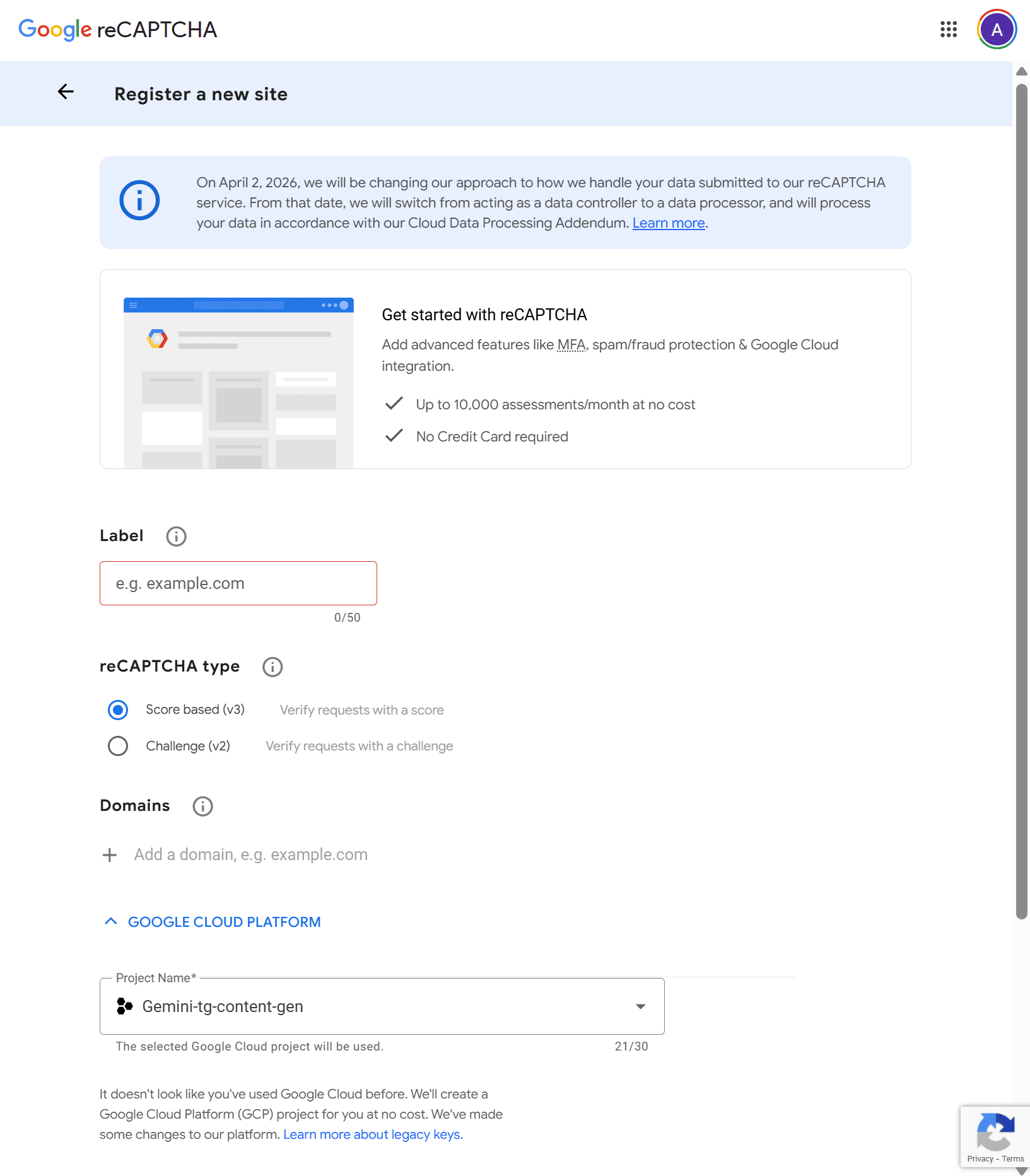
Here you need to fill in the following fields:
Label: A display name used solely for your own identification within the console. Use something descriptive like Production – Checkout Form or Staging – Contact Page. There are no SEO or security implications; it is purely for internal clarity, especially when managing multiple keys.
reCAPTCHA type: see the table below.
Domains: Restricts which domains are allowed to load and submit reCAPTCHA tokens using this key. A registration for example.com automatically covers subdomain.example.com — no need to list subdomains separately. Rules to note:
Do not include a path, port, query string, or fragment (e.g., use example.com, not example.com/contact).
Domain changes can take up to 30 minutes to propagate.
This field does not apply to the reCAPTCHA v2 Android site type.
Keeping this list tight is one of the most effective ways to prevent unauthorized use of your key on third-party domains.
Google Cloud Platform: Created API keys are managed in the Google Cloud Platform. So, if you don't have a Google Cloud Platform account or project, you will be prompted to create one automatically.
Choose your reCAPTCHA type, because you cannot change it after registration:
When using the google recaptcha v2 path, you get a challenge-based widget with tunable security. When using the recaptcha v3 path, the protection is invisible and score-based — your server decides what to do with the result.
Set the checkbox “I agree…” and click Submit to register your first site.
After submitting, Google immediately provides your Site Key (public) and Secret Key (private). Store the secret key securely right away — treat it with the same care as a database password:
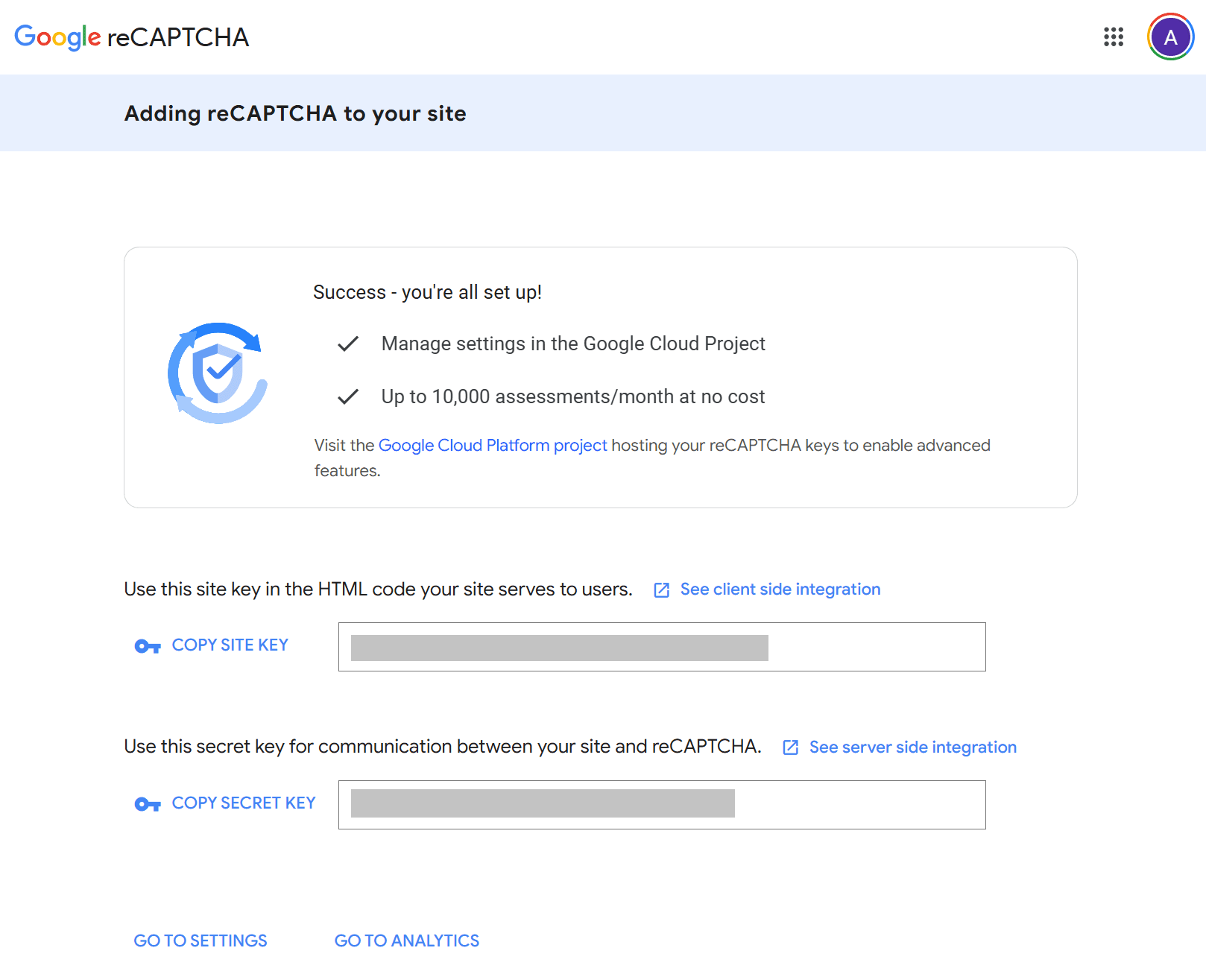
Note: After that you will be able to manage your keys in the Google Cloud Console (Security > Detections and Controls > reCAPTCHA).
Сlick Go to Settings to open additional settings for your API keys:
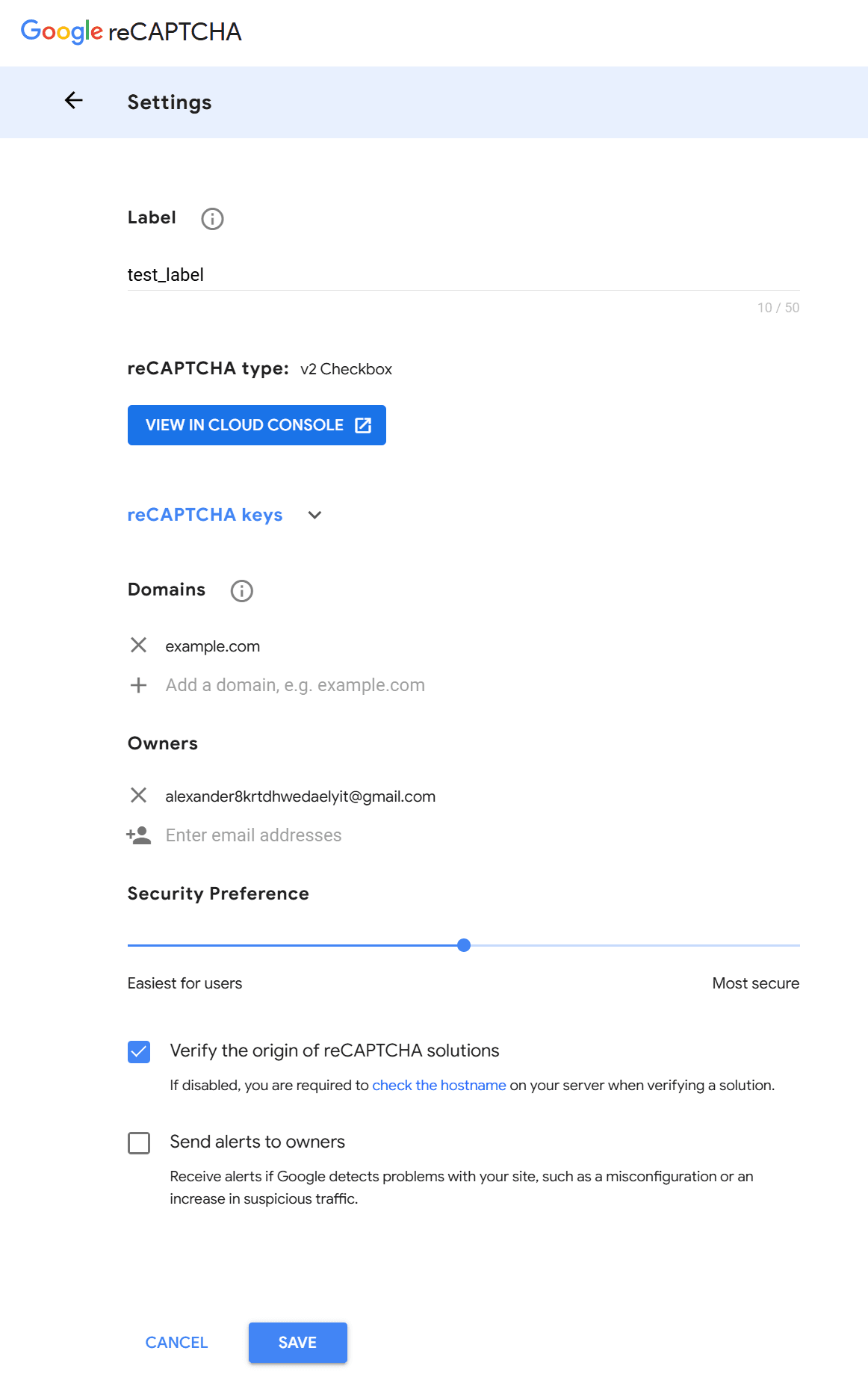
Here you can manage the following fields:
Owners
A list of Google-account email addresses that have full administrative rights over the site key. Each email address must be associated with a Google account. Use this to add co-owners such as fellow developers or a security team lead. Always maintain at least two owners for business-critical keys — losing access to the sole owner account may make the key difficult to recover.
Security Preference (reCAPTCHA v2 only)
An adjustable slider, unique to the recaptcha v2 path, that ranges from "Easiest for users" to "Most secure". Moving the slider toward "Most secure" means more users will be presented with an image challenge, reducing bot risk at the cost of added friction. Moving it toward "Easiest for users" reduces challenges, improving conversion but accepting slightly more risk. Find the balance that works for your traffic profile and monitor false-positive rates over time.
AMP Compatibility (reCAPTCHA v3 only)
A checkbox that allows your v3 site key to work with AMP (Accelerated Mobile Pages) via the amp-recaptcha-input component. Enable it only if your site serves AMP pages — it is unnecessary for standard HTML pages.
Verify Origin
When enabled (the default), Google validates that reCAPTCHA tokens were generated on one of your allowlisted domains. If you disable this toggle, you take on the responsibility of checking the hostname field yourself on your server during token verification. Disabling is generally not recommended and should only be done when a deliberate server-side hostname check is already in place.
Send Alerts to Owners
When enabled, Google sends email notifications to all owners if it detects problems with your site — for example, a sudden spike in suspicious traffic, a key being used on an unauthorized domain, or a configuration issue. Always keep this enabled. It is often the fastest signal that your key has been compromised or that your integration is broken.
Click Save
Managing reCAPTCHA API Keys in the Google Cloud Console
After creating API keys, you can manage them in the Google Cloud Console:
- To view your keys for an existing site, open the Google Cloud Console > Security > Detections and Controls > reCAPTCHA > Dashboard tab and scroll a bit down to the reCAPTCHA keys section:
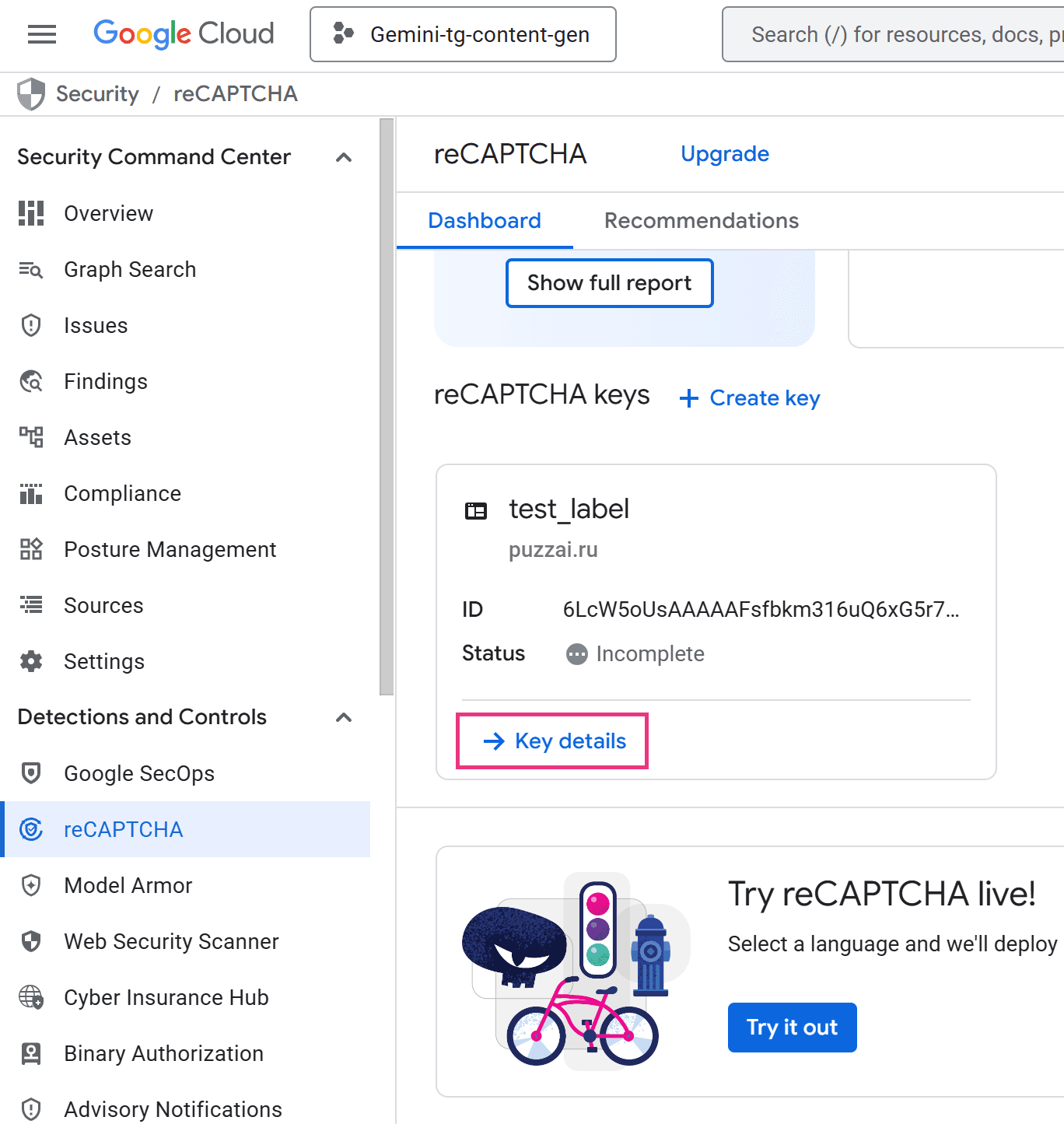
- Click Key details and you will be navigated to the Key details panel:
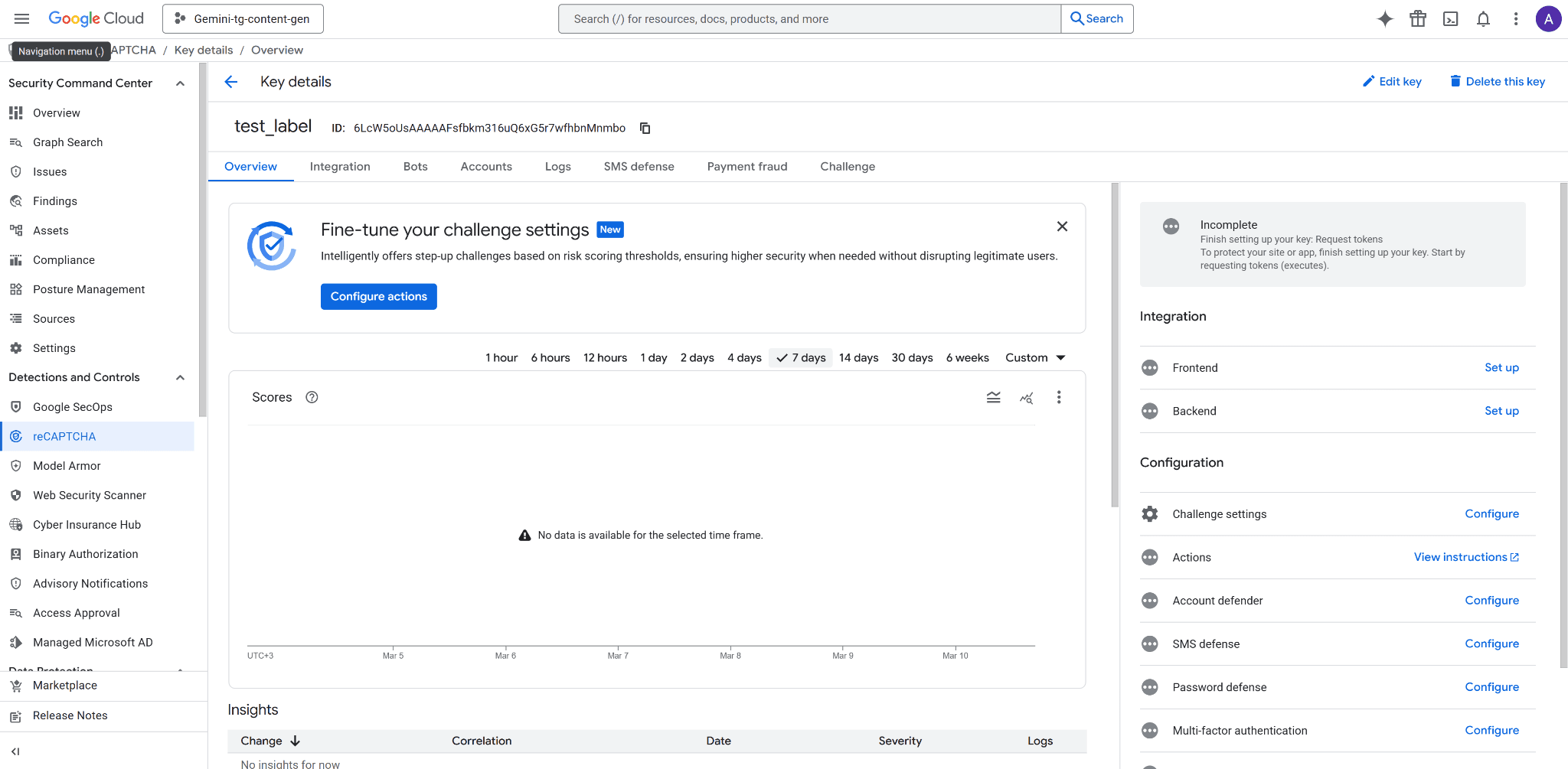
- The Overview tab provides the key Settings menu:
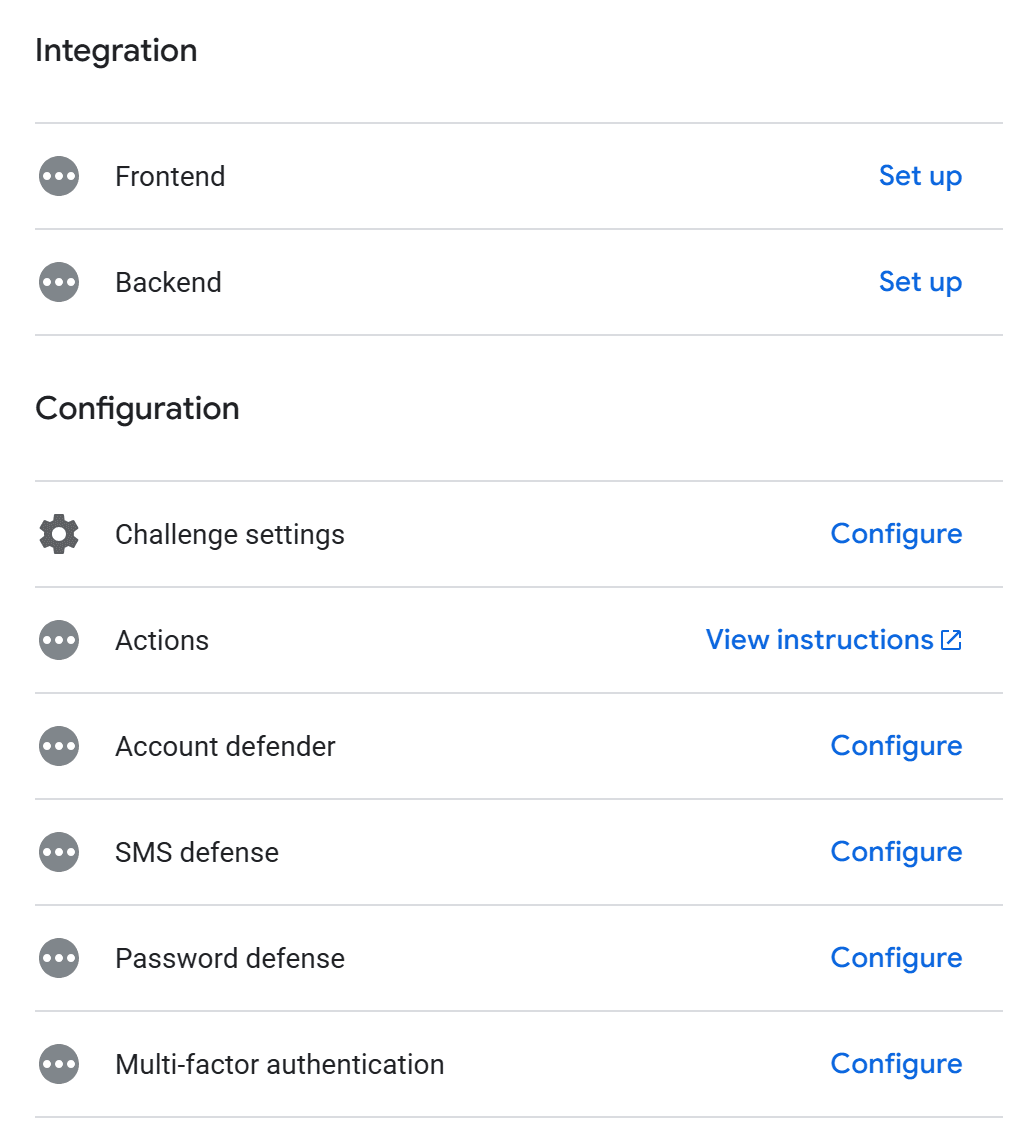
Integration > Frontend and Backend: Switches you to the Integration tab and guides you through the process of integrating captcha into your website.
Challenge settings: Set the complexity and frequency of the challenges that will be presented to users.
Account defender: Account defender helps to protect websites from account-related fraudulent activity. By using the site-specific model that analyzes a user's behavior over time, account defender helps you detect Suspicious activities, Accounts with similar behaviors, Requests coming from devices that were marked as trusted for specific users.
SMS defense: SMS toll fraud, or SMS pumping, is when attackers use your SMS login or MFA flow to send large amounts of SMS messages to high priced SMS numbers, causing unexpected charges. With SMS defense, you get a risk score before sending a message, helping you avoid potential fraud and protect your platform.
Password defense: Password defense utilizes a privacy preserving mechanism to validate user credentials against a Google database of leaked credentials. You can use a positive match as an indication of weakened account security, and take actions to prevent account takeovers.
Multi-factor authentication: You can add additional MFA to your captcha for suspicious cases.
Fraud Prevention: Fraud prevention helps you protect payment transactions against carding, stolen instrument fraud, and account takeover, through behavioral analysis and risk signals from billions of transactions.
- Other tabs — Bots, Accounts, Logs, SMS defense, Payment fraud, Challenge — displays statistics on your site's protection in relevant areas:

Managing Your reCAPTCHA Secret Keys
Understanding the two-key model is essential before touching any settings in the google recaptcha console.
Viewing Your Keys
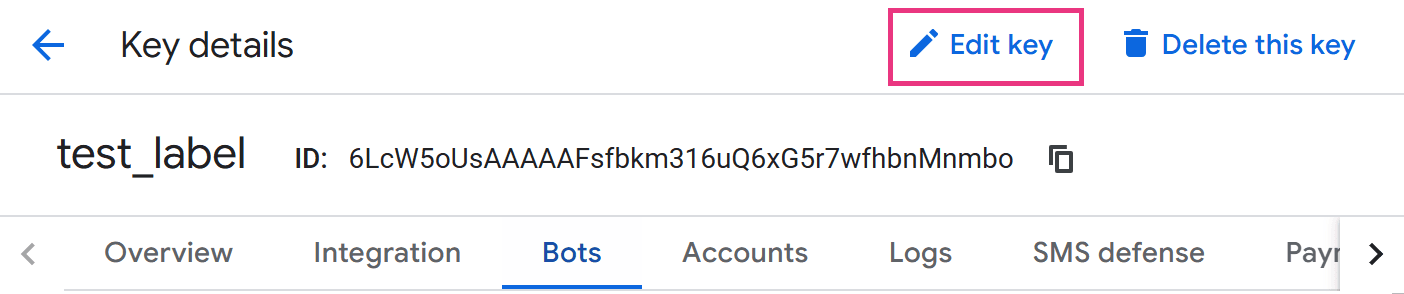
From the Key details page (recaptcha admin panel), click Edit key:
The settings menu will be opened and you’ll see both your site key and secret key:
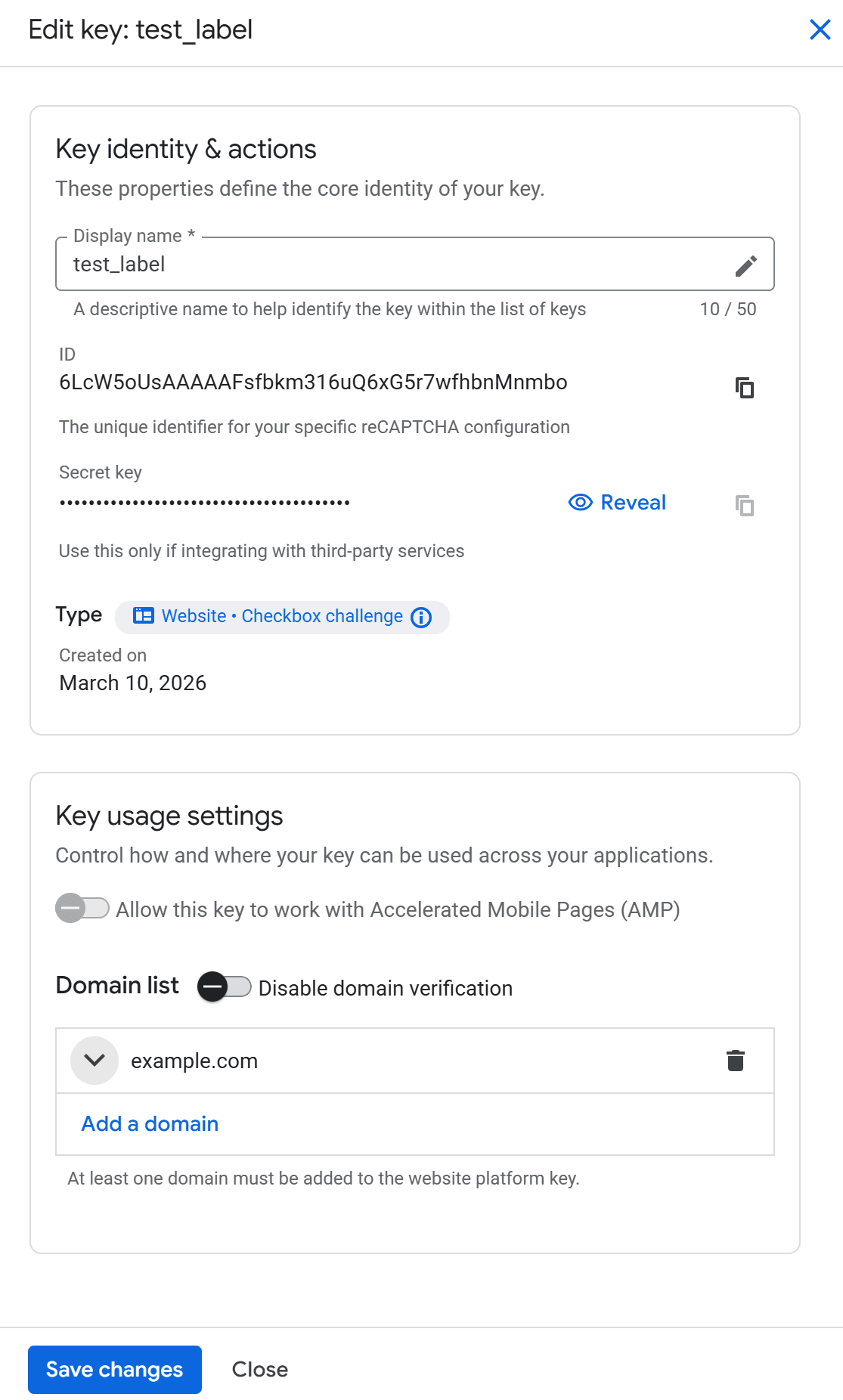
Here you can edit the Label name, a list of domains the key is bound to and reveal the secret key. Disabling domain verification aids testing but allows unrestricted key use on any website. Note that this risks third-party abuse.
Rotating or Regenerating Keys
The standard reCAPTCHA Admin Console does not currently offer a one-click key rotation feature. The recommended approach when a key has been compromised — or as a scheduled hygiene practice — is to:
Register a new site with identical settings in the google captcha admin interface.
Deploy the new keys to your application.
Delete the old key only after confirming the new key is fully operational in production.
Avoid deleting the old key before verifying the new one is live and working.
Permanent Key Deletion
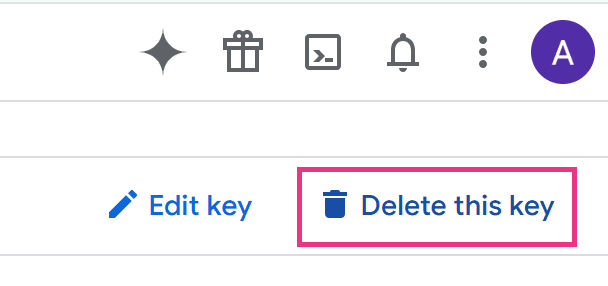
Deleting a key from the recaptcha admin is irreversible. Any page still using the deleted key will fail silently — reCAPTCHA widgets will not render and server-side verifications will return errors. Before deleting, audit all codebases, environment configs, and third-party plugins that reference the key.
Multi-Key Strategy
A practical pattern for larger deployments:
Separate keys per environment — maintain distinct keys for production, staging, and development. This prevents test traffic from polluting your production analytics and alerts.
Separate keys per domain — if you operate multiple domains, use one key per domain. This isolates incidents and makes analytics meaningful.
Use Google's test keys for local dev — Google publishes fixed test keys for v2 that always pass without network calls, keeping your CI pipelines clean.
Security Best Practices for the reCAPTCHA Admin Console
Following these practices reduces the risk of your reCAPTCHA setup being abused or your keys being leaked:
Never place your secret key in front-end code. It must live only in server-side environment variables, secret managers (e.g., Google Secret Manager, AWS Secrets Manager, HashiCorp Vault), or CI/CD secrets — never in a public Git repository.
Always verify tokens server-side by calling Google's https://www.google.com/recaptcha/api/siteverify endpoint with the secret key and the user's token. Client-side validation alone offers no real protection.
Restrict your Domains list to only the domains you actively control. An open or misconfigured domain list is an open invitation for key abuse.
Keep "Send Alerts" enabled and ensure all listed owners have active, monitored inboxes. Alerts are your earliest warning system.
Rotate keys proactively if you suspect exposure — for example, after a public code repository accidentally included an .env file, or after a developer with key access leaves the team.
Audit key ownership regularly. Remove former employees or contractors from the Owners list in the recaptcha admin console to prevent unauthorized changes.
Use separate keys for staging and production — never share a single key across both environments.
For reCAPTCHA v3, tune thresholds per action on your server. Google recommends starting with a default threshold of 0.5 and adjusting based on observed traffic in the admin console. A login action may warrant a stricter threshold than a newsletter signup — per-action tuning gives you more precise control than a single site-wide rule.
CapMonster Cloud and reCAPTCHA: A Developer's Perspective
When developers build and maintain applications protected by reCAPTCHA, they often need a reliable way to automate interaction with CAPTCHA challenges in testing, QA, and integration workflows — without breaking their automated test suites every time a reCAPTCHA widget appears. This is where CapMonster Cloud becomes relevant.
CapMonster Cloud is a CAPTCHA recognition service that supports automated solving of reCAPTCHA v2 (including Invisible and Enterprise variants) and reCAPTCHA v3 tokens via a REST API. In a developer context, it works directly with the site key you retrieved from the google recaptcha admin console: you pass the site key and page URL to the CapMonster API, and it returns a valid gRecaptchaResponse token that can be submitted to your form or server-side verifier.
Practical use cases for development and QA teams:
Test automation — run end-to-end test suites (Selenium, Playwright, Puppeteer) against forms protected by reCAPTCHA without manual intervention
Integration testing — verify that your server-side siteverify logic handles valid tokens correctly across different environments
QA on staging environments — test form submission flows on staging without needing to disable reCAPTCHA or rely solely on Google's test keys
Accessibility workflows — provide an alternative completion path for automated assistive tools where reCAPTCHA creates barriers
CapMonster Cloud supports both proxyless and proxy-based task types for reCAPTCHA, making it flexible for scenarios where IP-region matching matters. The service provides client libraries for Python, C#, and JavaScript/Node.js, reducing integration overhead to a few lines of code. For teams that prefer a no-code approach, CapMonster Cloud also offers a browser extension for Chrome and Firefox that handles CAPTCHA challenges automatically as you browse.
Important: Use automated CAPTCHA-solving tools only on sites you own or have explicit legal permission to test. Unauthorized use on third-party sites may violate terms of service and applicable law.
Conclusion
The Google reCAPTCHA Admin Console is more than a place to grab API keys — it is an active security control panel. Regularly reviewing your domain allowlists, rotating keys on a schedule, keeping owners current, and enabling alerts turns a passive integration into an actively managed layer of defense.
For developers who need to automate testing workflows or validate integrations end-to-end, tools like CapMonster Cloud bridge the gap between reCAPTCHA-protected environments and continuous delivery pipelines — with support for reCAPTCHA v2 and v3 (including Enterprise versions) via a straightforward API.
Ready to streamline your reCAPTCHA testing workflow? Try CapMonster Cloud today and see how effortless automated CAPTCHA handling in your QA pipeline can be.