Captcha API (Google reCAPTCHA v3): Documentation and Integration Guide for Developers
This developer guide documents the captcha api flow for Google reCAPTCHA v3: your frontend obtains a reCAPTCHA token and your backend verifies it via Google's verification endpoint. In this article, "Captcha API" means the CAPTCHA provider's API used to validate a CAPTCHA token (Google's verification call); it is not the same thing as a "captcha solver API," which is a separate category of services that attempt automated solving. Everything below is based on official Google reCAPTCHA documentation (plus one clearly marked sidebar about solver APIs).

How reCAPTCHA works
When reCAPTCHA is deployed in your environment, it interacts with your backend and client (web pages or mobile applications).
When an end user visits a web page or uses a mobile application, the following events are triggered in a sequence:
The client loads the web page from the backend or launches the mobile application.
The web page or mobile application initializes the reCAPTCHA JavaScript API or mobile SDK, which begins collecting signals.
When the end user triggers an action protected by reCAPTCHA such as login, the reCAPTCHA JavaScript API or the mobile SDK in the client requests a verdict from reCAPTCHA.
reCAPTCHA returns an encrypted reCAPTCHA token to the client for later use.
The client sends the encrypted reCAPTCHA token to the backend for assessment.
The backend sends the token to the siteverify REST endpoint.
reCAPTCHA returns a verdict to the backend based on the risk evaluated for this request. This verdict consists of scores from 0.0 through 1.0 and reason codes.
Depending on the verdict, you (as the developer) can determine the next steps to take for that specific user request or action.
The following sequence diagram shows the graphical representation of the reCAPTCHA workflow:
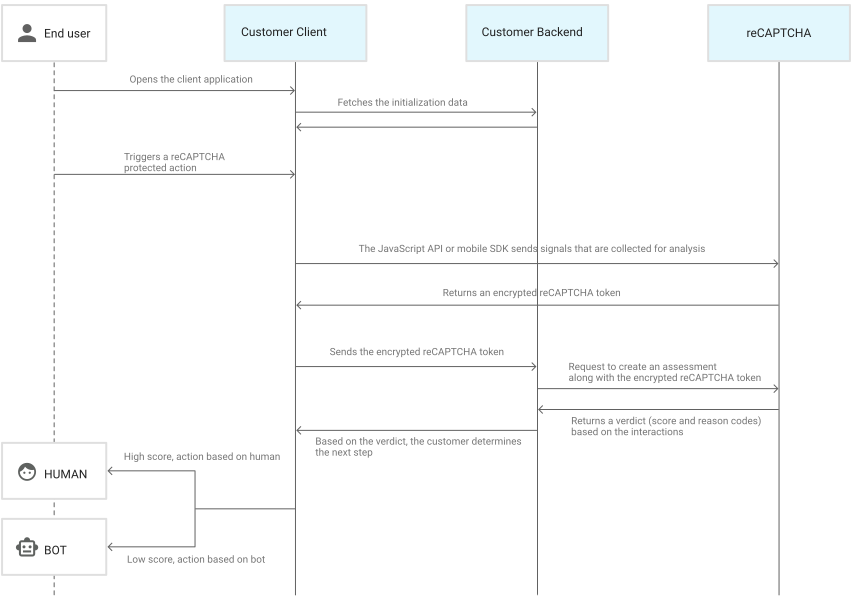
Also see the implementation workflow diagrams: https://docs.cloud.google.com/recaptcha/docs/implementation-workflow
Captcha API keys (site key + secret)
For reCAPTCHA v3 you register keys in the Google reCAPTCHA Admin Console and get a site key (public) and a secret key (shared key used by your backend). Treat the secret as your server credential: it is sent in the secret parameter to the verification endpoint, so it must never be exposed in client-side code. If you see phrases like "captcha api key" or "api key captcha" in your team's docs, map them to reCAPTCHA's site key (frontend identifier) and secret key (backend verification credential).
Client integration (JavaScript)
reCAPTCHA v3 runs without interrupting users and returns a score for each request, where 1.0 is more likely a good interaction and 0.0 is more likely a bot. You execute reCAPTCHA for specific actions (for example, login or signup), and you should verify on the backend that the returned action matches what you expected. Google recommends sending the token immediately to your backend along with the request you want to protect.
Option A: Bind to a button (Modified for JSON Backend)
Load the JavaScript API and attach reCAPTCHA attributes to a button. The callback receives the token. Note: To work with the JSON-based backend examples below, this script intercepts the form submit and sends a JSON request instead of a standard form post.
<script src="https://www.google.com/recaptcha/api.js?render=YOUR_SITE_KEY"></script>
<script>
 function onSubmit(token) {
   // Prevent default form submission and send JSON to backend
   const form = document.getElementById("demo-form");
   const formData = new FormData(form);
   const data = Object.fromEntries(formData.entries());
   data.recaptchaToken = token; // Add token to JSON payload
   fetch("/api/submit", {
     method: "POST",
     headers: { "Content-Type": "application/json" },
     body: JSON.stringify(data)
   }).then(response => {
     if (response.ok) console.log("Success");
   });
 }
</script>
<form id="demo-form">
 <!-- Form fields -->
 <button
   class="g-recaptcha"
   data-sitekey="YOUR_SITE_KEY"
   data-callback="onSubmit"
   data-action="submit"
   type="button">
   Submit
 </button>
</form>
Option B: Programmatic execution (Recommended for APIs/AJAX)
Load api.js with ?render=YOUR_SITE_KEY, then call grecaptcha.execute() for each action you want to protect.
<script src="https://www.google.com/recaptcha/api.js?render=YOUR_SITE_KEY"></script>
<script>
 async function getTokenAndCallBackend() {
   const token = await new Promise((resolve) => {
     grecaptcha.ready(() => {
       grecaptcha.execute("YOUR_SITE_KEY", { action: "login" }).then(resolve);
     });
   });
   // POST token to your backend, which will call siteverify
   await fetch("/api/login", {
     method: "POST",
     headers: { "Content-Type": "application/json" },
     body: JSON.stringify({ recaptchaToken: token })
   });
 }
</script>
Captcha API verification (REST: siteverify)
Google's verification REST endpoint is https://www.google.com/recaptcha/api/siteverify and the method is POST. You send secret (required), response (required token from the client), and optionally remoteip (the user's IP). Tokens are time- and replay-restricted: each token is valid for two minutes and can be verified only once.
REST request example (curl)
curl -X POST \
 -d "secret=YOUR_SECRET_KEY" \
 -d "response=USER_TOKEN" \
 -d "remoteip=USER_IP_OPTIONAL" \
 https://www.google.com/recaptcha/api/siteverify
REST response fields (v3)
A successful response is a JSON object that includes success, plus v3 fields such as score and action, and may include error-codes. You'll also see challenge_ts (ISO timestamp) and hostname (where the token was solved).
Example structure (fields vary by scenario):
{
 "success": true,
 "score": 0.7,
 "action": "login",
 "challenge_ts": "2026-02-18T10:00:00Z",
 "hostname": "example.com"
}Backend SDK-style examples
These examples all do the same thing: your backend receives a token, calls the siteverify REST endpoint with your secret, then inspects the JSON response. For reCAPTCHA v3 specifically, Google documents that you should validate the action and use the score to decide what to do next for the request.
Node.js (server-side verify)
// Node.js 18+
import express from "express";
const app = express();
app.use(express.json()); // Parses application/json requests
app.post("/api/login", async (req, res) => {
 const token = req.body.recaptchaToken;
 // Prepare parameters for Google (x-www-form-urlencoded)
 const params = new URLSearchParams();
 params.set("secret", process.env.RECAPTCHA_SECRET);
 params.set("response", token);
 const verifyResp = await fetch("https://www.google.com/recaptcha/api/siteverify", {
   method: "POST",
   headers: { "content-type": "application/x-www-form-urlencoded" },
   body: params
 });
 const data = await verifyResp.json();
 if (!data.success) {
   return res.status(403).json({
     error: "recaptcha_failed",
     details: data["error-codes"]
   });
 }
 if (data.action !== "login") {
   return res.status(403).json({ error: "recaptcha_action_mismatch" });
 }
 // Choose your own thresholds based on traffic patterns
 if (data.score < 0.5) {
   return res.status(403).json({
     error: "recaptcha_low_score",
     score: data.score
   });
 }
 return res.json({ ok: true });
});
app.listen(3000);
The siteverify URL, method, and parameters are defined in Google's verification documentation. The score and action fields come from Google's reCAPTCHA v3 documentation.
Python (server-side verify)
import os
import requests
from flask import Flask, request, jsonify
app = Flask(__name__)
@app.post("/api/signup")
def signup():
   token = request.json.get("recaptchaToken")
   r = requests.post(
       "https://www.google.com/recaptcha/api/siteverify",
       data={
           "secret": os.environ["RECAPTCHA_SECRET"],
           "response": token,
           # "remoteip": request.remote_addr,  # optional
       },
       timeout=5,
   )
   data = r.json()
   if not data.get("success", False):
       return jsonify({"error": "recaptcha_failed"}), 403
   if data.get("action") != "signup":
       return jsonify({"error": "recaptcha_action_mismatch"}), 403
   if data.get("score", 0) < 0.5:
       return jsonify({"error": "recaptcha_low_score"}), 403
   return jsonify({"ok": True})
The siteverify endpoint, required parameters, and the error-codes array are specified in Google's verification documentation.
Browser JavaScript (token creation recap)
This is the browser-side portion of the captcha google api flow: execute reCAPTCHA with an action and forward the token to your backend for verification.
grecaptcha.ready(() => {
 grecaptcha.execute("YOUR_SITE_KEY", { action: "submit" }).then(async (token) => {
   await fetch("/api/contact", {
     method: "POST",
     headers: { "content-type": "application/json" },
     body: JSON.stringify({ recaptchaToken: token })
   });
 });
});
Authentication model (what proves you're allowed to verify)
The secret POST parameter is the shared key between your site and reCAPTCHA, and it authenticates your server-to-server verification call to siteverify. Because the token expires quickly and is single-use, you should verify it promptly and avoid retrying verification with the same token. If you need a new token, Google's guidance is to re-run the client-side reCAPTCHA flow.
Error handling and error codes
At the API level, the verification response includes success and may include error-codes that describe what went wrong. Google's documented error code reference for siteverify is below:
missing-input-secret: The secret parameter is missing
invalid-input-secret: The secret parameter is invalid or malformed
missing-input-response: The response parameter (token) is missing
invalid-input-response: The token is invalid or malformed
bad-request: The request is invalid or malformed
timeout-or-duplicate: The token is no longer valid (too old) or has already been used
Treat missing/invalid-* errors as configuration or request bugs, and treat timeout-or-duplicate as an expected runtime condition when tokens expire or are replayed.
Interpreting the Score (0.0 to 1.0)
Unlike reCAPTCHA v2, v3 does not show a challenge (like "click the buses"). Instead, it returns a score.
1.0: Very likely a good interaction (human).
0.0: Very likely a bot.
Google does not block requests automatically; it is up to your backend logic to interpret the score. A common starting threshold is 0.5.
Recommended Actions based on Score
High Score (> 0.5): Grant access immediately.
Low Score (< 0.5): Do not just block. instead, introduce friction:
Require Two-Factor Authentication (2FA).
Send a verification email.
Serve a visible challenge (like reCAPTCHA v2) as a fallback.
Send the transaction to manual review.
Implementation checklist
Register reCAPTCHA v3 keys and embed the site key in your frontend integration
Generate tokens for explicit action names and send the token to your backend immediately
Verify the token with POST https://www.google.com/recaptcha/api/siteverify using your secret key
Enforce token restrictions: verify within two minutes and only once per token
For v3, check action and use score to choose your response behavior
Handle error-codes using Google's documented meanings (especially timeout-or-duplicate)
Captcha Solver APIs (Automation & Testing)
Note: This section addresses the "solver API" distinction mentioned in the introduction.
While the "Captcha API" protects your site, Captcha Solver APIs (like CapMonster Cloud) are services used by developers to automate testing or by software that needs to bypass CAPTCHAs. These services use AI or human workers to generate valid tokens that mimic real users.
If you are building an automated test suite or a scraper and need to bypass reCAPTCHA v3, you would use a solver API to obtain a token and then submit it to the target website just like a browser would.
For more details and CapMonster Cloud integration examples, please refer to its official API documentation.