How to Identify Different Types of CAPTCHAs

What is a CAPTCHA
CAPTCHA (Completely Automated Public Turing test to tell Computers and Humans Apart) is a technology designed to provide security for websites. It protects sites from spam, data theft, DDoS attacks, and other malicious automated actions.
CAPTCHAs are constantly being updated and improved, increasingly making it more difficult for scripts that may be potentially harmful to operate. To verify website visitors and determine whether they are real humans or bots, developers create various verification methods and entire data protection systems. Users may be asked to enter text, select images, solve a puzzle, or recognize distorted audio. Modern technologies also increasingly aim to minimize inconvenience for real users, allowing verification to run in the background without requiring any action, and activating it only when automated behavior is suspected.
This article will help you identify the type of protection used on a website and understand the general mechanisms of how it works by identifying specific elements in the HTML code.
How CAPTCHAs Work in General
CAPTCHA is an effective way to maintain website security. The general stages of how protection systems on target websites work are as follows:
The CAPTCHA generates a challenge that must be solved. This can be distorted text, a set of images, audio, or an interactive element such as a slider. To make the task harder for bots, the text may be distorted and the audio may be filled with noise.
The CAPTCHA is embedded into a web page as a visible element, such as a text field, image, or slider. For some CAPTCHAs like Google reCAPTCHA, scripts are loaded from external servers in real time to render the challenge.
The user interacts with the CAPTCHA — enters text, selects images, or moves a slider. Once the task is completed, the response is sent to the server for verification.
The server checks whether the response is correct and whether the interaction meets the required conditions. Modern CAPTCHAs also analyze user behavior: how frequently requests are made, whether JavaScript is enabled, and how the mouse and text input are used.
Verification result:
Success: if the answer is correct or the behavior appears natural, access is granted.
Failure: if the answer is incorrect or the behavior appears suspicious, the CAPTCHA may request a retry or block access.
Methods of Verifying Security Systems
Bot developers are constantly evolving, and simple text CAPTCHAs are no longer always effective at distinguishing real users from automated systems. At the same time, modern security technologies are also continuously developing, offering increasingly complex and hybrid website protection methods. Let’s go through these approaches:
1. HTTP Request and Response Analysis
Request and response headers are analyzed — User-Agent, Referer, Accept-Language, and Cookies. Missing standard values may indicate automation.
URL and POST parameters are checked for suspicious or non-standard values.
The request frequency from a single IP address is measured. Excessively high frequency may indicate bot activity.
The presence and validity of cookies used for session identification and replay protection are verified.
2. TCP/IP Analysis
The characteristics of TCP session establishment and termination are analyzed — connection time, request frequency, and latency. Bots may exhibit unusual behavior compared to real users.
Packet transmission patterns are checked for repetition or unusual delays that may indicate automation.
3. TLS Session Analysis
Certificates are checked to identify suspicious or forged ones. Unusual certificate values may indicate attempts to bypass protection.
The use of encryption and correctness of data decryption is evaluated (bots may have issues handling encryption).
4. Fingerprinting (Device Fingerprint)
Browser profiling — data such as browser version, plugins, fonts, and JavaScript settings is collected. This helps distinguish real users from bots.
Device characteristics are analyzed — screen resolution, OS settings, and device type. Bots often use virtual or unusual environments.
User behavior is analyzed — mouse movements, typing speed, and interaction frequency.
How to Identify the Name and Type of Any CAPTCHA
When visiting certain websites, users often encounter CAPTCHAs but do not always know what type they are or what they are called. To identify the type, use the Developer Tools (DevTools) and follow these simple steps:
Open DevTools: press Ctrl+Shift+I (or Cmd+Option+I on Mac), or right-click the page and select “Inspect”.
Go to the Elements tab: this shows the page’s HTML structure. Use it to locate the CAPTCHA element.
Find the CAPTCHA element: click the element selector tool (top-left arrow icon in DevTools) and select the CAPTCHA on the page to highlight its HTML code.
Inspect HTML and attributes: look at the selected element’s HTML. CAPTCHAs often have unique IDs or classes that help identify their type (for example, class="g-recaptcha" for Google reCAPTCHA).
Go to the Network tab and refresh the page if needed. Here you can see all network requests related to the CAPTCHA. Searching for API or script requests can provide clues.
In the Sources or Network tab, look for scripts that load or initialize the CAPTCHA. These can provide additional information about its type and source.
Feel free to use this useful tool! Experiment with different elements, and you will not only learn which type of CAPTCHA is used, but also gain insight into how other interesting CAPTCHA-related elements and objects work.
Which types of CAPTCHAs and other verification checks are supported by CapMonster Cloud, and how to identify them
For humans, solving CAPTCHA is usually not difficult, but for bots it becomes a serious barrier. Although many automated systems are used not for malicious purposes but for website testing, safe scraping, and routine task automation, security mechanisms still slow down and complicate their operation. Handling them requires significant effort and time to adapt code. The service CapMonster Cloud significantly simplifies this process, offering solutions for most popular types of verification:
reCAPTCHA v2, v3, reCAPTCHA Invisible, reCAPTCHA Enterprise (v2 and v3)
To send a CAPTCHA-solving task to the CapMonster Cloud server, it is important to know its type and exact version.
Let’s take a closer look at each CAPTCHA type, its features, and how to find its identification data so that when working with websites you can easily identify any CAPTCHA and successfully solve it using CapMonster Cloud:
reCAPTCHA
reCAPTCHA is developed by Google. This technology uses a combination of methods such as browser history analysis, user behavior, IP address, and other indicators to distinguish humans from bots. If reCAPTCHA detects something suspicious, the user may be asked to complete a test to confirm their "humanity." Modern versions of reCAPTCHA mainly include:
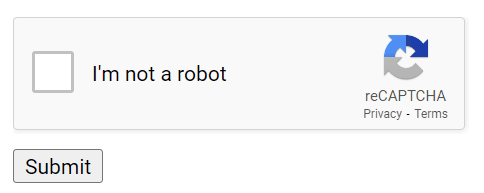
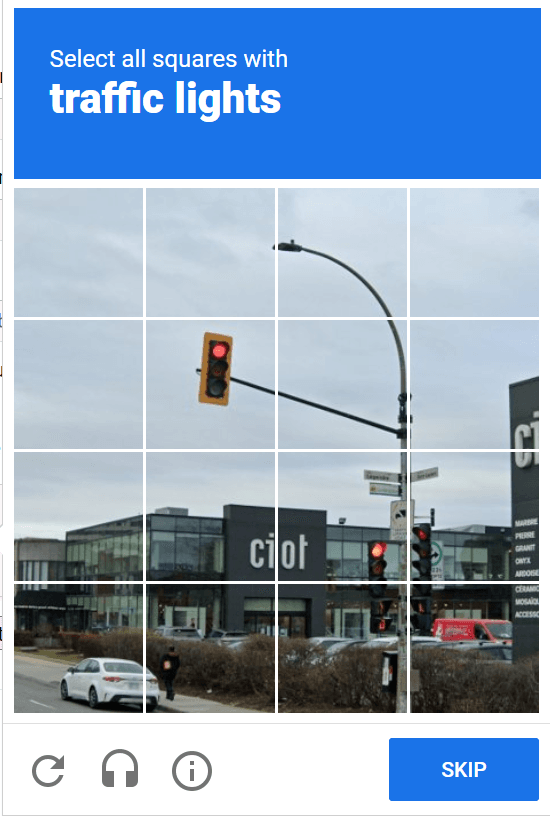
reCAPTCHA v2: in this case, the user must tick the "I am not a robot" checkbox or complete a challenge such as selecting all images containing a specific object (motorcycles, cars, traffic lights, etc.). An audio CAPTCHA may also be offered as an alternative.
reCAPTCHA v3: this version does not require user interaction. It analyzes user behavior on the page and assigns a score — score (1.0 – most likely a real user, 0.0 – most likely a bot). If the score is low, additional verification may be triggered.

Invisible reCAPTCHA: belongs to v2, but without a visible checkbox. Like v3, it runs in the background and only requires user interaction if suspicious behavior is detected. Visually, it does not differ from reCAPTCHA v3.
reCAPTCHA Enterprise: an advanced version for website protection.
How to distinguish reCAPTCHA v2 Invisible from reCAPTCHA v3 and reCAPTCHA Enterprise?
Visible reCAPTCHA v2 can be identified by the checkbox and challenges. Invisible versions can be identified using the following signs
reCAPTCHA v2 Invisible contains elements with the attributes data-sitekey and data-callback:

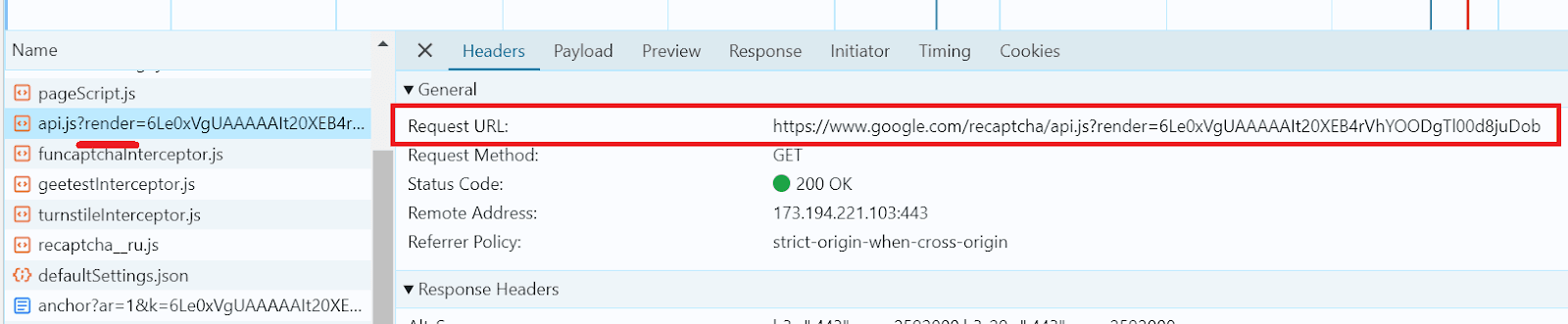
reCAPTCHA v3 — in the Network tab, you can see a request containing the keyword “render”:
reCAPTCHA Enterprise (v2 and v3) is identified by the word “enterprise” in network requests:

GeeTest
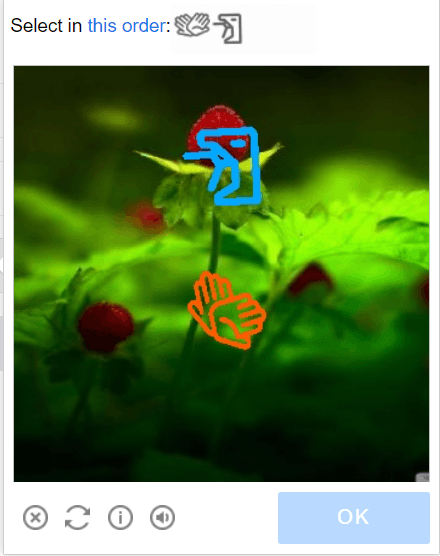
GeeTest offers interactive puzzles, such as selecting certain objects in a specific order, solving a slider-based puzzle, or simply clicking a specific location. GeeTest uses adaptive technologies to minimize inconvenience for real users while simultaneously increasing difficulty for automated systems.
This CAPTCHA type is available in two versions: v3 and v4 (Adaptive CAPTCHA). The fourth version is more flexible — it automatically adjusts the difficulty of the challenge. For real users, the CAPTCHA remains simple and easy to solve, but if the system suspects automation, the difficulty level increases accordingly. As with many other CAPTCHA types, an audio mode is also available as an alternative method of completion.
GeeTest v3
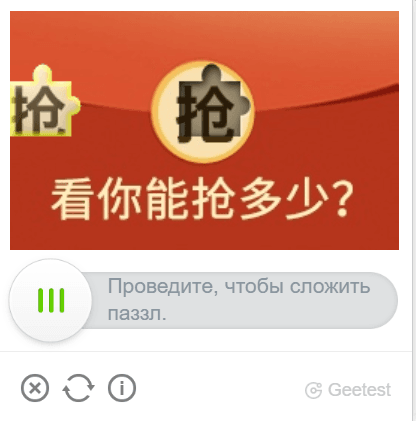
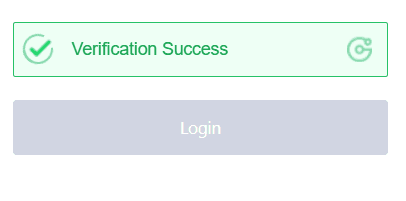
This version supports several CAPTCHA modes: Intelligent mode, Slide CAPTCHA, Icon CAPTCHA and Space CAPTCHA . Below are examples of interfaces for different types of challenges:
Slide CAPTCHA
Icon CAPTCHA
Intelligent mode
GeeTest v4
Similar to the third version, it also includes several main challenge modes: Slide CAPTCHA, Icon CAPTCHA, IconCrush CAPTCHA, Image CAPTCHA, Gobang CAPTCHA, NoCAPTCHA . Below are examples of interfaces for different types of challenges:
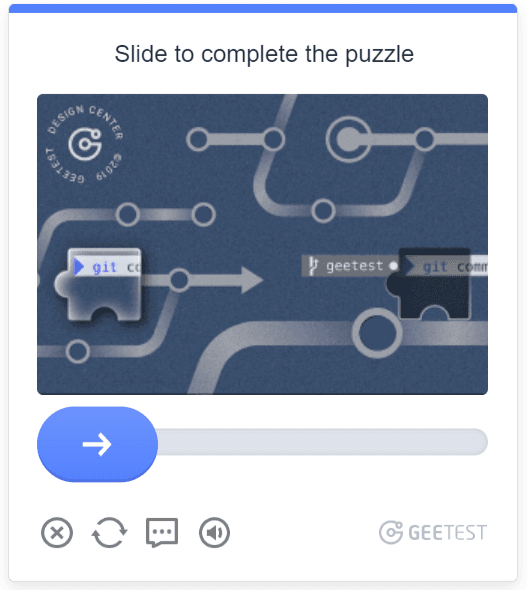
Slide CAPTCHA
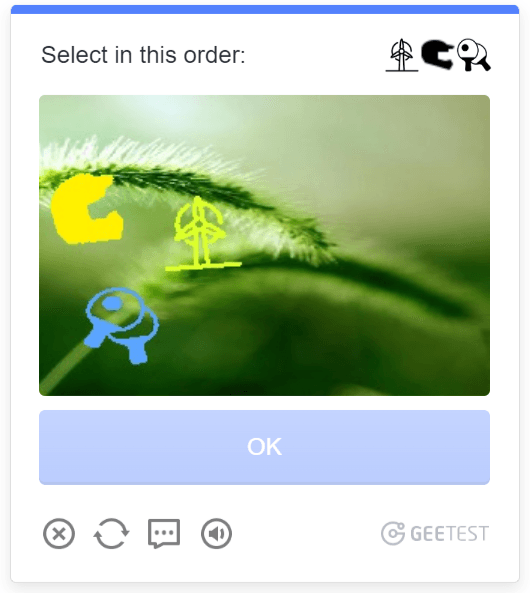
Icon CAPTCHA
NoCAPTCHA
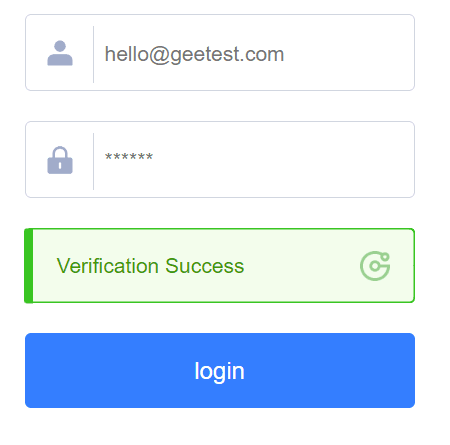
The simplest mode for users: it is enough to click the “Click to verify” button. If the background check confirms that the action is performed by a human, the message “Verification Success” is displayed.
Differences Between GeeTest v3 and v4
You can distinguish GeeTest versions using Developer Tools (DevTools) by analyzing request structure, used parameters, and loaded scripts.
GeeTest v3
Uses two main initialization parameters: gt (GeeTest ID) and challenge (unique session identifier).
The CAPTCHA script is often loaded from URLs containing the path /gt.js.
Sends requests to the server using endpoints such as /validate.php or /get.php.

GeeTest v4
Version 4 scripts and requests often contain the path or reference v4.
Instead of the parameter gt, it uses captcha_id.
Parameters can usually be found in network requests or in the CAPTCHA initialization configuration.

Cloudflare Turnstile and Challenge
Cloudflare provides modern user verification mechanisms without classic image-based CAPTCHAs. Verification can be performed either by clicking the “Verify you are human” button or fully in the background — based on browser parameters, user behavior, and network signals. If the verification succeeds, access to the website is granted; otherwise, the request may be restricted or blocked.
The main Cloudflare verification mechanisms are: Turnstile and Challenge Page.
Turnstile
Turnstile is a site-embedded user verification widget. Depending on site settings and the trust level of the request, Cloudflare may use different verification modes:
Non-interactive verification — performed fully automatically without any user interaction.
Non-intrusive interactive verification — may require minimal interaction in case of suspicious activity.
Invisible verification — runs in the background without displaying any UI elements.


Non-interactive verification

Non-intrusive interactive verification
Challenge Page
Unlike Turnstile, the Challenge Page mechanism opens a separate verification page before granting access to the target website. The user may need to wait for an automatic check to complete, wait a few seconds, or confirm the action by clicking the “Verify you are human” button.
This mechanism is considered more intrusive because it temporarily restricts access to the website until the verification is completed.
Main types of Challenge Page verification:
Managed Challenge — Cloudflare automatically selects the most suitable verification method.
JS Challenge — performed automatically using JavaScript.
Interactive verification — requires interaction with elements on the verification page.
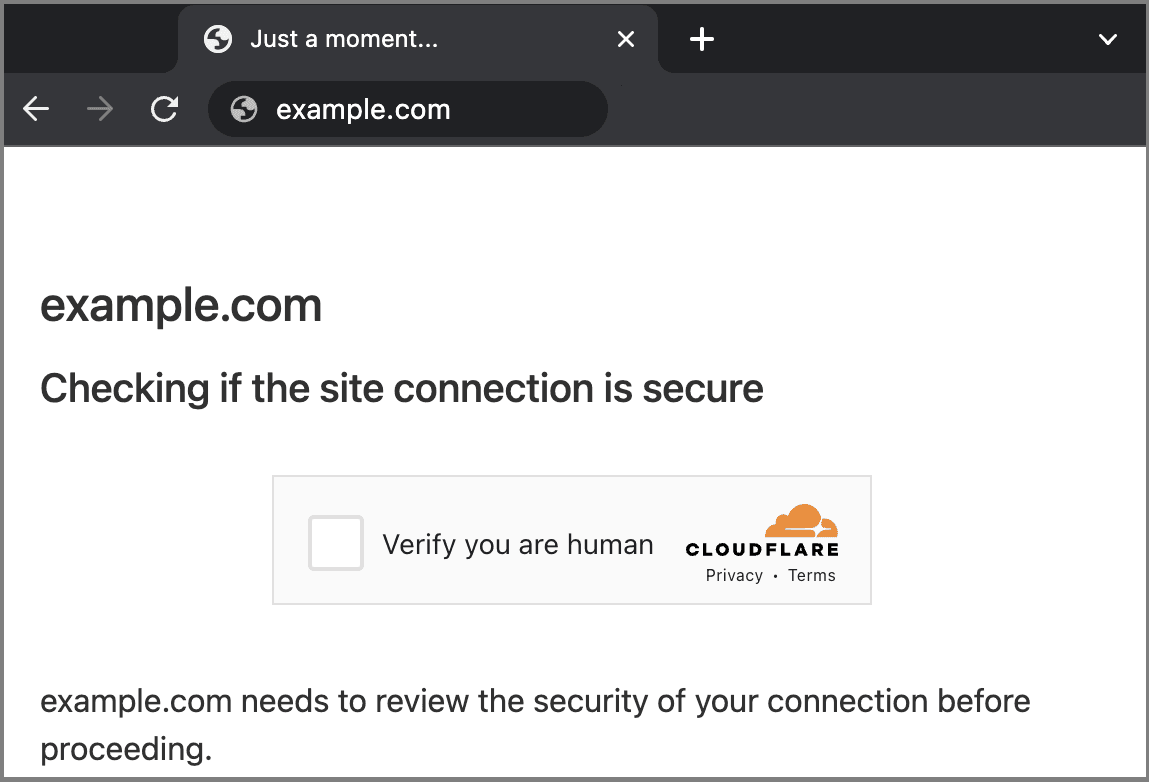
Example of a separate Cloudflare Challenge verification page
When analyzing via DevTools, the presence of a Challenge Page can often be identified by the fact that the first request to the target website returns HTTP status 403, after which the user is redirected to a verification page.
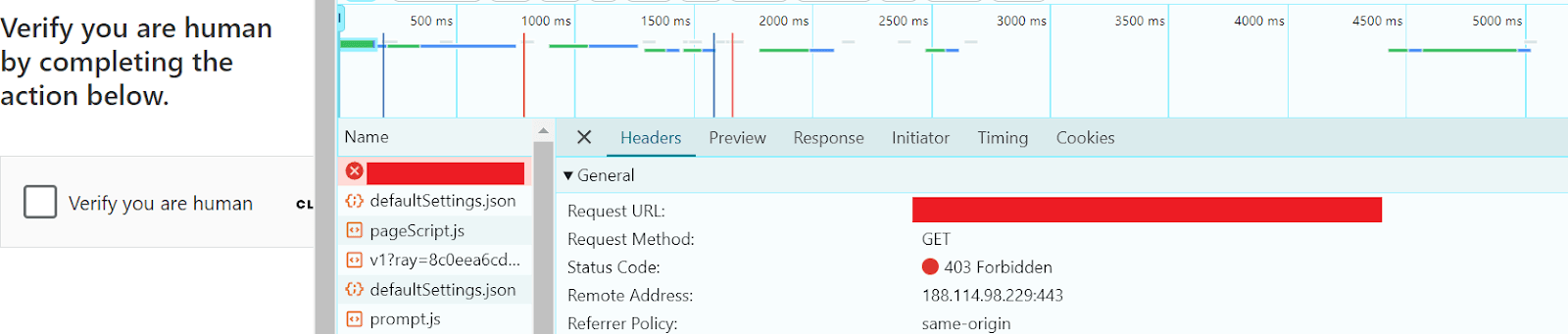
HTTP 403 and redirect to Cloudflare Challenge
Text CAPTCHA (ImageToText)
This is a type of CAPTCHA that asks the user to recognize and enter text displayed in an image during verification. It may consist of letters, numbers, words, or special characters. In the past, it was one of the most popular methods of bot protection, but today it is becoming less common, being replaced by more modern solutions.
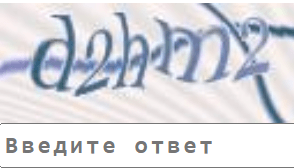
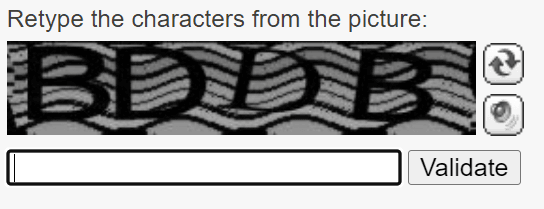
You can identify the presence of ImageToText CAPTCHA using the following signs:
Presence of an image containing CAPTCHA text
Input field for entering the recognized text
Use of <img> and <input type="text"> tags



To locate the <img> element that loads the CAPTCHA image, you can use JavaScript in the console:
document.querySelector('img[src*="captcha"]'); DataDome
Like other similar advanced systems, DataDome uses server-side and client-side methods to detect bots by analyzing user behavior, geolocation, network data, browser fingerprints, and other parameters using multi-layer machine learning algorithms. DataDome can even detect automated browsers (Selenium, Puppeteer, Playwright) and may use JavaScript obfuscation to make its code analysis more difficult.
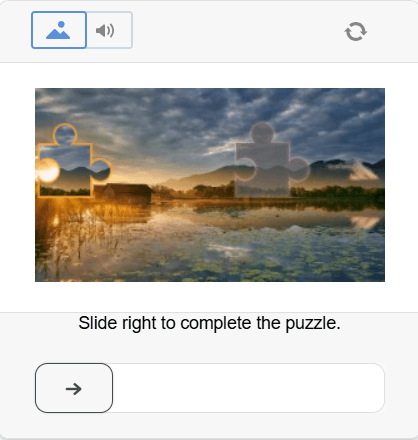
DataDome offers a slider-based verification method
The presence of DataDome protection on a website can be identified by the loading of a DataDome JavaScript file:

DataDome uses specific cookies (which can be retrieved via document.cookie or in the response header Set-Cookie: "datadome=..."), for example:
"datadomeCookie": "datadome=VYUWrgJ9ap4zmXq8Mgbp...64emvUPeON45z"Tencent Captcha (TenDI)
TenDI Captcha also uses advanced and complex user verification methods, including trajectory analysis, feature identification, and other security mechanisms. A real user may not even notice the presence of verification on the target website, but if the system suspects automation usage, a CAPTCHA may be triggered.
Tencent Captcha provides several types of verification:
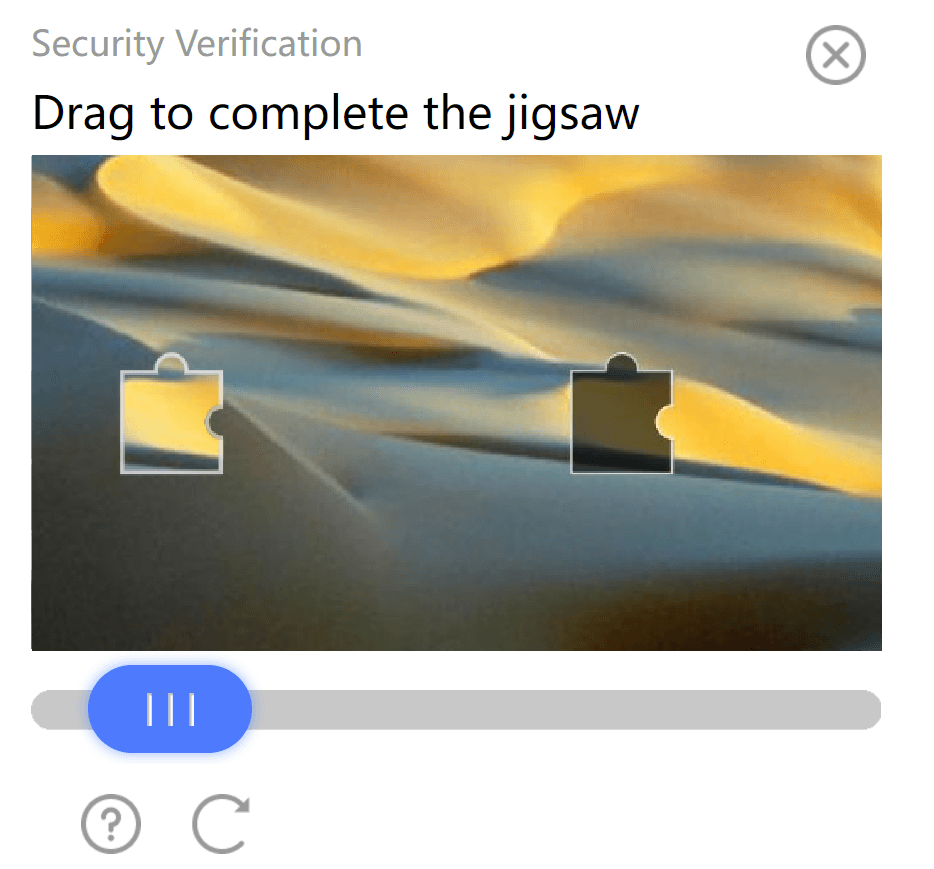
Slider CAPTCHA
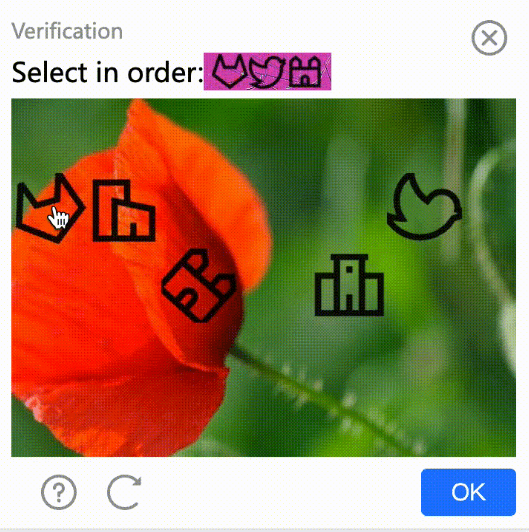
Image CAPTCHA
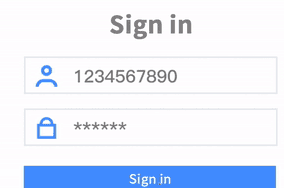
Continuous CAPTCHA
An audio verification is also available, where the user must enter text heard in an audio clip. In addition, a Smart verification mechanism is used — an intelligent system that analyzes user behavior and triggers verification only when suspicious activity is detected.
The presence of Tencent verification on a website can be identified, for example, by the loading of the TCaptcha script:

Requests use the URL – https://ca.turing.captcha.qcloud.com
Amazon CAPTCHA and Challenge
CAPTCHA and Challenge from AWS WAF (Amazon web service) are two user verification mechanisms used to protect websites. Here is how they differ:
CAPTCHA asks the user to solve tasks such as text input (used less frequently), slider movement, selecting objects in an image, or listening and entering words from audio.
Challenge works in the background by analyzing session parameters and request behavior (request frequency, JS execution, mouse behavior, cookies). If successful, the user continues access; otherwise, a CAPTCHA or block may be shown.
CAPTCHA may look like this:

Object selection in an image
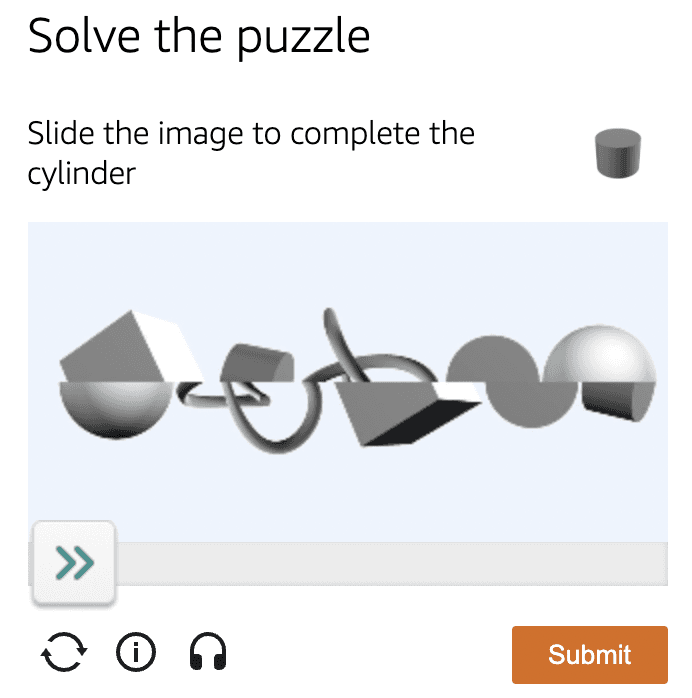
Slider
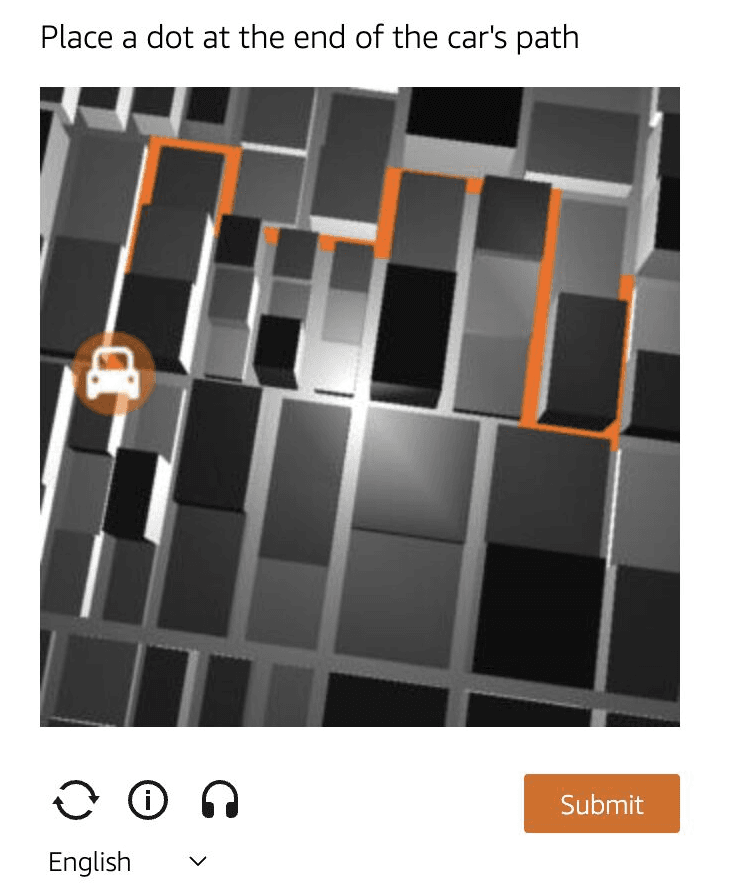
Object selection/movement
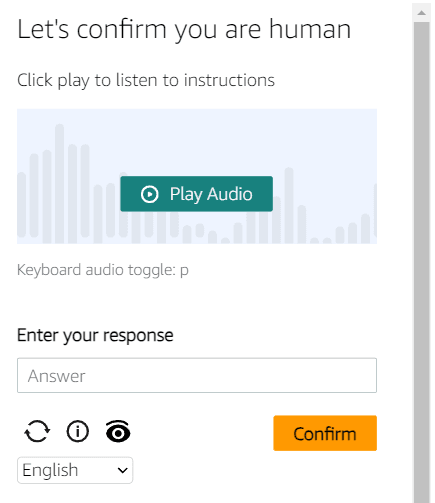
Audio CAPTCHA
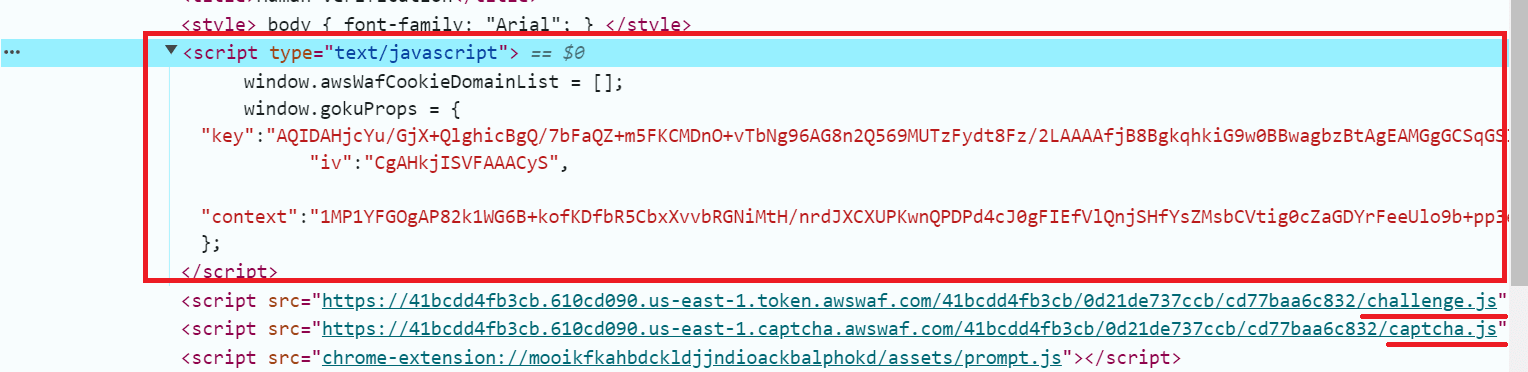
The CAPTCHA code contains the window.gokuProps script, as well as references to challenge.js and captcha.js:
Conclusion
So, we have covered the main popular types of CAPTCHAs, their general operation, and methods of identification. Of course, there are many other similar CAPTCHA types, but based on the information in this article, you will be able to easily determine their type and continue working with them. Each CAPTCHA is unique and has its own protection methods — from traditional text-based variants to modern adaptive systems. The world of technology is constantly evolving, and it is important to keep up with new changes in protection mechanisms.
We hope this article was useful and helped you understand different aspects of CAPTCHAs and their handling. We recommend experimenting with Developer Tools to better understand how these systems work, and using CapMonster Cloud for efficient solving of CAPTCHA-related tasks!
NB: Please note that this product is intended for automation testing exclusively on your own websites and resources, to which you have legal access rights.