CapMonster Cloud API
 Extension for browsers


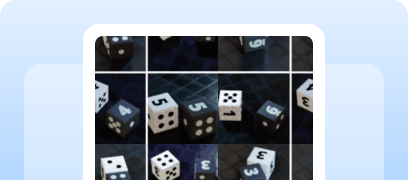
In this article, we have tried to answer all the key questions. The first step in solving the task is to determine which protection system is being used. To do this, you can refer to the list of popular captchas and anti-bot protection systems, where you will find visual examples and key indicators that help you quickly understand what you are dealing with.
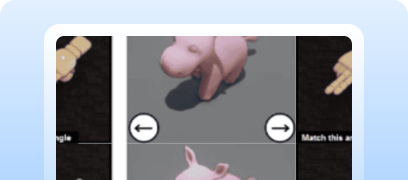
If you discover that your site uses FunCaptcha (Arkose Labs CAPTCHA), the next step is to study its properties and operation in more detail. In this article, you can also review the instructions on how to integrate FunCaptcha (Arkose Labs CAPTCHA) so that you fully understand how it functions on your site. This will help you not only understand the current protection, but also properly plan its maintenance.

Working with CapMonster Cloud via API typically involves the following steps:
 Creating a task
 Sending an API request
type - FunCaptchaTask
websiteURL - the URL of the page where the captcha is being solved;
websitePublicKey - the FunCaptcha key (the public key or pk value);
data - an additional parameter, required if data[blob] is used on the website;
funcaptchaApiJSSubdomain - the Arkose Labs subdomain (the surl value). Specify it only if it differs from the default: client-api.arkoselabs.com
userAgent - Browser User-Agent. Pass only a current UA from a Windows operating system.
This task also requires using your own proxies:
proxyType :
proxyAddress - Proxy IP address (IPv4/IPv6).
proxyPort - Proxy port.
proxyLogin - Proxy server login.
proxyPassword - Proxy server password.

https://api.capmonster.cloud/createTask
{
  "clientKey": "API_KEY",
  "task": {
    "type": "FunCaptchaTask",
    "websiteURL": "https://www.example.com",
    "websitePublicKey": "EX72CCFB-26EX-40E5-91E6-85EX70BE98ED",
    "funcaptchaApiJSSubdomain": "example-api.arkoselabs.com",
    "data": "{\"blob\":\"nj9UbL+yio7goOlTQ/b64t.ayrrBnP6kPgzlKYCP/kv491lKS...Wot/7gjpyIxs7VYb0+QuRcfQ/t6bzh5pXDkOFSskA/V/ITSVZSAlglIplLcdreZ4PE8skfMU6k1Q\"}",
    "userAgent": "Mozilla/5.0 (Windows NT 10.0; Win64; x64) AppleWebKit/537.36 (KHTML, like Gecko) Chrome/145.0.0.0 Safari/537.36",
    "proxyType": "http",  // Add a proxy if required
    "proxyAddress": "8.8.8.8",
    "proxyPort": 8080,
    "proxyLogin": "proxyLoginHere",
    "proxyPassword": "proxyPasswordHere"
  }
}
{
"errorId":0,
"taskId":407533072
} Receiving the result
https://api.capmonster.cloud/getTaskResult{
"clientKey":"API_KEY",
"taskId": 407533072
}
{
  "errorId": 0,
  "errorCode": null,
  "errorDescription": null,
  "solution": {
    "token": "337187b9f57678923.5060184402|r=us-west-2|lang=en|pk=EX72CCFB-26EX-40E5-91E6-85EX70BE98ED|at=40|ag=101|cdn_url=https%3A%2F%2Fclient-api.arkoselabs.com%2Fcdn%2Ffc|surl=https%3A%2F%2Fclient-api.arkoselabs.com|smurl=https%3A%2F%2Fclient-api.arkoselabs.com%2Fcdn%2Ffc%2Fassets%2Fstyle-manager",
    "userAgent": "Mozilla/5.0 (Windows NT 10.0; Win64; x64) AppleWebKit/537.36 (KHTML, like Gecko) Chrome/143.0.0.0 Safari/537.36"
  },
  "status": "ready"
}
 Placing the token on the page
// npm install playwright
const { chromium } = require("playwright");

const WEBSITE_URL = "https://example.com";
// token received from CapMonster Cloud
const FUN_CAPTCHA_TOKEN = "PUT_YOUR_FUN_CAPTCHA_TOKEN_HERE";

(async () => {
  const browser = await chromium.launch({ headless: false });
  const context = await browser.newContext();
  const page = await context.newPage();

  /**
   * Universal Arkose interceptor (v1 / v2)
   * Executed before page load
   */
  await page.addInitScript(() => {
    const callbacks = [];

    function captureCallback(cb, source) {
      if (typeof cb === "function") {
        callbacks.push(cb);
        console.log("[Arkose] callback captured from", source);
      }
    }

    function patchRender(obj, name) {
      if (!obj || typeof obj.render !== "function") return;

      const originalRender = obj.render;
      obj.render = function (container, options = {}) {
        captureCallback(options.callback, name + ".render");
        return originalRender.apply(this, arguments);
      };
    }

    // Interception via Object.defineProperty (often used by Arkose)
    const originalDefineProperty = Object.defineProperty;
    Object.defineProperty = function (target, prop, descriptor) {
      if (
        (prop === "FunCaptcha" || prop === "ArkoseEnforcement") &&
        descriptor &&
        typeof descriptor.value === "object"
      ) {
        patchRender(descriptor.value, prop);
      }
      return originalDefineProperty.apply(this, arguments);
    };

    // Fallback: periodic check of global objects
    const interval = setInterval(() => {
      if (window.FunCaptcha) patchRender(window.FunCaptcha, "FunCaptcha");
      if (window.ArkoseEnforcement)
        patchRender(window.ArkoseEnforcement, "ArkoseEnforcement");

      if (callbacks.length > 0) clearInterval(interval);
    }, 200);

    // Universal entry point for passing the token
    window.__arkoseSolve = function (token) {
      if (callbacks.length > 0) {
        callbacks.forEach((cb) => cb(token));
        console.log("[Arkose] token delivered via captured callbacks");
        return true;
      }

      // Alternative options
      if (typeof window.arkoseCallback === "function") {
        window.arkoseCallback(token);
        console.log("[Arkose] token delivered via arkoseCallback");
        return true;
      }

      // Fallback
      window._arkoseToken = token;
      console.log("[Arkose] token stored in window._arkoseToken");
      return false;
    };
  });

  /**
   * Open the page
   */
  console.log("Opening page...");
  await page.goto(WEBSITE_URL, { waitUntil: "domcontentloaded" });

  /**
   * Here the website should initialize FunCaptcha
   * (registration, login, button, form, etc.)
   */

  /**
   * Pass the ready token
   */
  console.log("Injecting FunCaptcha token...");
  await page.evaluate((token) => {
    if (!window.__arkoseSolve) {
      console.log("[Arkose] solver not ready");
      return;
    }
    window.__arkoseSolve(token);
  }, FUN_CAPTCHA_TOKEN);

  /**
   * Give the page time to process the result
   */
  await page.waitForTimeout(5000);

  console.log("Done.");
  await browser.close();
})();
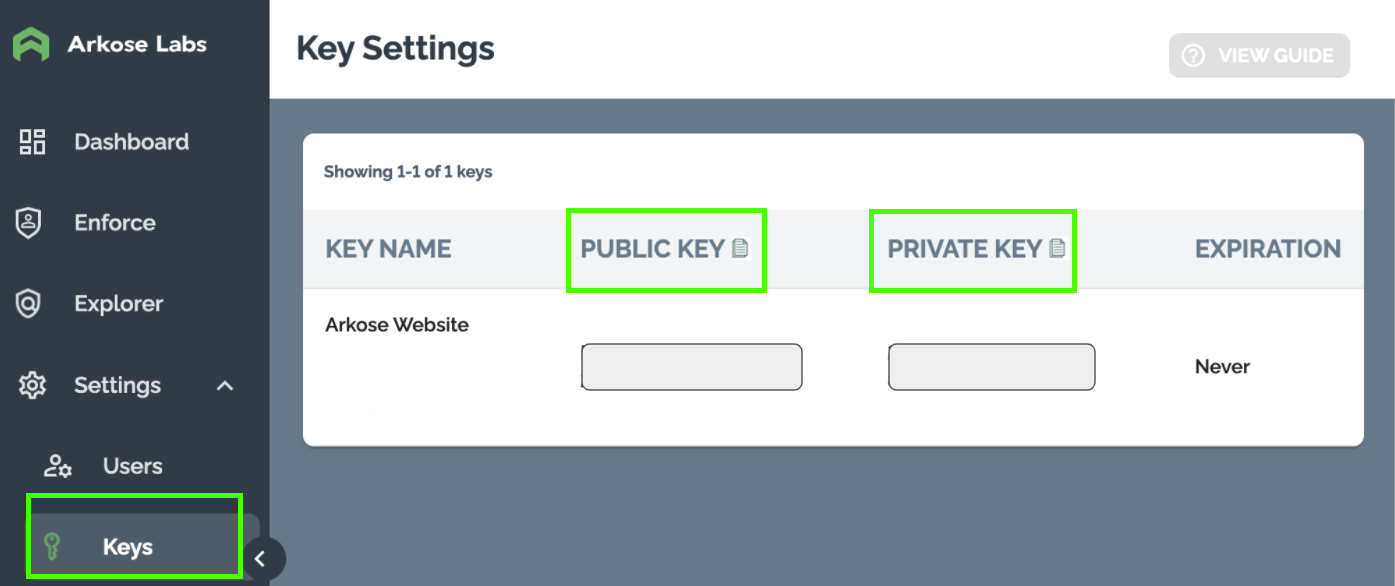
After gaining access, obtain two keys (Public / Private) in the Settings → Keys section.
If necessary, contact your Customer Success Manager (CSM) to:
Arkose recommendations
General workflow
Step 1. Client-side integration
On the browser side (Arkose Bot Manager):
Client API:
client-api.arkoselabs.com<company>-api.arkoselabs.comKey requirements
The result of the client-side process is a token that must be sent to the server.
 Integration example
<html>
<head>
  <!--
    Include the Arkose Labs API in the <head> of the page. In the example below, be sure to:
    - replace <YOUR PUBLIC KEY> with the public key provided by Arkose Labs;
    - replace <YOUR CALLBACK> with the name of the global callback function you define below.
   Example:
    <script src="//client-api.arkoselabs.com/v2/<YOUR PUBLIC KEY>/api.js"
            data-callback="setupDetect"></script>
  -->
  <script src="//client-api.arkoselabs.com/v2/<YOUR PUBLIC KEY>/api.js" data-callback="<YOUR CALLBACK>"></script>
  <link rel="shortcut icon" href="#">
  <meta charset="UTF-8">
</head>

<body>
  <!--
    The trigger element can be located anywhere on the page and can be added to the DOM at any time.
  -->
  <button id="arkose-trigger">
    trigger element
  </button>

  <!--
    To configure Arkose (detection or enforcement mode), place the script before the closing </body> tag and define the callback function as global.
  -->
  <script>
    /*
      This global function will be called when the Arkose API is ready. The function name must match the value of the data-callback attribute of the script tag that loads the Arkose API.
    */
    function setupArkose(myArkose) {
      myArkose.setConfig({
        selector: '#arkose-trigger',
        onCompleted: function(response) {
          // One-time token that must be sent to the server
          console.log(response.token);
        }
      });
    }
  </script>
</body>
</html>
Step 2. Server-side verification
On the server, the token is verified via the Arkose Verify API.
Verify API endpoint
https://<company>-verify.arkoselabs.com/api/v4/verify/Required request parameters
Example POST request body
{
  "private_key": "_PRIVATE_KEY_HERE_",
  "session_token": "_SESSION_TOKEN_HERE_",
  "log_data": "_LOG_DATA_HERE_"
}
The API response contains session information and the verification result.
Key points
Example of server-side verification in PHP:
<?php
$private_key = 'YOUR_PRIVATE_KEY';
$verify_url = 'https://<company>-verify.arkoselabs.com/api/v4/verify/';

$input = json_decode(file_get_contents('php://input'), true);
$session_token = $input['session_token'] ?? null;
$log_data = $input['log_data'] ?? '';
$email_address = $input['email_address'] ?? '';

if (!$session_token) {
    http_response_code(400);
    echo json_encode(['error' => 'Session token is missing']);
    exit;
}

$data = [
    'private_key' => $private_key,
    'session_token' => $session_token,
    'log_data' => $log_data,
    'email_address' => $email_address
];

$options = [
    'http' => [
        'header'  => "Content-Type: application/json\r\n",
        'method'  => 'POST',
        'content' => json_encode($data),
    ],
];

$context  = stream_context_create($options);
$result = file_get_contents($verify_url, false, $context);

if ($result === FALSE) {
    http_response_code(500);
    echo json_encode(['error' => 'Captcha verification error']);
    exit;
}

echo $result;
?>
How it works:





If you’ve taken over a website that already has a captcha or another protection system installed, but you don’t have access to the code, don’t worry! It’s quite easy to identify which technology is being used. To verify that everything works correctly, you can use the CapMonster Cloud recognition service in an isolated test environment to make sure that the token processing mechanism and the validation logic are functioning properly.
In the case of FunCaptcha, it’s enough to detect the system, observe its behavior, and confirm that the protection is working correctly. In this article, we showed how to identify FunCaptcha and where to find instructions on how to integrate or reconfigure it, so you can confidently maintain the protection and keep its operation under control.