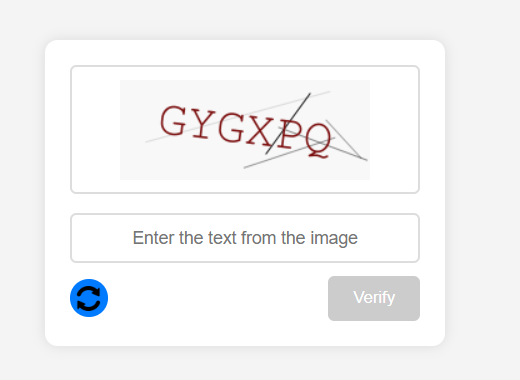
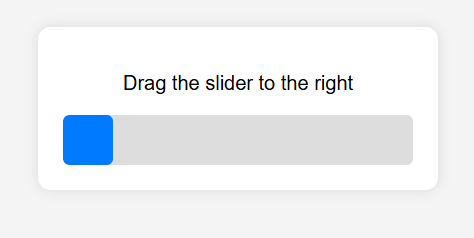
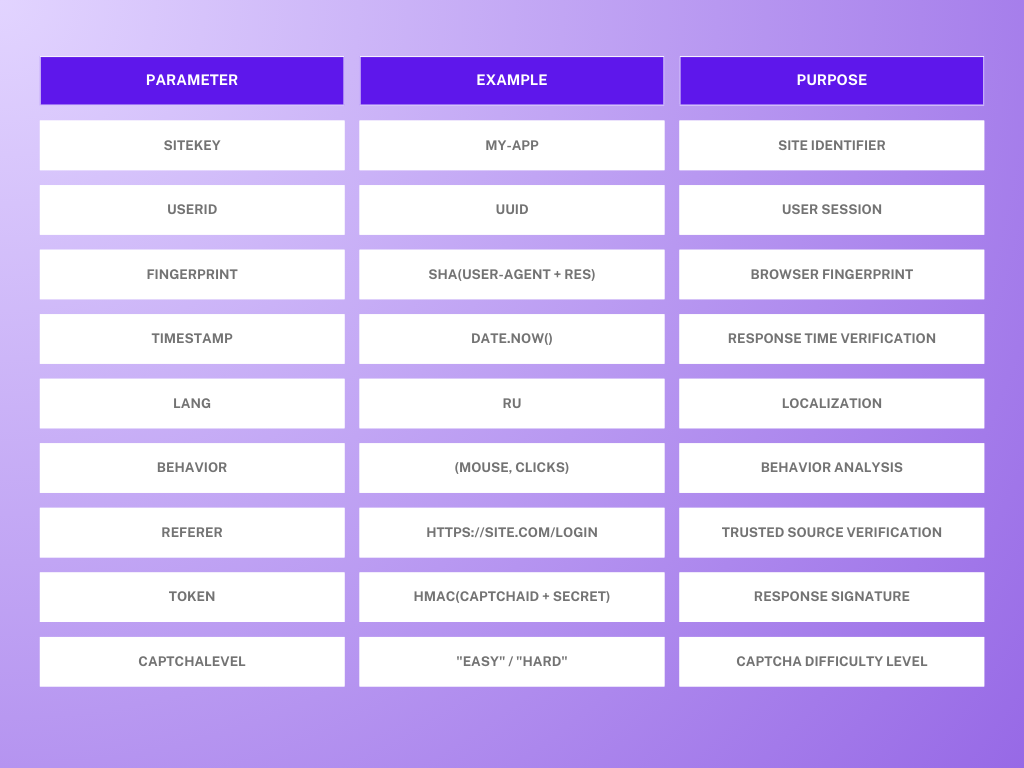
- Create an index.html file and add the structure and the full outer shell of our future captcha:
<!DOCTYPE html>
<html lang="en">
<head>
<meta charset="UTF-8" />
<meta name="viewport" content="width=device-width, initial-scale=1.0" />
<title>Grid Captcha</title>
<style>
body {
font-family: Arial, sans-serif;
display: flex;
justify-content: center;
align-items: center;
height: 100vh;
background: #f4f4f4;
margin: 0;
}
.captcha-container {
background: white;
padding: 20px;
box-shadow: 0 0 10px rgba(0, 0, 0, 0.1);
text-align: center;
border-radius: 8px;
}
.captcha-images {
display: grid;
grid-template-columns: repeat(3, 1fr);
gap: 10px;
margin-bottom: 15px;
}
.captcha-images img {
width: 100px;
height: 100px;
object-fit: cover;
border: 2px solid #ddd;
cursor: pointer;
border-radius: 5px;
transition: transform 0.3s ease;
}
.captcha-images img.selected {
transform: scale(1.1);
border-color: #007bff;
}
.captcha-images img:hover {
transform: scale(1.05);
}
.submit-button {
padding: 10px 20px;
background: #007bff;
color: white;
border: none;
cursor: pointer;
border-radius: 5px;
}
.submit-button:disabled {
background: #ddd;
cursor: not-allowed;
}
.success-message {
color: green;
display: none;
margin-top: 10px;
}
.error-message {
color: red;
display: none;
margin-top: 10px;
}
</style>
</head>
<body>
<div class="captcha-container">
<p id="captchaInstruction">Loading captcha...</p>
<div class="captcha-images" id="captchaImages"></div>
<button class="submit-button" id="submitButton" disabled>Verify</button>
<p class="success-message" id="successMessage">Captcha passed!</p>
<p class="error-message" id="errorMessage">Incorrect images selected! Please try again.</p>
</div>
<script src="script.js"></script>
</body>
</html>
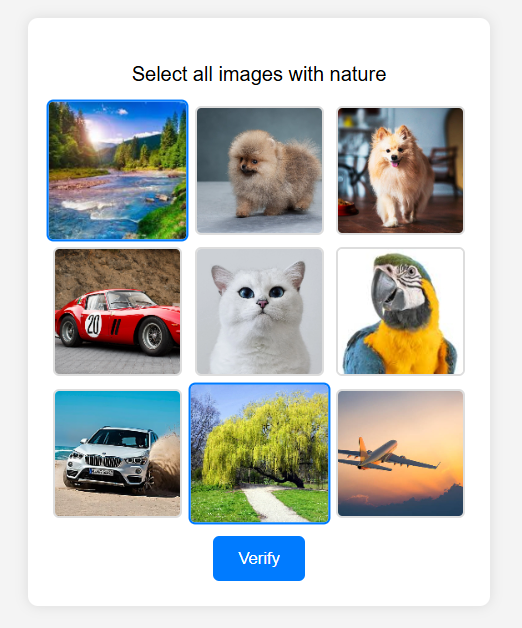
We will display the captcha as a 3x3 grid with images sized 100x100 pixels. When an image is selected, it enlarges and gets outlined in blue. The "Check" button is initially disabled but becomes active after images are selected; blue borders and white text highlight it. Messages about successful or failed verification are shown in green or red.
Frontend
- In a new file script.js, we will create several variables and fetch the captcha from the server using the fetchCaptcha function:
let selectedImages = new Set();
let captchaId = null;
let userId = null;
document.addEventListener("DOMContentLoaded", async () => {
userId = localStorage.getItem("userId");
if (!userId) {
userId = crypto.randomUUID();
localStorage.setItem("userId", userId);
}
await fetchCaptcha();
});
- selectedImages is a collection that will store the selected images.
- captchaId is the current captcha ID used for verification.
- userId is the user identifier stored in localStorage. Cookies could also be used, but in this case, it’s not necessary since userId is used only on the client side and is not sent with every server request (unlike during authentication). If there is no userId, a new one is generated using crypto.randomUUID() and saved to localStorage.
6. Next, we load the captcha from the server:
async function fetchCaptcha() {
try {
const response = await fetch("http://localhost:3000/get-captcha", {
headers: { "x-user-id": userId },
});
const data = await response.json();
if (data.success) {
document.getElementById("captchaInstruction").textContent =
"Captcha already passed!";
document.getElementById("captchaImages").innerHTML = "";
document.getElementById("submitButton").style.display = "none";
return;
}
captchaId = data.captchaId;
document.getElementById(
"captchaInstruction"
).textContent = `Select all images with ${data.category}`;
renderImages(data.images);
} catch (error) {
console.error("Captcha loading error:", error);
alert("An error occurred. Please try again.");
}
}
The fetchCaptcha function makes a request to the server to get the captcha. The request includes a header with the userId.
The server returns a JSON object containing information about whether the user has already passed the captcha (data.success).
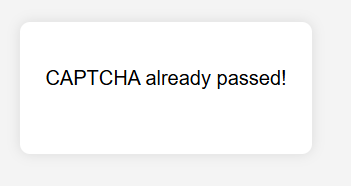
If the captcha is already passed, a message is displayed on the page, and the images and button are hidden.
If the captcha is not passed, the captchaId and image category are saved, then the renderImages function is called to display the selection images.
function renderImages(images) {
const container = document.getElementById("captchaImages");
container.innerHTML = "";
selectedImages.clear();
document.getElementById("submitButton").disabled = true;
images.forEach((imgData, index) => {
const img = document.createElement("img");
img.src = imgData.src;
img.dataset.index = index;
img.addEventListener("click", () => toggleImageSelection(img, imgData.src));
container.appendChild(img);
});
}
function toggleImageSelection(img, src) {
if (selectedImages.has(src)) {
selectedImages.delete(src);
img.classList.remove("selected");
} else {
selectedImages.add(src);
img.classList.add("selected");
}
document.getElementById("submitButton").disabled = selectedImages.size === 0;
}
- renderImages receives an array of images and displays them inside the container with the ID captchaImages.
- For each image, an <img> element is created with the src and data-index attributes assigned. Then a click event handler is added to the image.
- When an image is selected, it is added to the selectedImages collection. While nothing is selected, the submit button (submitButton) remains disabled.
- When the user clicks on an image, it is either added to or removed from the selectedImages collection.
- Visually, this is reflected by toggling the selected class, which enlarges the image and changes its border to blue.
- The submit button is enabled only if at least one image is selected.
8. Next, we send the selected images to the server:
document.getElementById("submitButton").addEventListener("click", async () => {
try {
const response = await fetch("http://localhost:3000/verify-captcha", {
method: "POST",
headers: {
"Content-Type": "application/json",
"x-user-id": userId,
},
body: JSON.stringify({
captchaId,
selectedImages: Array.from(selectedImages),
}),
});
const result = await response.json();
document.getElementById("successMessage").style.display = result.success
? "block"
: "none";
document.getElementById("errorMessage").style.display = result.success
? "none"
: "block";
setTimeout(fetchCaptcha, 1500);
} catch (error) {
console.error("Error submitting captcha:", error);
alert("Server error. Please try again later.");
}
});
- When the user clicks the "Verify" button, a POST request is sent to the server at the /verify-captcha endpoint, passing the captchaId and an array of selected images.
- Based on the server's response (a JSON object with a success field), we display either a success or an error message.
- After the captcha check, the setTimeout function calls fetchCaptcha to refresh the captcha after 1.5 seconds.
Backend
9. Let’s move to the previously created server.js file and import the dependencies we already installed:
import express from "express";
import cors from "cors";
import bodyParser from "body-parser";
import morgan from "morgan";
import { createClient } from "@redis/client";
import { v4 as uuidv4 } from "uuid";
10. Connecting to Redis:
const app = express();
const PORT = 3000;
const redisClient = createClient();
redisClient.connect().catch((err) => console.error("Redis error:", err));
Here:
- An instance of the Express application (app) is created.
- The port the server will run on is set (3000).
- A Redis client is created and a connection is established.
11. Middleware setup:
app.use(cors({ origin: true, credentials: true }));
app.use(bodyParser.json());
app.use(morgan("dev"));
- cors: allows access from any origin and supports sending cookies.
- bodyParser: parses JSON request bodies.
- morgan: logs requests to the console using the "dev" format.
12. Serve static images from the images folder under the /images URL path:
app.use("/images", express.static("images"));
13. Define the image array:
Each object contains the image path and its category — in the future, metadata can be expanded and images can be added or retrieved from a database.
const images = [
  { src: "images/car1.jpg", category: "vehicle" },
  { src: "images/car2.jpg", category: "vehicle" },
  { src: "images/car3.jpg", category: "vehicle" },
  { src: "images/car4.jpg", category: "vehicle" },
  { src: "images/ship.jpg", category: "vehicle" },
  { src: "images/plain.jpg", category: "vehicle" },
  { src: "images/cat.jpg", category: "animal" },
  { src: "images/dog1.jpg", category: "animal" },
  { src: "images/dog2.jpg", category: "animal" },
  { src: "images/parrot.jpg", category: "animal" },
  { src: "images/tree.jpg", category: "nature" },
  { src: "images/flower.jpg", category: "nature" },
  { src: "images/mountain.jpg", category: "nature" },
  { src: "images/river.jpg", category: "nature" },
];
14. Randomly select a specified number of images from the array:
function getRandomItems(arr, count) {
  return [...arr].sort(() => 0.5 - Math.random()).slice(0, count);
}
15. Add a route handler for fetching the captcha:
app.get("/get-captcha", async (req, res) => {
  const userId = req.header("x-user-id");
  if (!userId)
    return res.status(400).json({ success: false, message: "No userId" });

  try {
    const passed = await redisClient.get(`captcha_${userId}`);
    if (passed)
      return res.json({ success: true, message: "Captcha already passed" });

    const categories = ["vehicle", "animal", "nature"];
    const category = categories[Math.floor(Math.random() * categories.length)];

    const selected = getRandomItems(images, 9);
    const correct = selected
      .filter((img) => img.category === category)
      .map((img) => img.src);

    const captchaId = uuidv4();
    await redisClient.setEx(
      `captcha_data_${captchaId}`,
      300,
      JSON.stringify({ correct })
    );

    res.json({
      success: false,
      images: selected,
      category,
      captchaId,
    });
  } catch (err) {
    console.error("Error in /get-captcha:", err);
    res.status(500).json({ success: false, message: "Server error" });
  }
});
What this part of the code does:
- It checks for the presence of a userId in the request headers. If it's missing, an error is returned.
- It verifies whether the user has already passed the captcha. If so, a message is sent indicating that.
- A category (vehicles, animals, or nature) is randomly selected.
- Nine random images are generated, from which the correct ones (matching the selected category) are identified.
- Information about the correct images is saved in Redis with a 5-minute expiration (300 seconds).
- An object containing the images, the selected category, and a unique captcha ID is sent in the response.
16. Next, let's add a route handler for captcha verification:
app.post("/verify-captcha", async (req, res) => {
  const userId = req.header("x-user-id");
  const { captchaId, selectedImages } = req.body;

  if (!userId || !captchaId || !Array.isArray(selectedImages)) {
    return res.status(400).json({ success: false, message: "Invalid data" });
  }

  try {
    const raw = await redisClient.get(`captcha_data_${captchaId}`);
    if (!raw)
      return res.status(400).json({ success: false, message: "Captcha expired" });

    const { correct } = JSON.parse(raw);
    const isValid =
      selectedImages.length === correct.length &&
      selectedImages.every((img) => correct.includes(img));

    if (isValid) {
      await redisClient.setEx(`captcha_${userId}`, 3600, "passed");
    }

    res.json({
      success: isValid,
      message: isValid ? "Captcha passed!" : "Incorrect images selected!",
    });
  } catch (err) {
    console.error("Error in /verify-captcha:", err);
    res.status(500).json({ success: false, message: "Server error" });
  }
});

app.listen(PORT, () => {
  console.log(`Server running at http://localhost:${PORT}`);
});
- Here we retrieve the userId, captchaId, and the selected images from the request body.
- We check whether the captcha exists and hasn't expired.
- Then we compare the selected images with the correct ones.
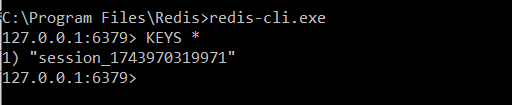
- If the captcha is solved correctly, we save the success status in Redis for 1 hour (3600 seconds).
- Finally, we send the verification result: either a successful pass or an error.
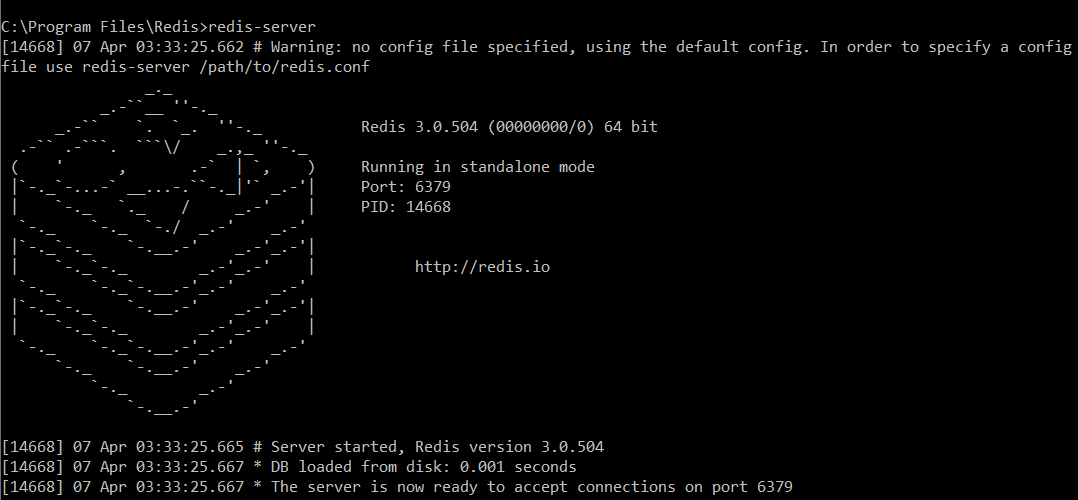
17. And finally, start the redis-server and run server.js with the command node server.js, then open the project in your browser at http://localhost:3000. Time to test it!