Loading...
Prezzi della soluzione MTCaptcha


Hai ereditato un sito con una captcha o un'altra protezione ma senza accesso al codice sorgente? È normale chiedersi quale soluzione sia installata, se sia configurata correttamente e come testarla.
In questo articolo abbiamo cercato di rispondere a tutte le domande principali. Il primo passo per risolvere il problema è capire quale sistema di protezione viene utilizzato. A questo scopo puoi consultare l’elenco dei captcha e dei sistemi di protezione antibot più diffusi, dove trovi esempi visivi e caratteristiche chiave che ti aiutano a identificare rapidamente con cosa hai a che fare.
Se scopri che sul tuo sito viene utilizzato MTCaptcha, il passo successivo è analizzarne più nel dettaglio le proprietà e il funzionamento. In questo stesso articolo puoi anche studiare la guida all’integrazione di MTCaptcha, per comprendere a fondo come opera sul tuo sito. Questo ti permetterà non solo di capire la protezione attuale, ma anche di pianificarne correttamente la manutenzione.

Cos'è MTCaptcha
MTCaptcha è un sistema di protezione dei siti web contro azioni automatizzate, che utilizza verifiche intelligenti e captcha.
Prima, il servizio analizza il traffico in background. Se il comportamento del visitatore sembra sospetto, il sistema mostra automaticamente un captcha testuale per una verifica aggiuntiva.
Come risolvere MTCaptcha tramite CapMonster Cloud
Quando testi form che includono MTCaptcha devi spesso verificare che la captcha funzioni e sia integrata correttamente.
Puoi verificare manualmente la captcha inserita nel tuo sito.
- Apri la pagina del form e assicurati che la captcha venga visualizzata.
- Prova a inviare il form senza risolverla: il server dovrebbe restituire un errore.
- Dopo una soluzione corretta il form deve essere inviato senza problemi.
Per la risoluzione automatica puoi usare strumenti come CapMonster Cloud, che accetta i parametri della captcha, li elabora sui propri server e restituisce un token pronto all'uso. Inserisci quel token nel form per superare il controllo senza intervento dell'utente.
Lavorare con CapMonster Cloud via API di solito prevede i seguenti passaggi:
 Creazione della task
In questa fase invii la tua API key, il tipo di captcha e i suoi parametri. Il servizio restituisce un taskId unico, con il quale puoi ottenere il risultato più tardi.
 Invio della richiesta API
Nella richiesta per risolvere MTCaptcha è necessario specificare i seguenti parametri:
type - MTCaptchaTask
websiteURL - Indirizzo della pagina principale in cui viene risolto il captcha.
websiteKey - Chiave MTcaptcha, trasmessa nella richiesta come parametro “sk”.
pageAction - Il parametro action viene inviato nella richiesta come “act” e viene visualizzato durante la validazione del token. Indicatelo solo se il valore differisce da quello predefinito – %24.
isInvisible - Indicate true se il captcha è invisibile, cioè ha un campo nascosto per la conferma. Se viene sospettata attività di bot, viene eseguito un controllo aggiuntivo.

Riconoscimento MTCaptcha usando librerie pronte all'uso
Il servizio CapMonster Cloud fornisce librerie pronte per lavorare comodamente in Python, JavaScript (Node.js) e C#.
Python
JavaScript
C#
Come collegare MTCaptcha al tuo sito
Per capire con sicurezza il funzionamento del captcha sul tuo sito, comprendere la logica, ricollegarlo o riconfigurarlo, ti consigliamo di studiare questa sezione. Descrive il processo di integrazione della protezione — aiutandoti a comprendere rapidamente tutti i dettagli.
1. Registrati o accedi al tuo account MTCaptcha.
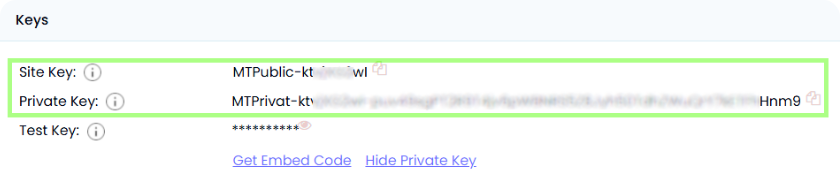
2. Dopo la registrazione, aggiungi il tuo sito. Riceverai due chiavi.
- Site Key — chiave pubblica per il frontend, per mostrare il widget.
- Private Key — chiave privata per il server, per verificare le soluzioni captcha. Conservala solo sul server, non passarla al client.
Esempio:
3. Configura il client MTCaptcha:
Inserisci il codice nel <head> della pagina.
Sostituisci <YOUR SITE KEY> con la tua Site Key ottenuta dal pannello MTCaptcha.
  <head>
  <script>
    var mtcaptchaConfig = {
      sitekey: "<YOUR SITE KEY>"
    };

    (function() {
      var mt_service = document.createElement('script');
      mt_service.async = true;
      mt_service.src = 'https://service.mtcaptcha.com/mtcv1/client/mtcaptcha.min.js';
      (document.head || document.body).appendChild(mt_service);

      var mt_service2 = document.createElement('script');
      mt_service2.async = true;
      mt_service2.src = 'https://service2.mtcaptcha.com/mtcv1/client/mtcaptcha2.min.js';
      (document.head || document.body).appendChild(mt_service2);
    })();
  </script>
</head>
Aggiungi il contenitore captcha nel <body>
Dove vuoi visualizzare il captcha (ad esempio all'interno di un form):
<div class="mtcaptcha"></div>Il widget si caricherà automaticamente.
Puoi usare i SDK e plugin pronti per una rapida integrazione:

Possibili errori e debug

Sito o chiave non validi
Il captcha non si carica o il server restituisce invalid-privatekey o privatekey-mismatch-token. Assicurati di usare la coppia corretta di sitekey e privatekey.
Token mancante o non valido
Errori missing-input-token, invalid-token, bad-request. Verifica che il valore del token venga inviato al server e non venga modificato.
Token scaduto (token-expired)
Il token è valido per un tempo limitato (di solito ~120 secondi), dopodiché deve essere ottenuto nuovamente.
Rivalidazione token (token-duplicate-cal)
Il token può essere verificato solo una volta — protezione contro attacchi replay.
Chiave scaduta o disattivata (expired-sitekey-or-account)
Assicurati che le chiavi siano valide e l'account attivo.
Verifiche della resilienza della protezione

Richiesta senza token deve restituire un errore (missing-input-token o simile).
Test di carico (es. k6 o JMeter): sotto carico elevato, l'interfaccia captcha deve funzionare correttamente e il server deve verificare i token in modo stabile.
Verifica token duplicato o scaduto deve restituire il fail_code corrispondente, ad esempio token-duplicate-cal o token-expired.
Suggerimenti di sicurezza e ottimizzazione

Conservate la privatekey solo sul server — non inviatela al client.

Registrate i fail_codes per monitorare le cause degli errori e analizzare i tentativi di aggirare la protezione.

Inserite nel modulo i link alla Privacy Policy e ai Termini di Utilizzo, se richiesto dalla politica della vostra piattaforma.
Captcha supportati
 reCAPTCHA v2
 GeeTest
 Cloudflare Turnstile
 DataDome
Conclusione
Se ti è capitato un sito con un captcha o un altro sistema di protezione già installato e senza accesso al codice, nessun problema! È piuttosto facile capire quale tecnologia viene utilizzata. Per verificare che tutto funzioni correttamente, puoi usare il servizio di riconoscimento CapMonster Cloud in un ambiente di test isolato, così da assicurarti che il meccanismo di elaborazione dei token e la logica di verifica funzionino correttamente.
Nel caso di MTCaptcha, è sufficiente individuare il sistema, analizzarne il comportamento e assicurarsi che la protezione funzioni correttamente. Nell’articolo abbiamo mostrato come riconoscere MTCaptcha e dove trovare le istruzioni per la sua integrazione o riconfigurazione, in modo da poter mantenere la protezione in modo affidabile e controllarne il funzionamento.


 Amazon Waf
 Faucet Pay
 Imperva (Incapsula)
 Prosopo
 Text CAPTCHA
 Yidun
Yidun Altcha
 Funcaptcha
 TSPD
TSPD Hunt
Hunt Alibaba
 Friendly