Loading...
Prezzi della soluzione ALTCHA

Hai ereditato un sito con una captcha o un'altra protezione ma senza accesso al codice sorgente? È normale chiedersi quale soluzione sia installata, se sia configurata correttamente e come testarla.
In questo articolo abbiamo cercato di rispondere a tutte le domande principali. Il primo passo per risolvere il problema è capire quale sistema di protezione viene utilizzato. A questo scopo puoi consultare l’elenco dei captcha e dei sistemi di protezione antibot più diffusi, dove trovi esempi visivi e caratteristiche chiave che ti aiutano a identificare rapidamente con cosa hai a che fare.
Se scopri che sul tuo sito viene utilizzato ALTCHA, il passo successivo è analizzarne più nel dettaglio le proprietà e il funzionamento. In questo stesso articolo puoi anche studiare la guida all’integrazione di ALTCHA, per comprendere a fondo come opera sul tuo sito. Questo ti permetterà non solo di capire la protezione attuale, ma anche di pianificarne correttamente la manutenzione.

Cos'è ALTCHA
ALTCHA (Alternative CAPTCHA) è un sistema di protezione dei siti web contro bot e spam. Aiuta a distinguere gli utenti reali dai programmi automatizzati, garantendo che il sito funzioni in modo sicuro e stabile. ALTCHA è un'alternativa moderna ai CAPTCHA tradizionali: utilizza una sfida crittografica leggera (proof-of-work) e non raccoglie cookie né traccia gli utenti.

Esempi di ALTCHA
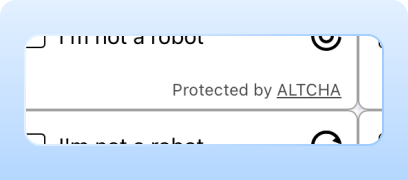
Proof-of-Work (PoW)
Il sistema utilizza di default il metodo di verifica Proof-of-Work (PoW), eliminando puzzle visivi e controlli invasivi. Questo approccio combina sicurezza e comodità per l'utente, offrendo una soluzione captcha discreta adatta alla maggior parte dei visitatori.
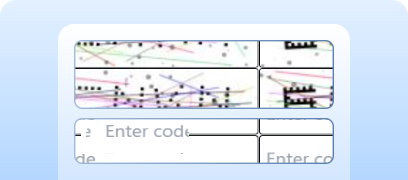
Code Captcha
La protezione può essere rafforzata fino a richiedere un captcha testuale.
Invisible Captcha
La verifica avviene senza widget visibile e non richiede alcuna azione da parte dell'utente.
Come risolvere ALTCHA tramite CapMonster Cloud
Quando testi form che includono ALTCHA devi spesso verificare che la captcha funzioni e sia integrata correttamente.
Puoi verificare manualmente la captcha inserita nel tuo sito.
- Apri la pagina del form e assicurati che la captcha venga visualizzata.
- Prova a inviare il form senza risolverla: il server dovrebbe restituire un errore.
- Dopo una soluzione corretta il form deve essere inviato senza problemi.
Per la risoluzione automatica puoi usare strumenti come CapMonster Cloud, che accetta i parametri della captcha, li elabora sui propri server e restituisce un token pronto all'uso. Inserisci quel token nel form per superare il controllo senza intervento dell'utente.
Lavorare con CapMonster Cloud via API di solito prevede i seguenti passaggi:
 Creazione della task
In questa fase invii la tua chiave API, il tipo di captcha e i suoi parametri. Il servizio restituisce un taskId univoco, tramite il quale è possibile ottenere il risultato successivamente.
 Invio della richiesta API
La richiesta per risolvere ALTCHA deve includere i seguenti parametri:
type - CustomTask
class - altcha
websiteURL - indirizzo della pagina in cui viene risolto il captcha
websiteKey - per questo task è consentito inviare una stringa vuota.
challenge (all'interno dei metadata) - identificatore univoco del task ottenuto dalla pagina web.
iterations (all'interno dei metadata) - numero di iterazioni o valore massimo per i calcoli. Importante: il parametro iterations corrisponde al valore maxnumber!
salt (all'interno dei metadata) - salt ottenuto dal sito, utilizzato per generare hash.
signature (all'interno dei metadata) - firma digitale della richiesta.
userAgent - User-Agent del browser. Fornire solo UA attuali di Windows.

Ulteriori dettagli sui parametri e su come recuperarli automaticamente prima di inviare una richiesta sono disponibili nella documentazione di CapMonster Cloud.
Endpoint per inviare la task:
https://api.capmonster.cloud/createTaskEsempio di richiesta:
{
  "clientKey": "API_KEY",
  "task": {
    "type": "CustomTask",
    "class": "altcha",
    "websiteURL": "https://example.com",
    "websiteKey": "",
    "userAgent": "Mozilla/5.0 (Windows NT 10.0; Win64; x64) AppleWebKit/537.36 (KHTML, like Gecko) Chrome/146.0.0.0 Safari/537.36",
    "metadata": {
      "challenge": "3dd28253be6cc0c54d95f7f98c517e68744597cc6e66109619d1ac975c39181c",
      "iterations": "5000",
      "salt":"46d5b1c8871e5152d902ee3f?edk=1493462145de1ce33a52fb569b27a364&codeChallenge=464Cjs7PbiJJhJZ_ReJ-y9UGGDndcpsnP6vS8x1nEJyTkhjQkJyL2jcnYEuMKcrG&expires=1761048664",
      "signature": "4b1cf0e0be0f4e5247e50b0f9a449830f1fbca44c32ff94bc080146815f31a18"
    }
  }
}
Risposta:
{
"errorId":0,
"taskId":407533072
} Ricezione del risultato
Dopo aver creato la task, verifica periodicamente lo stato della soluzione.
Indirizzo per ricevere il risultato:
https://api.capmonster.cloud/getTaskResultEsempio di richiesta:
{
  "clientKey":"API_KEY",
  "taskId": 407533072
}
Risposta:
{
  "errorId": 0,
  "status": "ready",
  "solution": {
    "data": {
      "token": "eyJhbGdvcml0aG0iOiJTSEEtMjU2IiwiY2hhbGxlbmdlIjoiNjMxOGUzYzc2NjhlOTZiMmFlYjg2NGU2NmRmMTliODRkYmYwZDBhMWRjNjYwMDdiMGM5ZGI4ODZiNTUxNjQxNiIsIm51bWJlciI6MTY0NDcsInNhbHQiOiJiMTQ1YWE5ZmU5MjA3NjBiMDgxYTAwNTMiLCJzaWduYXR1cmUiOiI5NzM4MmJlODE2NDUwNzk5MzlhYmU2M2ZkYzZjN2E3ZGYwOTM5MzNjODljZTk0ZjgzNTgxYmUyNDU3ZmI4MDM0IiwidG9vayI6MTczLjl9",
      "number": "16447"
    }
  }
}
 Inserimento del token nella pagina
La risposta di CapMonster Cloud può contenere due formati:
- Token completo — insieme di parametri codificati in base64 (incluso number).
- Solo number — se il server si aspetta solo l'identificatore della soluzione.
Per automatizzare l'inserimento di token/numeri e l'invio del modulo, è comodo usare Puppeteer, Playwright o Selenium, che permettono di emulare il comportamento dell'utente, inserire campi nascosti e avviare l'invio del modulo. Durante i test, ricordati di coprire entrambi gli scenari: l'invio del token completo e l'invio del solo numero, oltre ai casi di errore (token scaduto, numero errato, uso ripetuto).
Risoluzione, inserimento del token e invio del form
Esempio in Node.js per un ciclo completo di riconoscimento del captcha sulla tua pagina web. Possibili approcci: usare richieste HTTP per ottenere HTML e parametri del captcha, inviare la risposta e gestire il risultato; oppure utilizzare strumenti di automazione (es. Playwright) — aprire la pagina, attendere il captcha, inviare i parametri (per test puoi inviare dati corretti o errati), ottenere il risultato tramite il client CapMonster Cloud, inserire il token nel form e vedere il risultato.
// npm install playwright
// npx playwright install chromium

const { chromium } = require("playwright");

const API_KEY = "YOUR_API_KEY";
const ALTCHA_PAGE = "https://example.com"; // Il tuo sito con ALTCHA

(async () => {
  const browser = await chromium.launch({ headless: false, devtools: true });
  const context = await browser.newContext();
  const page = await context.newPage();

  // Catturando tutte le risposte dall'endpoint Altcha
  let challengeResp = null;
  page.on("response", async (response) => {
    try {
      const url = response.url();
      if (url.startsWith("https://captcha.example.com/altcha")) { // Endpoint Altcha
        challengeResp = await response.json();
        console.log("Captured Altcha response:", challengeResp);
      }
    } catch (err) {
      console.warn("Error parsing Altcha response:", err);
    }
  });

  await page.goto(ALTCHA_PAGE, { waitUntil: "networkidle" });

  // Clic sul widget, se presente
  const widgetHandle = await page.$("altcha-widget");
  if (widgetHandle) {
    try {
      await widgetHandle.click();
    } catch {}
  }

  // Attesa della comparsa del challenge
  const start = Date.now();
  while (!challengeResp && Date.now() - start < 60000) { // Timeout aumentato
    await new Promise((r) => setTimeout(r, 300));
  }

  if (!challengeResp) {
    console.error("Failed to capture Altcha challenge.");
    await browser.close();
    return;
  }

  const { challenge, salt, signature, maxnumbers } = challengeResp;

  // Creazione task su CapMonster Cloud
  const createTaskBody = {
    clientKey: API_KEY,
    task: {
      type: "CustomTask",
      class: "altcha",
      websiteURL: ALTCHA_PAGE,
      websiteKey: "",
      userAgent:"Mozilla/5.0 (Windows NT 10.0; Win64; x64) AppleWebKit/537.36 (KHTML, like Gecko) Chrome/146.0.0.0 Safari/537.36",
      metadata: {
        challenge,
        iterations: maxnumbers || 100000,
        salt,
        signature,
      },
    },
  };

  const taskResp = await fetch("https://api.capmonster.cloud/createTask", {
    method: "POST",
    headers: { "Content-Type": "application/json" },
    body: JSON.stringify(createTaskBody),
  }).then((r) => r.json());

  console.log("CreateTask response:", taskResp);
  if (!taskResp?.taskId) {
    console.error("CreateTask failed:", taskResp);
    await browser.close();
    return;
  }

  const taskId = taskResp.taskId;

  // Recupero soluzione
  let fullSolution = null;
  const pollStart = Date.now();
  while (Date.now() - pollStart < 120000) {
    const res = await fetch("https://api.capmonster.cloud/getTaskResult", {
      method: "POST",
      headers: { "Content-Type": "application/json" },
      body: JSON.stringify({ clientKey: API_KEY, taskId }),
    }).then((r) => r.json());

    if (res.status === "ready") {
      fullSolution = res.solution;
      console.log("Solution:", fullSolution);
      break;
    }
    await new Promise((r) => setTimeout(r, 3000));
  }

  if (!fullSolution) {
    console.error("No solution received in time.");
    await browser.close();
    return;
  }

  const token = fullSolution?.data?.token || fullSolution?.token || fullSolution?.data;

  if (!token) {
    console.error("Token not found in solution:", fullSolution);
    await browser.close();
    return;
  }

  //Inserimento token
  await page.evaluate((t) => {
    let input = document.querySelector("#captchaParaValidar");
    if (!input) {
      input = document.createElement("input");
      input.type = "hidden";
      input.id = "captchaParaValidar";
      input.name = "captchaParaValidar";
      (document.querySelector("form") || document.body).appendChild(input);
    }
    input.value = t;

    let alt = document.querySelector('input[name="altcha"]');
    if (!alt) {
      alt = document.createElement("input");
      alt.type = "hidden";
      alt.name = "altcha";
      (document.querySelector("form") || document.body).appendChild(alt);
    }
    alt.value = t;

    const widget = document.querySelector("altcha-widget");
    if (widget) {
      widget.setAttribute("data-state", "verified");
      const checkbox = widget.querySelector("input[type='checkbox']");
      if (checkbox) {
        checkbox.checked = true;
        checkbox.dispatchEvent(new Event("change", { bubbles: true }));
      }
      const label = widget.querySelector(".altcha-label");
      if (label) label.textContent = "Verified";
    }
  }, token);

  console.log("Token injected:", token);
})();
È inoltre possibile testare la risoluzione dei captcha tramite l'estensione per browser CapMonster Cloud, che permette di verificare rapidamente il funzionamento del captcha direttamente sulla pagina e seguire il processo di risoluzione in tempo reale senza scrivere codice — disponibile per Chrome e Firefox.
Come collegare ALTCHA al tuo sito
Per comprendere appieno il funzionamento del captcha sul tuo sito, la logica di verifica, ricollegarlo o riconfigurarlo, ti consigliamo di leggere questa sezione. Descrive il processo di integrazione della protezione e ti aiuta a capire rapidamente tutti i dettagli.
1. Installazione del widget
Opzione 1 — tramite CDN (la più semplice). Aggiungi questo nel <head> del tuo HTML:
<script async defer src="https://cdn.jsdelivr.net/gh/altcha-org/altcha/dist/altcha.min.js" type="module"></script>Opzione 2 — tramite npm:
npm install altchaImporta il widget nel tuo file JS:
import "altcha";2. Aggiunta del widget nel form.
Inserisci il componente <altcha-widget> nel form dove serve protezione:
<form method="POST" action="/submit">
  <altcha-widget challengeurl="/altcha/challenge"></altcha-widget>
  <button type="submit">Send</button>
</form>
challengeurl — il tuo endpoint server per emettere il challenge.
Se utilizzi ALTCHA Sentinel (protezione server pronta contro bot e spam con machine learning e analisi del traffico), usa il suo URL invece del tuo server:
<altcha-widget
  challengeurl="https://sentinel.example.com/v1/challenge?apiKey=YOUR_API_KEY">
</altcha-widget>3. Verifica lato server.
Come avviene la verifica:
- 1) Il widget genera un payload — JSON codificato in Base64, solitamente inviato come campo form altcha.
- 2) Sul server, verifichi il payload in modo crittografico (senza ulteriori richieste API).
- 3) Dopo verifica riuscita, il form può essere elaborato.
Verifica tramite ALTCHA Sentinel:
 Usando la libreria
import { verifyServerSignature } from 'altcha-lib';

// Chiave API segreta generata in Sentinel
const apiKeySecret = 'sec_...';

// Payload ricevuto dal widget
const payload = '...';

// Verifica
const { verificationData, verified } = await verifyServerSignature(payload, apiKeySecret);

if (verified) {
  // Verifica riuscita — i dati del form possono essere elaborati
}Consiglio: conserva i payload usati per prevenire riutilizzi (replay attack).
Attraverso l'API HTTP di Sentinel (se la libreria non è disponibile):
const resp = await fetch('https://sentinel.example.com/v1/verify/signature', {
  method: 'POST',
  headers: { 'Content-Type': 'application/json' },
  body: JSON.stringify({ payload }),
});

const { verified } = await resp.json();

if (verified) {
  // Verifica riuscita — elaborazione form
}
L'API previene automaticamente il riutilizzo dello stesso payload.
4. Verifica senza Sentinel (server proprio)
Generazione del challenge:
import { createChallenge } from 'altcha-lib';

const hmacKey = '$ecret.key'; // La tua chiave segreta HMAC

const challenge = await createChallenge({ hmacKey });

// Restituiamo il challenge in JSON per il widget
Verifica del payload al submit del form:
import { verifySolution } from 'altcha-lib';

const hmacKey = '$ecret.key'; // La tua chiave segreta HMAC

const verified = await verifySolution(payload, hmacKey);

if (verified) {
  // Verifica riuscita — elaborazione dati del form
}
In questo caso, crei tu stesso l'endpoint /altcha/challenge per emettere i task e verificarli sul server.
Il codice sorgente ALTCHA è disponibile su GitHub per studio, personalizzazione e integrazione.
Possibili errori e debug

challengeurl o API Key non validi
Il widget non si carica o restituisce errore durante la validazione.
Timeout di risoluzione
Il server non ha avuto tempo di verificare il payload. Aumentare il tempo di attesa o assicurarsi che la verifica lato server funzioni correttamente.
Payload vuoto
Errore nell'invio del risultato dal widget al server.
Verification failed
Il payload è scaduto, riutilizzato o manomesso. Per la diagnostica, abilita il logging e verifica i campi verified e verificationData nella risposta del server o Sentinel.
Verifiche della resilienza della protezione
Dopo l'integrazione assicurati che il sistema protegga davvero il sito dalle azioni automatizzate.

Prova a inviare una richiesta senza risolvere il captcha — il server dovrebbe restituire success: false.
Effettua test di carico (es. con k6 o JMeter) a più di 100 richieste al secondo — il captcha dovrebbe essere visualizzato correttamente e il sistema di validazione rimanere stabile.
Verifica la reazione del server con un token scaduto o riutilizzato — la risposta prevista è 403 Forbidden.
Suggerimenti di sicurezza e ottimizzazione
Conserva le chiavi segrete (HMAC o API Key per Sentinel) solo sul server — non inviarle al frontend.
Registra errori e eventi di verifica (verified: false e verificationData) per capire i motivi dei controlli falliti.

Per trasparenza e fiducia degli utenti, aggiungi link alla privacy policy e ai termini di utilizzo di ALTCHA se richiesto.
Captcha supportati
 reCAPTCHA v2reCAPTCHA v3reCAPTCHA v2 EnterprisereCAPTCHA v3 Enterprise
 GeeTest
 Cloudflare TurnstileCloudflare Bot Challenge
 DataDome
 Tencent CAPTCHA
 Amazon Waf
 Faucet Pay
 Imperva (Incapsula)
 Prosopo
 Text CAPTCHA
 BinanceComplexImageTask Recaptcha
 ComplexImageTask Recognition
 BLS CaptchareCAPTCHA Enterprise (Spotify, Yahoo)
 Yidun
Yidun MTCaptcha
 Altcha
 Funcaptcha
 Castle
 TSPD
TSPD Hunt
Hunt Alibaba
 Friendly
Conclusione
Se ti è capitato un sito con un captcha o un altro sistema di protezione già installato e senza accesso al codice, nessun problema! È piuttosto facile capire quale tecnologia viene utilizzata. Per verificare che tutto funzioni correttamente, puoi usare il servizio di riconoscimento CapMonster Cloud in un ambiente di test isolato, così da assicurarti che il meccanismo di elaborazione dei token e la logica di verifica funzionino correttamente.
Nel caso di ALTCHA, è sufficiente individuare il sistema, analizzarne il comportamento e assicurarsi che la protezione funzioni correttamente. Nell’articolo abbiamo mostrato come riconoscere ALTCHA e dove trovare le istruzioni per la sua integrazione o riconfigurazione, in modo da poter mantenere la protezione in modo affidabile e controllarne il funzionamento.