User-Agent Update Log
This page contains the update history for the User-Agent supported by CapMonster Cloud. Here you can learn about new versions, get the current value, and explore examples of its use in API requests, browser automation, and various programming languages.

CapMonster Cloud regularly updates the supported User-Agent. You can follow new releases in this blog section, on the forum, in the documentation, and on the official Telegram channels of ZennoLab and CapMonster Cloud.
Using the current value helps ensure consistency between task parameters, improve CAPTCHA processing stability, and reduce the likelihood of errors caused by outdated browser data.
Important: when working with CapMonster Cloud, you should use not simply the latest released version of Chrome, but the User-Agent that is currently supported by the service.
You can always retrieve the current User-Agent value automatically via the API using a GET request:
https://capmonster.cloud/api/useragent/actual
User-Agent Update History
| Version | Update Date | User-Agent |
|---|---|---|
150 Current | 16.07.2026 | |
| 149 | 17.06.2026 | |
| 148 | 20.05.2026 | |
Show All Versions
| 147 | 07.05.2026 | |
| 146 | 31.03.2026 | |
| 145 | 27.02.2026 | |
| 144 | 29.01.2026 | |
| 143 | 19.12.2025 | |
| 142 | 11.11.2025 | |
| 141 | 13.10.2025 | |
| 140 | 17.09.2025 | |
| 139 | 21.08.2025 | |
| 138 | 15.07.2025 | |
| 136 | 14.05.2025 | |
| 135 | 15.04.2025 | |
| 134 | 31.03.2025 | |
| 133 | 13.02.2025 | |
| 132 | 29.01.2025 | |
| 131 | 19.11.2024 | |
| 130 | 23.10.2024 | |
| 129 | 27.09.2024 | |
| 128 | 30.08.2024 | |
What Is a User-Agent
A User-Agent – is a string that a browser or another HTTP client sends to a website along with a request. It contains information about the browser, operating system, and rendering engine being used.
Example:
Mozilla/5.0 (Windows NT 10.0; Win64; x64) AppleWebKit/537.36 (KHTML, like Gecko) Chrome/150.0.0.0 Safari/537.36This string indicates that the request is being made on behalf of the Chrome browser running on a 64-bit version of Windows.
A website may use the User-Agent together with other client parameters, including HTTP headers, cookies, the IP address, browser settings, and JavaScript execution results. Therefore, it should be consistent with the other session parameters.
Why CapMonster Cloud Updates the User-Agent
Browser versions change regularly, and the values used to create browser sessions and send requests are updated along with them.
Using an outdated or unsupported User-Agent may reduce CAPTCHA-solving stability or cause additional errors.
We do not recommend creating the string manually, using a random version, or relying solely on the latest Chrome release. A new browser version may already exist but may not yet be supported by the service.
Retrieving and Using the User-Agent
You can retrieve the current User-Agent through the CapMonster Cloud API:
JavaScript
const response = await fetch(
  "https://capmonster.cloud/api/useragent/actual",
);

if (!response.ok) {
  throw new Error(
    `Failed to get the current User-Agent: ${response.status}`,
  );
}

const userAgent = (await response.text()).trim();

console.log("Current User-Agent:", userAgent);
Python
import requests

response = requests.get(
    "https://capmonster.cloud/api/useragent/actual",
    timeout=30,
)

response.raise_for_status()

user_agent = response.text.strip()

print("Current User-Agent:", user_agent)
C#
using System.Net.Http;

using var httpClient = new HttpClient();

var userAgent = (
    await httpClient.GetStringAsync(
        "https://capmonster.cloud/api/useragent/actual"
    )
).Trim();

Console.WriteLine($"Current User-Agent: {userAgent}");
cURL
curl https://capmonster.cloud/api/useragent/actual
Automation Tools
The retrieved value can be used when creating a browser context in automation tools and headless browsers, such as Playwright:
import { chromium } from "playwright";

const response = await fetch(
  "https://capmonster.cloud/api/useragent/actual",
);

if (!response.ok) {
  throw new Error(
    `Failed to get User-Agent: ${response.status}`,
  );
}

const userAgent = (await response.text()).trim();

const browser = await chromium.launch({
  headless: false,
});

const context = await browser.newContext({
  userAgent,
});

const page = await context.newPage();

await page.goto("https://example.com");
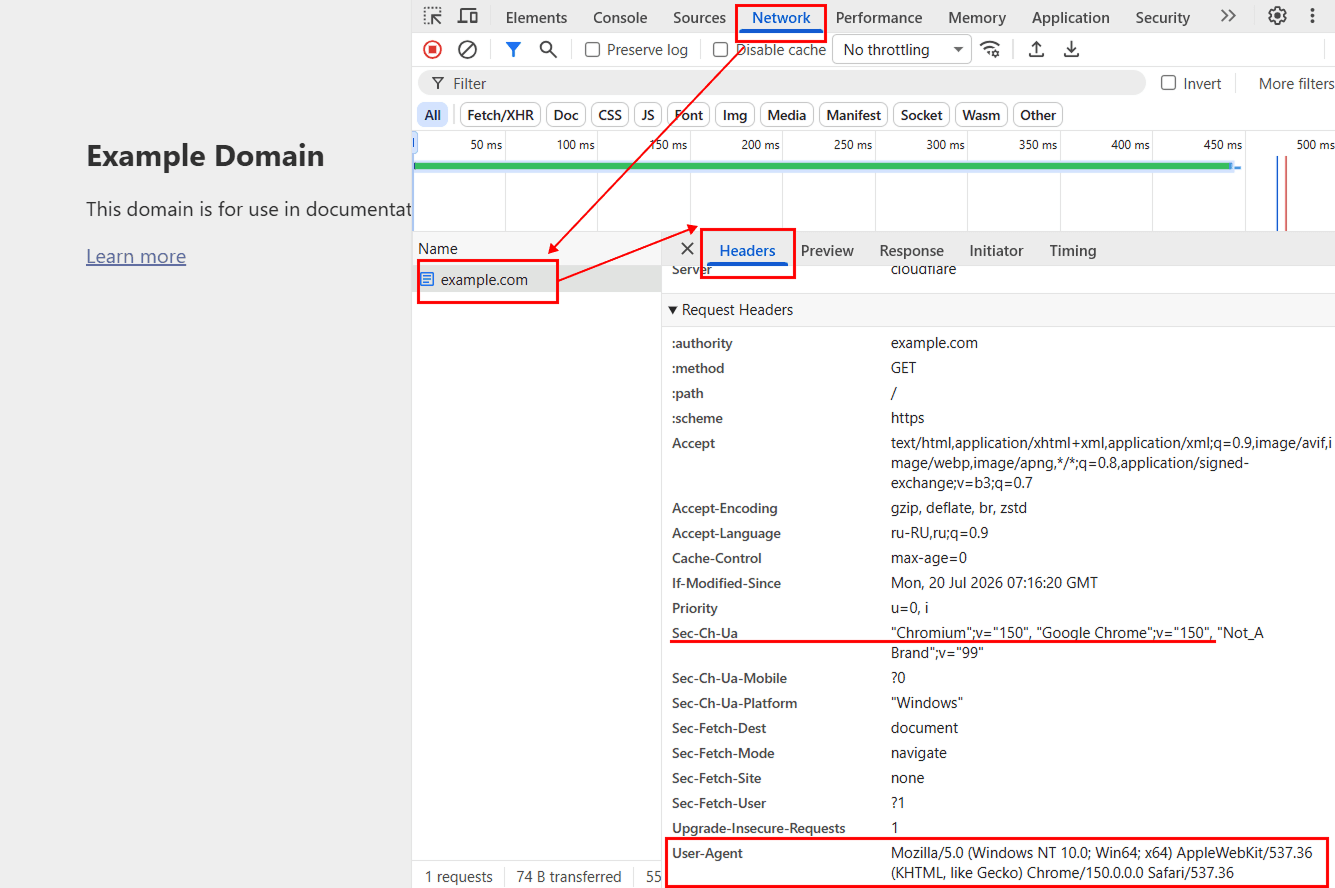
To fully emulate the required User-Agent version, you must also configure the corresponding Client Hints values, including the Sec-CH-UA headers:
Show code Hide code
import { chromium } from "playwright";

const response = await fetch("https://capmonster.cloud/api/useragent/actual");

if (!response.ok) {
  throw new Error(`Failed to get User-Agent: ${response.status}`);
}

const userAgent = (await response.text()).trim();

console.log("User-Agent received from API:", userAgent);

// Extract the full and major Chrome versions from the User-Agent
const chromeVersionMatch = userAgent.match(/Chrome\/(\d+(?:\.\d+){0,3})/);

if (!chromeVersionMatch) {
  throw new Error("Failed to extract the Chrome version from User-Agent.");
}

const fullVersion = chromeVersionMatch[1];
const majorVersion = fullVersion.split(".")[0];

const browser = await chromium.launch({
  headless: false,
  devtools: true,
});

const context = await browser.newContext();

const page = await context.newPage();
const cdpSession = await context.newCDPSession(page);

await cdpSession.send("Emulation.setUserAgentOverride", {
  userAgent,
  platform: "Win32",
  userAgentMetadata: {
    brands: [
      {
        brand: "Chromium",
        version: majorVersion,
      },
      {
        brand: "Google Chrome",
        version: majorVersion,
      },
      {
        brand: "Not_A Brand",
        version: "99",
      },
    ],
    fullVersionList: [
      {
        brand: "Chromium",
        version: fullVersion,
      },
      {
        brand: "Google Chrome",
        version: fullVersion,
      },
      {
        brand: "Not_A Brand",
        version: "99.0.0.0",
      },
    ],
    fullVersion,
    platform: "Windows",
    platformVersion: "10.0.0",
    architecture: "x86",
    model: "",
    mobile: false,
    bitness: "64",
    wow64: false,
  },
});

await page.goto("https://example.com", {
  waitUntil: "networkidle",
});

// Verify the values in the browser context
const browserData = await page.evaluate(async () => {
  const highEntropyValues = await navigator.userAgentData?.getHighEntropyValues(
    [
      "architecture",
      "bitness",
      "fullVersionList",
      "mobile",
      "model",
      "platform",
      "platformVersion",
      "wow64",
    ],
  );

  return {
    userAgent: navigator.userAgent,
    userAgentData: navigator.userAgentData
      ? {
          brands: navigator.userAgentData.brands,
          mobile: navigator.userAgentData.mobile,
          platform: navigator.userAgentData.platform,
          ...highEntropyValues,
        }
      : null,
  };
});

console.log("Browser data:", JSON.stringify(browserData, null, 2));

if (browserData.userAgent !== userAgent) {
  throw new Error(
    "The browser User-Agent does not match the value received from the API.",
  );
}

console.log(
  "User-Agent and Client Hints are configured. Open the Network tab in DevTools and reload the page to inspect request headers.",
);
This allows you to open the page with the required User-Agent version even if the Chromium version installed by Playwright is different.
How to Pass the User-Agent to a Task
The retrieved value must be passed in the userAgent field if it is supported by the selected task type.
{
 "clientKey": "API_KEY",
 "task": {
   "type": "ExampleTask",
   "websiteURL": "https://example.com",
   "websiteKey": "SITE_KEY",
   "userAgent": "USER_AGENT_FROM_ENDPOINT"
 }
}
Replace USER_AGENT_FROM_ENDPOINT with the string retrieved from the API endpoint.
Example with reCAPTCHA v2:
{
 "clientKey": "API_KEY",
 "task": {
   "type": "RecaptchaV2Task",
   "websiteURL": "https://yourwebsite.com/page-with-recaptcha",
   "websiteKey": "your-website-key",
   "userAgent": "Mozilla/5.0 (Windows NT 10.0; Win64; x64) AppleWebKit/537.36 (KHTML, like Gecko) Chrome/150.0.0.0 Safari/537.36"
 }
}
The exact set of parameters depends on the task type. Before integrating, check the description of the required CAPTCHA type in the CapMonster Cloud documentation.
User-Agent Consistency Within a Session
If CAPTCHA solving is tied to a specific browser session, the User-Agent must remain unchanged at every stage:
- Retrieve a supported value through the CapMonster Cloud API.
- Pass it when creating the task.
- Use the same value in the browser or HTTP client.
- Do not change it in subsequent requests within the same session.
For example, you should not create a task with a Chrome 150 User-Agent and then use the obtained result in a request with a Chrome 149 User-Agent.
Consistency is especially important when the User-Agent is used together with:
- proxies;
- cookies;
- tokens;
- browser headers;
- session parameters;
- Client Hints.
Client Hints values, including Sec-CH-UA, Sec-CH-UA-Mobile, and Sec-CH-UA-Platform, must match the main User-Agent. In a real browser, these headers are usually generated automatically, but when sending HTTP requests manually, they must be specified and verified separately.
It is especially important to maintain header consistency when obtaining and subsequently using cookies (for example, in tasks involving DataDome, Cloudflare Challenge, Imperva, and TSPD). An example of configuring the User-Agent and browser headers, opening the page, and completing the full solving process within a single session is available in this section.
Using on macOS and Linux
CapMonster Cloud supports a User-Agent for Windows, but this does not mean it cannot be used on other operating systems.
If the service returns a Windows User-Agent, use it in your requests without modifications regardless of the operating system of your computer or server. Do not manually replace the "Windows NT 10.0; Win64; x64" fragment with macOS or Linux values.
When working with automation tools, the same platform must be maintained when configuring Client Hints:
- platform – Win32;
- Sec-CH-UA-Platform – "Windows";
- architecture – x86;
- bitness – 64.
This way, the User-Agent, Client Hints, and JavaScript API values will describe a single consistent browser session.
Important: changing the User-Agent and Client Hints does not turn macOS or Linux into Windows at the system level. Parameters such as available fonts, the graphics subsystem, media codecs, and other environment characteristics may still depend on the operating system on which the browser is running.
Recommendations
For stable User-Agent usage:
✓ retrieve the current string through the CapMonster Cloud API;
✓ do not manually create the version;
✓ do not rely solely on the latest Chrome version;
✓ use the same value throughout the entire session;
✓ pass it to the task if the "userAgent" field is supported;
✓ use the same value in subsequent requests;
✓ ensure consistency with other headers;
✓ do not change the User-Agent after receiving the solution;
✓ update the configuration when creating a new session.
Frequently Asked Questions